18 Nov 2026
How to use an ID card printer
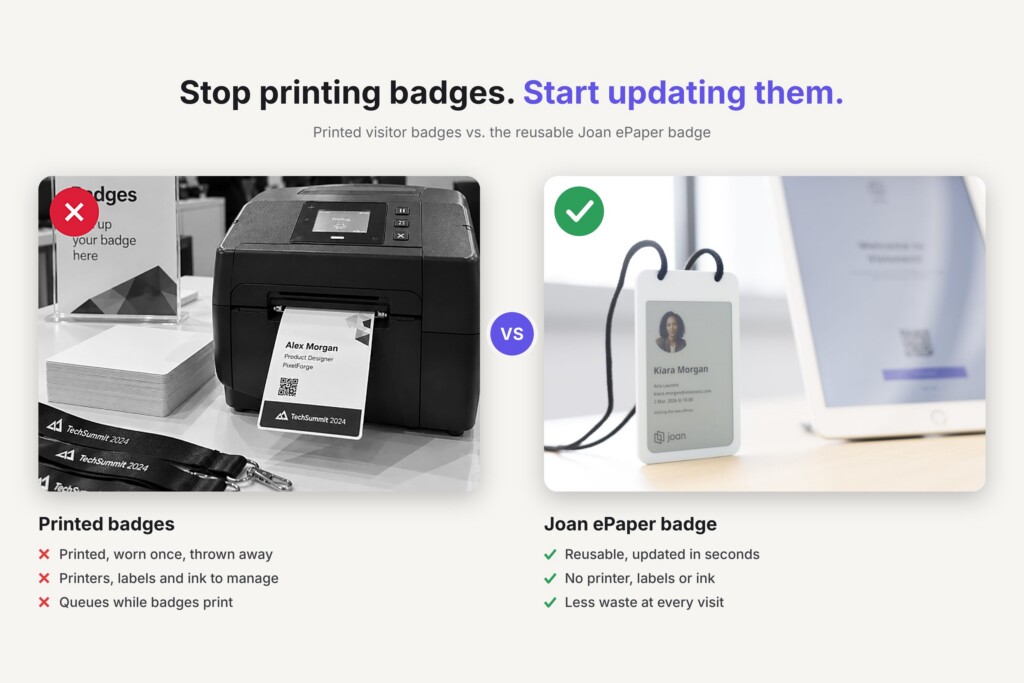
An ID card printer looks like a small desktop printer, and in many ways it behaves like one. Your computer sees it as a normal printer, just with a page the size of a credit card. The difference is everything around it: ribbons with color panels, a stack of PVC cards, ID card software, and a print head that doesn’t forgive a dusty or scratched card.
If you’ve just unboxed one, or you’re about to print your first batch of employee badges, this guide takes you through it in order. You’ll set the printer up, load the ribbon and cards, design a template, print a test card and keep the printer running. There’s also a table of the most common problems and how to fix them.
At the end, we look at what printing really costs over time, and at reusable ePaper badges for teams whose badge details change too often for a printer to keep up.
Quickly jump to:
- What is an ID card printer?
- What you need before you print
- How to use an ID card printer, step by step
- How to keep your ID card printer running
- Common ID card printer problems and how to fix them
- What it costs to print ID cards in-house
- An alternative to the ID card printer: Joan ePaper badges
- Print sharp cards, or stop reprinting them
- Frequently asked questions about ID card printers
TL;DR
- How to use an ID card printer: install the latest driver, load a ribbon (YMCKO for full color), load clean CR80 cards, set up ID card software with a template, print a test card, then print and encode your batch.
- Protect the print head: handle cards by the edges, punch lanyard slots only after printing, and clean the printer every few hundred cards.
- Most print problems come from a ribbon that’s loaded wrong, a dirty print head or rollers, or dusty cards.
- Cost: supplies run roughly $0.35 to $0.70 per card, but the printer itself costs from under $1,000 to over $5,000, and every new role, new photo or lost badge means a new card.
- The alternative: if your badge details change often, Joan ePaper employee badges replace the printer altogether. You assign a badge in the Joan Mobile App, update it over Bluetooth instead of reprinting it, and reuse it when someone leaves.
Read on for each step in detail, a troubleshooting table, a cost breakdown and a side-by-side comparison of printed and reusable badges.
What is an ID card printer?
An ID card printer prints photos, text, logos and barcodes onto plastic cards, usually in the CR80 size (85.6 × 54 mm, the same as a credit card) and 30 mil thick PVC. Offices, schools, hospitals and gyms use them to make employee badges, student IDs, visitor passes and membership cards in-house.
Most ID card printers use dye sublimation: a thermal print head heats a ribbon, and the dye turns to gas and soaks into the card surface, which gives smooth photo tones. Many also print with resin, which melts onto the card and gives very sharp black text and barcodes.
What happens inside the printer
- Card feed: rollers pull one blank card from the input hopper.
- Ribbon: the printer moves the ribbon to the first color panel.
- Print head: the card passes under the head once per panel: yellow, magenta, cyan, then black.
- Overlay: the last panel lays a thin, clear protective coat over the print.
- Encoding (optional): an encoder writes a magnetic stripe or programs a chip, before or after printing depending on the model.
- Flipping (dual-sided printers): the card is turned over so the back can be printed.
- Output: the finished card drops into the output hopper. A single-sided full-color card can take as little as 15 to 30 seconds.
Direct-to-card or retransfer?
Direct-to-card printers print straight onto the card. They suit low to medium volumes where edge-to-edge printing isn’t critical, which covers most offices. Retransfer printers print onto a clear film first and then fuse it to the card, so the print reaches the very edge and images look sharper. They cost more and are common in high-volume and regulated settings, such as government and healthcare.
What you need before you print
Before your first card, check that you have everything in one place:
- The printer, with its power cable and a USB, Ethernet or Wi-Fi connection
- The latest driver from the manufacturer’s website
- A ribbon made for your printer model
- Blank CR80 PVC cards, 30 mil thick unless your printer says otherwise
- ID card software for templates, photos and your cardholder list
- A recent photo of each person, taken against a plain background
- A cleaning kit for your printer model
- Optional: an encoder module if cards need a magnetic stripe or chip, and a slot punch for lanyards
ID card printer ribbon types
Which ribbon you need depends on whether you print in color and on one or both sides.
| Ribbon | Panels | Use it for |
|---|---|---|
| YMCKO | Yellow, magenta, cyan, black, overlay | Full-color photo IDs, printed on one side |
| YMCKOK | YMCKO plus a second black panel | Color on the front, black text or a barcode on the back |
| KO | Black and overlay | Black-only cards with a protective overlay |
| Monochrome | One color, often black | Text, barcodes and simple logos at the lowest cost per card |
Not sure what to put on the card yet? Our guide to what to put on an employee ID badge covers every field, from photo to ID number.
How to use an ID card printer, step by step
Every model is a little different, so keep your printer’s manual close. These are the steps that apply to almost all of them.
1. Set up the printer and install the driver
Put the printer on a flat, dust-free surface with room around the card hoppers. Connect the power and the USB cable (some models also support Ethernet or Wi-Fi). Download the latest driver from the manufacturer’s website instead of using the disc in the box, so you get current features and security fixes. If the driver has a test print option, run it to check that the computer and printer are talking.
2. Load the ribbon
Open the cover, place the ribbon on its spindles the way the manual shows, and close the cover. Most printers detect the ribbon type and sync to the first panel on their own. Keep rings, watches and tools away while the cover is open: the print head is exposed, and it’s the most expensive part to replace. Open the cover only when you need to, because each time the printer resyncs the ribbon it can waste panels.
3. Load the cards
Hold the cards by their edges and fan the stack gently to release static, so they don’t stick together. Fingerprints and dust end up under the overlay and show on the finished card. Place the stack in the input hopper facing the right way (check the manual for chip or magnetic stripe orientation), and don’t overfill it. Use unpunched cards and punch the lanyard slot after printing, because the edges of a pre-punched hole can scratch the print head.
4. Set up your ID card software
Your computer treats an ID card printer like any other printer, so you can print from almost any program set to the CR80 size. ID card software makes it a lot easier: you get templates, photo cropping, a cardholder database and batch printing. Popular options include cardPresso, Asure ID, CardStudio and IDpack Cloud. Choose your printer in the software, set the card size to CR80, and pick a vertical or horizontal layout.
5. Design one template
Build one template and use it for everyone. Keep the front to what people need to read in a second or two: photo, full name, job title or department, company logo and an ID number. Use high contrast and large type, and leave a margin around the edge, especially on a direct-to-card printer. Leave off anything sensitive, such as a home address or date of birth. Our employee badge design guide has layout ideas.
6. Add your data and photos
For a few people, type the records in by hand. For a bigger team, import a spreadsheet or connect your employee database, then link each record to a photo. Crop every photo to the same head-and-shoulders framing so the badges look consistent. There are more tips in our short guide to employee badges with pictures.
7. Print a test card
Print one card before the batch. Check the colors, the alignment, the edges and the overlay, then hold it at arm’s length: can you read the name? If the card has a chip or magnetic stripe, test it on a reader too.
8. Print and encode the batch
Print the rest in one go and let the finished cards stack in the output hopper. If you encode access credentials, record each card number against the right person in your access control system. Put unused cards back in their box so they stay clean for next time.
How to keep your ID card printer running
A few habits keep the prints sharp and the print head alive much longer:
- Clean it regularly. Follow your manual. A common rule of thumb is every 500 cards or every second ribbon change. Take out the ribbon and cards, run an alcohol cleaning card through the printer, and clean or replace the cleaning roller as your model requires.
- Look after the print head. Never touch it with fingers or metal. Clean it gently with the swab or pen from your cleaning kit when the manual says to.
- Keep cards clean. Store them in their box or in the feeder, and handle them by the edges.
- Get the most from each ribbon. Every card uses a full set of panels, so full-color designs give you the best value. Avoid opening the cover in the middle of a ribbon.
- Keep it covered. Put the printer in a dust-free spot and cover it when you’re not using it.
- Update the driver and firmware from time to time to get fixes from the manufacturer.
Common ID card printer problems and how to fix them
Most issues have a simple cause. Start here before you call support:
ID card printer troubleshooting
The most common problems, their usual causes, and what to try first.
| Problem | Likely cause | What to try |
|---|---|---|
| Cards come out blank | Ribbon loaded wrong, design set to overlay only, or driver settings that don’t match the printer | Reload the ribbon, check the design layers, and check the ribbon setting in the driver |
| A thin white line on every card | Dirty or damaged print head | Clean the printer and print head, then reprint. If the line stays, contact the manufacturer |
| Spots or specks on the print | Dust or fingerprints on the cards | Clean the printer, handle cards by the edges and keep them boxed |
| Cards jam as printing starts | Cards stuck together by static, or dirty feed rollers | Fan the stack and clean the rollers with the manufacturer’s kit |
| The ribbon keeps breaking | Print head temperature set too high | Lower the head temperature in the driver or printer settings |
| Colors fade or rub off quickly | Ribbon with no overlay panel | Switch to a ribbon with an overlay (O) panel |
| Error light or message | Cover open, ribbon broken or empty, card hopper empty or jammed | Check each one, then look up the error code in your manual |
What it costs to print ID cards in-house
The supplies are the cheap part. One printer seller’s 2026 cost breakdown puts supplies at roughly $0.35 to $0.70 per card for a color ribbon and a blank PVC card. The printer is the big line, from under $1,000 to over $5,000 depending on features such as dual-sided printing, retransfer and encoding. Software, cleaning kits and the time of the person running it come on top.
ID card printing costs at a glance
Typical figures published by ID card suppliers and a 2026 cost comparison, checked in November 2026.
| Item | Typical cost | Source |
|---|---|---|
| ID card printer | Under $1,000 to over $5,000 | AlphaCard |
| Supplies per card (color ribbon and PVC card) | About $0.35 to $0.70 | Bodno, 2026 |
| Outsourced printed badge | About $5 to $15 per badge | Bodno, 2026 |
| Staff time | Example: 2 hours a month at $30 an hour is $720 a year | AZ Big Media, October 2026 |
The cost that isn’t on the quote
Every printed card is fixed the moment it leaves the printer. A promotion, a new department, a name change, a new photo or a rebrand all mean a new card. So does every lost badge, and a lost printed card still looks valid until someone notices and switches off its access.
People also move on. In the US, workers had been with their current employer for a median of 4.1 years in January 2026, according to the Bureau of Labor Statistics. Every leaver means a card thrown away and a new one printed for their replacement. We go through these running costs in what a work badge really costs.
An alternative to the ID card printer: Joan ePaper badges
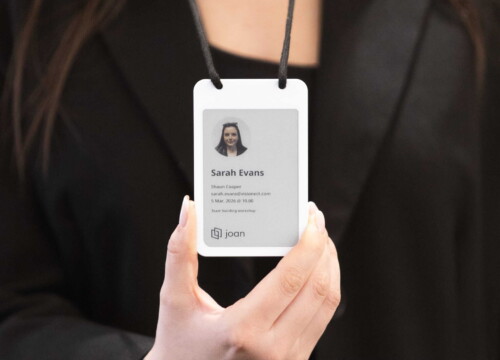
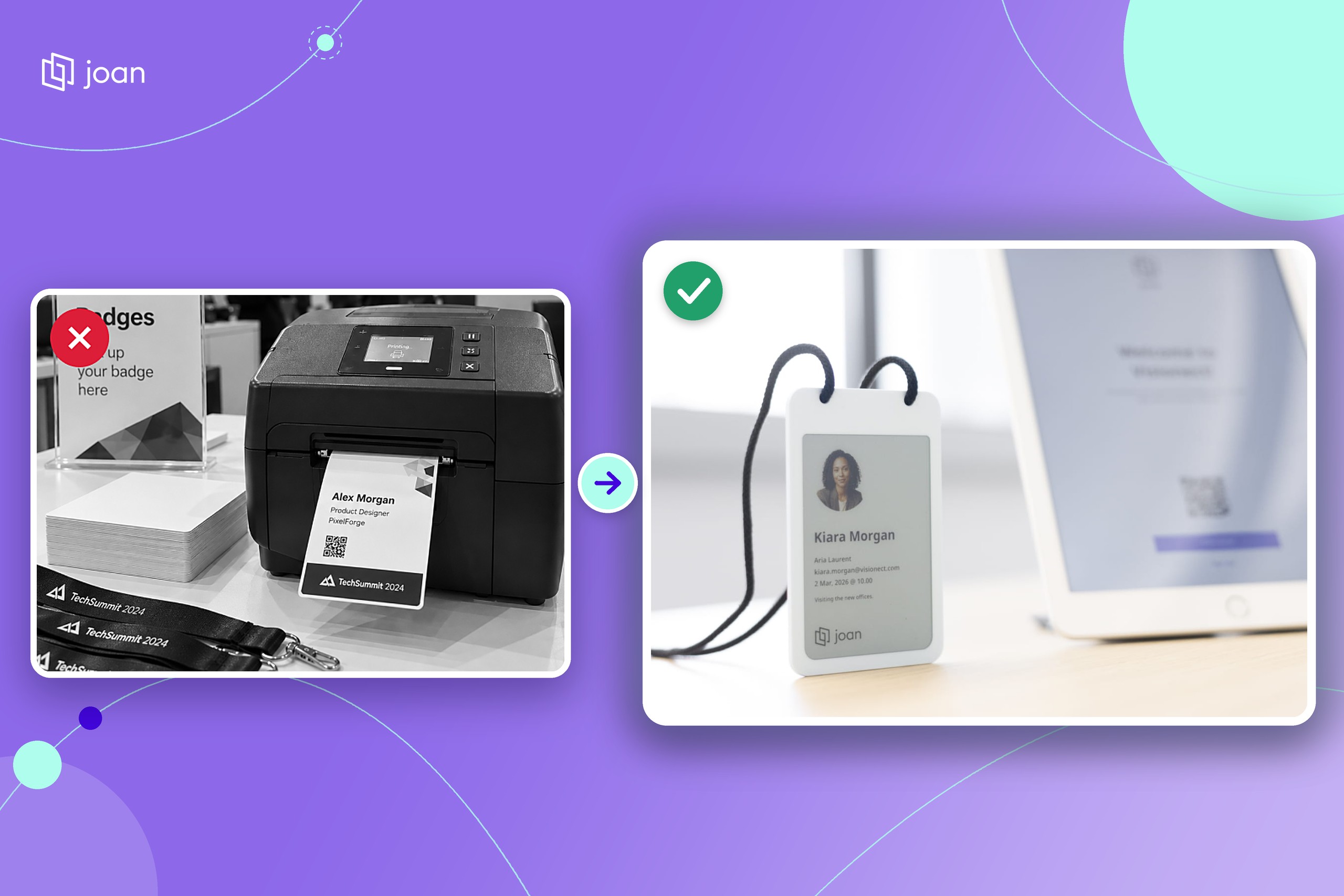
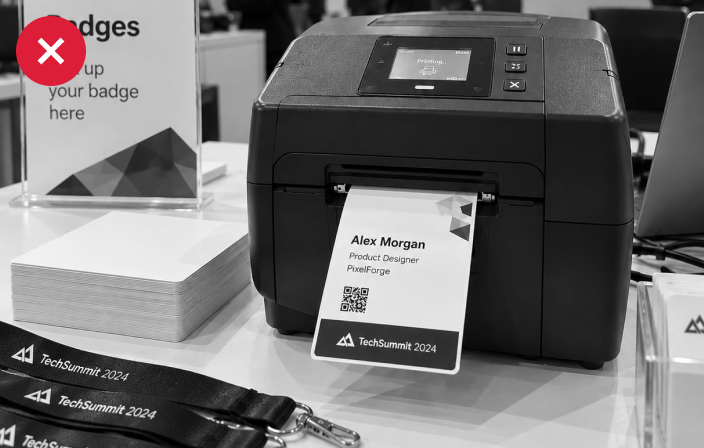
If you’re reprinting because your badge details keep changing, there’s another way to handle it. The Joan ePaper badge replaces the printed card with a reusable badge that has a 4-inch electronic paper screen in black, white, red and yellow. Nothing gets printed, so there’s no ribbon, no blank cards and no print head to clean.
How Joan employee badges work
- Assign: in the Joan Mobile App, connect the badge, pick a template and choose the person from your Joan directory. You can assign badges in batches, and employees can add their own profile photo.
- Update: change a name, a role or a photo, and the badge updates over Bluetooth. No reprint.
- Lost badge: mark it Lost/Stolen, and it’s flagged in the Joan portal right away.
- Leavers: mark the badge Offboard and hand it to the next person.
- Door access: every badge carries an NXP MIFARE DESFire EV3 chip that works with your access control provider where the system supports it. It needs an integration, so raise it early with your integrator.
- Charging: about 7 weeks on a full charge, recharged on a standard Qi wireless pad.
ID card printer vs. Joan ePaper badge
How the two options compare for employee badges.
| ID card printer | Joan ePaper badge | |
|---|---|---|
| What you buy | Printer, ribbons, blank cards, software and cleaning kits | Badges, a Joan plan and a licence per badge |
| When details change | Print a new card | Re-sync the badge |
| New hires | Print on the day, or wait for a print service | Assign badges in batches ahead of time |
| Lost badge | Looks valid until someone notices and switches it off | Marked Lost/Stolen and flagged in the portal right away |
| When someone leaves | The card is thrown away | The badge is offboarded and reused |
| Door access | Chip or magnetic stripe, if your printer has an encoder | Built-in DESFire EV3 chip, with an access control integration |
| Upkeep | Ribbon changes, cleaning and print head care | Wireless charging, about every 7 weeks |
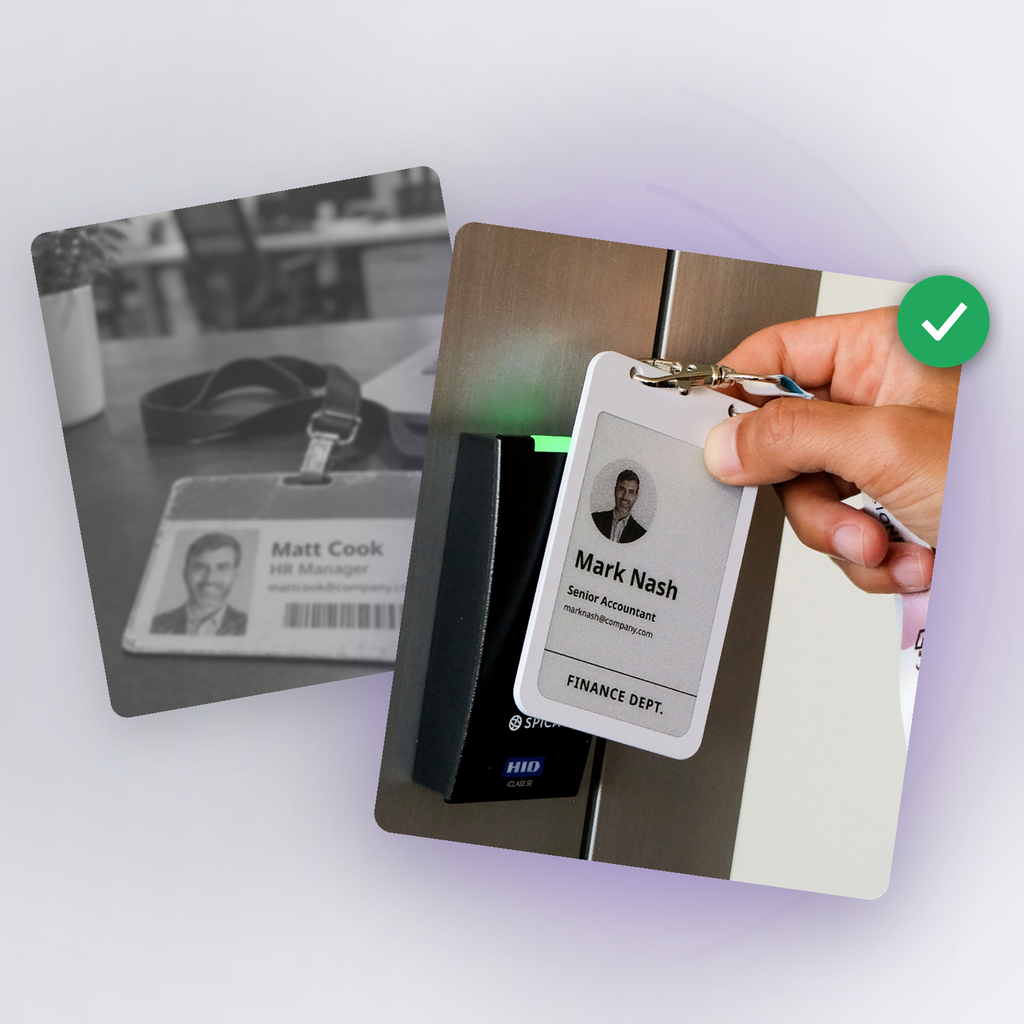
A printer still makes sense if you print a handful of cards a year and details rarely change. If your badges change every month, a reusable badge takes that work off your desk.
Print sharp cards, or stop reprinting them
An ID card printer is simple once it’s set up. The right ribbon, clean cards, one good template and a regular cleaning routine will keep it printing sharp badges. When something goes wrong, it’s usually dust, a dirty print head or a ribbon that’s loaded wrong.
The harder part is what happens after the card is printed. If your team changes often, or you need to switch off a lost badge right away, look at reusable badges before you reorder ribbons. Whatever you choose, write down how lost badges are reported in your employee badge policy.
Frequently asked questions about ID card printers
Is it cheaper to print ID cards in-house or to outsource them?
It depends on volume. A 2026 comparison by AZ Big Media found that online printing usually has the lower total cost for small or moderate volumes, such as 20 to 50 badges a year, while in-house printing pays off for high, steady volumes or when you need cards the same day. Count staff time as well as supplies.
Can I use any software with an ID card printer?
Mostly, yes. Your computer sees an ID card printer as a standard printer with a CR80 page size, so most programs can print to it. Dedicated ID card software adds templates, a cardholder database, batch printing and encoding, which saves time once you print more than a few cards.
How long does it take to print an ID card?
A single-sided full-color card can take as little as 15 to 30 seconds. Dual-sided printing, lamination and encoding add time to each card.
What does YMCKO mean on an ID card ribbon?
YMCKO stands for yellow, magenta, cyan, black and overlay, the five panels on a full-color ribbon. Yellow, magenta and cyan build the color, black prints text and barcodes, and the overlay is a clear protective layer. A 250-print YMCKO ribbon has 1,250 panels, and each card uses one full set.
How often should you clean an ID card printer?
Follow your manual, but a common guideline is every few hundred cards, for example every 500 cards or every second ribbon change. Clean it sooner if you see white lines, spots or card jams. Regular cleaning protects the print head and can matter for your warranty.
What size is a standard ID card?
The standard is CR80: 85.6 × 54 mm (3.375 × 2.125 in), the same as a credit card, usually 30 mil thick. Holders, lanyards and slot punches are made to fit it. Larger ePaper badges, such as the 66.25 × 104 mm Joan ePaper badge, may need a different holder.
What’s the best option if employee details change often?
Count how many reprints you’d make in a year. A printer handles occasional changes well, but promotions, new photos, contractors and lost badges each mean a new card. Reusable ePaper badges, such as Joan employee badges, update over Bluetooth and are reused when someone leaves, so there’s nothing to reprint.