
Jabra integration
Joan Workplace + Jabra integration
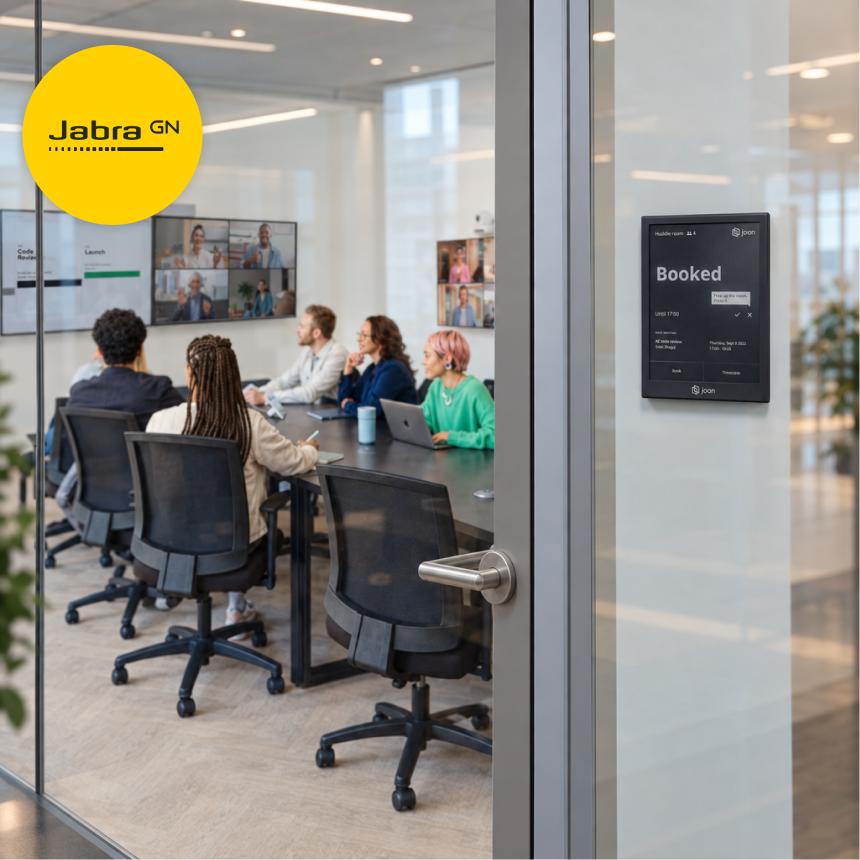
Connect a Jabra to Joan and let occupancy data do the work. Joan automatically books rooms when people walk in, ends meetings early when they leave, and checks into scheduled meetings — all without touching a screen.

How to connect Jabra with Joan
Three steps for IT to set up. Zero steps for the rest of the team.


Select the room and set the buffer
Choose the room where the Jabra Panacast camera is installed. Set a detection buffer — lower for huddle spaces with shorter meetings, higher for larger board rooms.

Let it run in the background
Close the setup wizard. The integration runs as a Windows service, managing room reservations automatically and restarting on its own if the PC reboots.
What you can do with Jabra and Joan
Here’s what the integration covers — what your team can actually do once Joan is connected to your Workspace.

Auto-book rooms on occupancy
When the Jabra detects people in a room, Joan books it automatically — no screen tap, no app, no manual step.
Release rooms when they’re empty
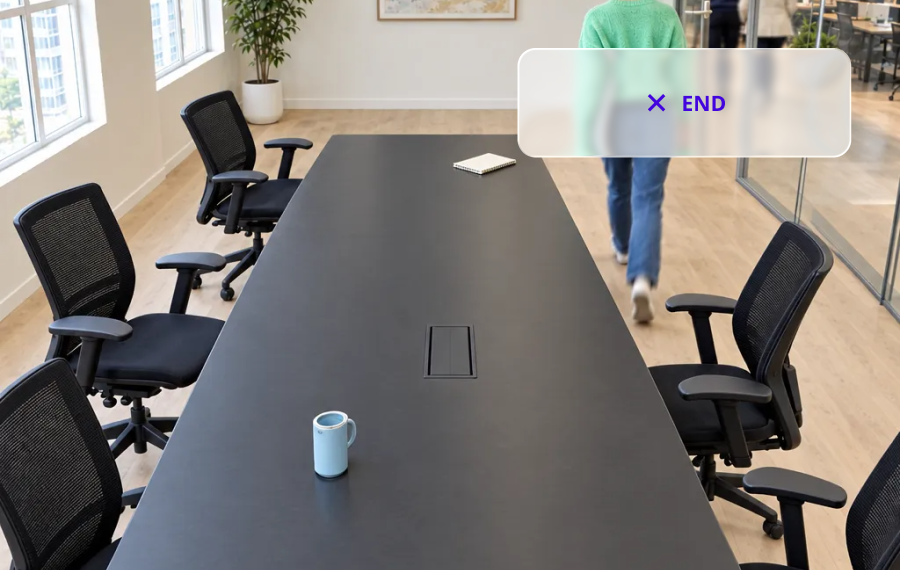
If a meeting ends early and nobody remains in the room, Joan ends the booking and frees the space for others immediately.

Auto-check into scheduled meetings
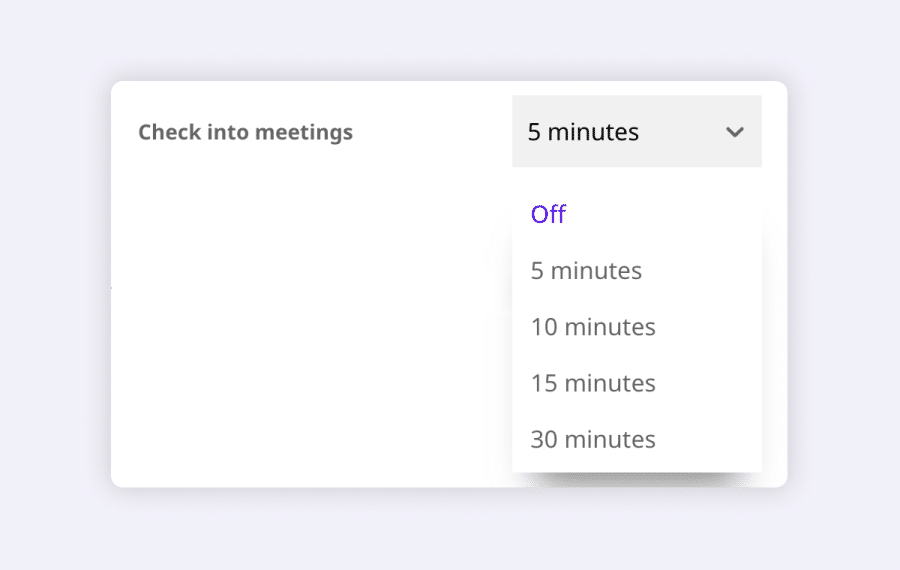
When people arrive for a booked meeting, Joan confirms attendance automatically — eliminating ghost meetings without any user action.
Tune detection per room type
Set a shorter buffer for quick huddle spaces and a longer one for board rooms to match real-world usage and avoid false triggers.
Calendar stays accurate
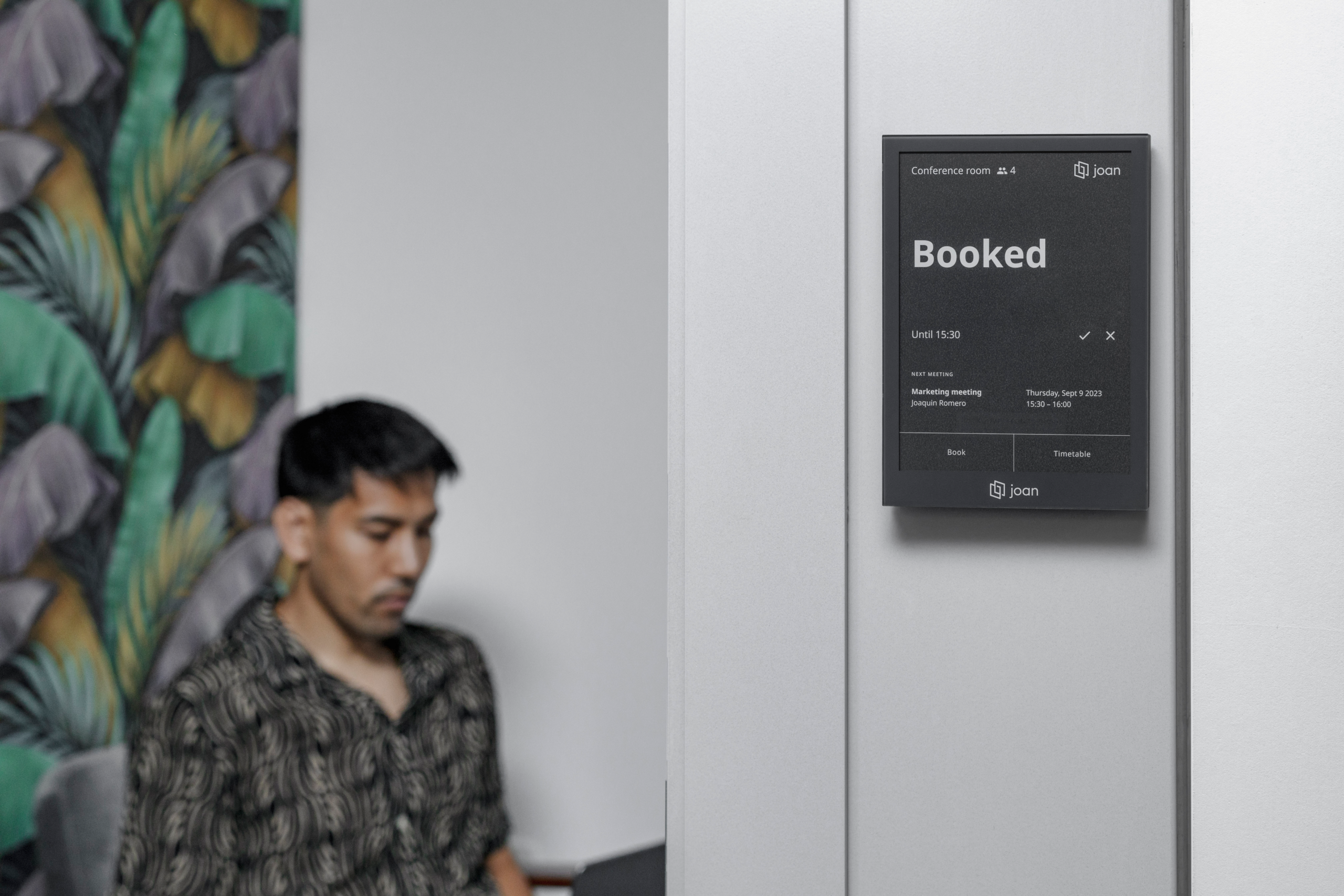
Every auto-book and auto-release updates the room calendar in real time, so the schedule always reflects actual room usage.
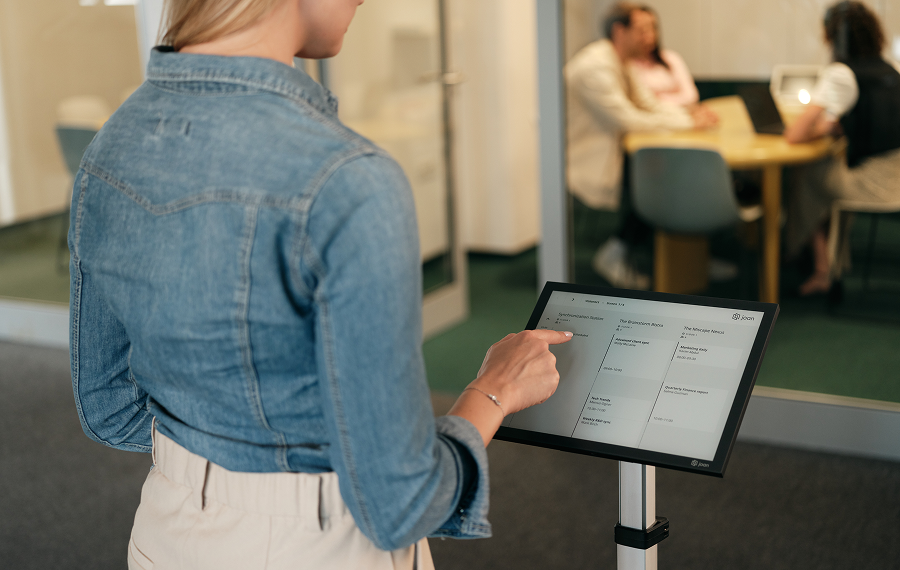
Works across all room sizes
Set separate occupancy thresholds and buffer times for small huddle rooms and large conference rooms to match how each space is actually used.
Need help setting up?
Read our step-by-step guide to connecting Joan with Jabra.

€49 per month to start
All solutions above are included in every plan.
Rated by the people who use it.
4.5 out of 5 on G2 · 248 reviews
Happy users worldwide share their satisfaction with Joan solutions and devices every day. And here’s the proof.
The only room booking tablet an idiot like me could implement
Great Tool for Desk and Workplace Management
Makes people happy




Frequently asked questions
Which Jabra camera works with Joan?
The regular Jabra Panacast model is confirmed to work with Joan. Support for the Panacast 20 and Panacast 50 is not guaranteed.
What does Joan do with the occupancy data from Jabra?
Joan uses the people count from Jabra Panacast to automatically book a room when people are detected inside, end a meeting early if the room becomes empty, and check into a scheduled meeting when attendees arrive.
What PC do I need to run the integration?
A Windows 7 or Windows 10 PC — such as an Intel NUC or Lenovo Hub 500 — with the Joan integration app installed and connected to the same environment as the Jabra camera.
What credentials do I need during setup?
You need your Joan API key and API Secret. Enter these into the Joan integration app during the setup wizard to link the app to your Joan account.
How do I choose the right detection buffer?
For smaller huddle spaces with shorter meetings, use a lower buffer value. For larger board rooms where longer meetings are the norm, set a higher buffer to avoid false early endings.
Does the integration keep running if the PC restarts?
Yes. The integration runs as a Windows service and starts automatically when Windows reboots — no manual restart needed.
Detection isn’t working — what should I check?
First, check whether the camera is facing direct sunlight or is in a very dark environment, as both affect detection accuracy. Also check whether Jabra Direct is installed on the PC — if it is, Joan’s middleware may not be able to access the people count. Remove Jabra Direct to resolve the issue.
Where do I download the Joan integration app?
The download link is provided in the Joan support article for the Jabra integration at support.getjoan.com/knowledge/jabra-integration.