
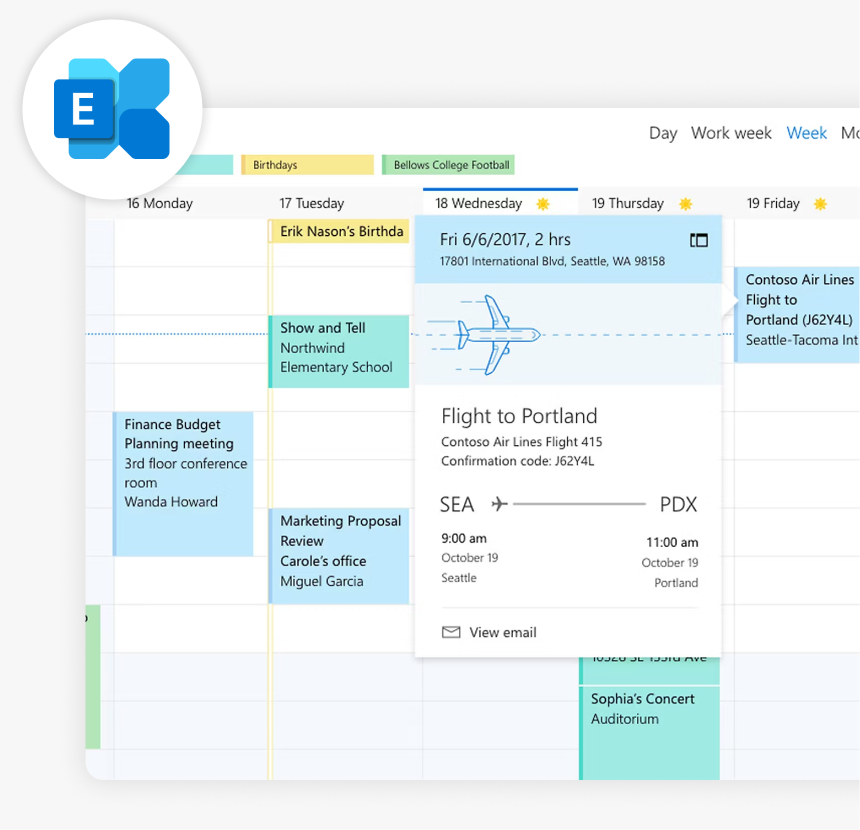
MICROSOFT EXCHANGE INTEGRATION
Joan + Microsoft Exchange integration
If your organisation runs Microsoft Exchange on-premises, Joan doesn’t ask you to change anything. It connects directly to your Exchange server via EWS, reads your room mailboxes in real time, and gives every meeting room a smart display — no cloud migration required.
How the Exchange integration works
Three steps for IT to configure. Nothing for the rest of the team.

Create a dedicated account with full access to room mailboxes
Your IT admin creates a dedicated Exchange account (e.g. [email protected]) and grants it full access to all room mailboxes you want Joan to manage. This account does not need to be assigned to a real person.

Connect Joan to your Exchange EWS endpoint
In the Joan admin panel, enter your publicly accessible Exchange Web Services URL (e.g. https://mail.yourcompany.com/EWS/Exchange.asmx). Joan authenticates over NTLM — no password is transmitted in plain text.

Configure room mailboxes to display meeting details
In Exchange Admin Center (or Exchange Management Console for 2010), enable Resource Booking Attendant and disable the “Delete subject” setting on each room mailbox. This ensures meeting titles are visible on Joan displays.
What you can do with Joan and Microsoft Exchange
Here’s what the integration covers — what your team can actually do once Joan is connected to your Exchange server.
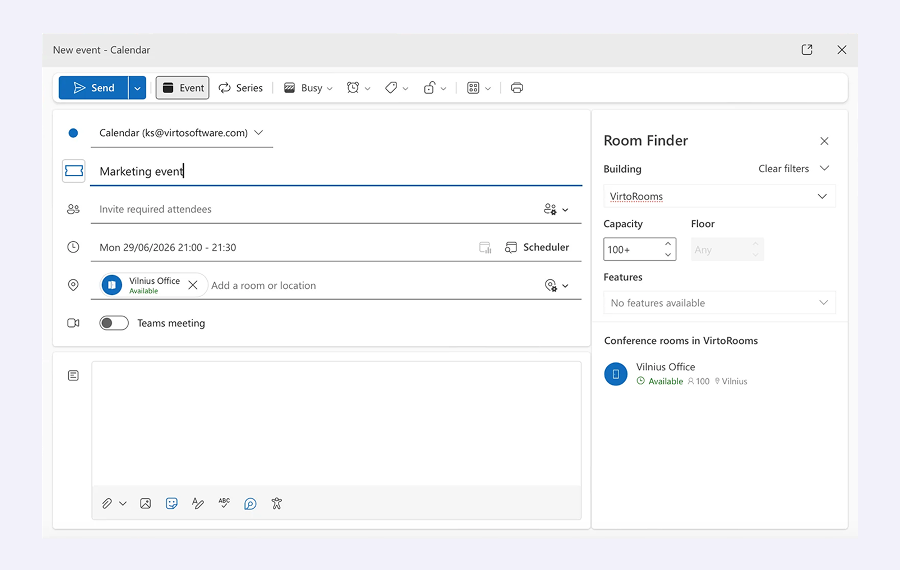
Book rooms directly from Outlook
Your team books meeting rooms from Outlook — desktop, web, or mobile — exactly as before. Joan reads from Exchange in real time: book in Outlook, it shows on Joan; book on Joan, it shows in Outlook.
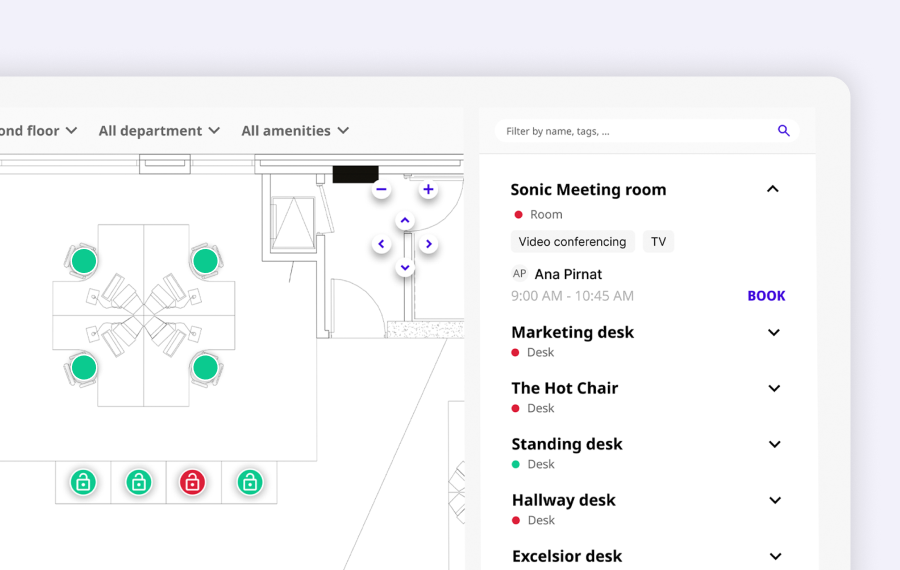
Browse and book from a live office floorplan
Through the Joan web app and mobile app, employees see the full office layout, pick a free room or desk, and book it — all synced back to Exchange automatically.
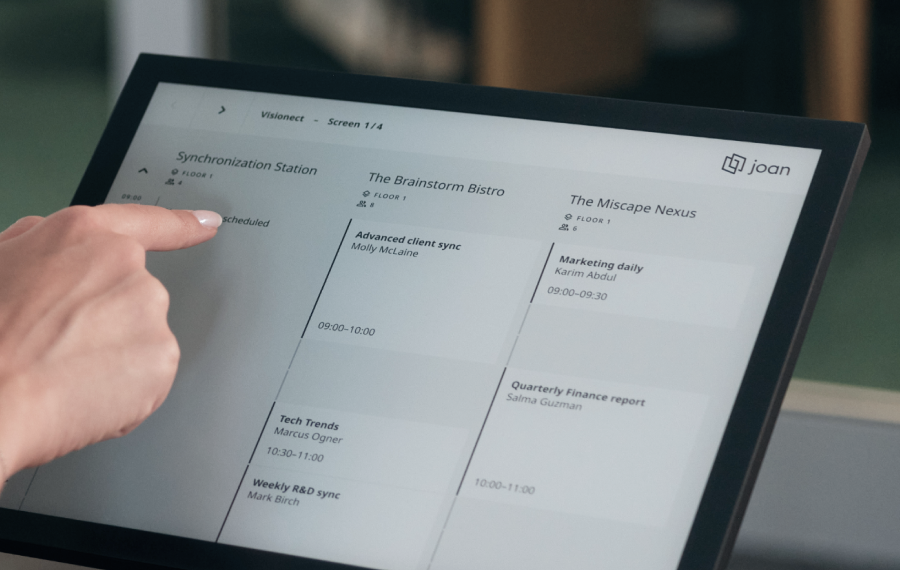
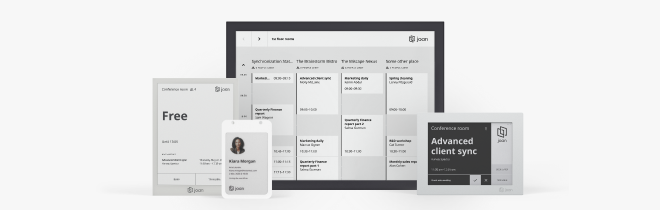
See live room status on displays outside rooms
Joan displays mounted outside meeting rooms pull directly from Exchange — showing what’s booked, what’s free, and when the next slot opens. Works on Joan hardware or any existing screen.
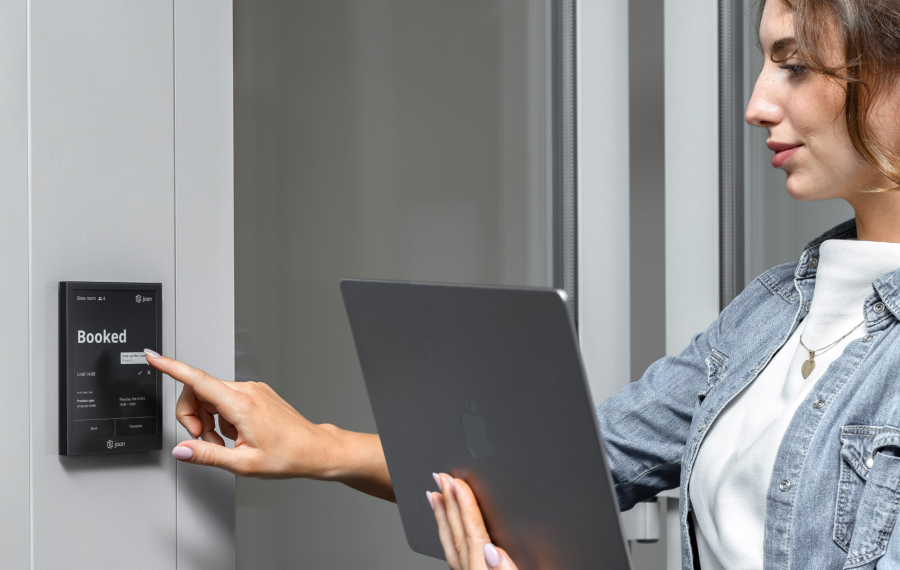
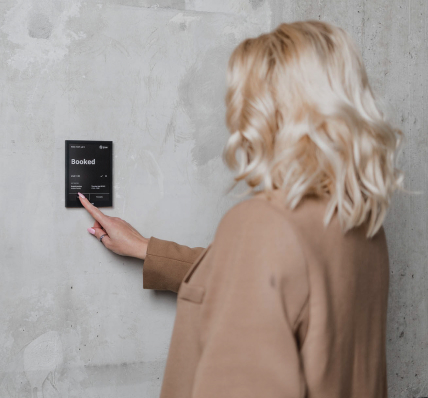
Book a room right from the device outside the door
No phone, no app. Walk up to any Joan display, check availability, and book the room on the spot — it syncs to Exchange immediately.
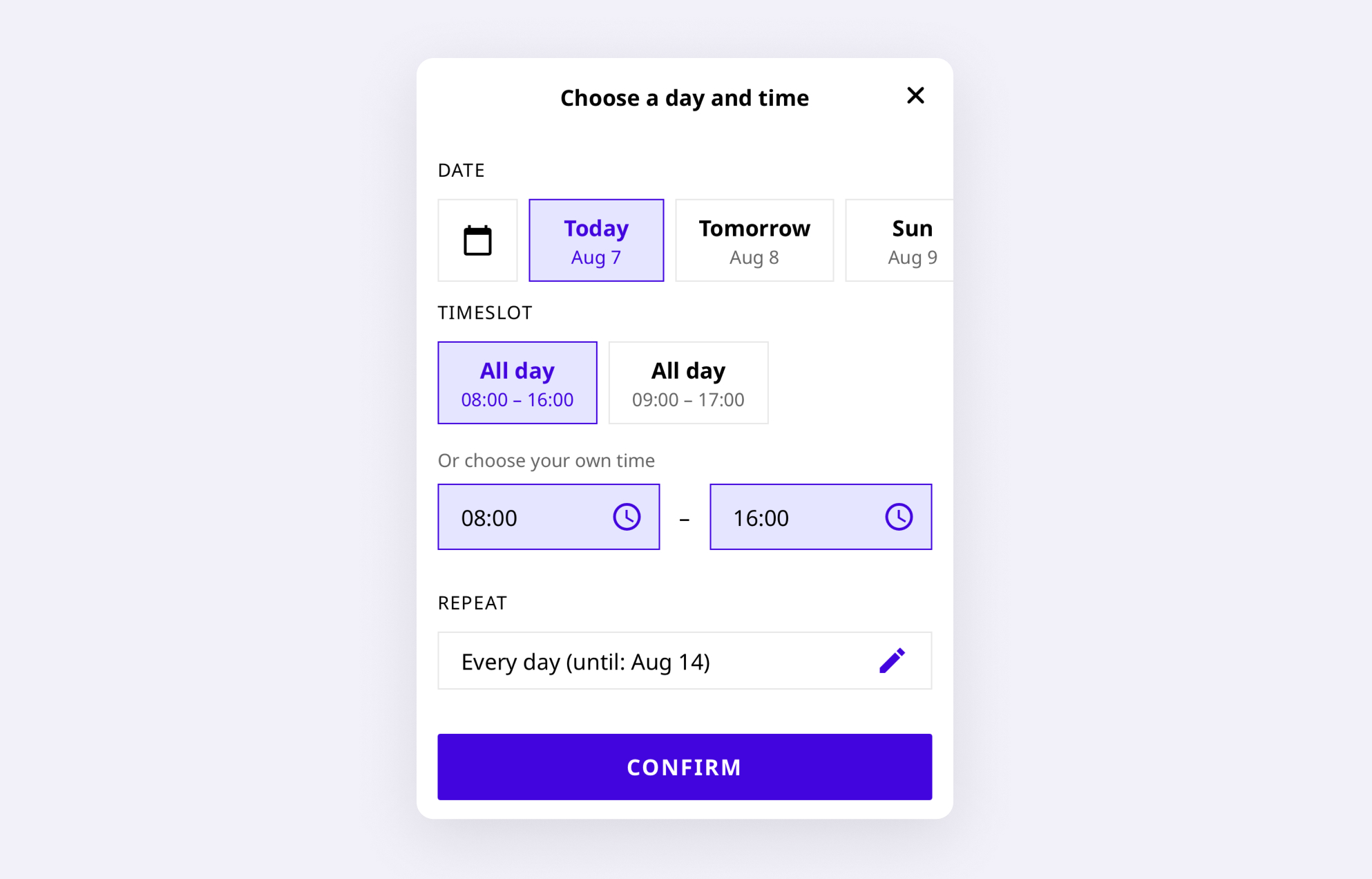
Book on the go from the Joan mobile app
The Joan mobile app connects to your Exchange account. Employees find and book rooms from anywhere — before they arrive in the office or between meetings.
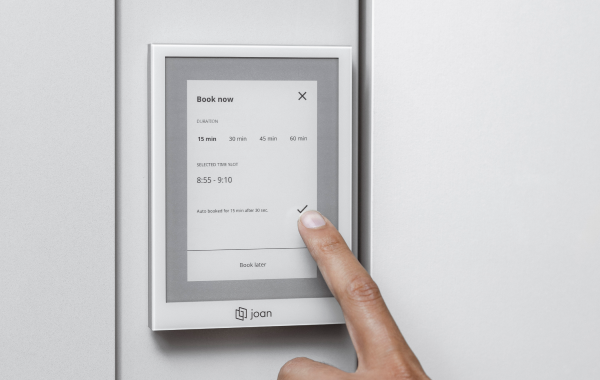
Changes in Outlook update everything instantly
Cancel or shorten a meeting in Outlook — the room is released automatically. The Exchange calendar updates, and the Joan display outside the room reflects the change in seconds.
Need help integrating Joan with Microsoft Exchange?
Step-by-step on our support site — from creating the service account and setting impersonation rights to entering your EWS endpoint and confirming your first booking on a Joan display.

€49 per month to start
All solutions above are included in every plan.
Rated by the people who use it.
4.5 out of 5 on G2 · 248 reviews
Happy users worldwide share their satisfaction with Joan solutions and devices every day. And here’s the proof.
The only room booking tablet an idiot like me could implement
Great Tool for Desk and Workplace Management
Makes people happy




Frequently asked questions
Does Joan work with Microsoft Exchange Server?
Yes. Joan connects to Microsoft Exchange Server 2010, 2013, and 2016 via Exchange Web Services (EWS). Your IT admin provides the EWS endpoint URL and a dedicated account with full access to your room mailboxes — no additional middleware required.
Which Exchange Server versions does Joan support?
Joan supports Microsoft Exchange Server 2010, 2013, and 2016. If you are running Exchange 2019 or Exchange Online as part of Microsoft 365, see our dedicated Microsoft 365 integration — it uses a different connection path via admin.microsoft.com.
What account permissions does Joan need in Exchange?
Joan requires a dedicated user account (e.g. [email protected]) with full access permissions to all the room mailboxes you want to manage. Your IT admin sets this up via Exchange Admin Center (2013/2016) or Exchange Management Console (2010). The account doesn’t need to belong to a real person.
Does the Exchange EWS URL need to be publicly accessible?
Yes. Joan’s cloud service connects to your Exchange server via the EWS endpoint, so the URL must be publicly reachable over HTTPS (e.g. https://mail.yourcompany.com/EWS/Exchange.asmx). If your Exchange server is behind a firewall, your IT admin will need to open the relevant port for outbound HTTPS access.
How does Joan authenticate with Exchange?
Joan uses NTLM authentication (supporting both NTLMv1 and NTLMv2). Your credentials are never transmitted in plain text — NTLM uses a one-way encrypted challenge-response process. Joan connects as the dedicated service account you set up.
Why are meeting titles not showing on Joan room displays?
Exchange hides meeting subjects on room displays by default. To fix it: in Exchange Admin Center (or Exchange Management Console), find the room mailbox, enable Resource Booking Attendant, and disable the “Delete subject” and “Add organizer name to subject” options. After saving, meeting titles appear on Joan displays within minutes.
How do I organise multiple room mailboxes for Joan?
For easier management, consolidate your room mailboxes into a distribution group using this Exchange command: New-DistributionGroup -Name “Joan Rooms” -RoomList. Joan can then manage all rooms in the group at once.
Does Joan work in Exchange hybrid environments?
Joan’s on-premises Exchange integration covers Exchange Server 2010, 2013, and 2016. For mailboxes that have been migrated to Exchange Online (part of a hybrid setup), the Microsoft 365 integration path via admin.microsoft.com applies instead.
How is the Exchange integration different from the Microsoft 365 integration?
The Microsoft 365 integration connects to Exchange Online via admin.microsoft.com and uses OAuth — designed for cloud-first organisations. The Exchange integration connects directly to on-premises Exchange 2010/2013/2016 via EWS using NTLM — designed for organisations that haven’t migrated to the cloud yet.
How long does the Exchange Server setup take?
For most organisations, setup — creating the dedicated account, granting full access to room mailboxes, entering the EWS endpoint in Joan, and configuring the room mailbox calendar settings — takes under an hour. Room displays start showing live data as soon as they are paired.