
Visitor badge kiosk: A guide to on-site badge and visitor management
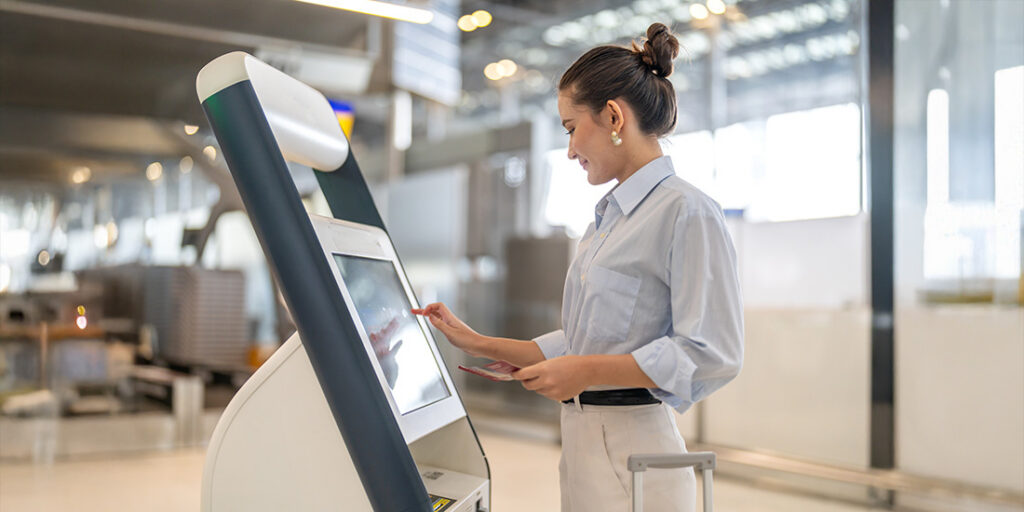
A visitor badge kiosk is a self-service station, usually a tablet on a stand with a connected printer, that lets guests check themselves in and walk away with a printed (or ePaper) badge. It replaces the handwritten logbook and the sticker someone fills out by hand at the front desk.
The badge is the visible part, but most of the value sits in what happens around it: collecting visitor details, verifying identity, notifying the host, and keeping a record of who is in the building and when they left.
Quickly jump to:
- What is a visitor badge kiosk?
- How does a visitor badge kiosk work in reality?
- The benefits of having a visitor badge kiosk
- Visitor badge kiosk hardware: What you need
- Visitor badge kiosk software features worth looking for
- How to set up a visitor badge kiosk: Best practices
- How Joan Workplace supports visitor badge check-in
- Frequently asked questions about visitor badge kiosks
TL;DR: A visitor badge kiosk pairs a self-service check-in screen with a badge printer, so guests sign themselves in and receive a credential on the spot. The hardware is simple, a tablet, a stand, a printer, and a camera, but the real work happens in the software running behind it: identity checks, host notifications, and an accurate log of everyone on site.
What is a visitor badge kiosk?
A visitor badge kiosk has two parts:
The first is the hardware the guest touches: a tablet or touchscreen on a stand, with a badge printer or a stack of ePaper badges attached. The second is the visitor management software running behind the screen, which is where the actual logic lives.
The hardware collects the inputs. The software decides what to do with them: which questions to ask, whether to check the visitor against a list, who to notify, what to print on the badge, and how to store the record. A badge kiosk without that software is just a printer with a screen.
This distinction matters when you are comparing options. Two kiosks can look identical on the counter and behave very differently, because the difference is in the platform, not the tablet. Office foot traffic has been climbing back toward pre-pandemic norms, with U.S. office visits in July 2025 down just 21.8% against July 2019 and up 10.7% year over year, so the volume a kiosk handles is rising, and the software is what keeps that volume organized.
How does a visitor badge kiosk work in reality?
A check-in usually moves through the same set of steps of a visitor management system, whether the guest pre-registered or walked in cold.
Pre-registration
For scheduled visits, the host or the system invites the guest ahead of time. The visitor fills in their details before arrival and receives a QR code by email, which turns the on-site step into a quick scan.
Check-in
On arrival, the guest taps through the kiosk screen or scans their code. They enter or confirm their name, company, who they are visiting, and the reason for the visit.
Verification
Depending on the setup, the kiosk may capture a photo, scan an ID, or check the visitor against an internal list before going further. Sensitive sites add more steps here; a low-risk office may skip most of them.
Badge printing
Once the required steps are complete, the printer produces a badge with the visitor’s name, photo, host, and visit details. The badge prints only after check-in finishes, which stops anyone from collecting a badge before they have actually checked in. Alternatively, a kiosk can be connected to an ePaper visitor badge, which updates automatically once the guest checks in.
Host notification and logging
The system alerts the host by email, text, or chat that their guest has arrived, and writes the visit to a digital log. At the end, the visitor checks out, which closes the record and confirms they have left.

The benefits of having a visitor badge kiosk
Faster check-ins
Guests sign themselves in instead of waiting for a receptionist to find a pen, take down details, and call the host. Pre-registered visitors scan a code and they are done, which keeps the lobby moving during busy arrivals.
An accurate, real-time record
The system knows who is in the building, who they are visiting, and when they checked out. In an evacuation or an audit, that list is available without anyone digging through a paper book.
A lighter load on the front desk. Routine sign-ins move to the kiosk, so reception spends its time on the guests and exceptions that need a person, not on repetitive data entry.
A better first impression
A branded welcome screen and a printed badge with the visitor’s name signal that the visit was expected and the building is run well. It sets the tone before the host even arrives.
Visitor badge kiosk hardware: What you need
The hardware list is short, and most of it is off-the-shelf.
- Touchscreen tablet. An iPad or Android tablet runs the check-in software and serves as the interface. This is the core of the kiosk.
- Stand or enclosure. A floor stand or counter mount holds the tablet securely and keeps it from walking off. Some enclosures add privacy screens so the next guest cannot read the previous one’s details.
- Badge printer. A label or card printer connected to the tablet produces the physical badge. Direct thermal printers are common because they need no ink, or
- ePaper badges. Our favourite alternative to badge printers. The badges update electronically when a visitor checks in, showing their name, host, photo, and visit details, and resets automatically when they leave.
- Camera or QR scanner. The tablet’s built-in camera usually covers both jobs: taking visitor photos and scanning the QR codes that pre-registered guests bring with them.
- Network connection. The kiosk needs Wi-Fi or a wired connection to sync with the software, send host notifications, and store records. A wired connection tends to be steadier in a busy lobby.
You do not need a custom-built machine. A tablet, a stand, and a printer cover most workplaces, and the cost sits in the software and the badge stock rather than the device.
Visitor badge kiosk software features worth looking for
Once the hardware is sorted, the software, like Joan Visitor management solution, is what brings value. A few capabilities are worth prioritizing:
- ID verification and lists. The ability to scan an ID and check a visitor against an internal block list keeps the wrong people from walking in.
- Custom check-in flows by visitor type. A contractor, an interview candidate, and a client should not see the same screen. Look for a system that branches the questions, documents, and badge type based on who is checking in.
- Document signing. Many visits require an NDA or a safety waiver. Capturing the signature at the kiosk, before the badge prints, keeps the paperwork attached to the right person.
- Offline mode. Connections drop. A kiosk that keeps working offline and syncs later means check-in does not stall when the Wi-Fi does.
- Branding. The welcome screen is often a guest’s first impression of the office. Adding a logo, colors, and a greeting costs nothing and sets the tone.
- Analytics. A log you can analyze for peak times, visit volume, and patterns across locations is more useful, especially if you run more than one site.
How to set up a visitor badge kiosk: best practices
1. Place it where guests already go
Put the kiosk in the natural path of arrival: the main entrance, the lobby, or the reception counter. Add clear signage so no one walks past it or skips a step. A kiosk tucked around a corner gets ignored.
2. Brand the welcome screen
Customize the first screen with your logo, colors, and a short greeting. It reinforces that the guest is in the right place and makes the check-in feel like part of the building rather than a generic terminal.
3. Turn on pre-registration
For expected guests, send the invitation ahead of time. Pre-registration lets visitors fill in details and sign documents before they arrive, which shortens the on-site step to a single scan and keeps the lobby moving during busy stretches.
4. Enforce the badge
A badge only helps if people are expected to wear it. Set the policy that everyone on site displays a visible badge, and make sure staff feel comfortable noticing when someone does not. Tailgating, where an unauthorized person follows an authorized one through a door, is a common way people end up inside without a record, and a visible badge is the simplest way to make an unbadged person stand out.
5. Train the front desk
Self-service does not remove the receptionist; it changes their job. Make sure staff know how the kiosk works, how to help a guest who gets stuck, and how to handle the printer when it runs out of stock. A little training keeps the system running smoothly on the days it matters.
How Joan Workplace supports visitor badge check-in
Most visitor kiosk tools handle the check-in moment but treat the badge as an afterthought, printing a paper label for every guest and throwing it away at the end of the day. Joan Visitor management takes a different approach to both the system and the badge.
As a system, it runs the whole self-service check-in: guests sign themselves in at the kiosk, the platform captures their details and any required signatures, notifies the host automatically, and keeps an accurate log of who is on site without a paper book.
Instead of disposable labels, Joan uses reusable ePaper badges. The display updates with each visitor’s name, photo, and visit details at check-in, then resets for the next guest. The result is a low-power, low-maintenance badge with far less waste than a printer running all day.
Want to see how it works for your front desk? Connect with Joan Workplace specialists to explore how the platform fits your visitor check-in needs.
Frequently asked questions about visitor badge kiosks
How much does a visitor badge kiosk cost?
The cost splits into hardware and software. The hardware, a tablet, a stand, and a badge printer, is largely a one-time purchase, while the software runs on a monthly or annual subscription that varies with the features you need and the number of locations. Badge stock is a small ongoing cost on top. Many workplaces already own a spare tablet, which lowers the upfront spend.
Does a visitor badge kiosk work without Wi-Fi?
Many do. Systems with an offline mode store check-in data locally and sync it once the connection returns, so the kiosk keeps printing badges during an outage. A wired connection is also an option and tends to be more stable than Wi-Fi in a high-traffic lobby. If reliability is a concern, confirm offline support before you buy.
What kind of badge does a kiosk print?
Most kiosks print an adhesive paper label or a clip-on badge showing the visitor’s name, photo, host, reason for visiting, and sometimes an expiry. Direct thermal printers are popular because they produce a clean badge without ink or toner. The exact layout is usually customizable in the software, so you control what appears.
Do you still need a receptionist with a badge kiosk?
A kiosk handles routine check-ins, which frees the receptionist from repetitive sign-in work, but it does not replace the human role entirely. Someone is still needed to welcome guests who need help, manage exceptions, and keep the printer stocked. The kiosk takes the routine load so staff can spend their attention where it counts.
About the author
