Once the Desk booking reservation is enabled for your account, one of the key features that are utilized by many office managers is the Desk check-in functionality.
After enabling this feature and selecting the time period when the desk is released, the users will need to use one of the check-in functionalities listed below. This ensures that desks are efficiently utilized and helps in maintaining an organized workspace environment.
Note this page is completely shared with Parking & Asset booking. Any changes or configurations made here will apply to both desks and assets simultaneously.*
To enable this, please follow the instructions below:
- Log into the MyJoan account
- Navigate to Settings -> Desks -> General settings
- Enable the checking into reservations options as in the screenshot below

- Scroll down and save your changes
With this feature enabled, employees gain new ways to utilize the check-in functionality. Here is a list of available options:
- Desk check-in via email or in-app notifications
- Desk check-in via QR code or NFC tag
- Desk check-in via Geolocation
- Desk check-in via Smart Desk Sensor (Zens Integration)
- How can a user with an Admin or Office Manager role find who checked in?
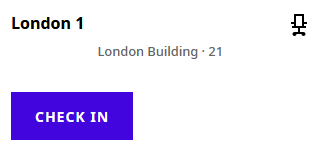
When the check-in functionality is enabled, users receive an email reminder 15 minutes before their reservation, prompting them to confirm their booking. If they are logged into their account via a web browser, they will see the following on-screen notification:
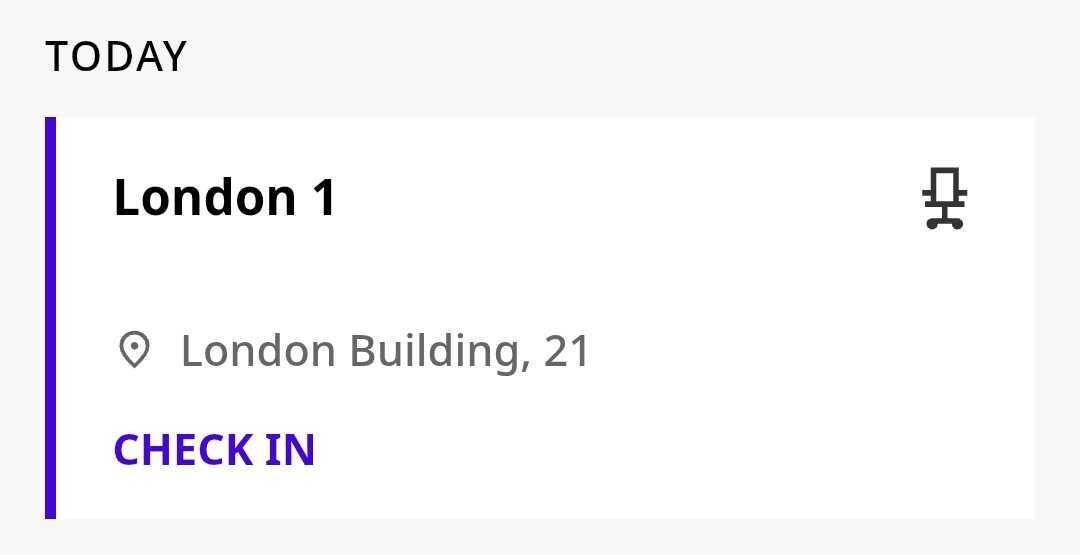
For those who prefer using the mobile application, they can simply log in and check into their reserved desk with a single tap, as shown in the screenshot below:
If a user fails to check in before the designated time, the system will automatically release the desk, making it available for others to reserve. Once the desk is released, the user will receive an email notification informing them that their reservation has been canceled. This ensures optimal desk utilization and prevents unused bookings from blocking workspace availability.
Users can simply scan the QR code or NFC tag on a reserved desk to instantly confirm bookings through the Joan Workplace app.
Office managers can also enable Local check-in only so that users can just check-in to their reservation by scanning the QR code or the NFC tag of the desk in the office.
To enable this option please follow the instructions below:
- Log into the MyJoan account
- Navigate to Settings -> Desks -> General settings
- Enable the Local check-in only

- Scroll down and save your changes
If the Local check-in only option is disabled, the users will still be able to use the QR code or NFC tag to check into their desks, however, they can also utilize other options, for example, directly from the mobile application.
For more information about the QR code and NFC booking see QR Code and NFC booking.
The Geolocation Auto Check-In feature in the app streamlines the check-in process by automatically confirming your desk reservation upon arrival at the office.
Once activated, your phone will detect when you are within a 200m (657ft) radius of your workplace and check you in automatically.
How can you enable this? Follow the instructions in our knowledge base article:
Geolocation Auto Check-In with Joan Workplace app
Please note that this feature requires the mobile application to be installed on your device; without it, automatic check-in will not be possible.
By integrating Joan desk booking system with Zens devices, employees can automatically check into their pre-reserved desks without manual action.
When there is a pending desk reservation, Zens device will display an orange light, indicating that it is awaiting the user. Once the user sits down, the system will automatically check them in, ensuring a seamless and efficient process.
How can you enable this? Follow the instructions in our knowledge base article:
With Zens integration the check-in process is automatic, and you will not need to use the mobile application to confirm the reservations.
Office Managers and Admin users can view a list of users who have completed their check-in for the day by navigating to Schedule -> People.
Additionally, the same information is available under Schedule -> Desks, where they can see which desks are occupied and whether users have checked in for their reservations.
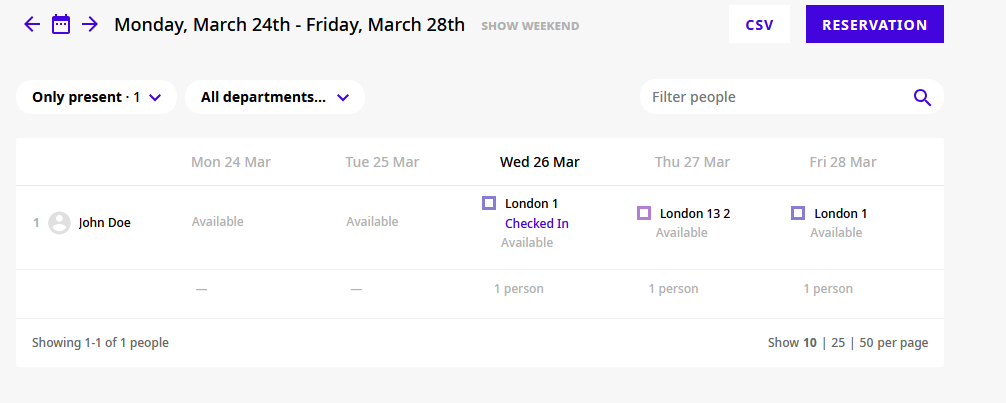
For a detailed overview of desk reservations, office managers can export a CSV file for the corresponding week. This file, available under "Schedule" -> "Desks", provides insights into each booking, including whether a user checked into their reservation, along with check-in and check-out times.
To access the file, simply navigate to the Desks section and click the CSV button. The downloaded report will contain all relevant booking details, helping teams stay informed about workspace usage.
In addition to CSV exports, both Admins and Office Managers can utilize the Joan Analytics dashboard to monitor check-in trends and optimize office space management.
How can you enable this? Follow the instructions in our knowledge base article:

In case you require any assistance, contact our support team via support@getjoan.com.