Assigning amenities to your desks in your Desk Booking environment is now available with our latest update.
This addition can come in handy with filtering your desks even further and making your booking experience much simpler.
How to assign amenities to a desk
How to filter desks by amenities
Note: Make sure that you have admin or office manager permissions to create desk amenities
How to create desk amenities
To create desk amenities, please follow the next steps.
- Log into your my.getjoan.com
- Navigate to "Settings" -> "Desks" -> "Amenities"
- Select "New amenity"
- Enter the name, and click "Save"
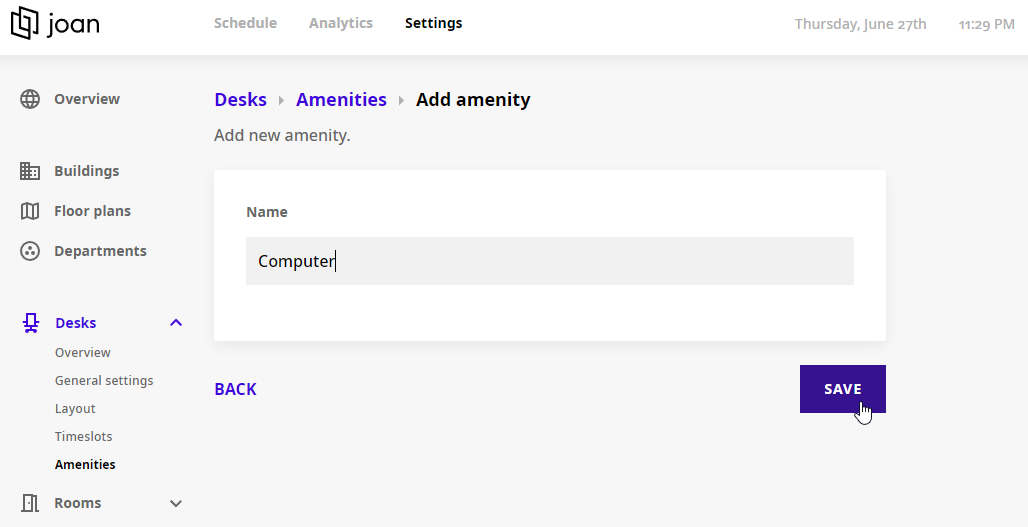
And that's it! You only have to assign this newly created amenity to your desks.
To assign amenities to a desk, please follow the next steps.
- Log into your my.getjoan.com
- Navigate to "Settings" -> "Desks"
- Select the desk where you need to assign the amenity
- Click on "Edit desk"
- Once the pop-up window is opened, under "Amenities" dropdown menu select ones you want to add to this desk
- Click "Save"
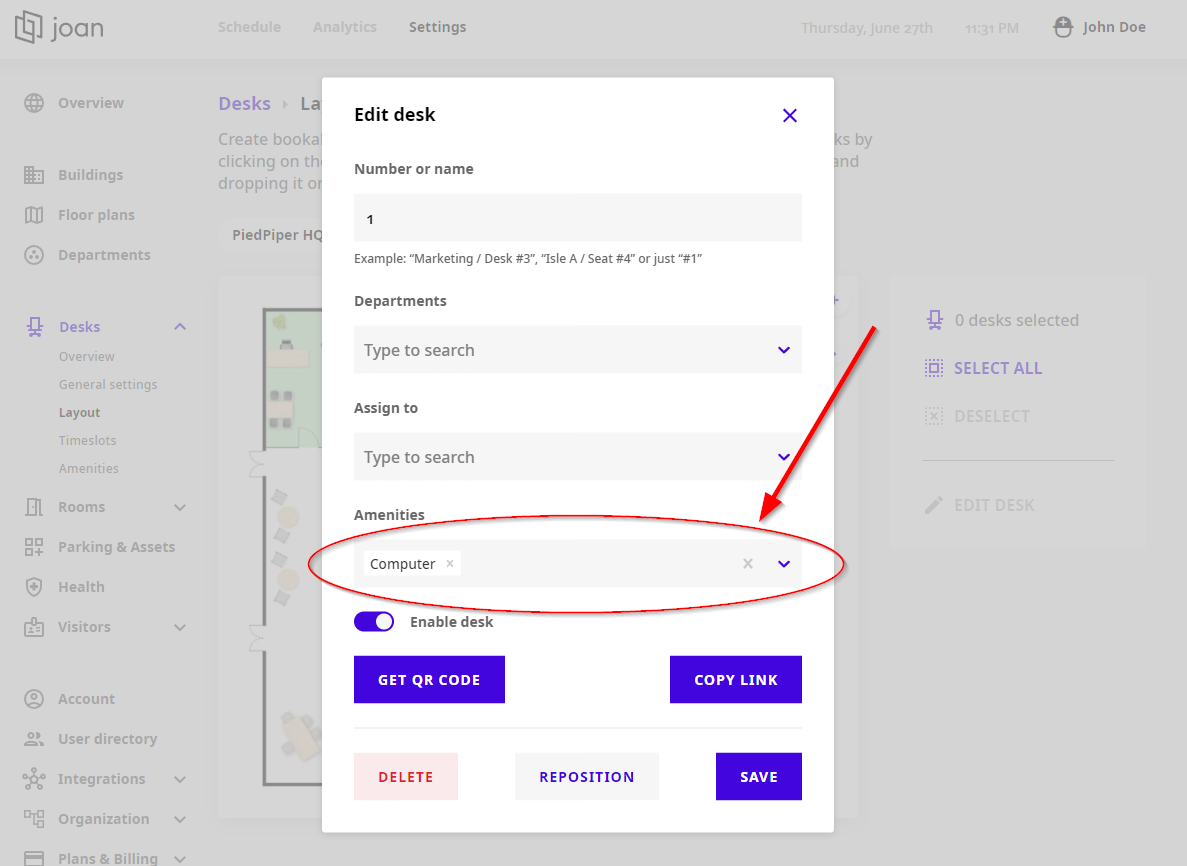
And that is it! You will be able to filter your desks according to these amenities.
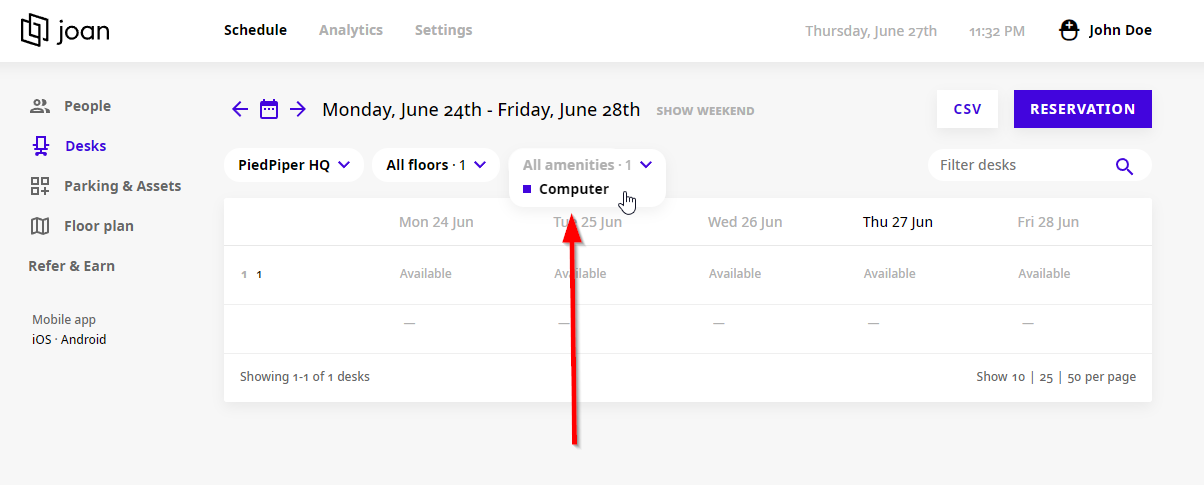
Once you log into your office portal and navigate to Desks section, you will be able to filter your desks by amenities that are added to it.
Hover over All amenities filter and select the wanted amenities.
For the mobile version it is similar, we navigate to Map section, tap on Filters and select the wanted amenities under the Amenities section.
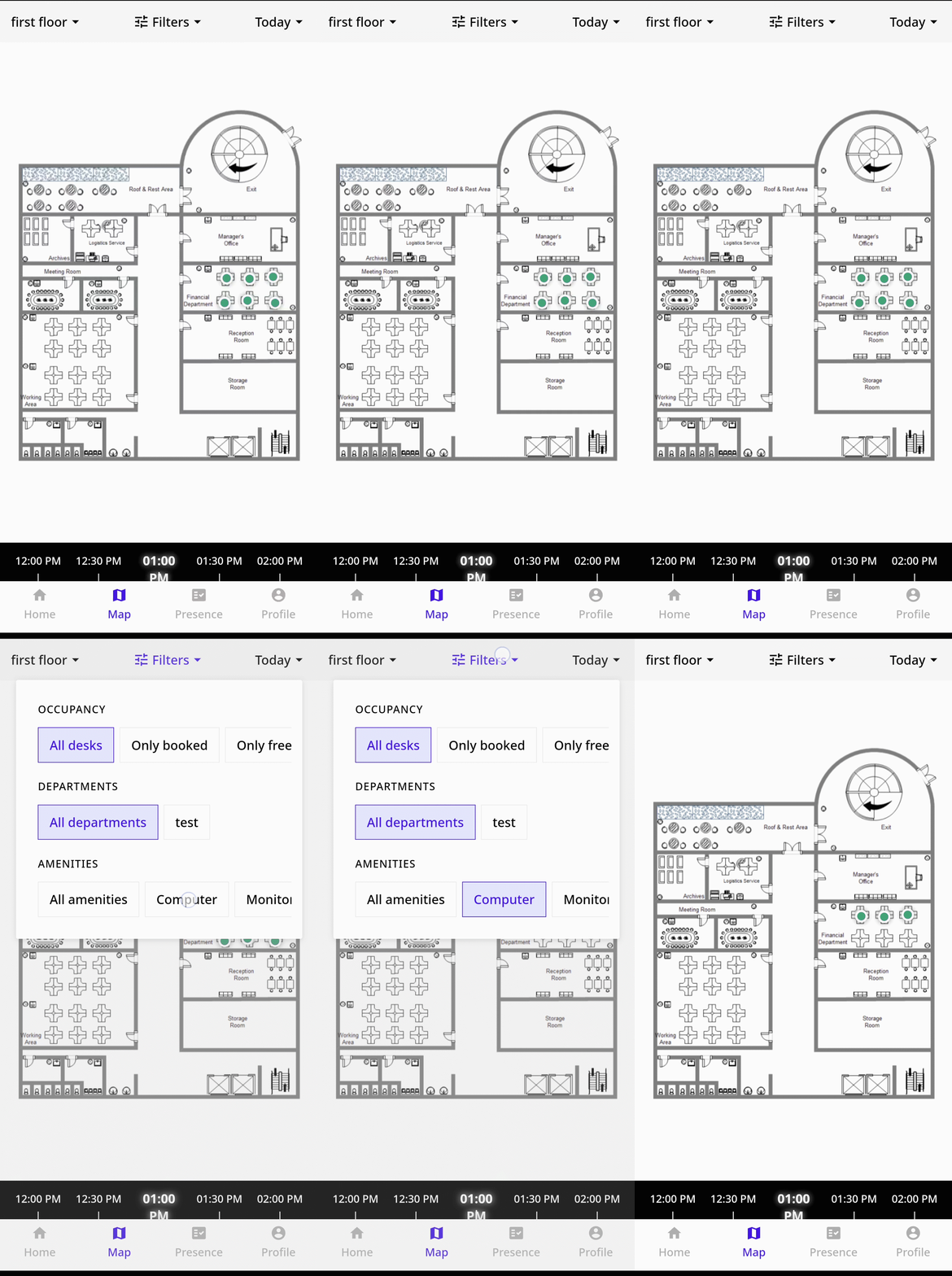
And that is it! The desks with selected amenities will be visible on the map.
If you encounter any issues, please feel free to contact us via our chat platform or send your questions to the support@getjoan.com.