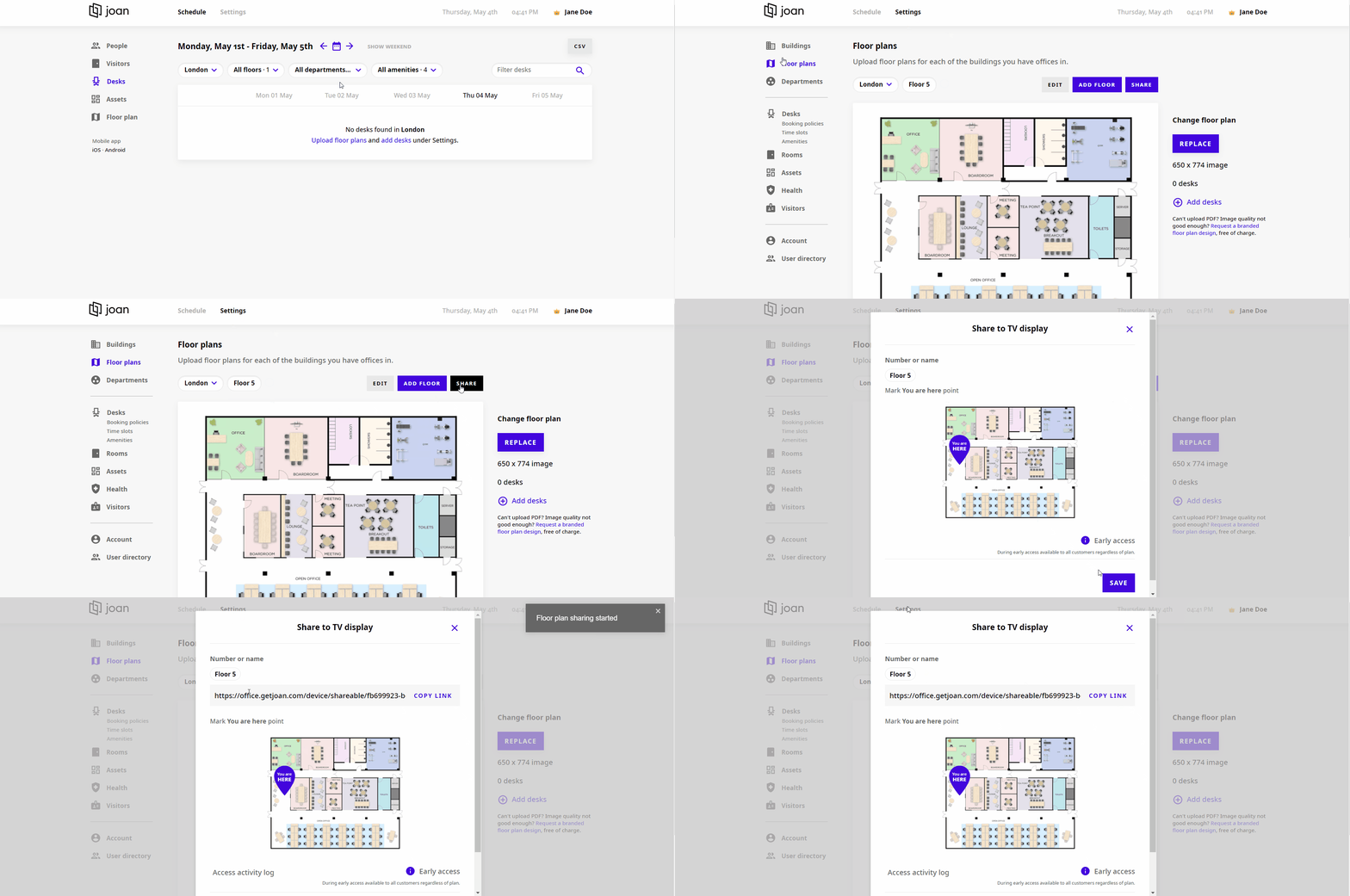
Display your floor plan along with occupied desks and amenities in your office lobby with these simple steps.
Note: Make sure that you have admin or office manager permissions before you share the floor plan to your device.
You can display your floorplan on any external display as long as it has:
- A stable internet connectivity
- Internet browsing capabilities. This can be in the form of a Smart TV or any streaming device that can make a TV “smart” such as an Airtame, Amazon Fire, Google Chromecast, etc.
Note: The size, resolution, ratio, and orientation of the device do not matter.
In order to do this, please follow the next steps:
- Log in to your MyJoan account
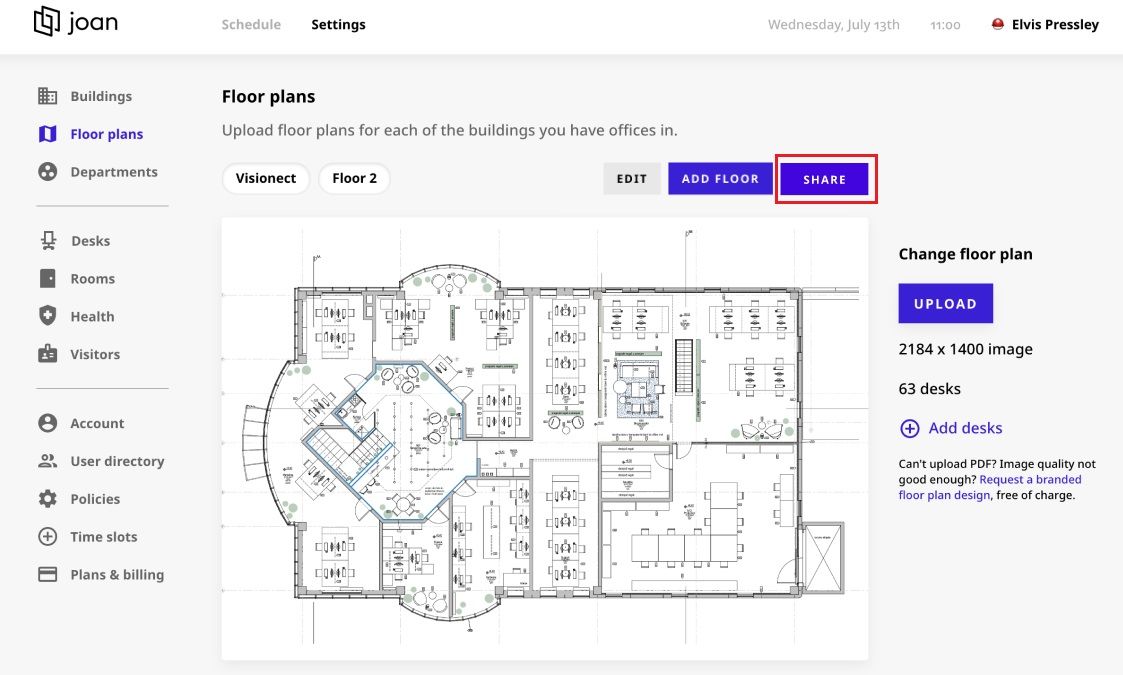
- Navigate to "Settings" -> "Floor plans"
- Select the floor plan that you would like to share
- Click "Share"
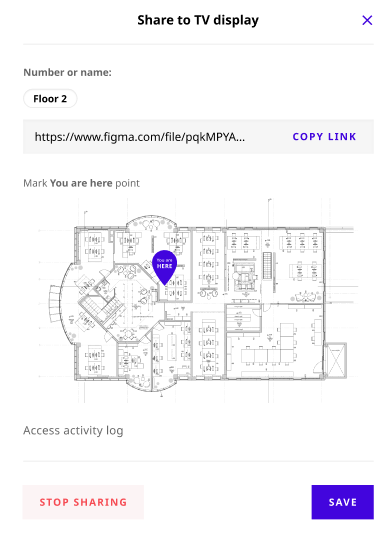
- Select the location of the "You are here" pointer and click "Save"
- Once you save, you will be able to copy the link, which you will open on your external display
- And once the floor plan loads, you will be able to see it on your external display
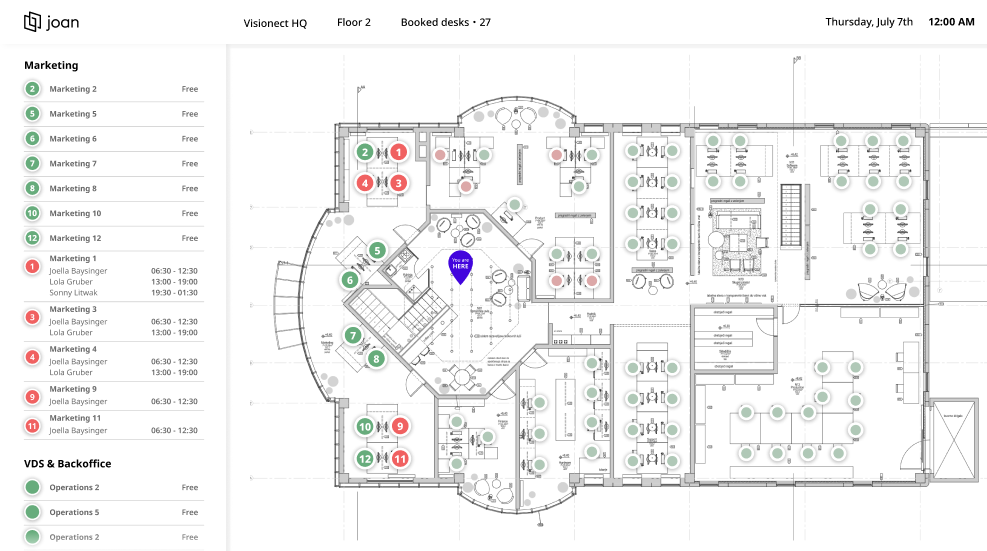
And that’s it! You have successfully shared the floor plan to your own device!
If you encounter any issues, please feel free to contact us via our chat platform or send your questions to support@getjoan.com.