You can book a desk in the Joan Workplace app in three ways: take one of Joan's suggestions, use New booking, or pick a desk on the floor plan. You can also make a booking repeat, for example every weekday.
In this article
- How do I book a suggested desk?
- How do I book a desk with New booking?
- How do I make a booking repeat?
- How do I find and book a desk on the floor plan?
- What do the colors on the floor plan mean?
- How do I check in to my desk?
The Suggested section on the Home screen lists desks and assets Joan picks for you, with a time.
- Tap Suggest more booking options to see more suggestions for desks, assets and rooms. You can also search for a desk by name.
- Tap a desk to see its details: whether it's free, its amenities (for example Monitor) and the times you can book.
- Tap one of the times to book it, or tap Custom booking to choose your own date and time.
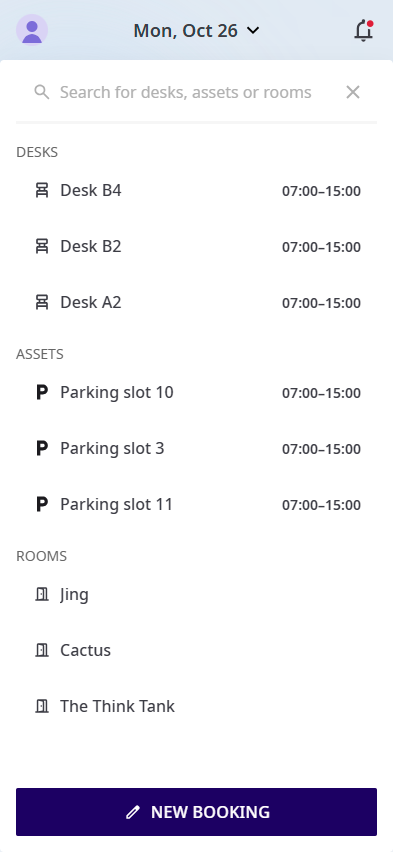
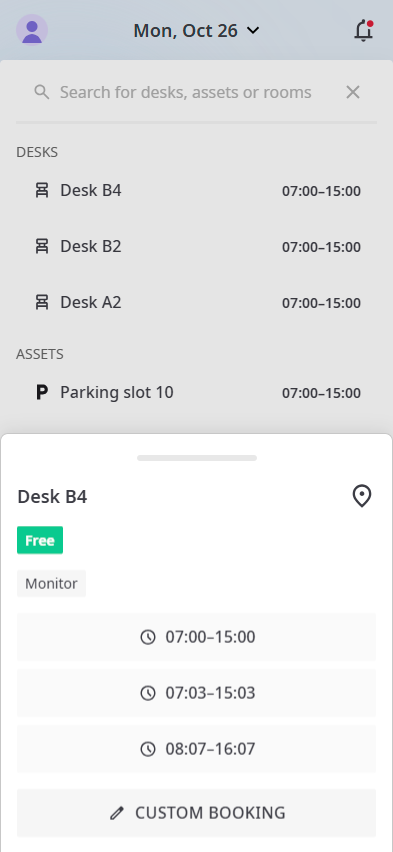
To book for another day, first tap the date at the top of the Home screen and choose the day.
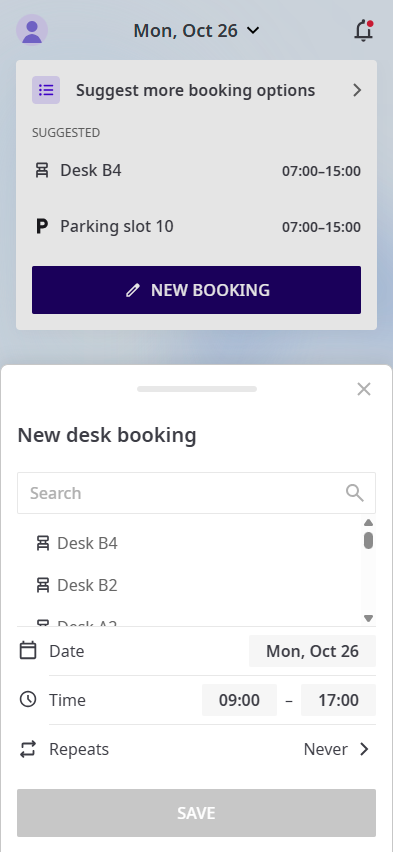
- On the Home screen, tap New booking.
- Choose Desk.
- Pick a desk from the list, or search for it.
- Set the Date and Time.
- Tap Save.
If your company uses fixed time slots for desks, you choose a time slot instead of a start and end time. See Time slots and booking.
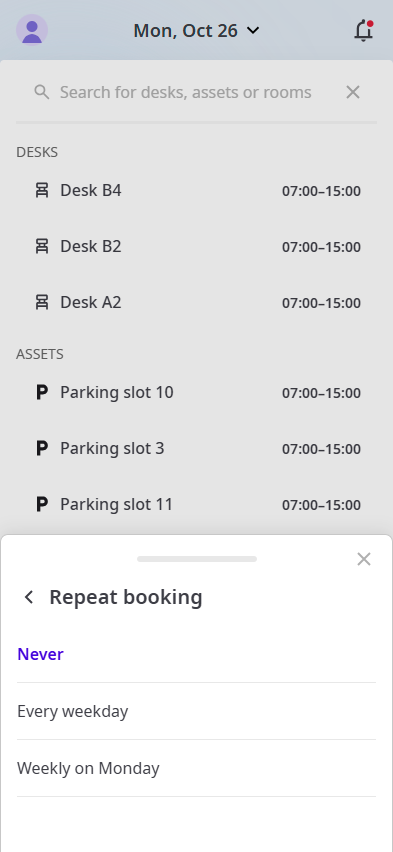
In the booking form, tap Repeats and choose an option:
- Never (default)
- Every weekday
- Weekly on the day of your booking, for example Weekly on Monday
Then tap Save.
- Tap the Floor plan icon in the bottom bar.
- Use the arrows or the date at the top to choose the day.
- Drag the time slider at the bottom to see which desks are free at that time.
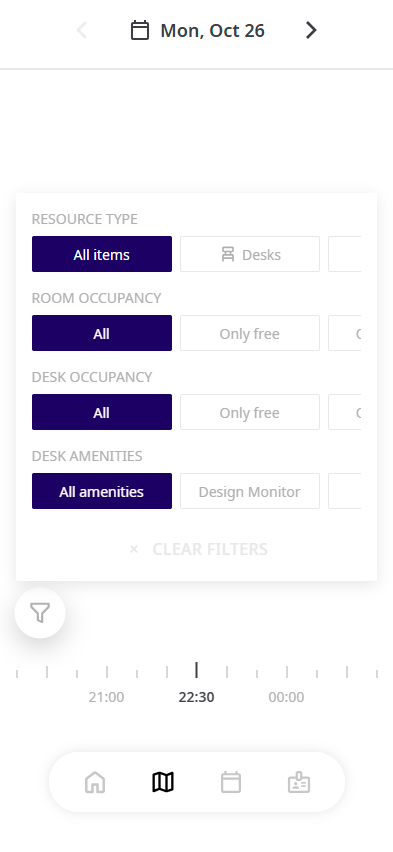
- Tap the filter icon to narrow down what you see:
- Resource type: all items, desks, rooms or assets
- Room occupancy and Desk occupancy: all, only free or only booked
- Desk amenities: for example a monitor or a standing desk
Tap Clear filters to reset them.
- Tap a desk to see its details, then book it.
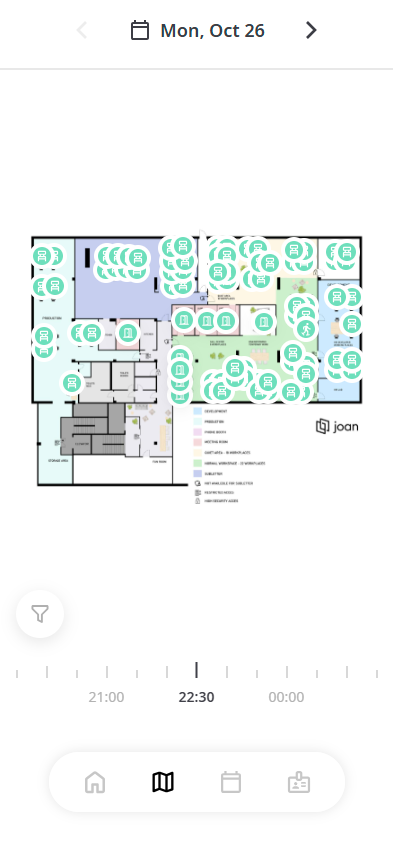
When you tap a desk that is already booked, you see who booked it and for what time. You can still tap Custom booking to book it for a time when it's free.
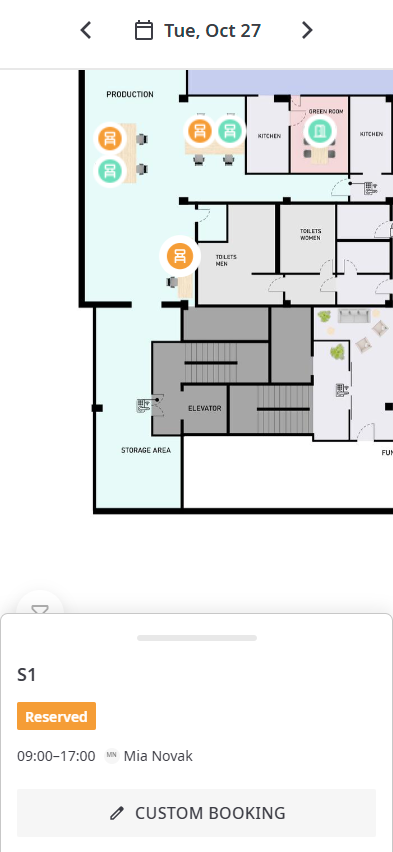
- Green: free
- Orange: reserved
- Red: a room that is occupied
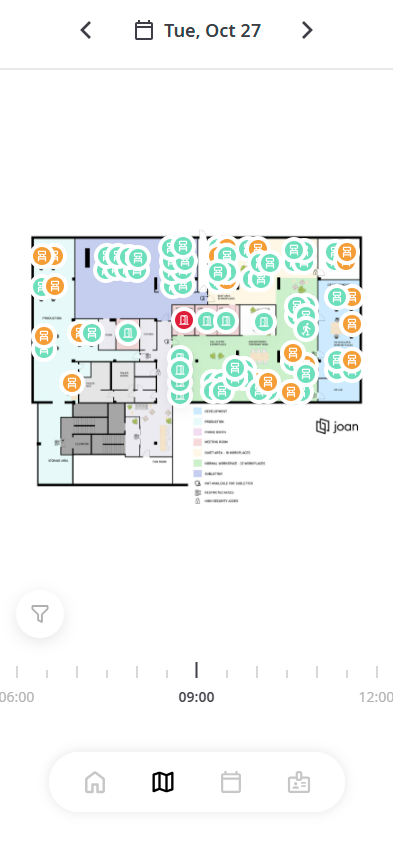
For the full list of colors, see Desk and Asset Status Colors in Floor Plan View: A Quick Guide.
If your office uses check-in, check in from your reservation in the app, or scan the QR code or tap the NFC tag on the desk. See Desk Booking - Check-in options and QR Code and NFC booking.
If you need help, contact us through the support form.