The Joan Workplace app is your workplace on your phone. Book desks, meeting rooms, parking and other assets, see who is in the office, and keep up with notifications and announcements from your office.
In this article
- What can I do in the Joan Workplace app?
- How do I sign in?
- What is on the Home screen?
- How do I move around the app?
- Where do I see notifications and announcements?
- Book desks, meeting rooms, parking and other assets, for one day or on repeat. See Book a desk in the Joan Workplace app, How to book a meeting room in the mobile app and How to book an asset?
- Get booking suggestions and book with one tap.
- Find free desks and rooms on the floor plan, filter by amenities, and see availability at any time of day.
- See room schedules side by side in the room calendar.
- See which colleagues are in the office and where they sit. See Would you like to check who will be at the office today?
- See the visitors you are expecting.
- Read notifications and announcements from your office.
- Check in to your desk with a QR code or NFC tag. See QR Code and NFC booking.
- Admins and office managers: set up and manage employee badges. See Get started with Joan employee badges.
- Download the app from Google Play or the App Store.
- Enter the work email address your admin added to Joan.
- Enter the 6-digit code you receive by email.
If you can't sign in, see Why can't I log in to MyJoan or the Joan Workplace app?
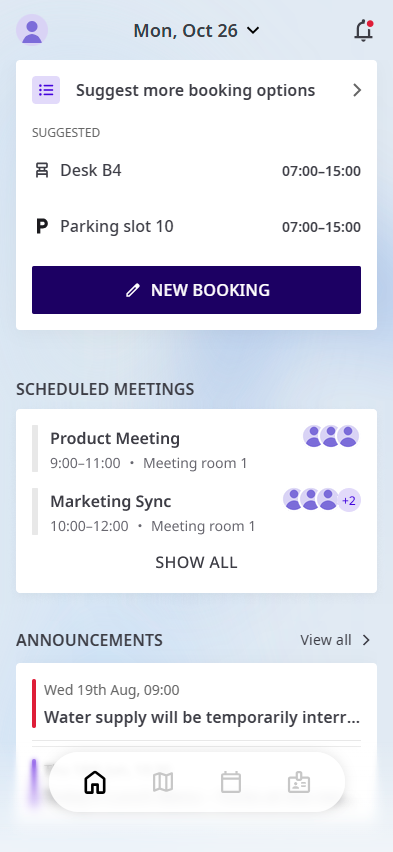
From top to bottom:
- Your profile picture: opens My profile. See Manage your profile and settings in the Joan Workplace app.
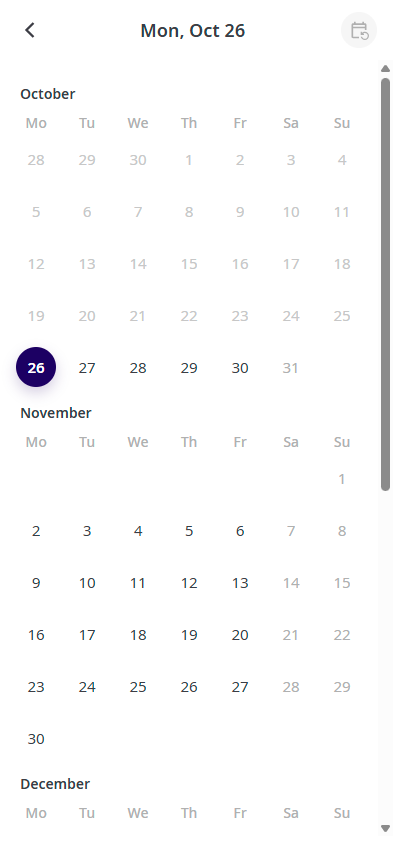
- Date: tap it to see another day. The Home screen then shows suggestions, meetings and colleagues for that day.
- Bell icon: opens your notifications. A red dot means you have unread notifications.
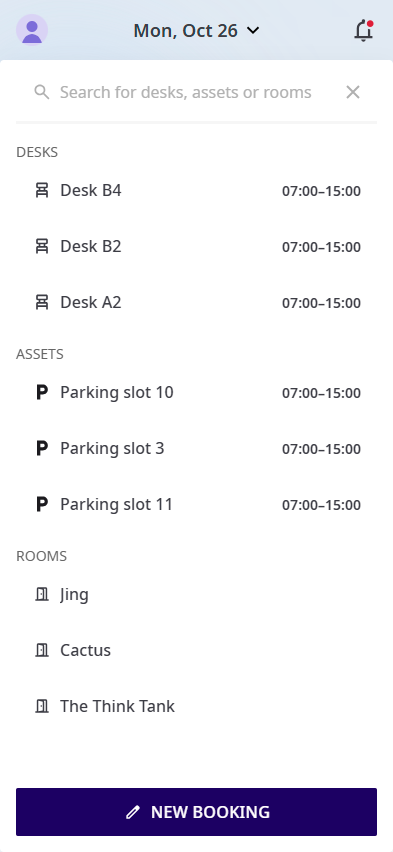
- Suggested: desks and assets Joan suggests for you, with a time. Tap Suggest more booking options to see more desks, assets and rooms, or to search for one.
- New booking: book a desk, room or asset.
- Scheduled meetings: your meetings in rooms for the selected day, with the time, room and attendees. Tap Show all to see all of them.
- Announcements: the latest announcements from your office. Tap View all to see all of them.
- My colleagues: who is in the office and which desk they booked. Tap View all to see everyone.
- My visitors: visitors you are hosting that day.
Use the bar at the bottom of the screen:
- Home: your day at a glance.
- Floor plan: find and book desks, rooms and assets on the map.
- Calendar: the schedule of the meeting rooms you choose.
- Employee badges: shown to admins and office managers only.
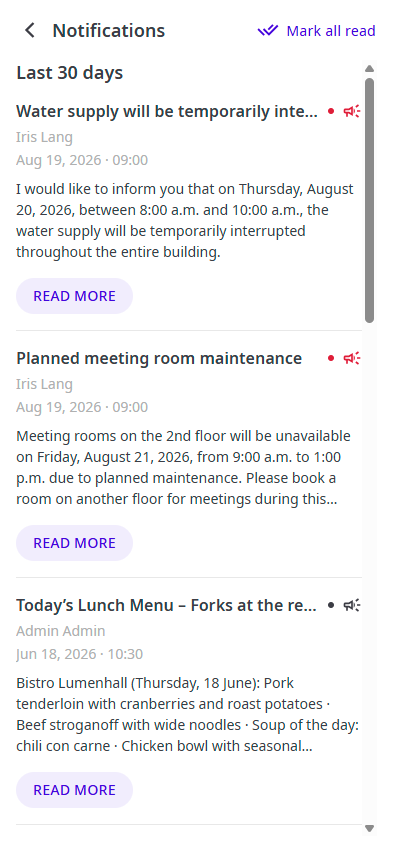
Notifications: tap the bell icon on the Home screen. You see notifications from the last 30 days, newest first. Tap Read more to open one, or Mark all read to clear the unread dots.
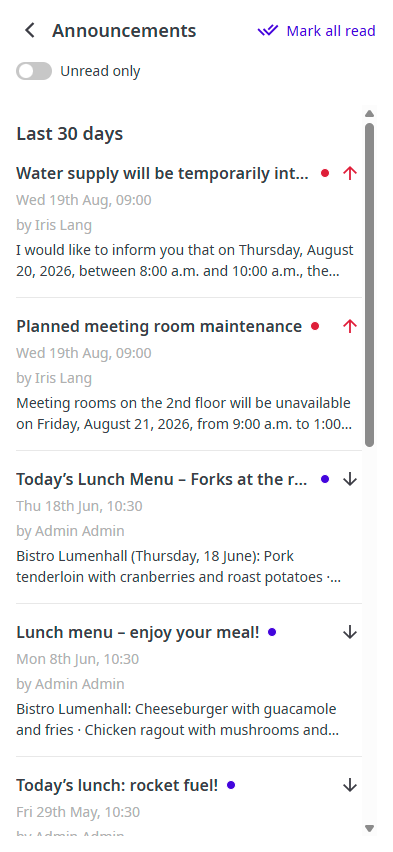
Announcements: on the Home screen, tap View all next to Announcements. Turn on Unread only to hide the ones you have read. Important announcements are marked in red.
Please keep in mind that the Joan Workplace app will only display the resources that are connected to a Joan device. If a room resource is not connected to a Joan device, it will not be visible within the app.
If you need help, contact us through the support form.