In the Joan Workplace app you can book your meeting rooms, and users from other companies or email domains can be invited to book them too. First make sure your account, calendar, rooms and at least one device are set up.
Prerequisites:
- Have a MyJoan account. More details can be found in A complete guide to get started with Joan.
- Have a calendar connected and a meeting room added. More details on this topic can be found in How to add a room resource to MyJoan account.
- Have a Joan device, Joan On Tablet, or Wayfinding on a TV connected to your account. More details on pairing a Joan device can be found in A complete guide to get started with Joan.
When your account has been onboarded and the first device connected you can start adding new users to your system. Their email addresses are not limited to a single domain or company. You can add users from other companies who will get access to your device-managed room calendars. They will be able to:
- Reserve a meeting room
- End a meeting sooner - limited to the organizer or attendees of the meeting
- Cancel the meeting - limited to the organizer of the meeting
- Extend a meeting - limited to the organizer or attendees of the meeting
- Check-into meetings - limited to the organizer or attendees of the meeting
- See a list of all meetings that are happening in meeting rooms where they are the organizer or the attendee
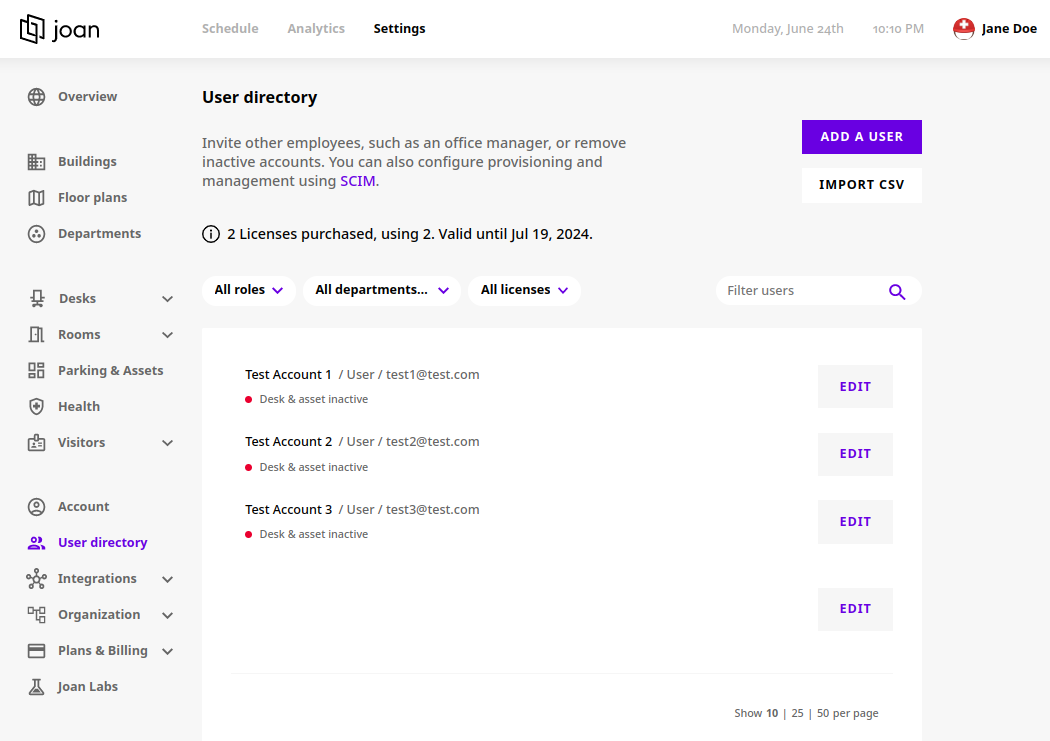
You can invite new users to start booking your rooms by simply going to your MyJoan account, navigating to Settings -> User directory, and clicking "Add a user".
We also support automatic active directory user syncing or bulk importing users via CSV files.
Now that users are added it’s time to start reserving meeting rooms. Users can download our mobile app here:
User booking flow
Watch the videoWhen users book a meeting room they get an email from the calendar provider along with the calendar invite.
*If you encounter any issues, please contact support@getjoan.com.