All employee badges in your organization use the same template. Joan fills it with each employee’s details from the user directory and adds your company logo automatically.
In this article
- Which templates can I choose?
- How do I change the template?
- How do department colours work?
- How do employee photos get on the badge?
- How do I update a badge after an employee’s details change?
- Related articles
There are four templates:
- Default
- Department: uses your department colours, so people can tell departments apart at a glance.
- Informational
- No picture: leaves out the employee photo.
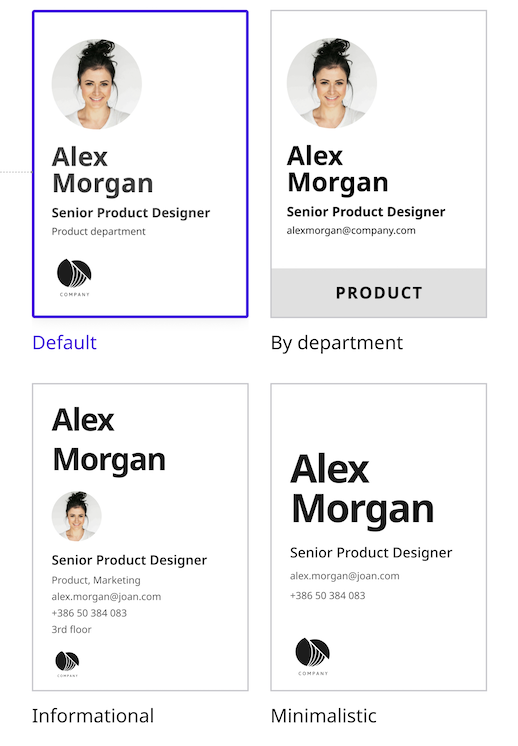
Badges use a 4-colour e-paper display: black, white, red and yellow. Custom badge designs, layouts and custom images aren’t supported.
- In the Joan Workplace mobile app, open Employee badges and tap Badge template.
- Pick a template and tap Done.
- The app asks whether to update the badges that are already assigned. To update them, keep the badges within Bluetooth range and the app open until it finishes.
Badges that are out of range keep the old template until you resync them.
The Department template shows a colour for each department. You set department colours in the MyJoan web portal. If you plan to use the Department template, set the colours before you assign badges.
The badge uses the employee’s Joan profile photo. Employees can set their own photo in their MyJoan profile settings, and admins can upload a photo for an employee from the user directory. A new photo appears on the badge after the next sync.
For the best result, use a clear head-and-shoulders photo with a plain background.
- In the MyJoan web portal, edit the employee’s name, job title, department or photo in the user directory.
- In the Joan Workplace mobile app, open the employee’s badge and resync it. The badge must be in Bluetooth range.
Badge content only changes when you sync it from the app. It doesn’t update automatically or on a schedule.
If you need help, contact us through the support form.