Adding new users to your Joan Workplace is very simple!
- Log in to my.getjoan.com
- Navigate to Settings
- Click on User directory in the left-hand column
To add a new user click on the button “Add user”.
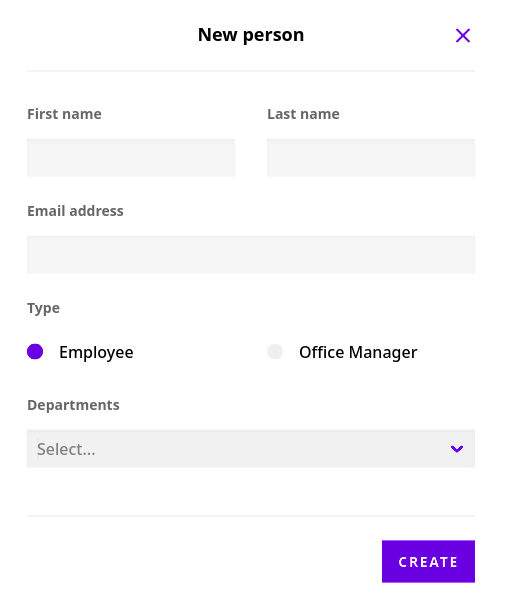
Fill out all of the required information. Managing permissions differ based on the user type. For more information check out Joan Desk Booking user roles and permissions. You can also assign the user to a department.
A .csv file is a simple text file that can be prepared by your IT, HR manager or whoever manages your email accounts. If you need help, please reach out to our support team for assistance at support@getjoan.com
- To do a bulk import of all your users at once, please prepare a .csv file with the following structure:
*email, first_name, last_name, groups, departments, phone*
*email, first_name, last_name, groups, departments, phone
email, first_name, last_name, groups, departments, phone*
Please note, that "groups" are for identifying the access level of the imported employee like "manager" for the office managers and "user" for employees.
- Click on Import CSV
After you're done with the import of users, notify them about the Joan desk booking app. We've prepared a handy template with instructions you can use.
*Please note: If a user has created their own admin account/logged in before they were added to your list, you will receive the below error message when adding them:*
*Email - User with email sample@domain already exists. Please contact support for further information.*
In case this happens, please let us know at support@getjoan.com and we will remove the said user so that you can try adding them again.