This knowledge base article will help guide you through the steps for:
- Log in to my.getjoan.com and go to Settings > Floor plans.
- Click Upload, as shown in the image below, and upload the new image.
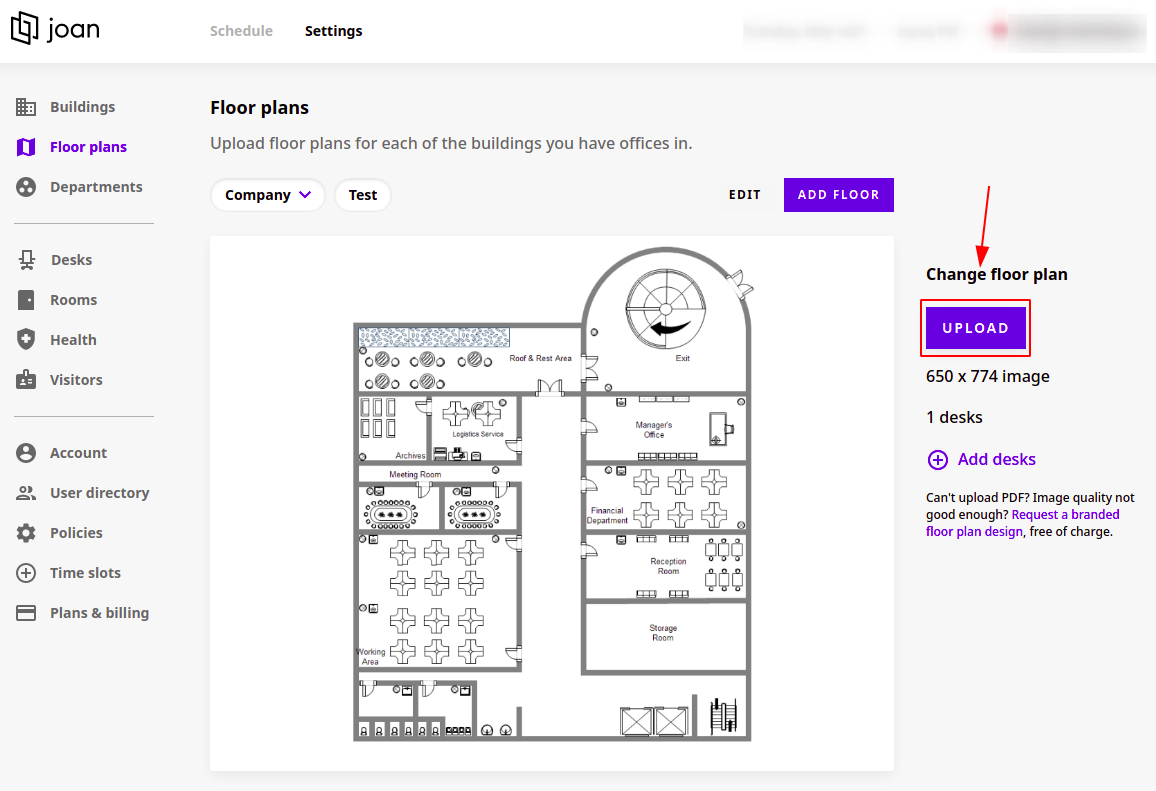
The new image replaces the old floor plan.
Please note: If the new image you upload is a different size than the first image, the existing desks will be repositioned.
First delete all desks on that floor plan, then delete the floor plan itself.
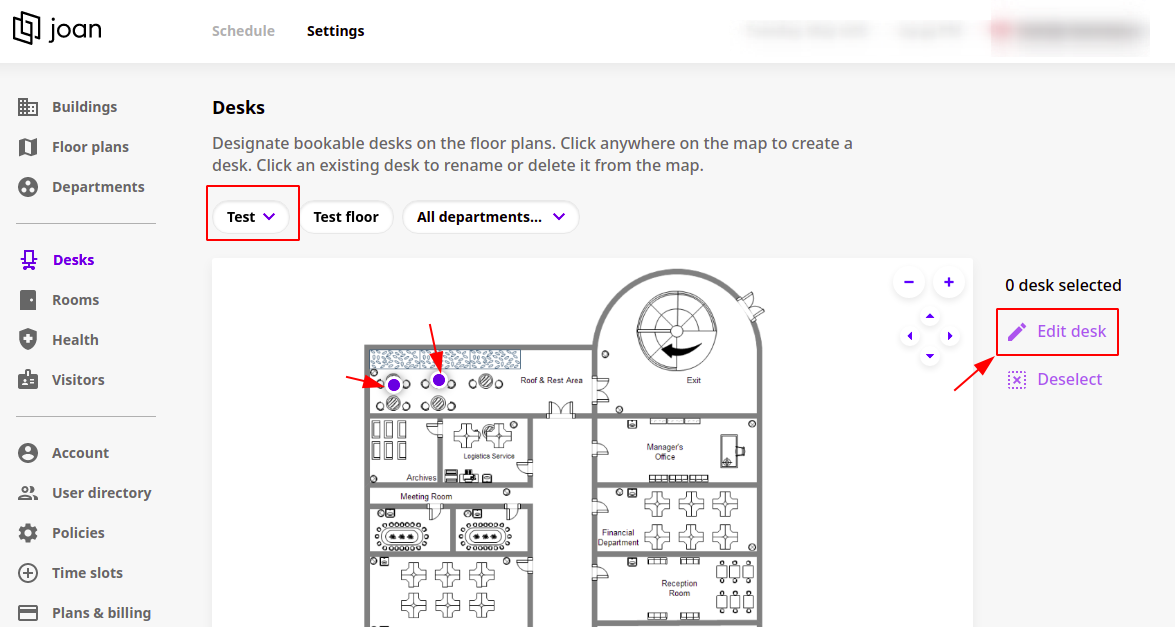
- Log in to my.getjoan.com and go to Settings > Desks.
- Select the floor plan you want to delete.
- Select the desk(s) and click Edit desk(s).
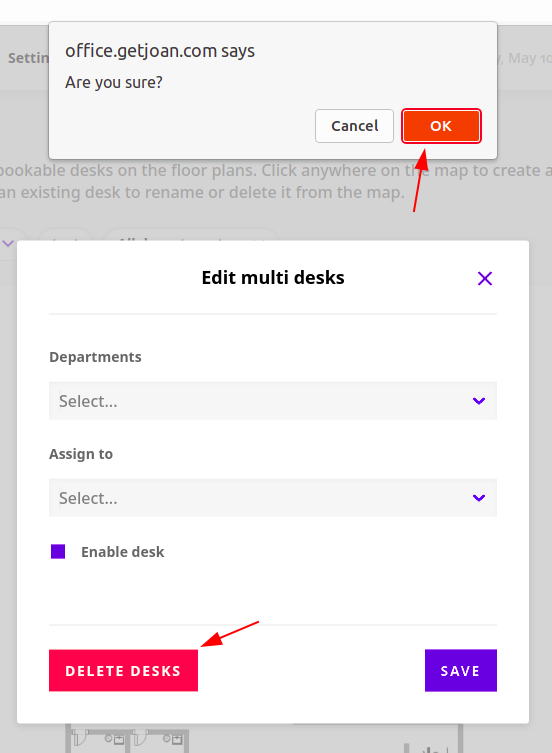
- In the pop-up window, click Delete desk(s), then click ok.
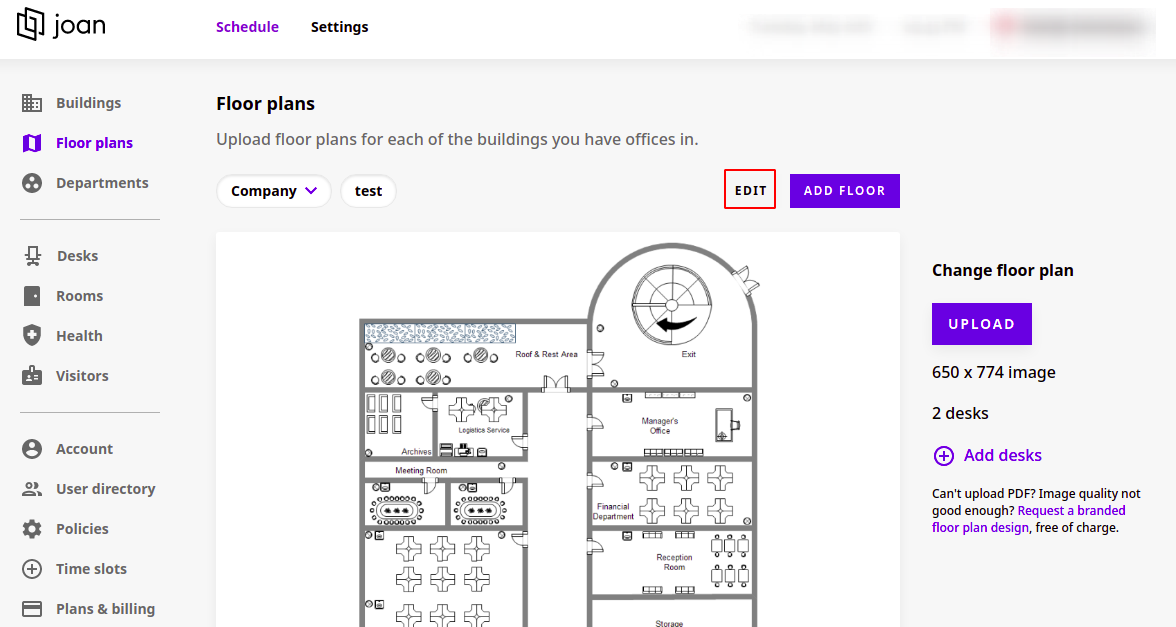
- When all desks are deleted, go to Settings > Floor plans and click the edit button.
- In the pop-up window, click Delete, then click ok.
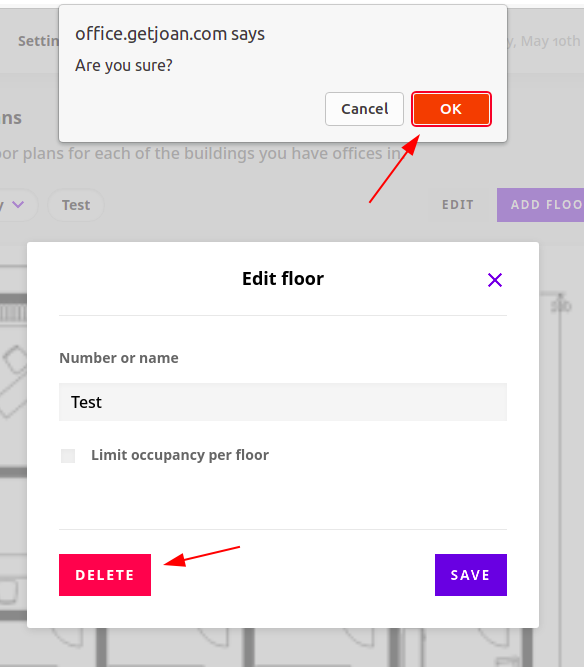
The floor plan no longer shows under Settings > Floor plans.
If you encounter any issues, feel free to reach us via support@getjoan.com or submit a ticket via our support ticket form.