Whether it is a personal calendar of a team member or a shared resource such as a huddle space, conference room, desk, or any other office resource, you will need to add such resource to MyJoan which will let your Joan device manage it.
If you have not yet created any room resources, please go to your preferred calendar solution and add them accordingly:
- Google Workspace
- Microsoft Exchange 2010, 2013, 2016 (Outlook)
- Microsoft 365 (Exchange Online)
- iCalendar (.ics)
Note: Before adding a room to MyJoan, it is crucial to make sure that the calendar account you connected to MyJoan has all the necessary managing rights and permissions.
- Log in to MyJoan with your account credentials
- Navigate to the “Settings" -> "Rooms"
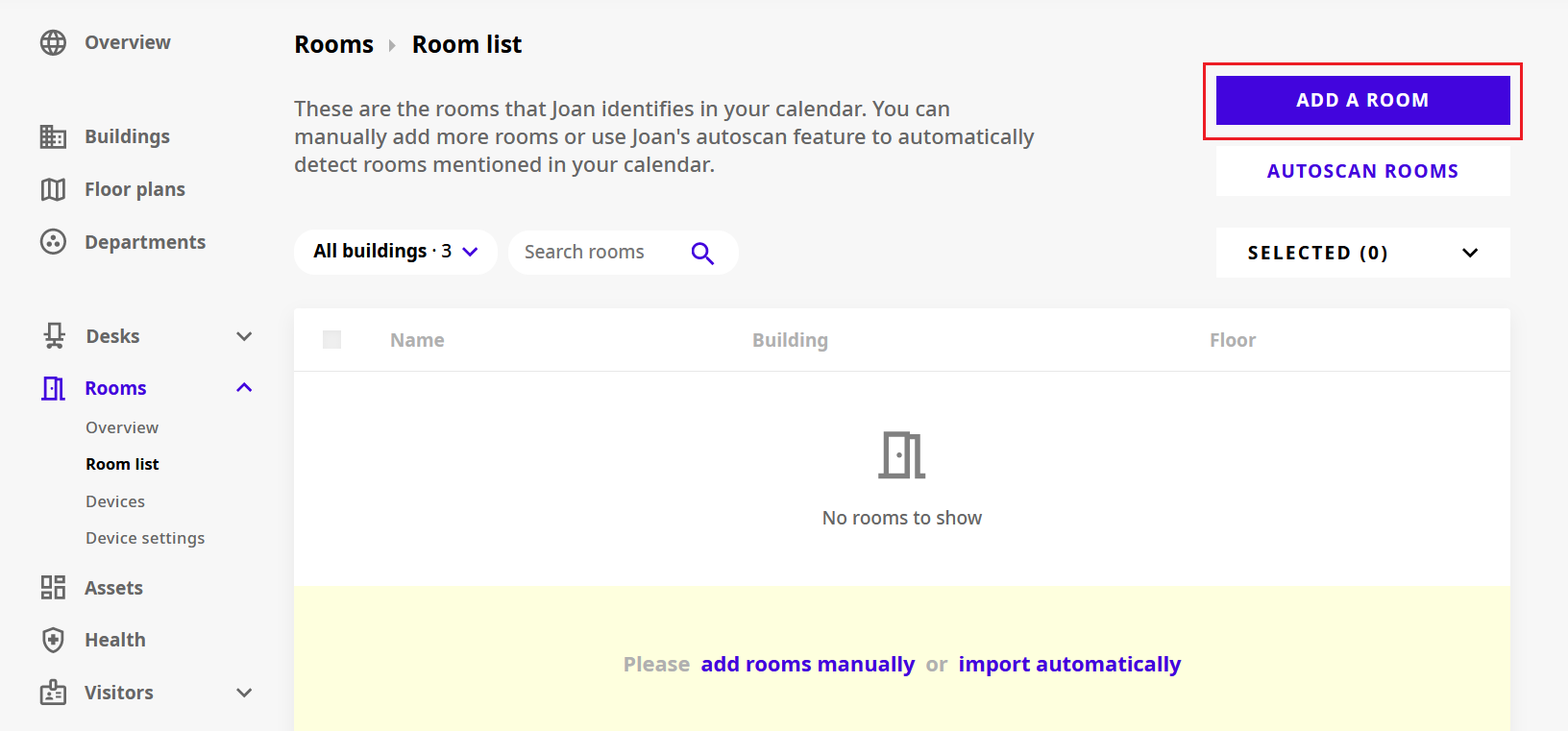
- Select “Room list” from the left-hand side menu
- Click the “Add a room” button
- Enter the room resource identifier, and click “Save”
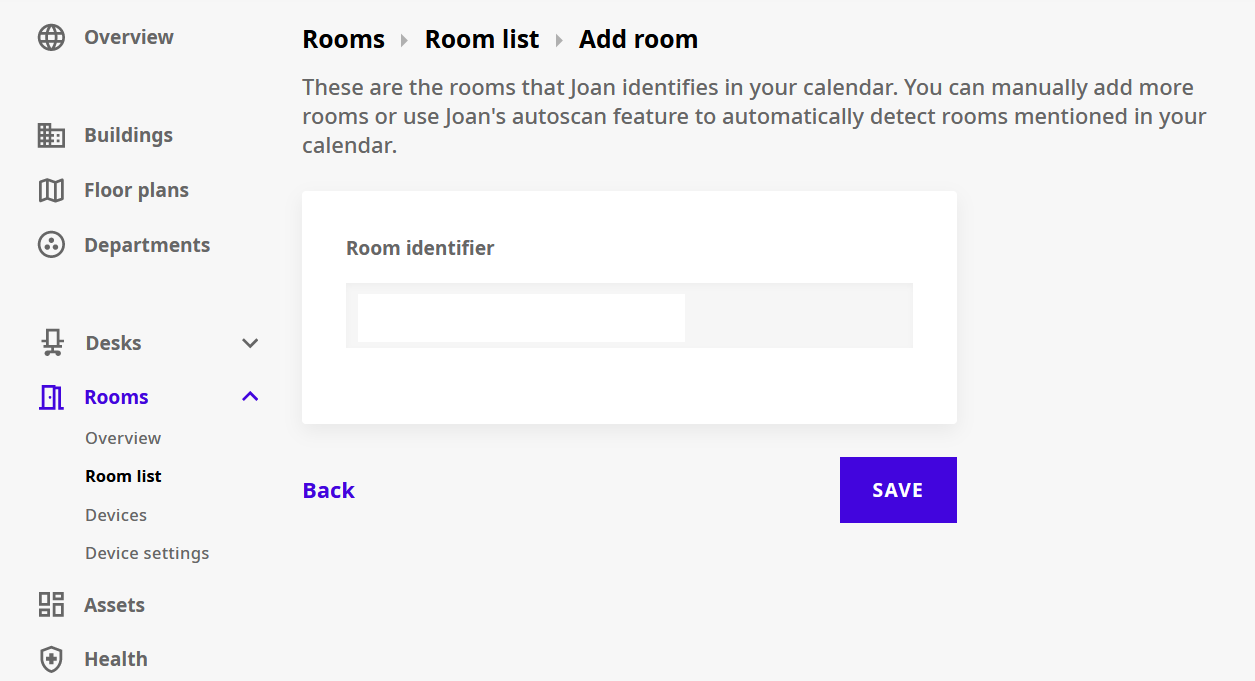
And that’s it! You have successfully added a room resource to MyJoan.
Once the room resource is added, you are able to customize the room by adding additional information such as the location and floor of the room, capacity, and amenities. To learn more about room customization, see How to customize a room resource.
If you have a Joan device ready and paired to your account, you can connect it to a room resource in order to display its schedule and availability. To learn how, see How to connect a room resource to your Joan device.
If you need any additional support, please feel free to contact us at support@getjoan.com.