In the Rooms section, you’ll see a clean, intuitive table displaying all rooms currently assigned to your Joan devices. This centralized view allows you to easily browse and manage room availability. Simply navigate to Schedule → Rooms in the MyJoan Portal to get started.
If you do not see this option on the website, an admin needs to enable it company-wide:
- Log in to MyJoan as an admin.
- Go to Settings > Rooms > Overview.
- Tick the In-app room booking (mobile & web) checkbox.
- Click Save.
Schedule → Rooms now shows for everyone in your company.
To help you find the right space quickly, the view can be filtered using several criteria:
- Building – Narrow down rooms by location
- Floor – See only rooms on a specific level
- Amenities – Filter by features such as whiteboards, conferencing equipment, etc.
- Room Name – Select a specific room directly
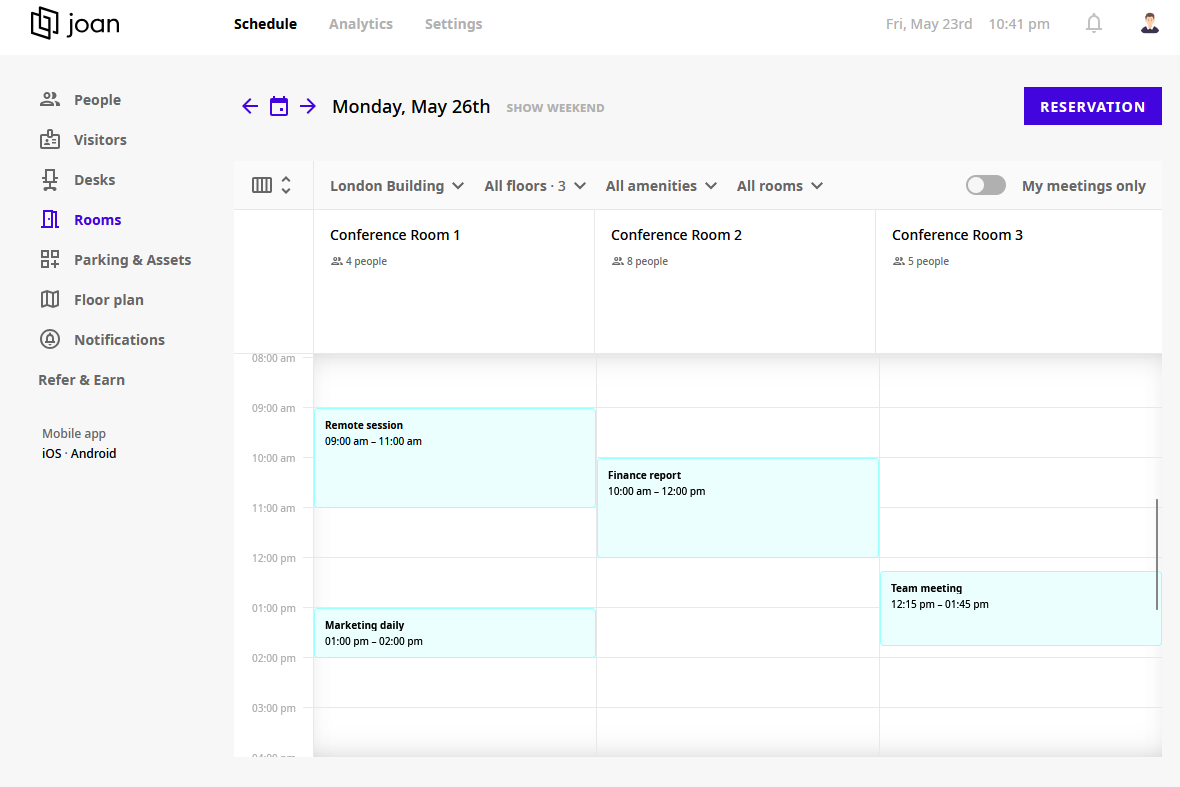
If the My meetings only option is enabled, only the meetings created by you will be visible in the calendar below.
Meetings on the room calendar are color-coded:
- Light blue: meetings you organized or were invited to.
- Purple: meetings booked by other people that you're not part of.
- Gray: private meetings. If you're not part of a private meeting, you only see "Private" and the time.
- Faded: meetings that have already ended.
- Struck-through title: the room declined the meeting, for example because it was already booked.
Note
The Calendar tab in the Joan Workplace app uses the same colors.There are two simple ways to create a new room reservation from the Rooms section.
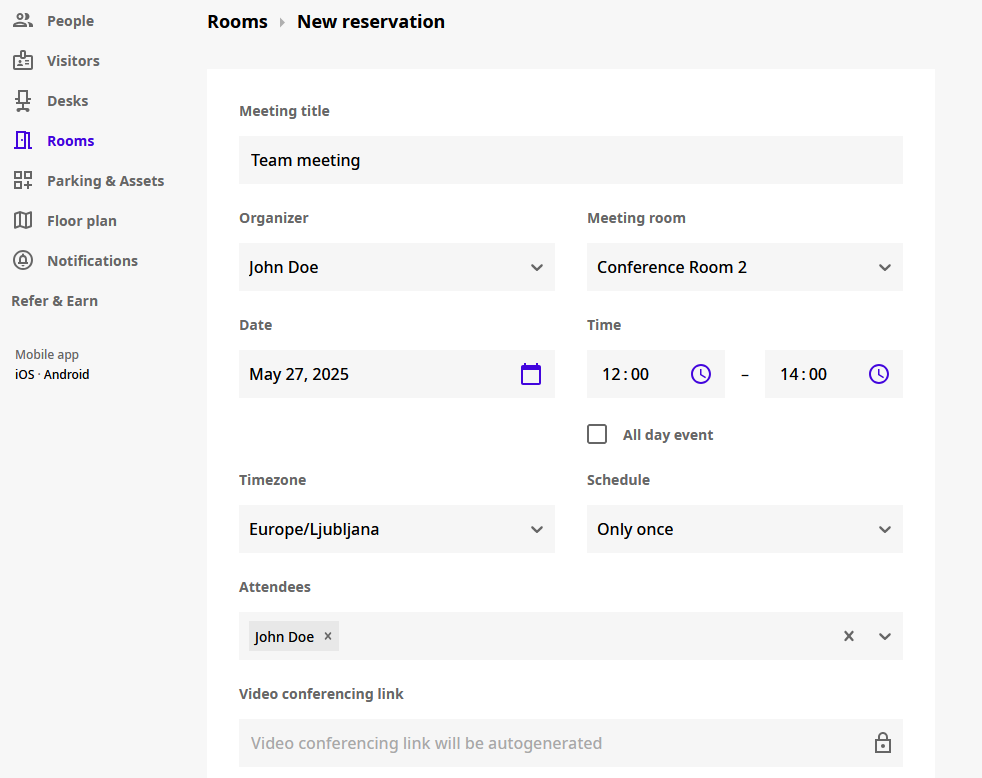
Simply click the Reservation button at the top of the interface and fill in the booking details, or, select a specific time slot directly on a room’s calendar to create a reservation on the spot.
This flexible and user-friendly layout is designed to make room scheduling as smooth as possible, whether you're managing one office or multiple locations.
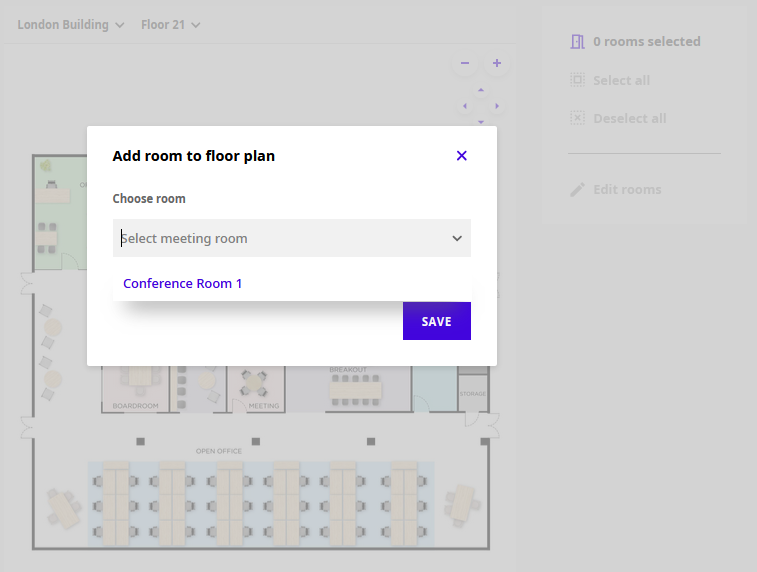
To book a room from the Floor Plan, the room resource first needs to be added to your office layout:
- Go to Settings > Rooms > Layout.
- Find the room on the floor map and click its position.
- Assign the room resource calendar to that location.
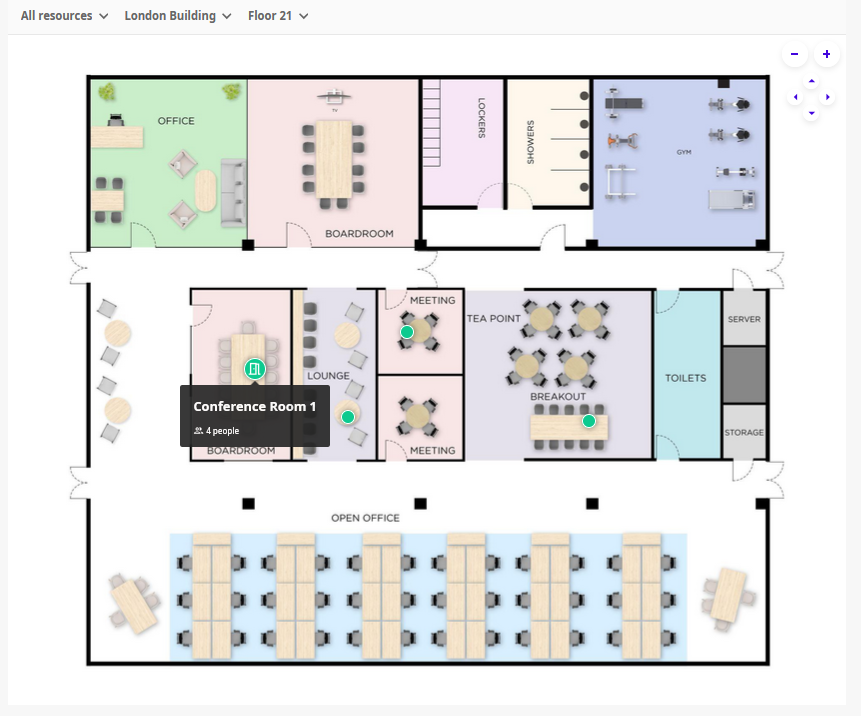
The room can now be booked under Schedule > Floor plan.
This feature works for all supported integrations, including Google, Microsoft 365, and Microsoft Exchange.
This section explains how calendar data is collected and synchronized.
Data Synchronization Policy
We synchronize calendar data for the next three months from the current date and keep it up to date continuously. Events scheduled further in the future are synchronized as they come within this window.
Data Retention Policy
Synchronized data for the Room Booking feature is kept within MyJoan for operational use and data analytics while you use the service.
Upon a user's request for data deletion:
- All their existing room booking reservations will be removed from the operational database.
Types of Data Collected
We collect the following calendar data:
- For calendar events: Title, summary, start/end time, status, visibility, conference link, and whether it's an all-day event.
- For attendees, organizers, and creators: Email, name, and status.
For more details, see Security and data protection.
If you encounter any issues, please contact support@getjoan.com.