Google Workspace users can prepare Joan for use in 3 easy steps, by:
- Preparing the Google Workspace calendar for use
- Connecting Joan to the Google Workspace calendar
- Adding your Google calendar rooms
Before connecting Joan to your Google Workspace account, you will need to make sure that your calendar supports Joan's functionality in two easy steps:
Enable API access
To get calendar data, Joan needs API access. You can enable this in your Google Admin settings. Go to admin.google.com, search for API controls, and then open Manage Google Services.
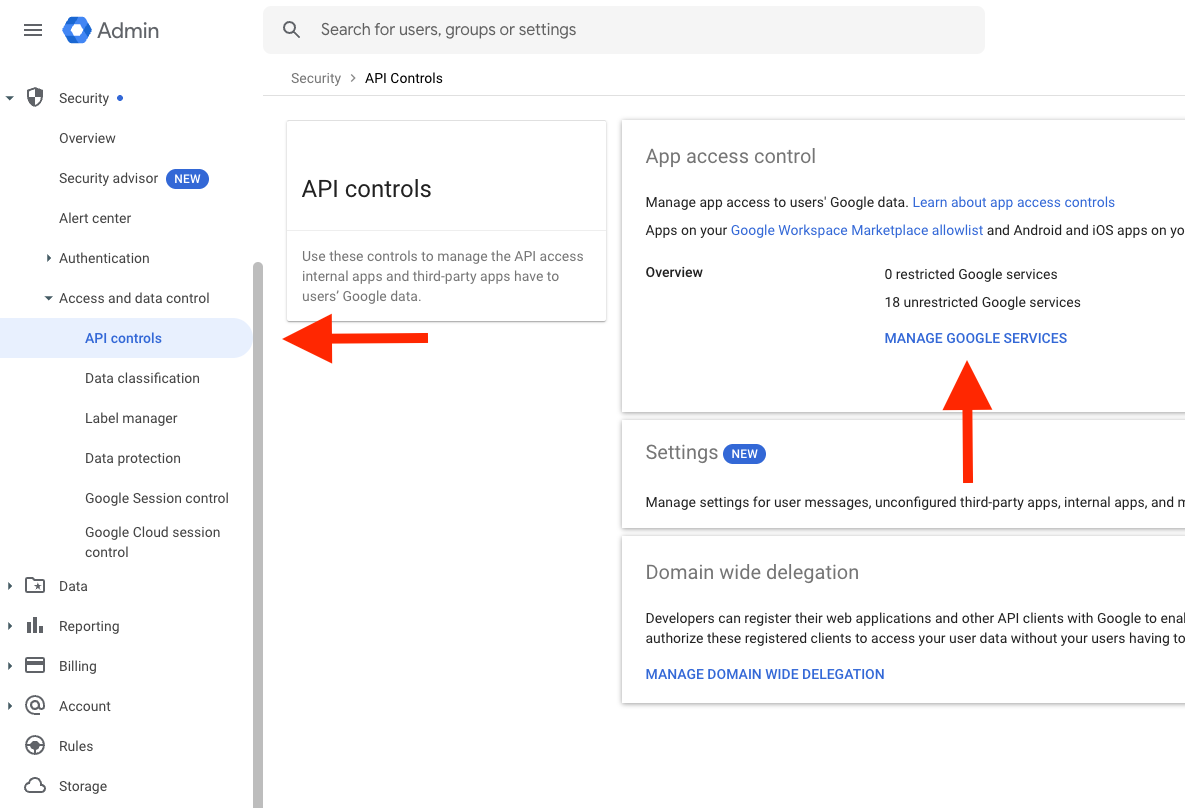
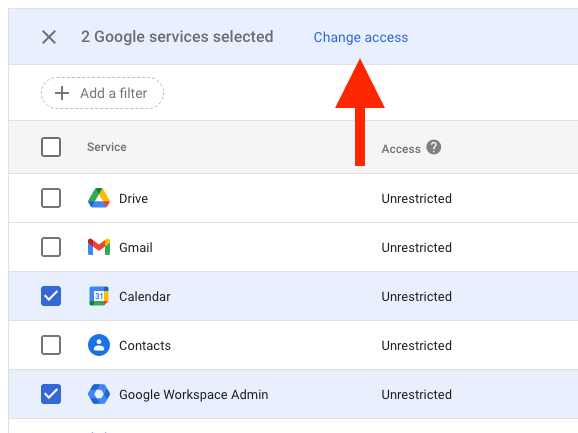
Make sure your Calendar and Google Workspace Admin permissions are set to Unrestricted.
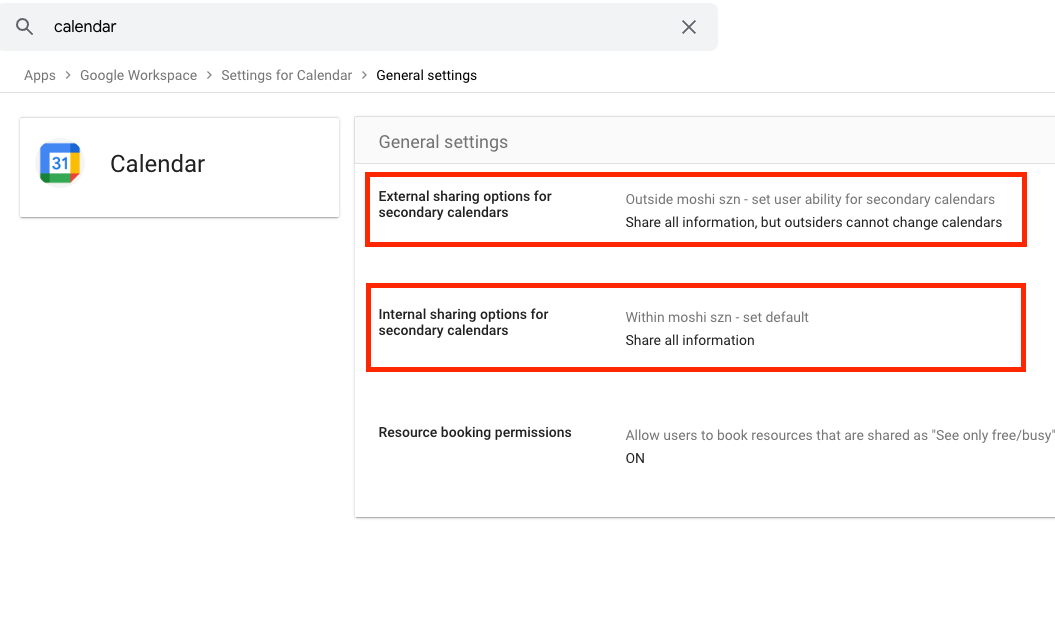
You now have to provide your Google calendar permission to see event details.
Navigate to Apps > Google Workspace > Settings for Calendar > General Settings, and select Share all information. Third parties such as Joan are now allowed to change your calendars.
For Joan to manage your chosen meeting room, you will first need to create a calendar resource in Google Workspace. See how here.
Watch the videoAfter preparing the Google Workspace calendar for Joan, log into MyJoan to pair Joan with your calendar.
Go to Settings > Integrations > Calendar, choose Google and login with a user account.
This can be any user account, but for best practice it is recommended to use a service account designated for this purpose (e.g. joan@yourdomain.com).
For the next step, we will be setting the right access permission for your room resources. Begin by logging into Google calendar with your Super Admin account. If your room calendar is already in the My calendars list, click on the three dots next to the calendar name and on the drop-down menu select Settings and sharing.
Alternatively, you can click on the "+" sign next to Other calendars and select Browse resources to find your room resource calendar settings.
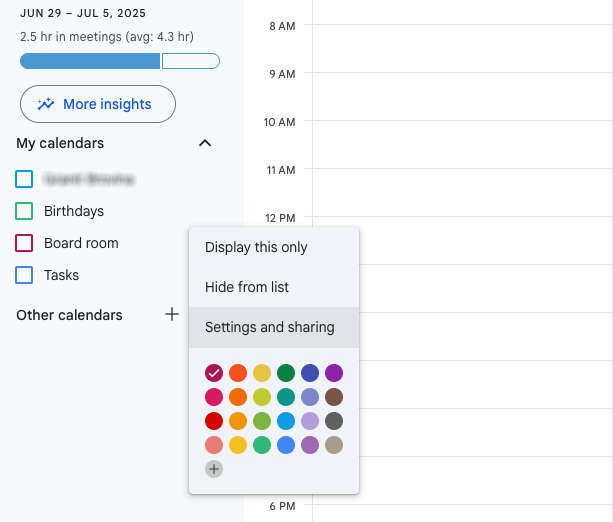
You can now grant the Google user account you wish to pair with Joan access to a specific room calendar.
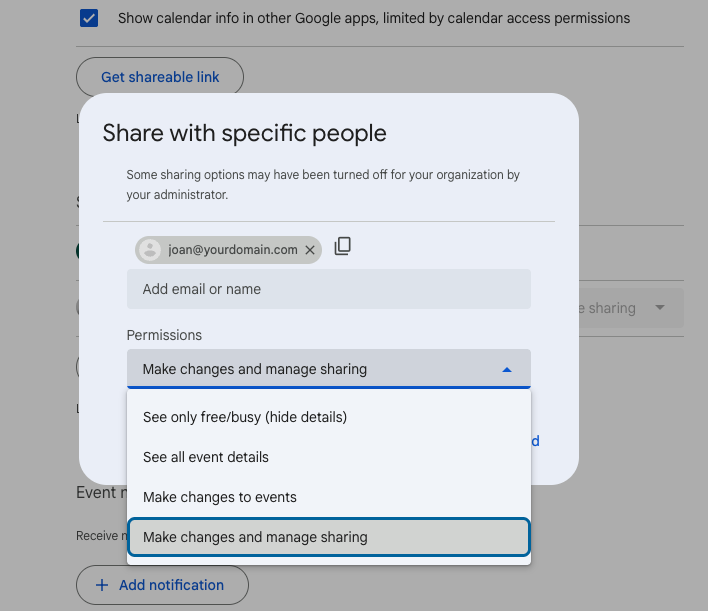
To ensure that Joan works properly, select Add people and groups under Share with specific people, enter your service account mentioned above, and set the Permissions to Make changes and manage sharing then click Save. Joan will now have read and write access to the room resource.
To start adding your rooms, please go to the room list in MyJoan.
Joan can automatically scan your calendar account to find any available rooms or resources that can be synced with your MyJoan account, using the Autoscan Rooms button.
If the resource does not show up, you might want to add it manually by clicking “Add a room” and inputting the calendar’s email / ID.
If you’re having issues with the above, please contact support@getjoan.com and we’ll help you diagnose the issue.