If you haven't added room resources to MyJoan account yet and aren't sure how that is done, check out How to add a room resource to MyJoan account. After successfully adding the resources to your account, you can connect those resources to your device(s).
- Log in to MyJoan with your account credentials
- Navigate to the “Office” page via the top navigation menu
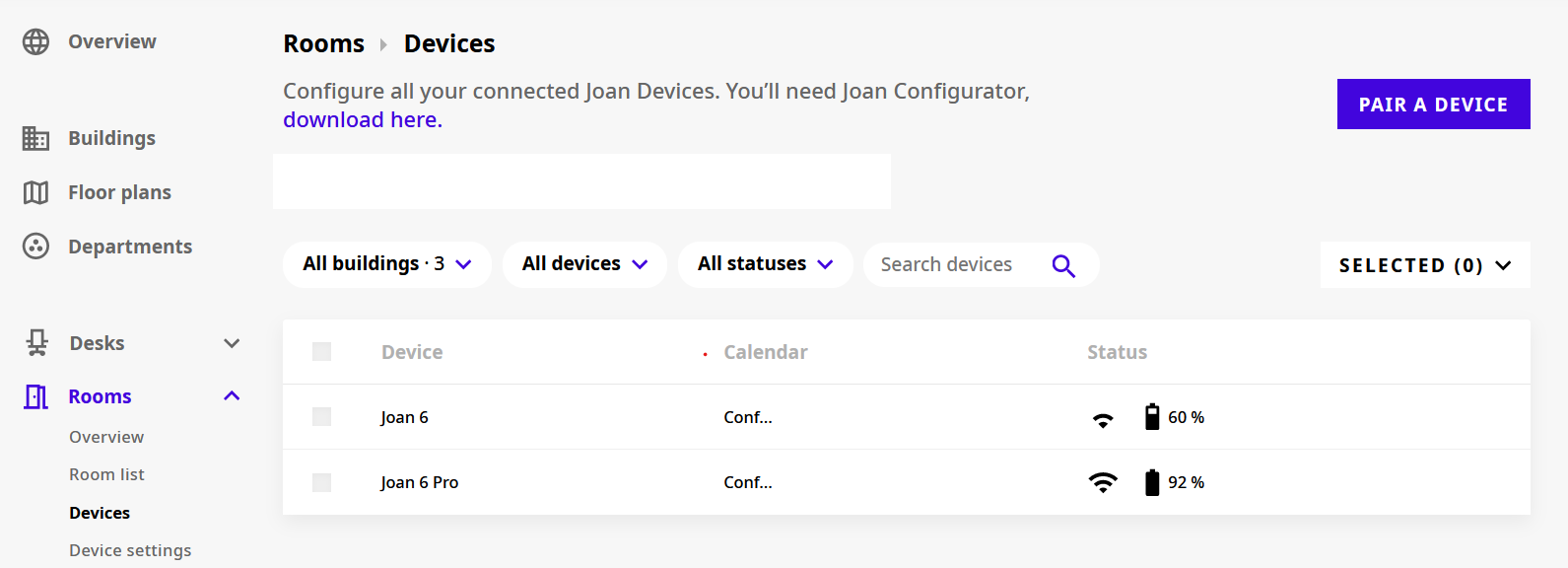
- Select “Rooms” and then ”Devices” from the left-hand side menu
- A table of all your devices will be visible. Click on the unassigned device
A new page will appear. Locate the “Choose a room:” section just underneath the device preview and select the desired room(s) from the drop-down menu. You can edit the Device's name as well.
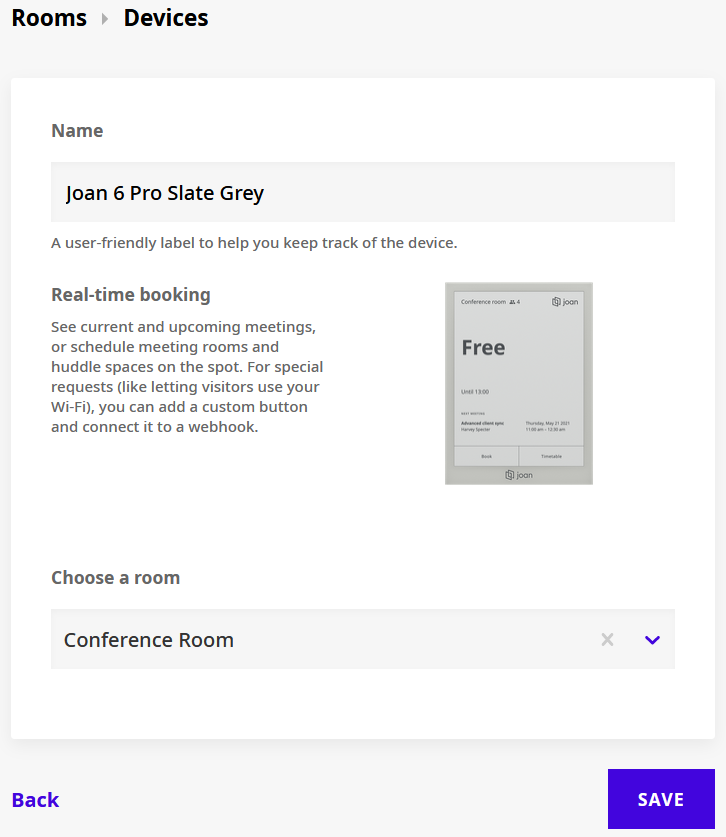
Click on the “Save” button once you select the correct room.
And that’s it! You have successfully connected a room resource to your Joan device. After a few moments, the device will automatically refresh and update with the latest settings and begin displaying the schedule for the selected resource(s).
*If you encounter any issues, please contact support@getjoan.com.