Joan employee badges are reusable e-paper ID badges that show an employee’s photo, name, job title and department. When details change, you update the badge over Bluetooth instead of reprinting it. Each badge also has an NFC chip, so it can work as an access card. See Can the badge be used for access control?
Admins and office managers prepare and manage the badges. Employees don’t set anything up. They get a badge that’s ready to wear.
Badge content is prepared and synced in the Joan Workplace mobile app, because the app talks to the badge over Bluetooth. The MyJoan web portal is for the badge list, employee details and department colours.
Task | Joan Workplace mobile app | MyJoan web portal |
|---|---|---|
Add badges and assign them to employees | ✓ |
|
Choose the badge template | ✓ |
|
Sync or resync badge content | ✓ |
|
Clear a badge | ✓ |
|
Unassign a badge when an employee leaves | ✓ |
|
Check battery level (badges in range) | ✓ |
|
Set department colours |
| ✓ |
Edit employee details and photos |
| ✓ |
View all badges, filter and search | ✓ | ✓ |
Mark a badge as lost or stolen | ✓ | ✓ |
Remove a badge from your organization | ✓ | ✓ |
- An admin or office manager role in MyJoan.
- The Joan Workplace mobile app on your phone or tablet, with Bluetooth turned on and allowed for the app.
- Charged badges, close to your phone.
- Your employees in the Joan user directory. Their name, photo, department, job title and email come from their Joan accounts.
- Department colours set in the web portal, if you plan to use the Department template.
In the Joan Workplace mobile app, tap Badge template on the Employee badges screen and pick one of four templates. The template applies to all badges in your organization, and your company logo is added automatically.
- Default
- Department: uses your department colours, so you can tell departments apart at a glance.
- Informational
- No picture
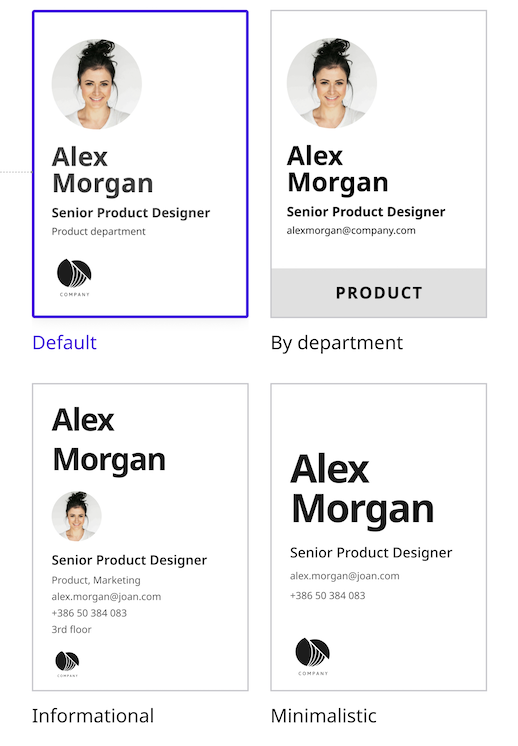
Badges use a 4-colour e-paper display: black, white, red and yellow. Custom badge designs and custom images aren’t supported.
If you change the template later, resync the badges that are already assigned so they show the new design.
- In the Joan Workplace mobile app, open Employee badges and tap Add badges.
- Scan the code on each badge’s screen. You can scan several badges in one go.
- The app connects to each badge over Bluetooth and shows whether it connected.
- Tap Assign badges and select the employees. You can filter by department or search by name. You can assign only as many employees as you have connected badges in range.
- The app syncs the badges, shows progress and confirms when it’s done. If a badge fails, the app shows why and lets you retry.
Important
Keep the Joan Workplace mobile app open and the badges close to your phone until all badges have synced. If you close the app, the badges may not finish updating.Tip
Scan in good light. Scanning is much slower in low light.Employees can set their own profile photo in their MyJoan profile settings. Admins can also upload a photo for an employee from the user directory. The new photo appears on the badge after the next sync.
Update the employee’s name, job title, department or photo in the web portal, then resync the badge from the Joan Workplace mobile app. The badge must be in Bluetooth range for every change: template, details, photo, resync and clear.
The Devices list in MyJoan shows every badge in your organization.
- Assigned badges: shown with the employee’s name, department, status and last sync time.
- Unassigned badges: shown by MAC address with the status “Not assigned”.
You can filter the list by status and department, or search it. The Joan Workplace mobile app shows the same badges in two lists: assigned and available.
- On the badge: press and hold the button for 4 seconds. A menu opens and shows the battery percentage. Anyone holding the badge can do this.
- In the Joan Workplace mobile app: admins and office managers can see the battery level of badges in Bluetooth range.
The web portal doesn’t show battery levels for employee badges. Employee badges only connect when they’re near a phone running the Joan Workplace mobile app, so the portal has no current reading.
An empty badge shows a red battery icon at the bottom centre of the display. The rest of the content stays on screen, because an e-paper display keeps its last image without power. A badge that still shows the employee’s details can therefore be empty, so look for the red icon.
Use any Qi-compatible wireless charger. Joan doesn’t sell chargers yet. We’re testing Qi chargers and will recommend one here.
In the Joan Workplace mobile app, open the employee’s badge and tap Unassign. This removes the badge from the employee and clears it, so you can give it to someone else. The badge must be in Bluetooth range.
Tap Mark as lost or stolen in the Joan Workplace mobile app or the web portal. The badge doesn’t need to be in range.
The badge is then removed from the employee, and you can no longer sync or edit it.
Important
The badge keeps showing the employee’s details until it comes back in Bluetooth range of a phone in your organization and is cleared. If the badge is also used for building access, block it in your access control system too.After that, you can remove the badge from your organization. The badge doesn’t need to be present.
Employee badges and Visitor ePaper badges are the same hardware, but each badge has one job at a time.
- A badge connected to a Visitor Management tablet can’t be assigned to an employee.
- A badge assigned to an employee can’t be used for visitors.
Employee and visitor badges appear in separate lists in MyJoan.
No. Employees can only set their own profile photo in MyJoan and check the battery on the badge.
No. Choose one of the four templates.
Yes. The badge has an NXP MIFARE DESFire EV3C NFC chip and works like a standard access card. Ask your access control vendor to set it up, the same way as for standard cards. See Can the badge be used for access control?
No. Badges update when an admin or office manager syncs them from the Joan Workplace mobile app.
If you need help, contact us through the support form.