To set up the Visitor ePaper badge, first make sure the following settings are correct in your MyJoan admin account.
Before you start
- Enable Visitor Management, as described in How to set up visitor management.
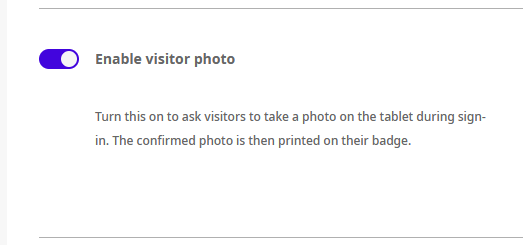
- Go to Settings > Visitor > General Settings and turn on Enable visitor photo.
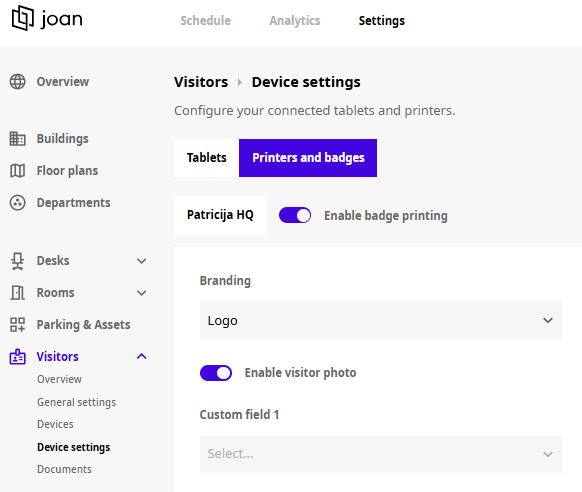
- To show the visitor's photo on the badge, go to Visitor > Device Settings, select Printers in the top menu and turn on Enable visitor photo.
Pair the device to your MyJoan account
- Hold the button on the back of the Visitor ePaper badge to turn it on. The screen refreshes and shows the battery percentage and the MAC address.
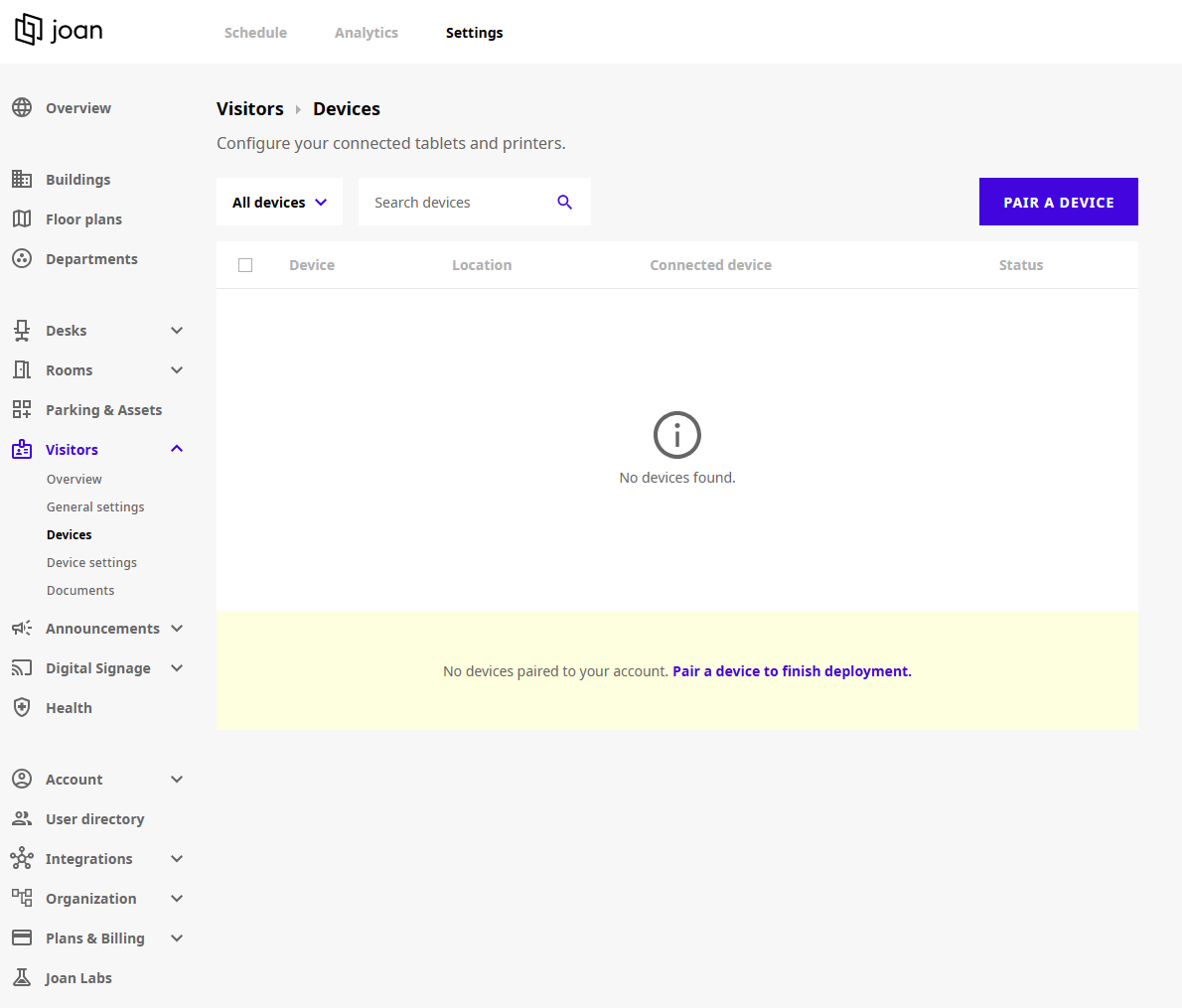
- In MyJoan, go to Settings > Visitor > Devices and click Pair a device.
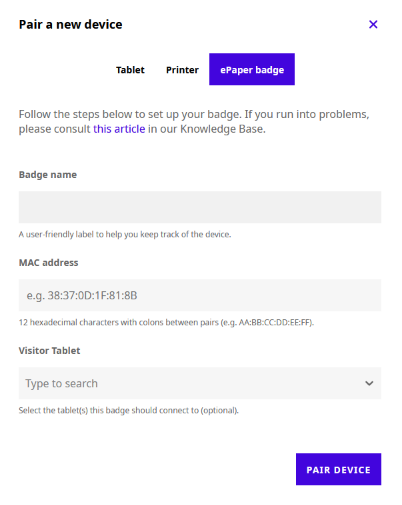
- Select the Visitor ePaper badge option and enter a name, so you can identify the badge in MyJoan.
- Enter the MAC address shown on the badge.
- Optionally, select the tablet(s) the badge should connect to. You can also do this later.
- Click Pair device.
Connect the badge to a tablet
If you did not select a tablet while pairing, connect the badge now:
- In the Devices menu, click the tablet you use at the location.
- Select the badge(s) you want to connect to it.
- Click Save.
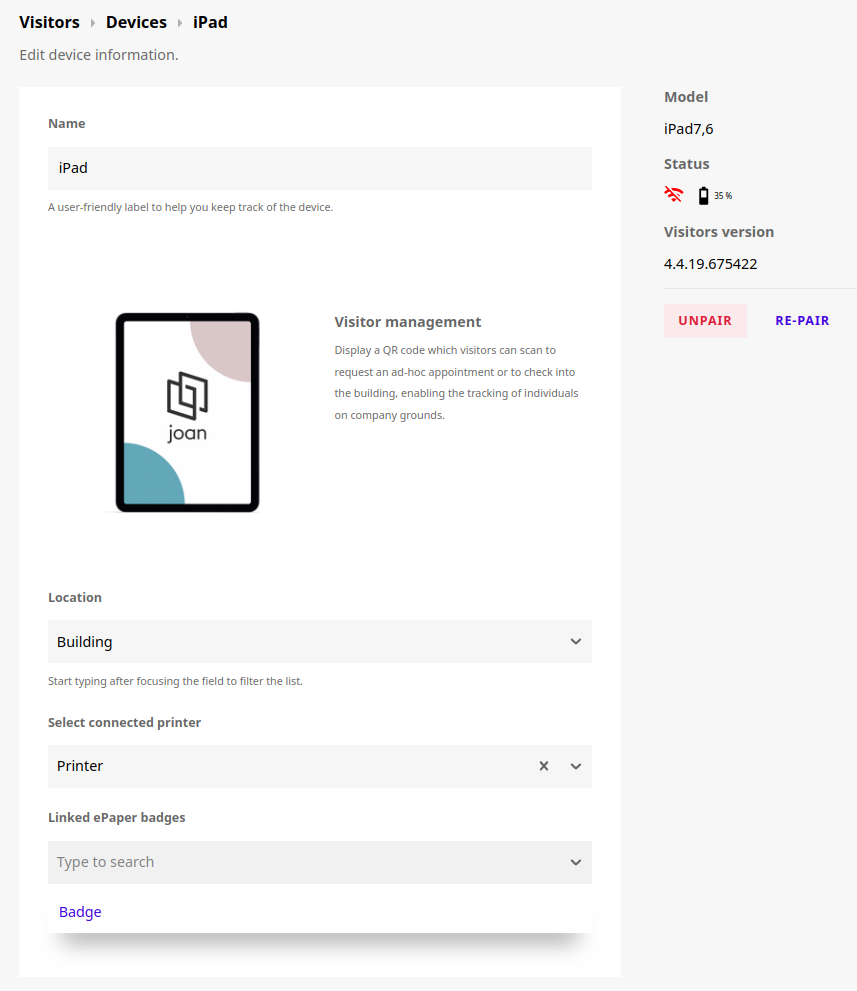
Make sure Bluetooth is enabled on your Visitor Management tablet. When a visitor registers, the tablet picks the connected badge with the best connectivity. The badge flashes while the information uploads, and it finishes updating in about 10 seconds.
Returning the Visitor ePaper badge
When the visit is over and the visitor hands over their badge, they should use the tablet to sign out, indicating their departure by tapping on the Sign-out button. Once the visitor signs out, the Visitor ePaper badge returns to its initial screen. If the visitor forgets to sign out, you can clear the badge in MyJoan: go to Visitor > Devices, click the badge and choose Clear badge.
Battery & charging
The badge runs on a 155 mAh battery that supports up to about 1,700 screen updates per charge. Because e-paper displays only use power when the screen changes, a single charge can last weeks with daily use. When the battery needs recharging, place the badge on any Qi-compatible wireless charging pad.
If you require assistance with the setup, feel free to reach out to support@getjoan.com.