The Announcements feature helps your company stay connected and informed. With it, administrators can send updates to all employees or targeted locations, and employees can easily access important company news in one place.
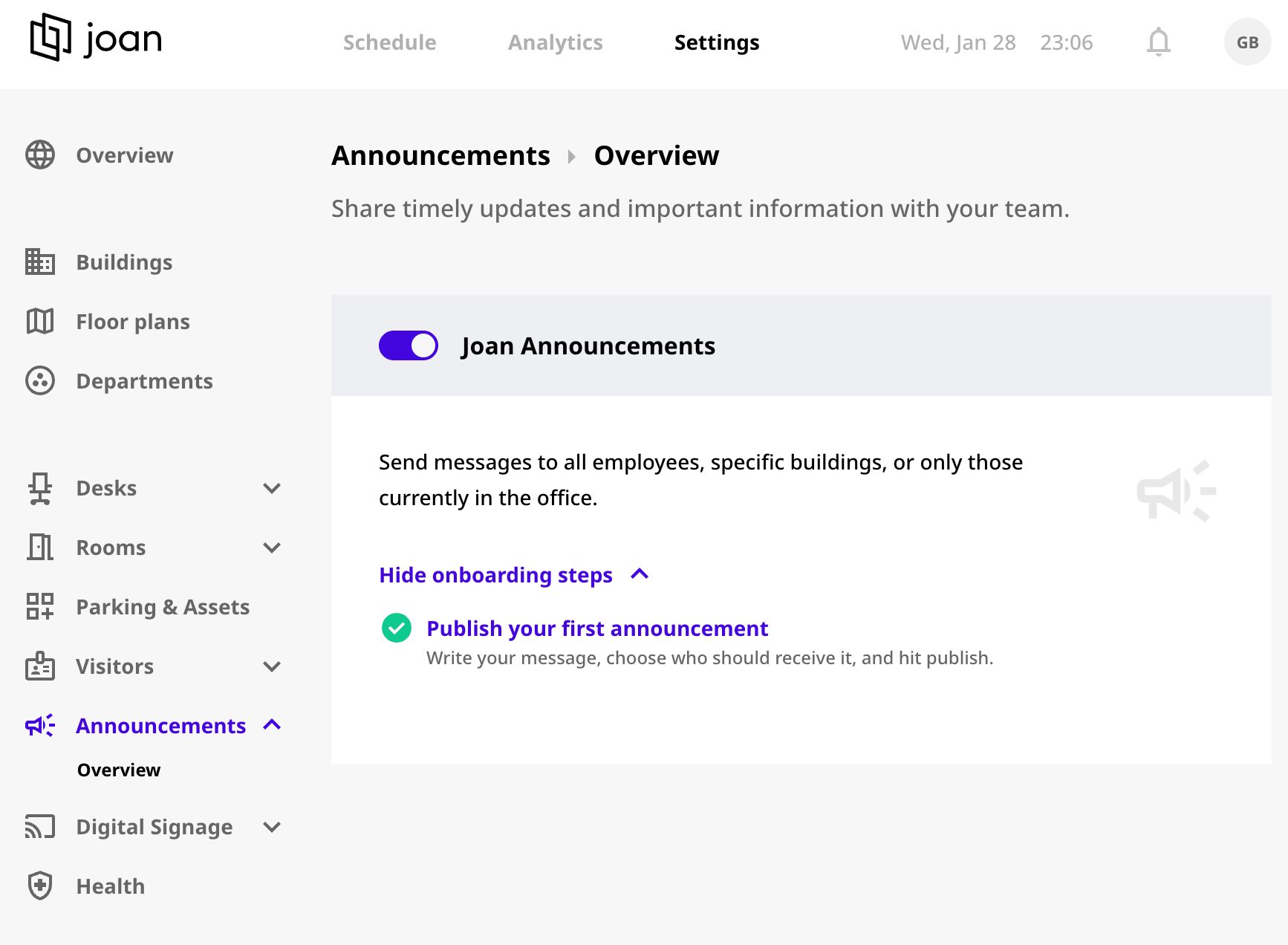
To enable this feature, locate Announcements in the left-hand menu on the Settings page, as shown in the image below.
Employees can view Announcements from:
- The MyJoan portal under Announcements → Inbox
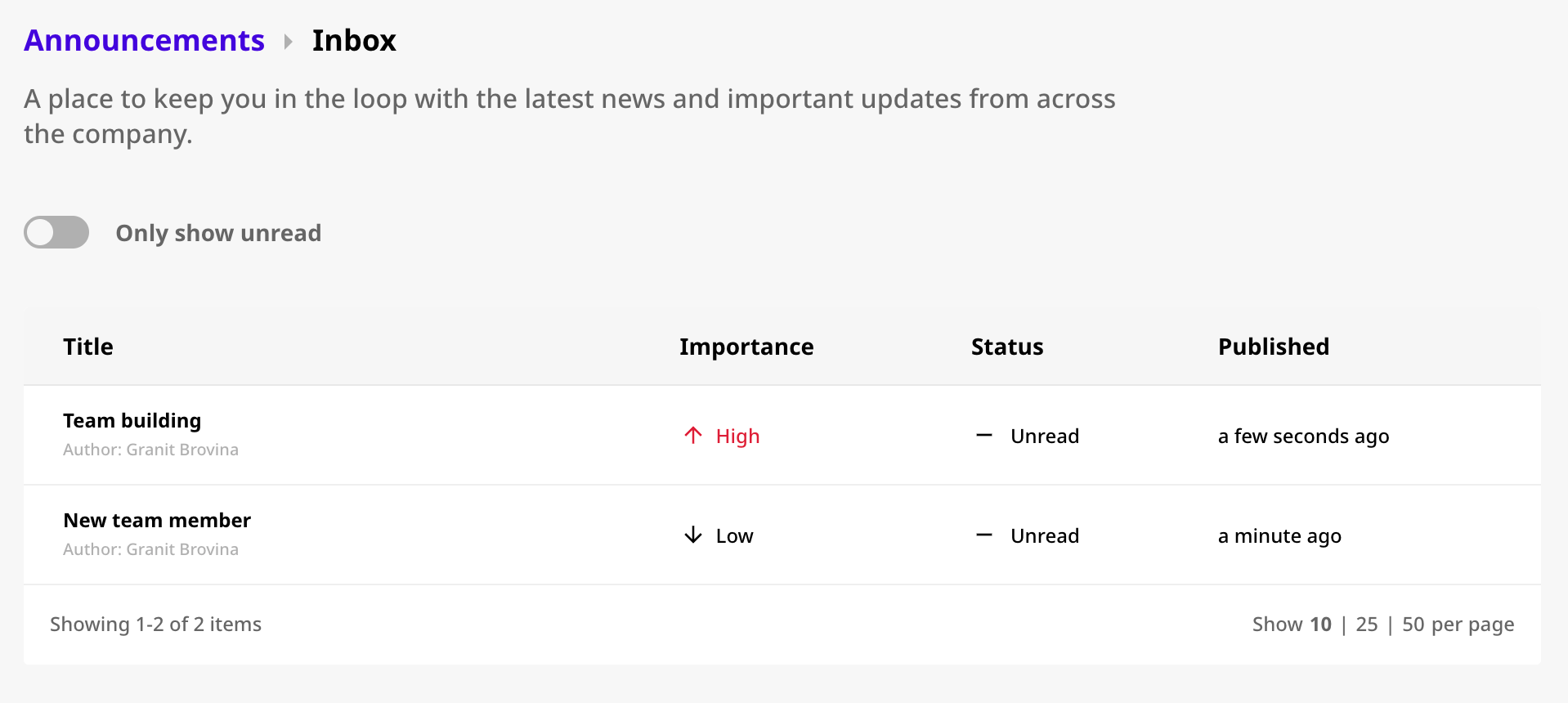
- The Joan Workplace app (iOS or Android)
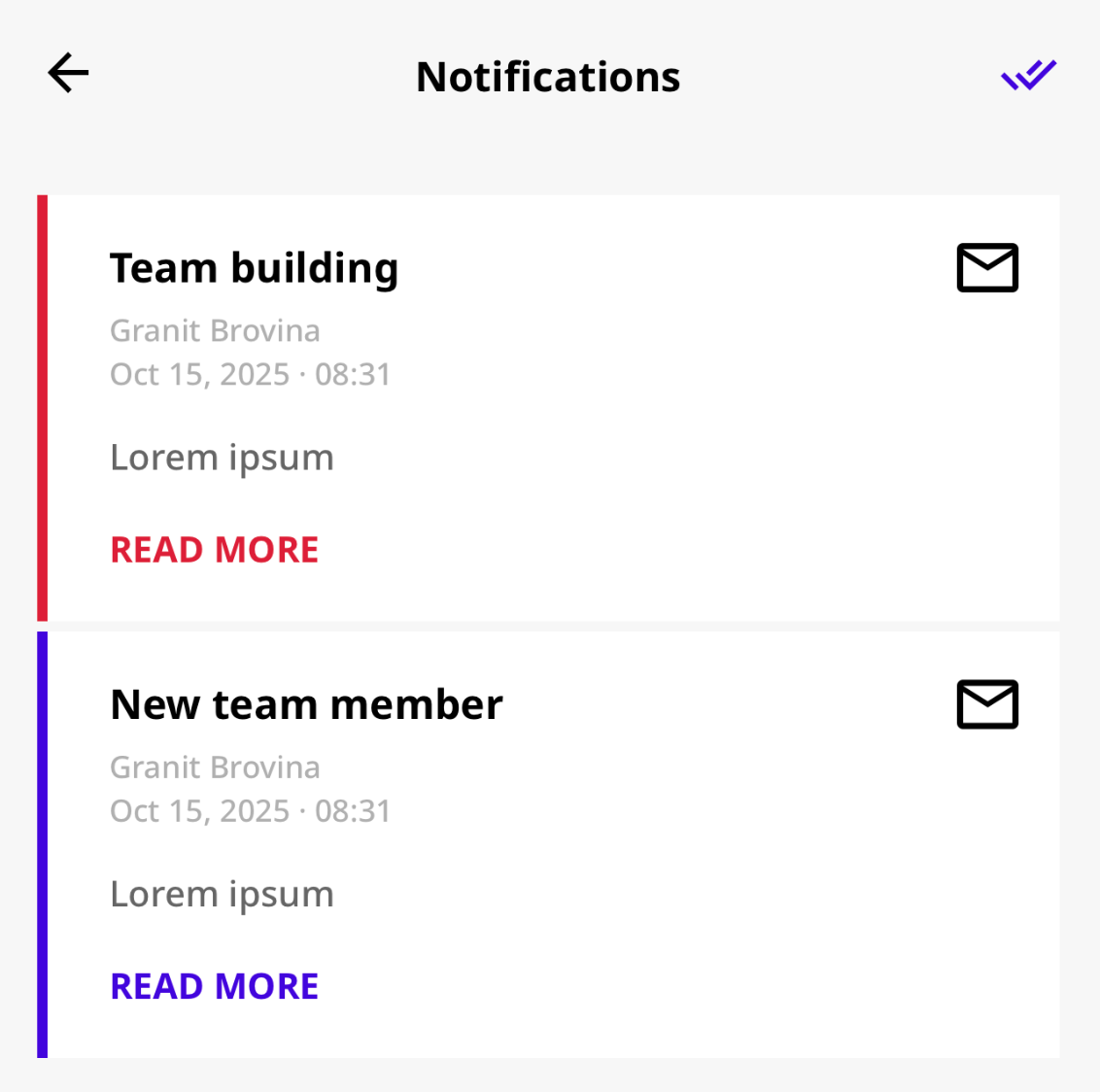
- Displays all company or building-specific announcements.
- Columns include:
- Title – Click to open the announcement.
- Importance – Shows the priority (Low/High).
- Status – Read/unread.
- Published – Date the announcement was released.
Use the “Only show unread” toggle to quickly filter unread updates.
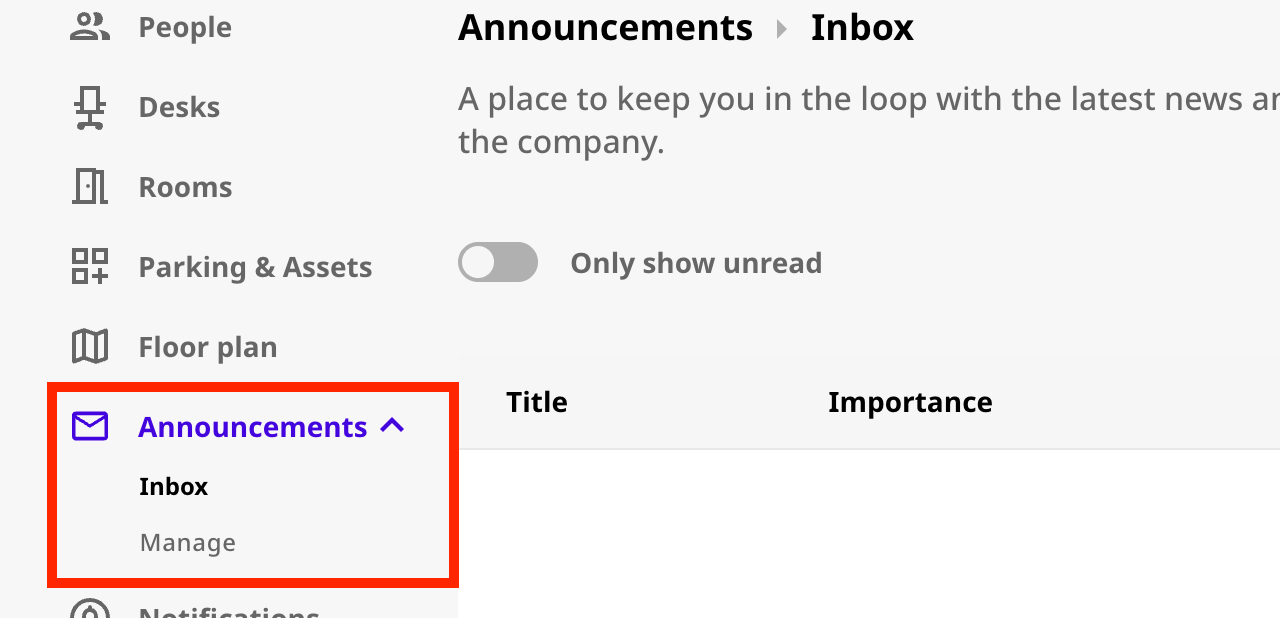
- In the left-hand sidebar, click Announcements.
- You’ll see two subpages:
- Inbox – Displays all received announcements.
- Manage – Allows admins to create, publish, and track announcements.
- Go to Announcements → Manage.
- Click the New Announcement button (top-right).
- Fill out the following fields:
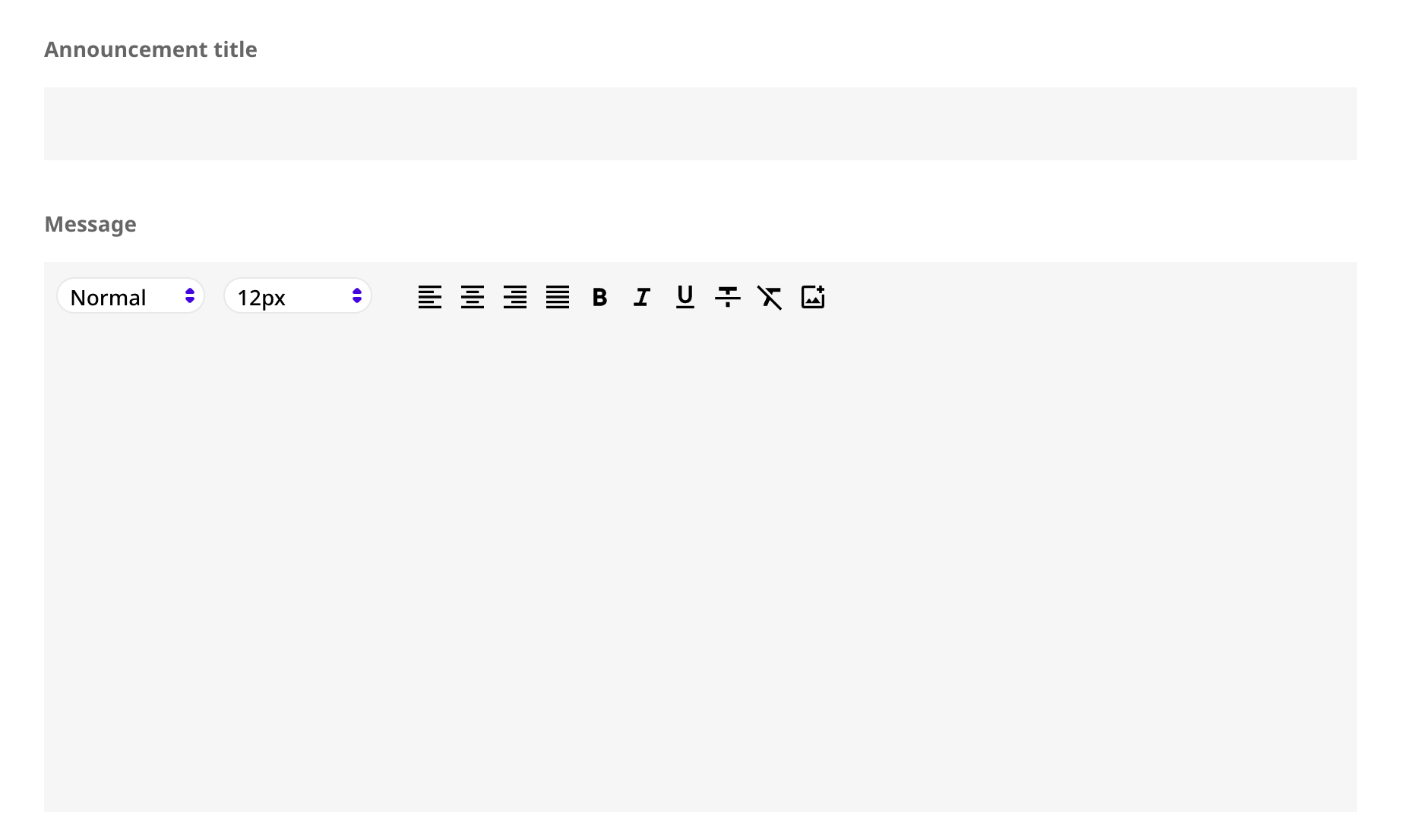
Give your announcement a short, descriptive title (e.g., Office Wi-Fi upgrade).
Write the body of your message using the built-in text editor. You can:
- Format text (bold, italics, bullets)
- Add links
- Adjust font size and alignment
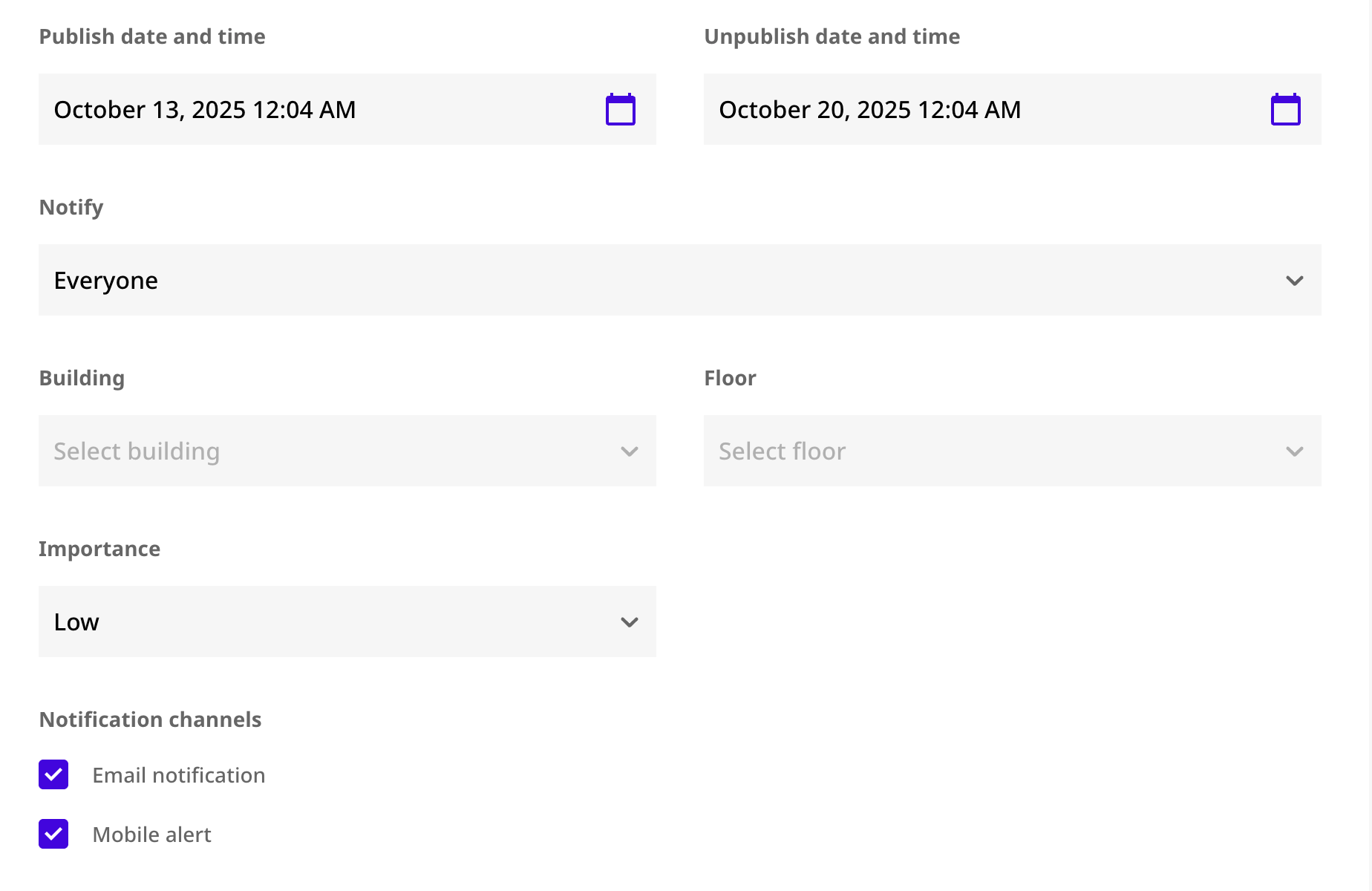
- Publish date and time: When the announcement becomes visible to employees.
- Unpublish date and time: When the announcement expires and is removed from view.
Choose who should receive the announcement:
- Everyone — All users across all buildings.
- Specific building/floor — Target updates to particular locations.
Select the announcement’s priority:
- Low — General updates or routine news.
- High — Time-sensitive or critical information. When this priority is selected, employees must click "Mark as Read" for the item's status to change to 'Read'.
You can notify users through:
- Email notification
- Mobile alert (via the Joan Workplace app)
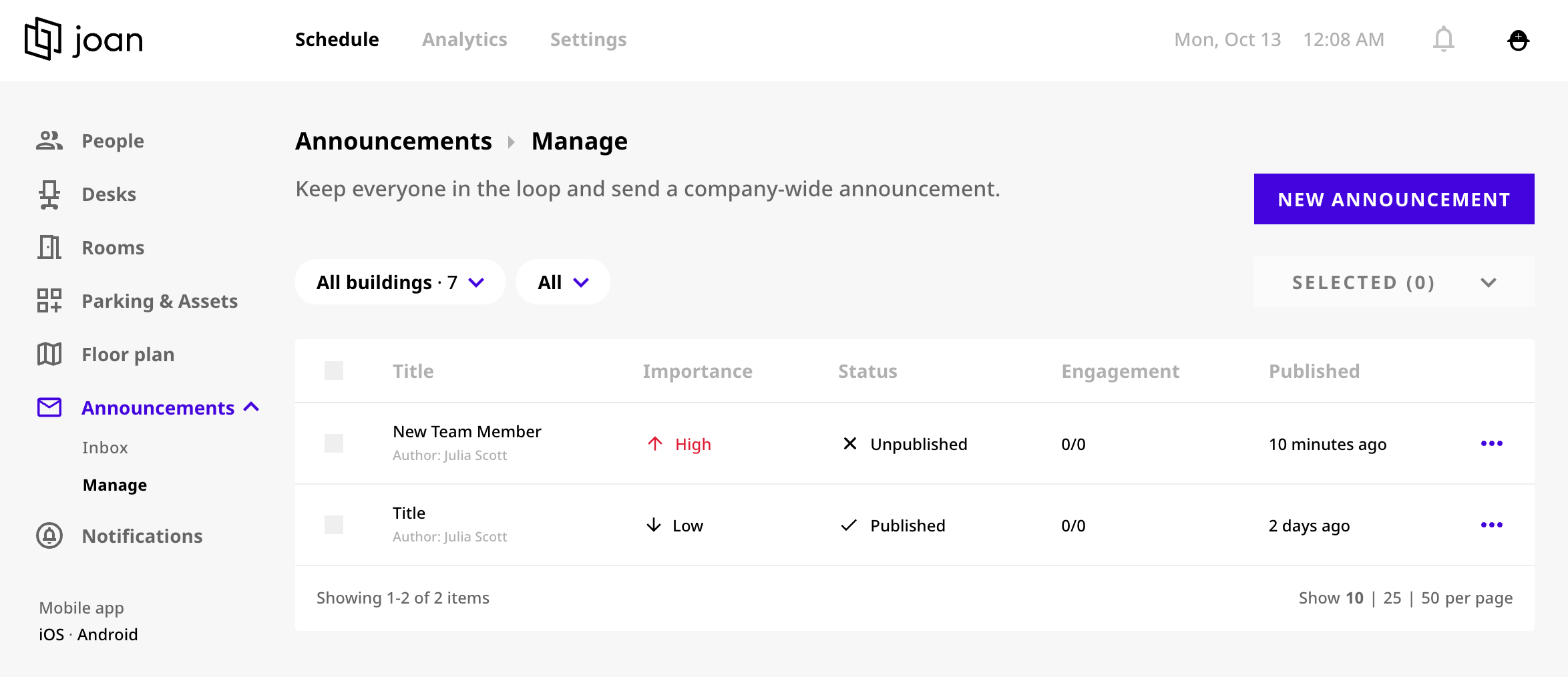
Once published, you can track announcement performance under Announcements → Manage.
The Engagement column shows how many users have viewed the announcement:
- Format:
X/Y(number of views / total recipients) - Example:
5/10means 5 out of 10 employees viewed the message.
You can also see:
- Status: Draft, Scheduled, or Published
- Published: Time elapsed since it was sent
If you encounter any issues, feel free to reach us via support@getjoan.com or submit a ticket via our support ticket form.