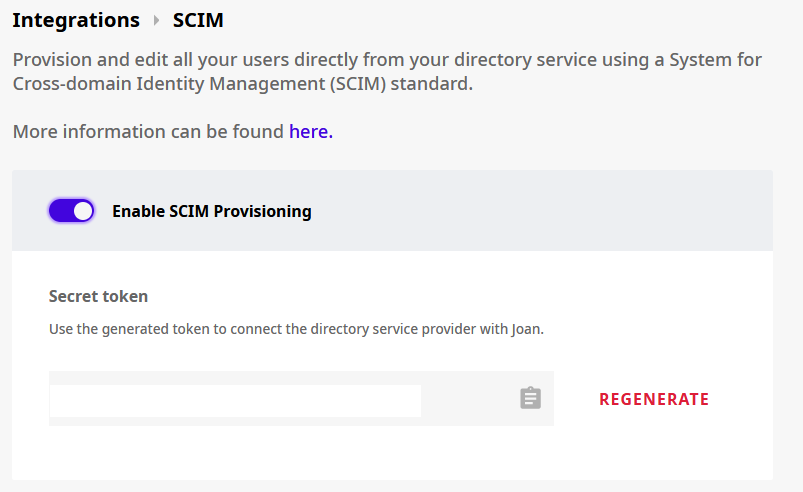
- Go to the user directory and click SCIM.
- In the window that opens, enable the integration.
- Generate a new token. You will use it to authenticate the connection between OneLogin and Joan.
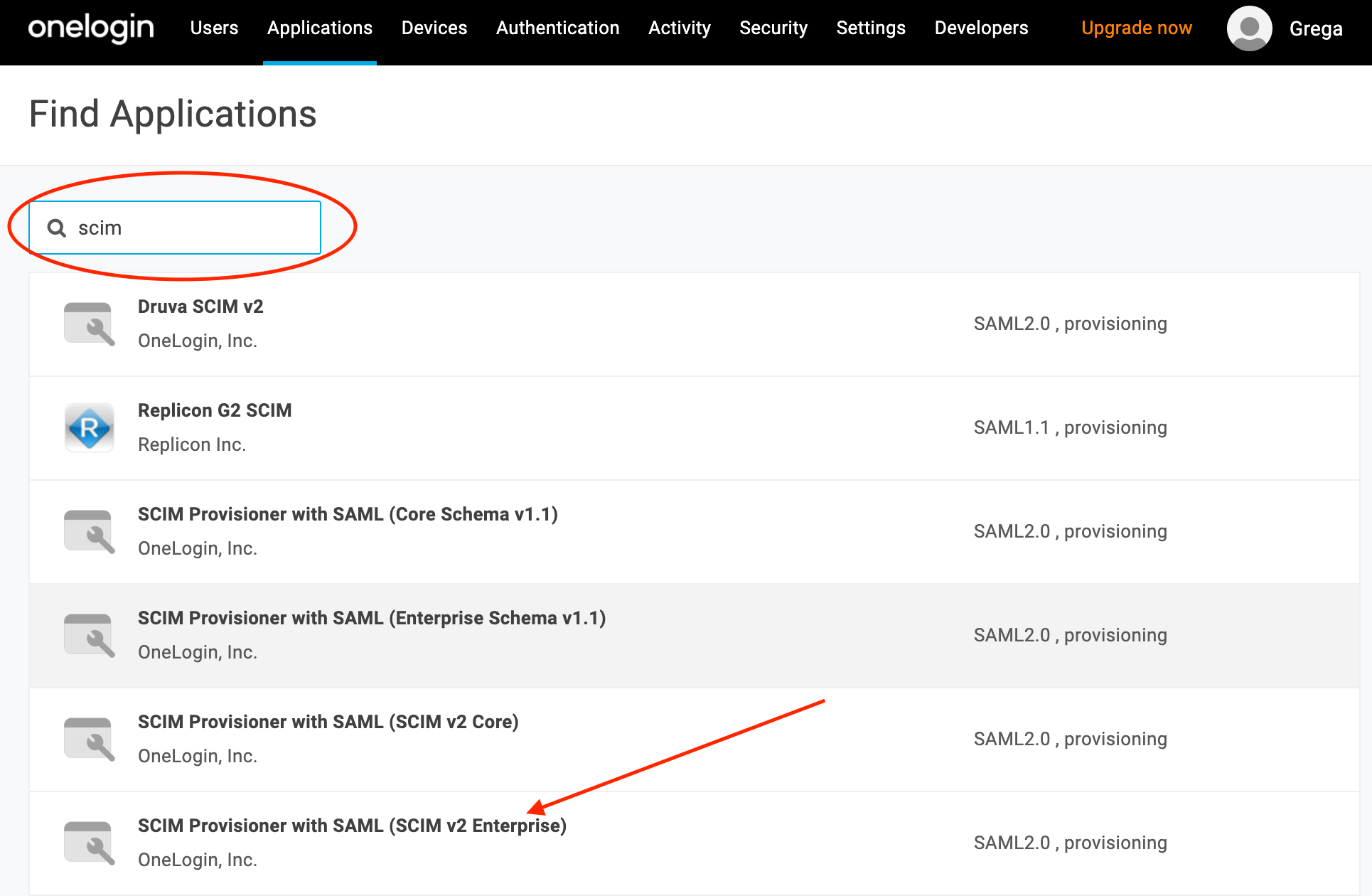
- On the Applications subpage, search for "scim".
- Select SCIM Provisioner with SAML (SCIM v2 Enterprise). This is a generic SCIM integration application provided by OneLogin.
- Enter the application display name (e.g. Joan Integration) and click Save.
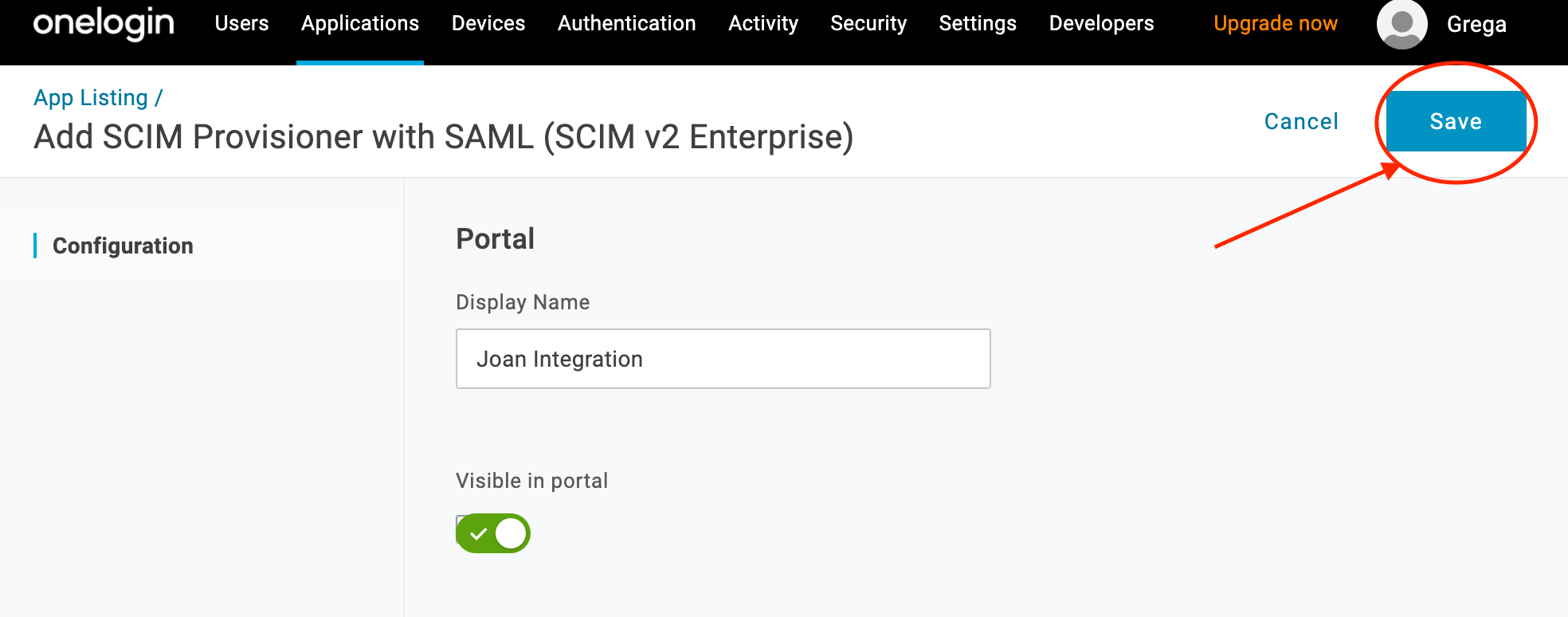
A new application is created. In the next steps, you configure it to connect to your Joan account.
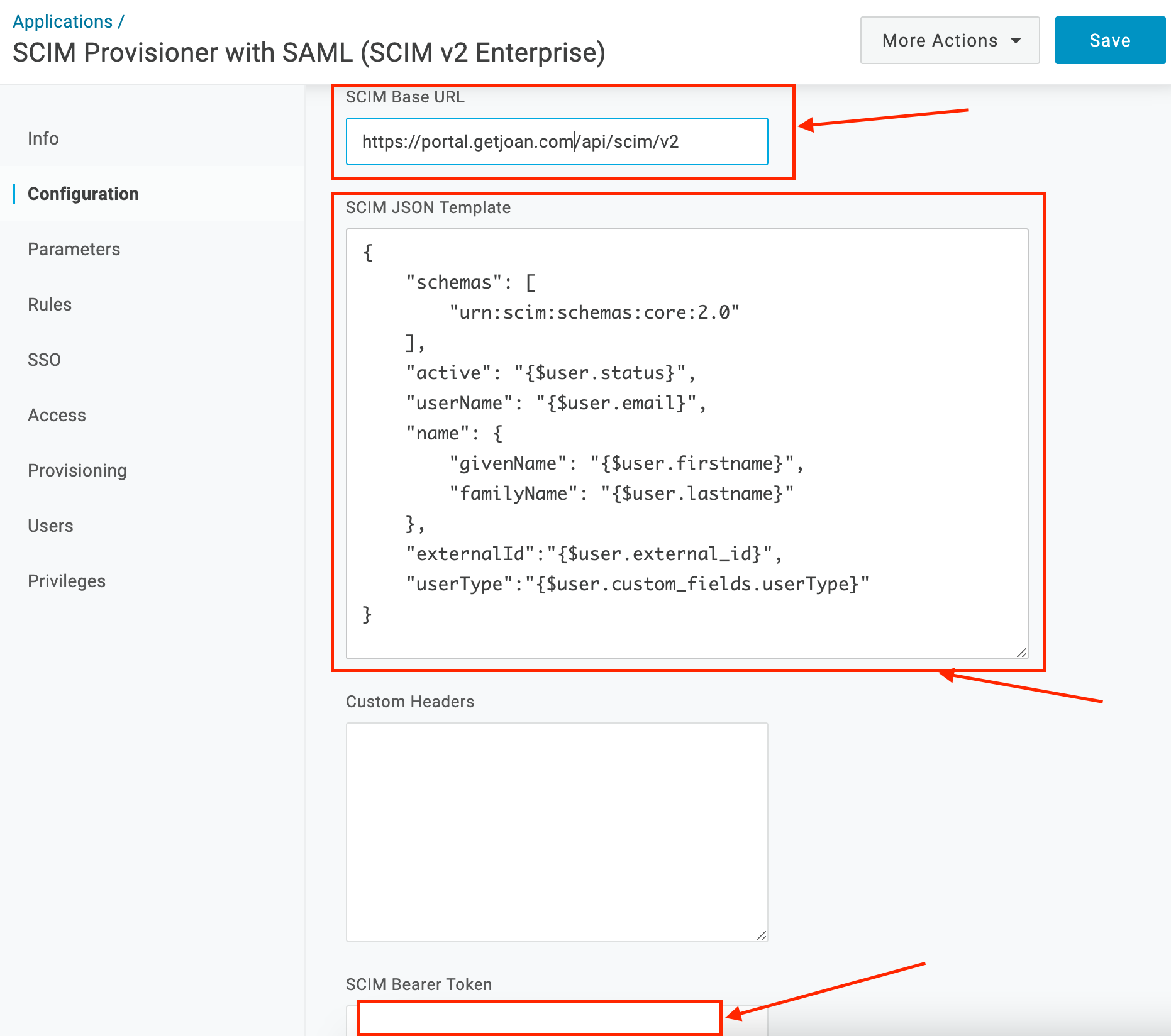
- Go to the Configuration subpage of the new application.
- Enter the following values:
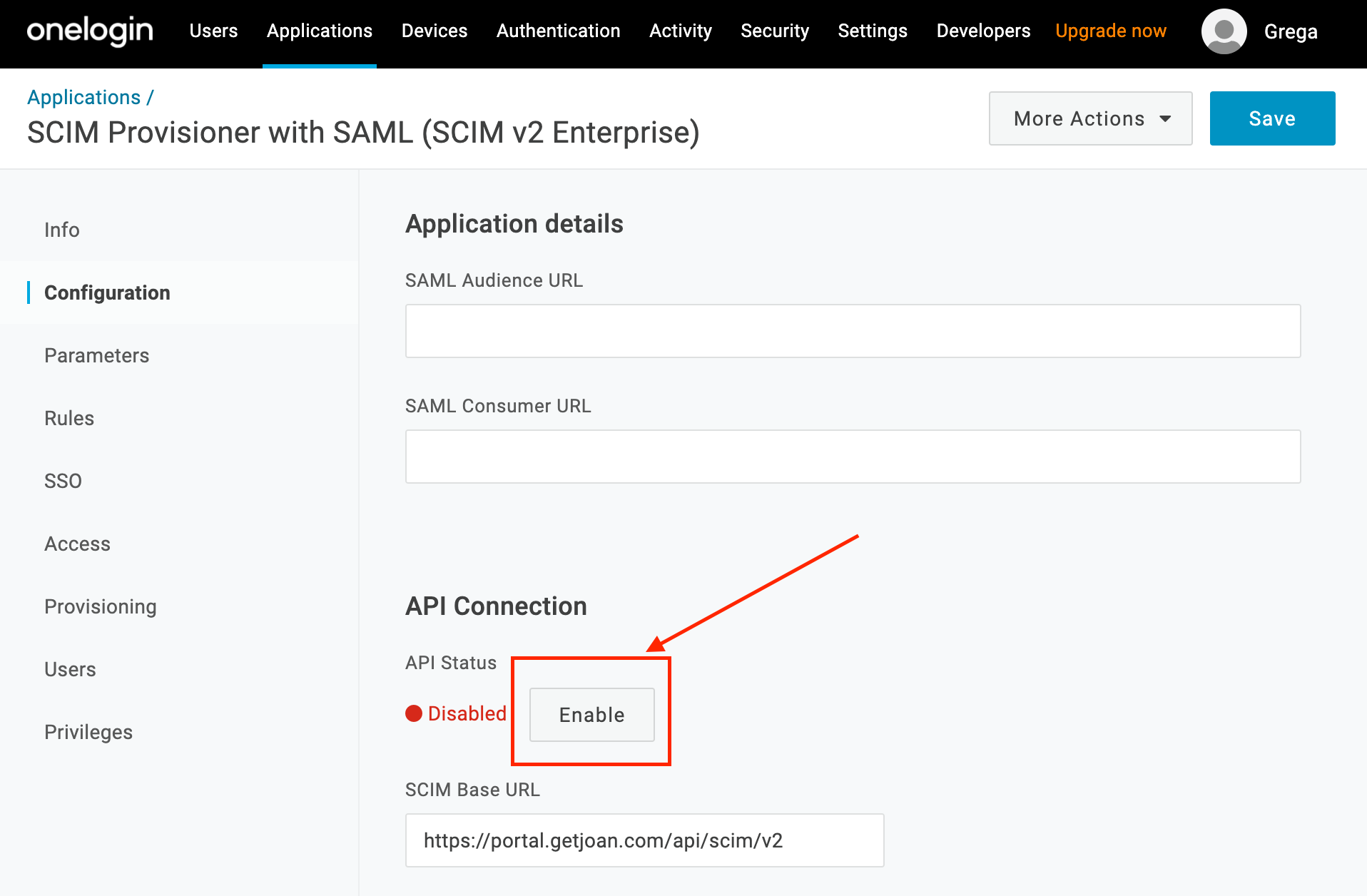
SCIM Base URL: https://portal.getjoan.com/api/scim/v2
SCIM Bearer Token: copy it from Joan SCIM configuration page.
SCIM JSON Template:
{
  "schemas": [
    "urn:scim:schemas:core:2.0"
  ],
  "active": "{$user.status}",
  "userName": "{$user.email}",
  "name": {
    "givenName": "{$user.firstname}",
    "familyName": "{$user.lastname}"
  },
  "externalId":"{$user.external_id}",
  "userType":"{$user.custom_fields.userType}"
}
All fields, apart from the "userType" are mandatory. A "userType" field is used to properly map roles from your OneLogin directory to Joan. It helps you automatically manage roles and permissions in your Joan account. If the "userType" field is not included or empty all created users will have a default "User" role assigned in your Joan account.
Currently supported Joan account roles:
- User
- Office Manager
- Click Save.
To sync roles automatically from OneLogin, continue with step 3a below. If not, continue with step 4.
To sync roles automatically with Joan, configure the mappings in OneLogin as follows.
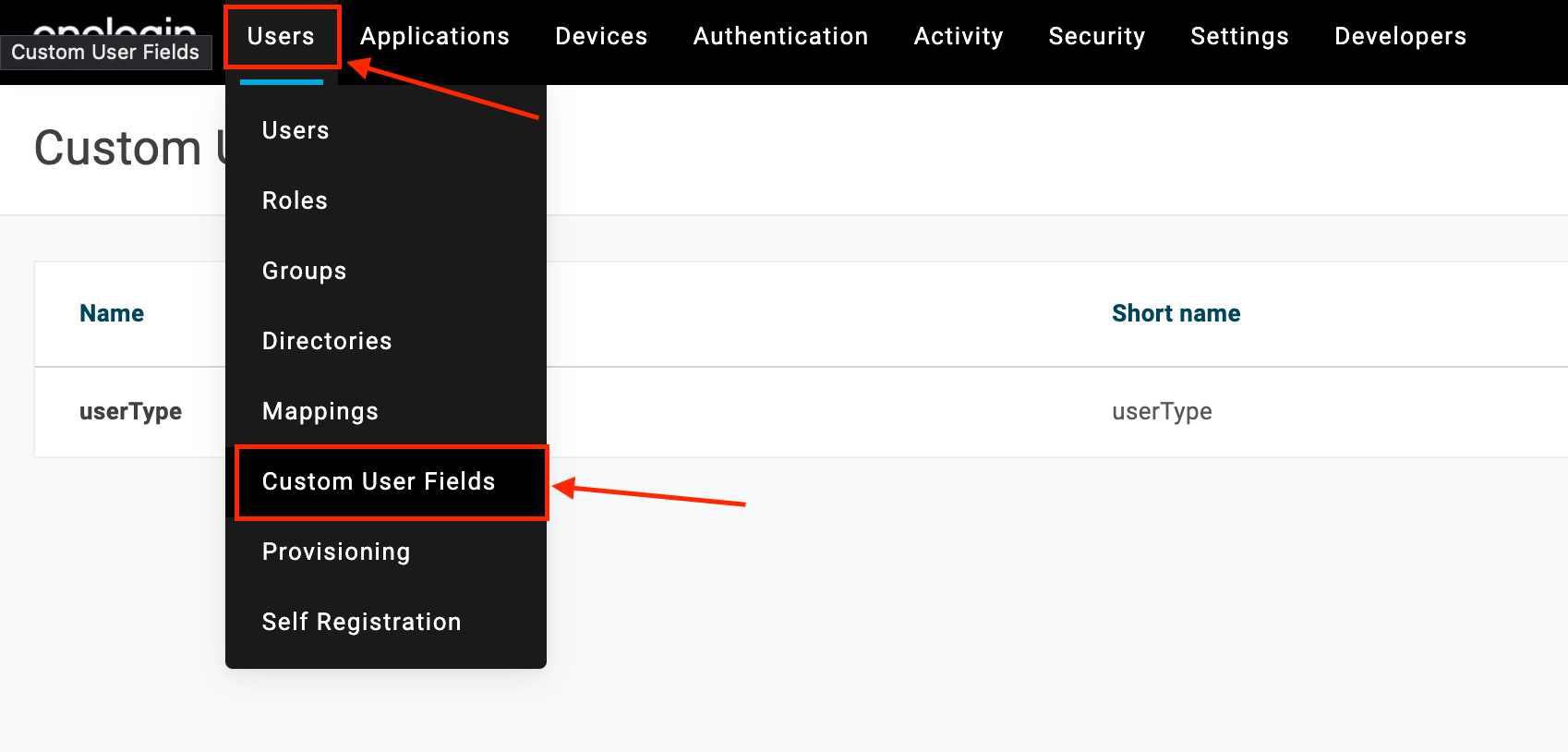
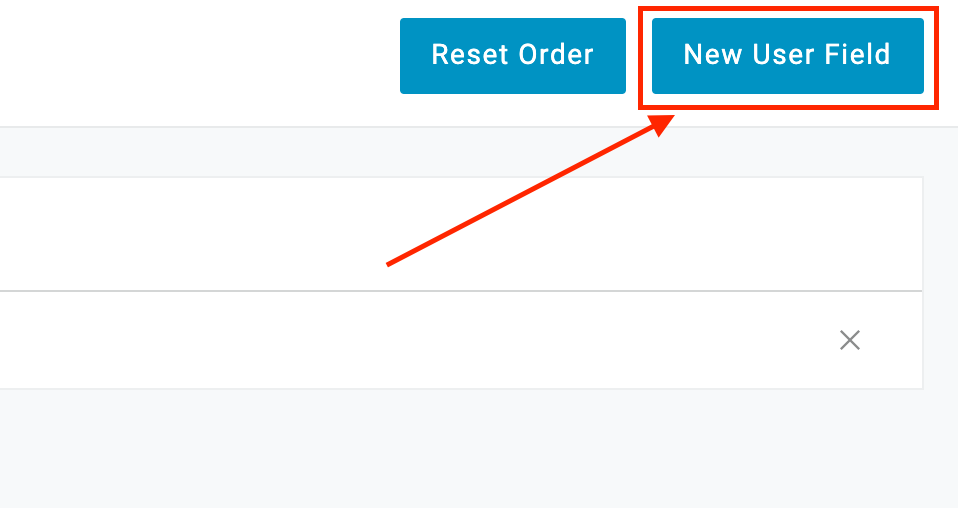
- Go to Users > Custom User Fields and click New User Field.
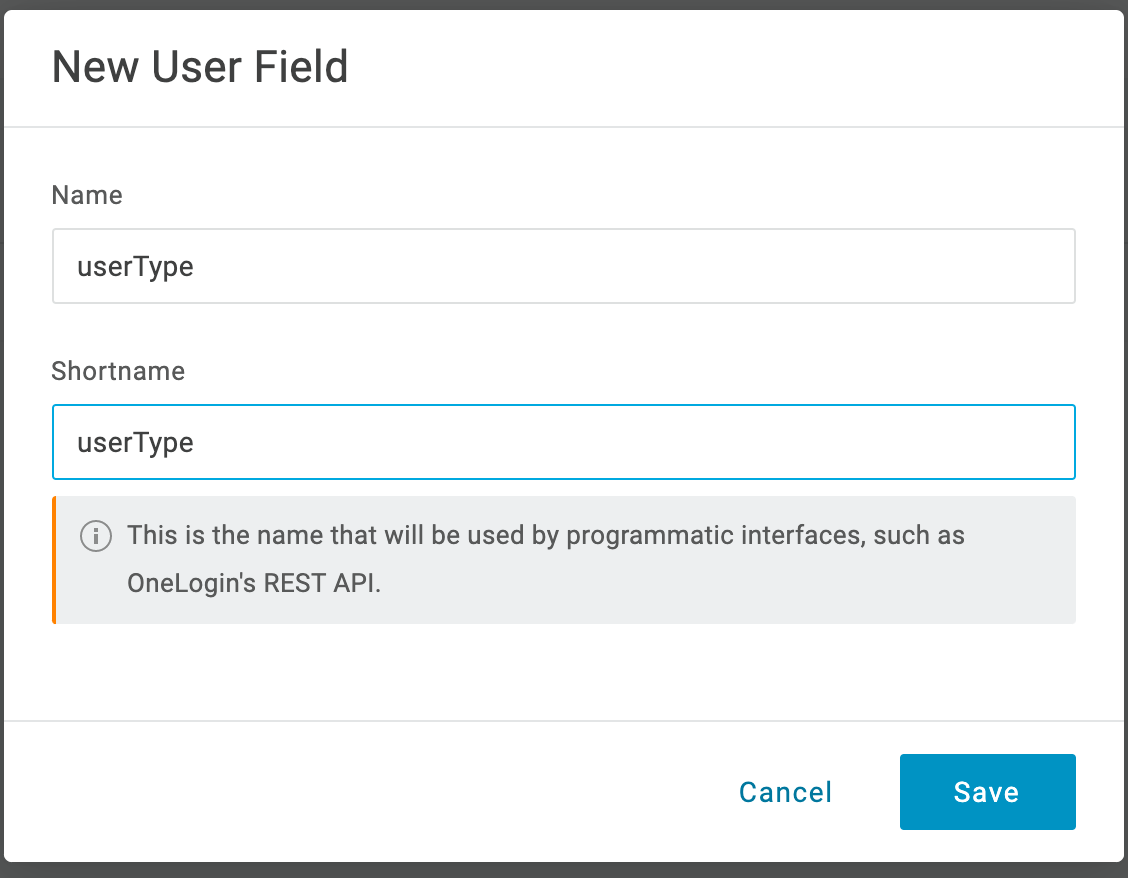
- Enter these values:
Name: userType
Shortname: userType - Click Save.
- Go to Applications and select the Joan integration you created.
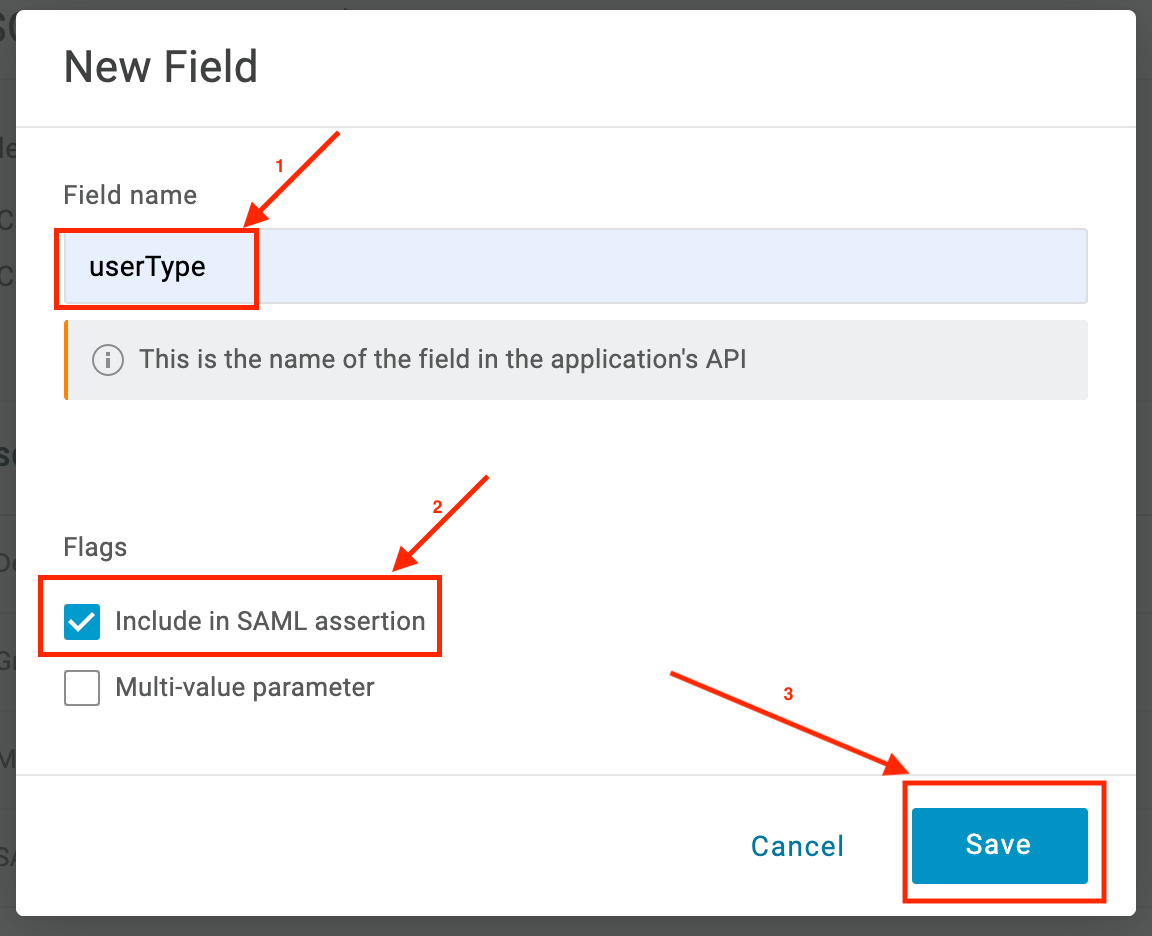
- In the left menu, click Parameters, then click + to add a new one.
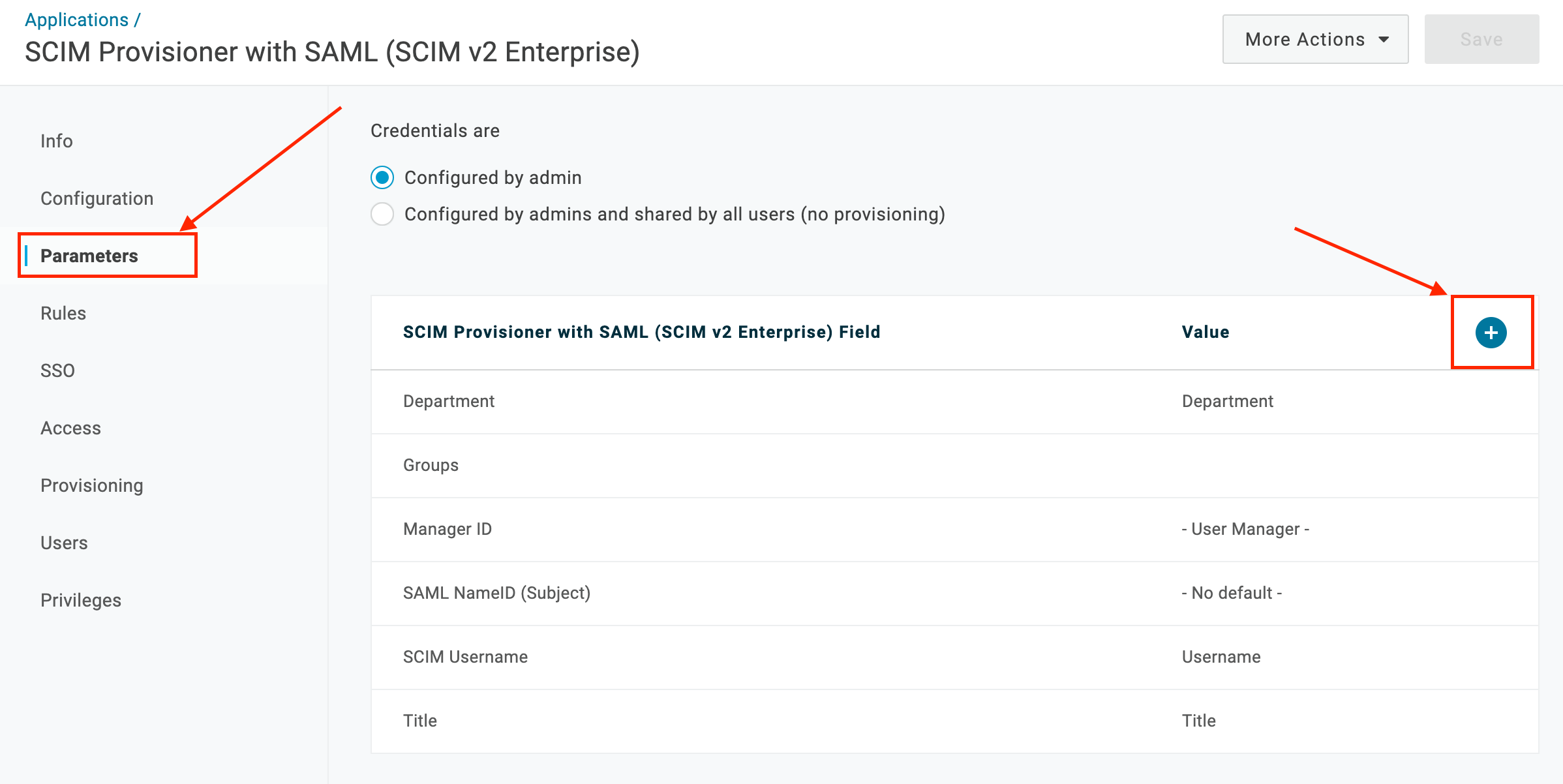
- In Field name, type "userType" and tick Include in SAML assertion.
- Click Save.
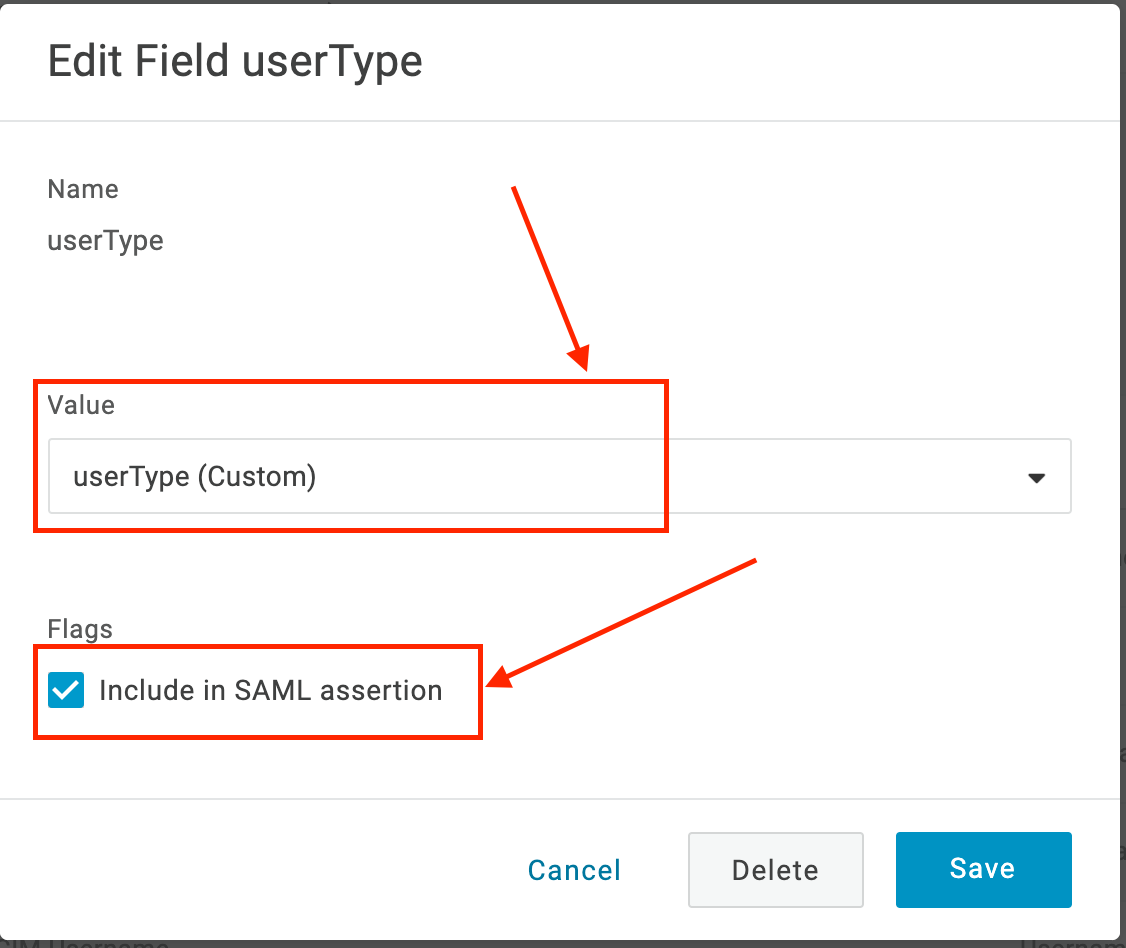
- Edit the new parameter. For Value, select the custom user field "userType" you created.
- Click Save.
Now map your OneLogin roles to Joan roles. Joan currently supports the following account roles:
- User
- Office Manager
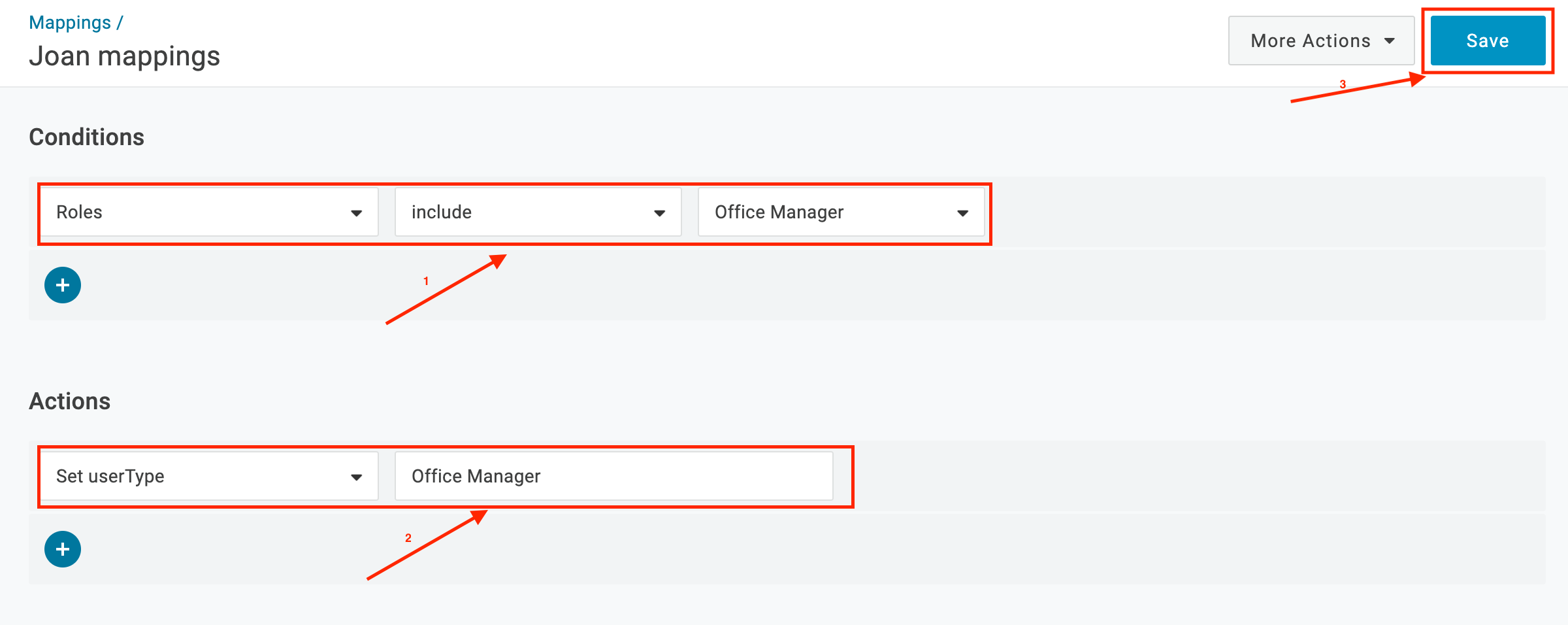
All users from OneLogin get the "User" role by default, so you only need one mapping, for "Office Manager".
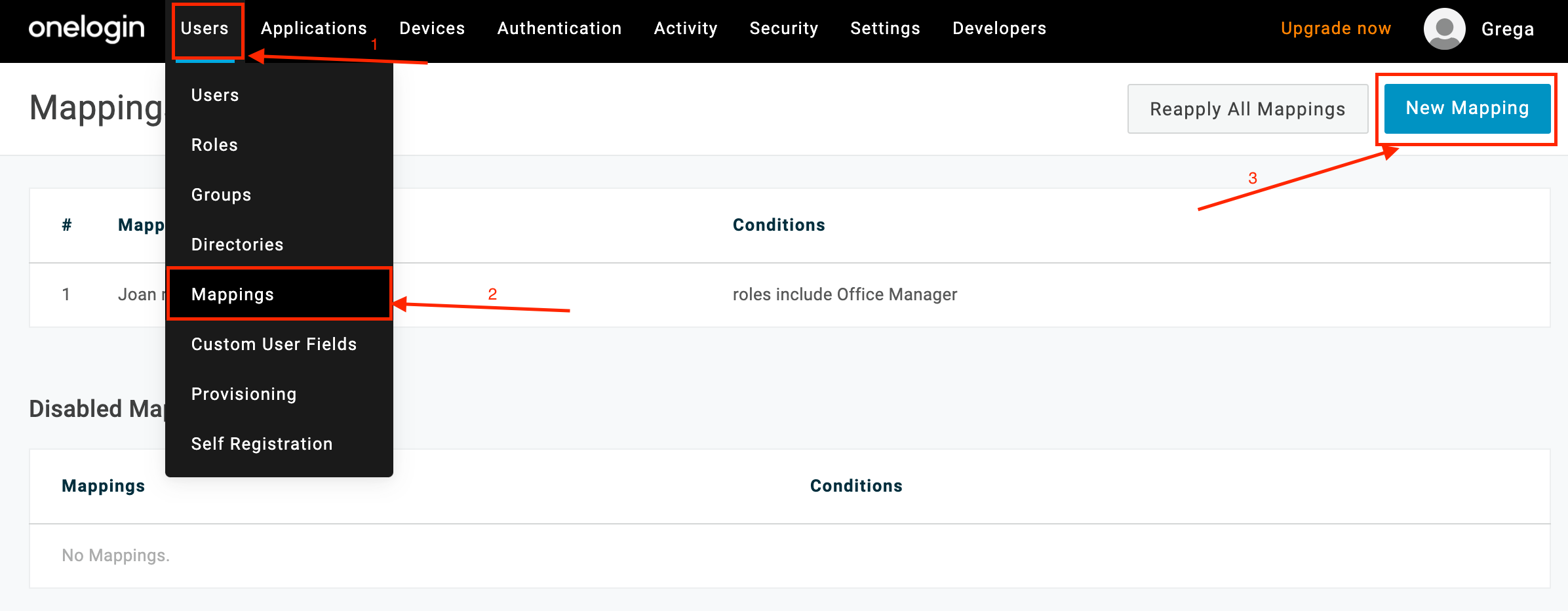
- Go to Users > Mappings and create a new mapping.
- In the Actions dropdown, select Set userType and set the mapping to "Office Manager".
- Click Save.
- Go to Configuration > API Connection and click Enable. The API Status changes to green/Enabled.
- Go to the Provisioning subpage and make sure the following checkboxes and values are set:
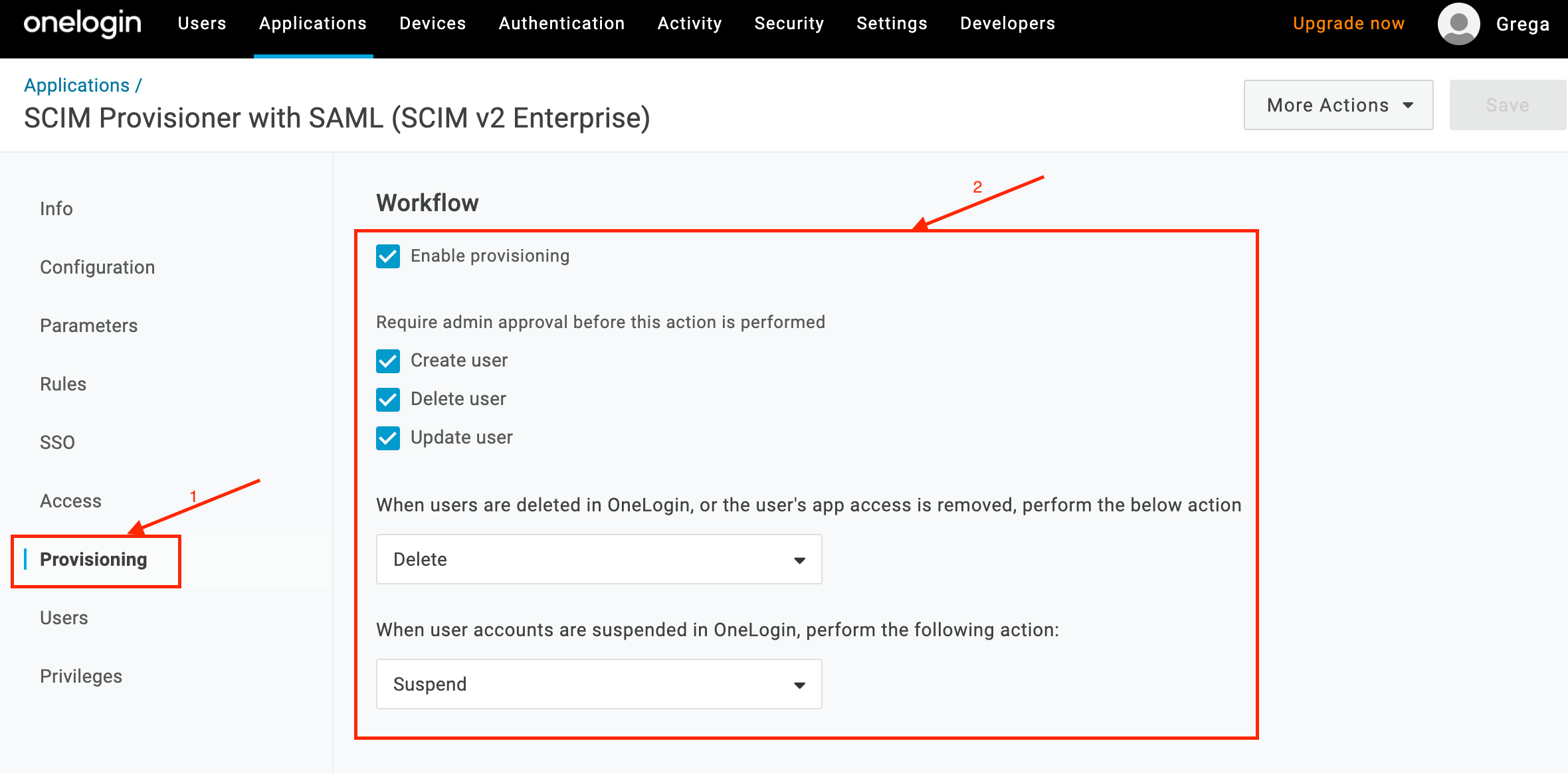
You can now start adding users. They sync automatically with your Joan account.
If you encounter any issues, please contact support@getjoan.com.