To allow Joan access to your calendar, you can share the room calendar in question with a user account on Google, which you will then pair with Joan in the MyJoan portal. This account can either be an existing Google user or a service account you have set up especially for Joan (e.g. joan@yourdomain.com).
Due to the read/write permissions Joan needs, it is essential to grant appropriate access to the service account designated for your MyJoan. This guide outlines the process of sharing a room resource calendar with the necessary permissions.
1. Accessing the Room Resource Calendar
- Go to calendar.google.com and log in with a Global Administrator account.
- Find the room resource calendar under Other calendars in the left-hand menu.
- If the room resource is not visible, hover over the + icon next to Other calendars and select Browse resources.
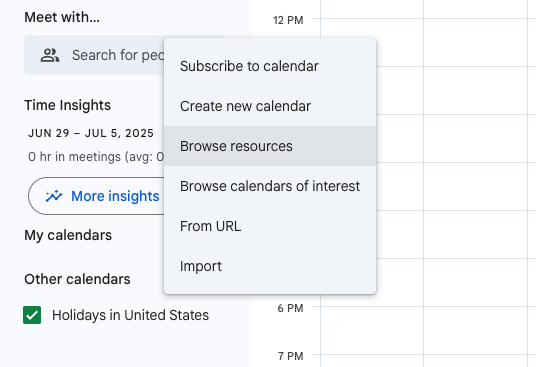
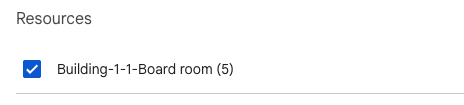
- Tick the box next to the resource to add it to your calendar view.
2. Configuring Sharing Permissions
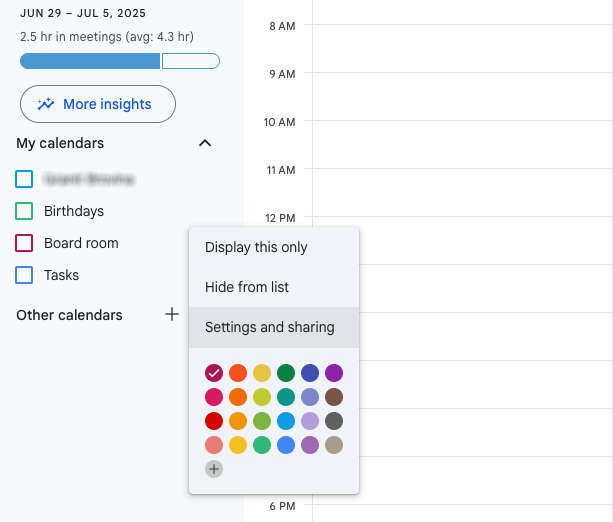
- On your main calendar page, hover over the room calendar's name and click the three dots that appear.
- Select Settings and sharing.
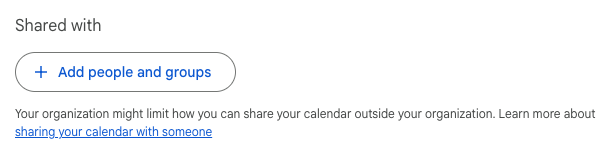
- Scroll down to the Shared with section and click Add people and groups.
- Enter the email address of your service account.
- Under Permissions, select Make changes and manage sharing.
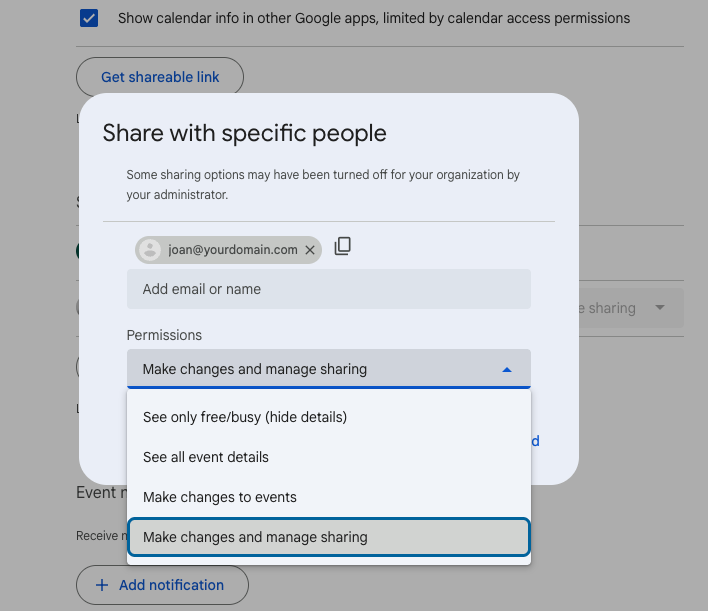
- Click Send.
Your MyJoan account will now have the necessary permissions to manage the room resource calendar.
If you encounter any issues, please contact support@getjoan.com.