Note: This feature is only available on Joan 6 devices. See What are the differences between the Joan devices? to learn more.
If you do experience problems with the Wi-Fi connection of your Joan device, see My Joan device keeps disconnecting/will not connect to the Wi-Fi network to find out what might be causing it and how to resolve it.
Here are the steps on how to do it:
- Log into your MyJoan account with your account credentials
- Navigate to the “Settings” page via the top navigation menu
- Select "Rooms", and then “Device Settings” from the left-hand side menu
- In the “Device settings” section, locate the “Show No Wi-Fi screen on Joan Home" in the list of features.
- Select the buildings and/or devices that you want to customize, if permitted by your subscription plan
- Once you have enabled or disabled this feature with the checkbox, navigate to the bottom of the page and click “Save” to save your device settings preferences
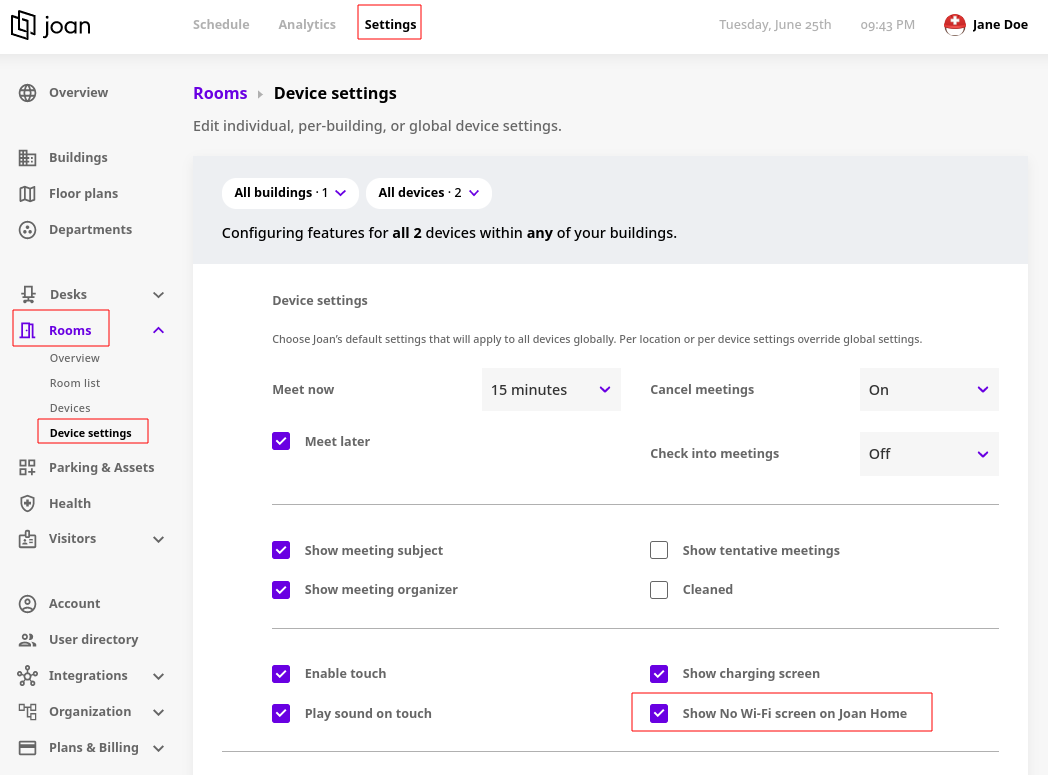
And that’s it! You have successfully turned on/off the “Show “No Wi-Fi” screen. Your device(s) will shortly update with your most recent preferences.
This feature can also be set as a building or device-specific setting, allowing you to further customize your office experience. To learn more about these levels of settings, see MyJoan settings - per device, per building, and global.
*If you encounter any issues, please contact support@getjoan.com.