If your team uses Slack, follow these steps to route alerts into a dedicated Slack channel.
- Create or Choose a Slack Channel
- From your desktop, open the Slack workspace.
- Create a new channel (e.g.,
#joan-battery-alerts) or select an existing one.
- Generate a Channel Email Address
- Click the channel name at the top of the conversation.
- Go to the Integrations tab.
- Click Send emails to this channel.
- Click Get Email Address.
- Add the Email to MyJoan
- Go to MyJoan Device Settings.
- Scroll down to the Maintenance email section.
- Paste the Slack-generated email address there.
Note: If you don’t see the option to generate an email address, contact a Slack workspace owner or admin. They can enable this feature in the workspace settings.
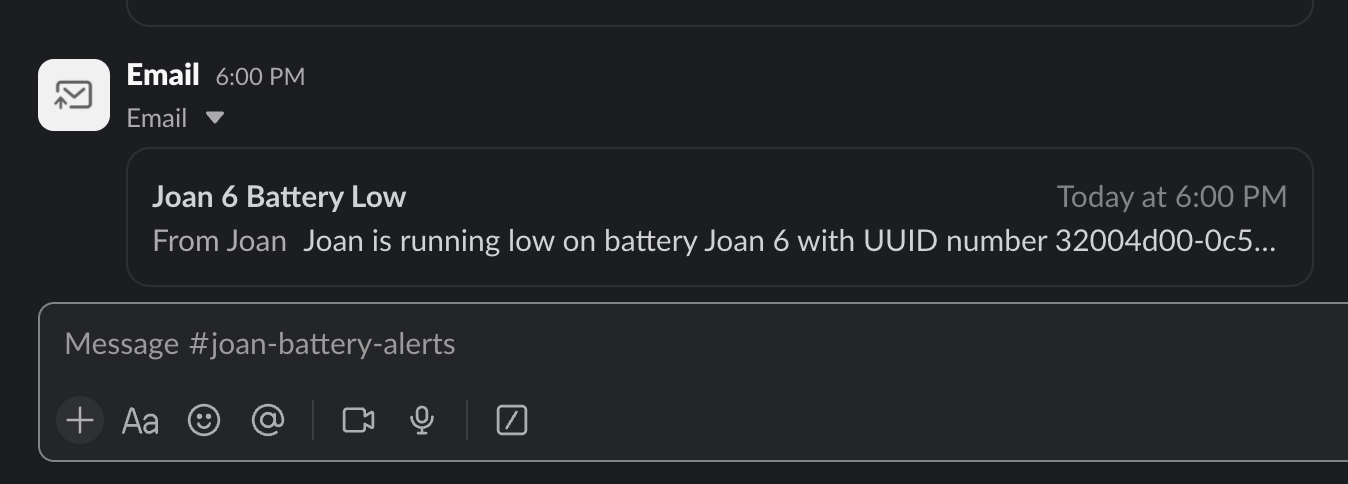
The alerts should looks something like this:
Microsoft Teams allows email messages to be posted directly to a channel using a built-in email address.
- Get the Email Address for a Channel
- Open Microsoft Teams.
- Navigate to the Team and Channel where you want alerts delivered.
- Click the three dots (⋯) next to the channel name.
- Select “Get email address.”
> If this option is missing, ask your admin to enable it in Microsoft 365 Admin Center under:
> Teams settings → Email integration → Allow users to send emails to a channel
- Add the Email to MyJoan
- Go to MyJoan Device Settings.
- Scroll to the Maintenance email section.
- Paste the Teams channel email address.
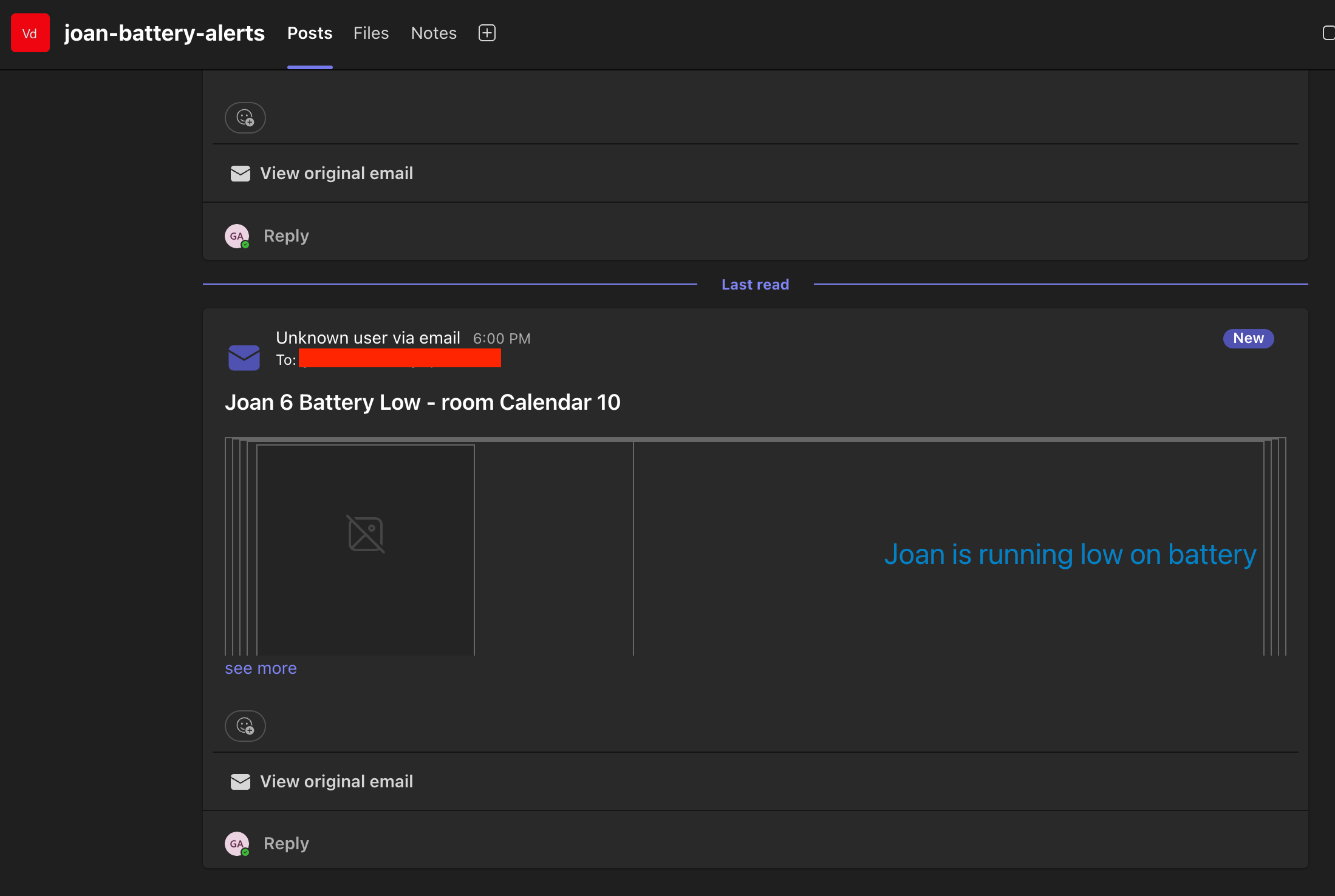
The alerts should looks something like this:
If you’d like to receive battery alerts both via email and in Slack or Teams, you can set up email forwarding to make this happen. Just create a rule in your mailbox to forward emails from battery@getjoan.com to your Slack or Teams channel email address mentioned above.
Here are some helpful links to guide you through the process:
- Automatically forward Gmail messages to another account (External link)
- Turn on automatic forwarding in Outlook - Microsoft Support (External link)
If you need any additional support, please feel free to contact us at support@getjoan.com.