The Visitor Photo on Badge feature allows visitors to take a photo during sign in on the Visitor tablet. The confirmed photo is then printed directly on the visitor badge for that day, helping staff quickly identify visitors and improving on site security.
Use this feature if you want:
- Visual identification of visitors
- Increased security and accountability
- A more professional visitor badge experience
To enable this feature:
- Sign in to my.getjoan.com.
- Navigate to Settings > Visitors > General settings.
- Scroll down to the Visitor photo option.
- Toggle the setting On.
You can access this page directly here: https://my.getjoan.com/settings/visitors/general
Once enabled, the feature applies immediately to all future visitor check ins.
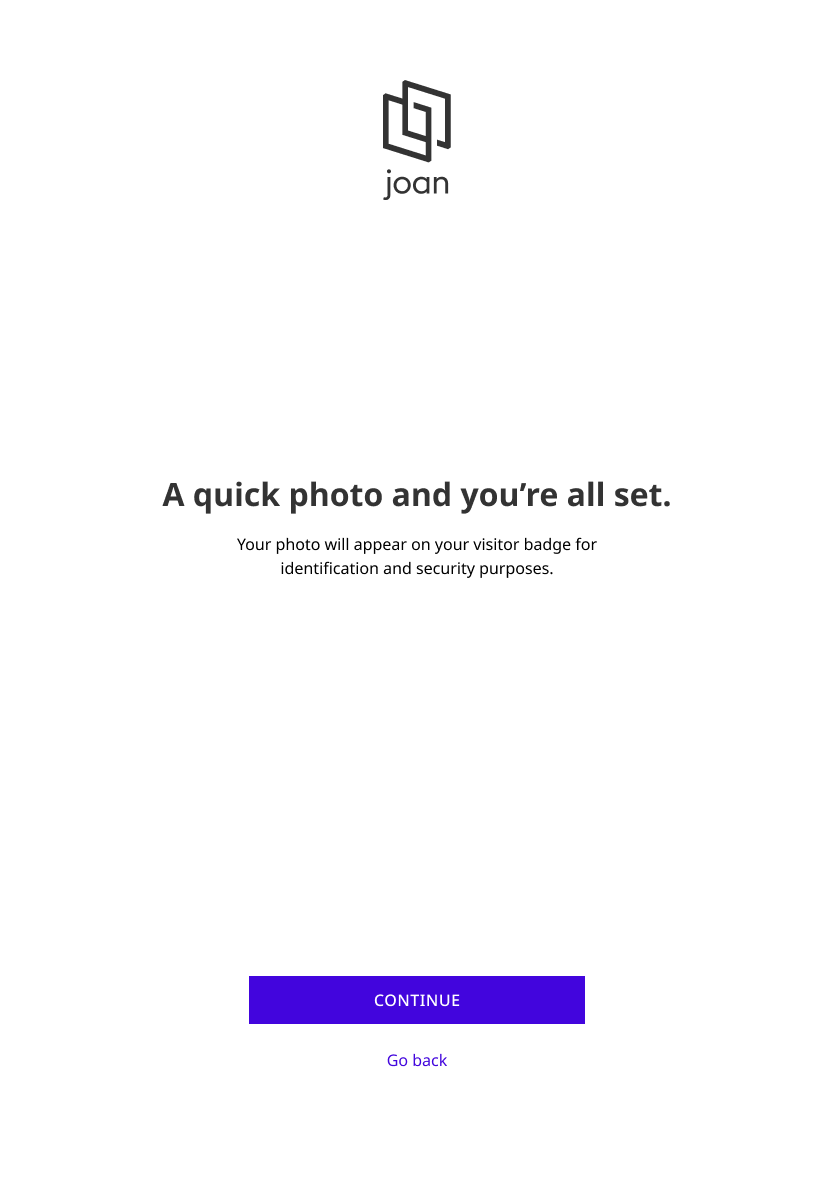
When the feature is enabled, visitors will see an additional step during the check in process on the Visitor tablet.
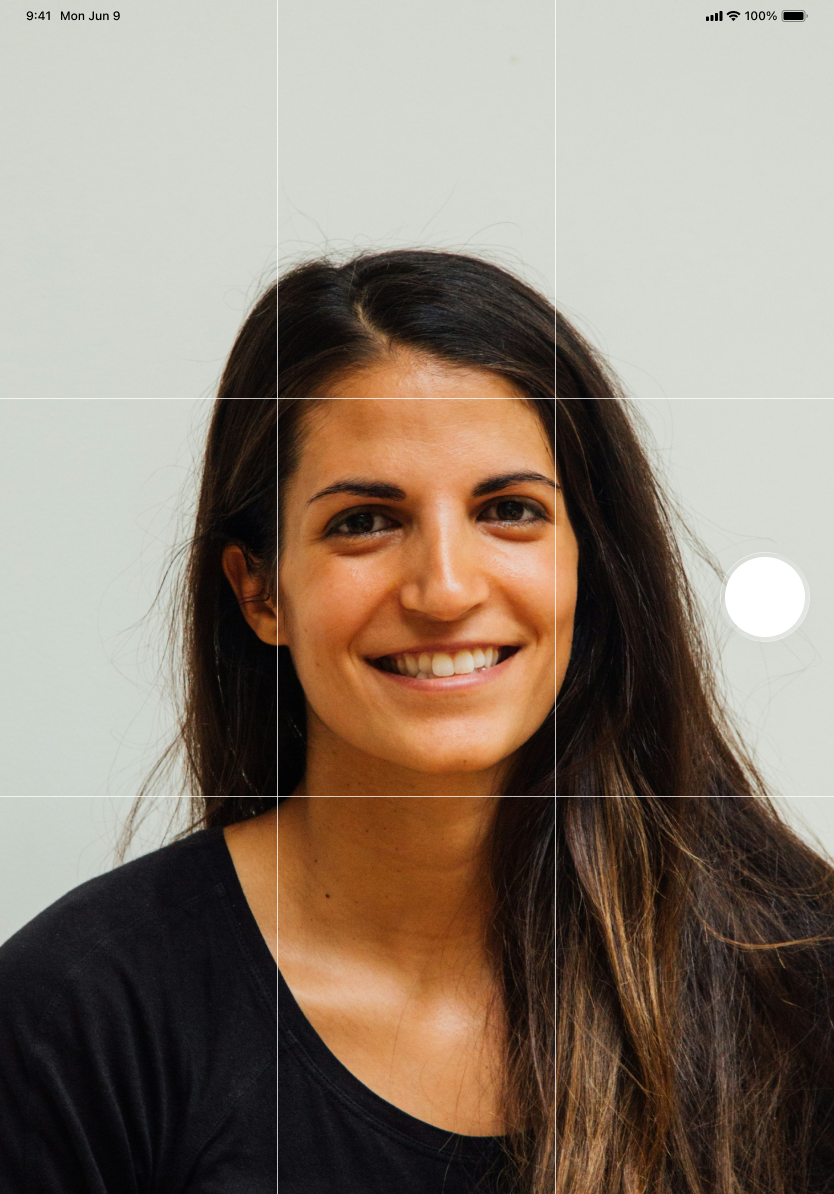
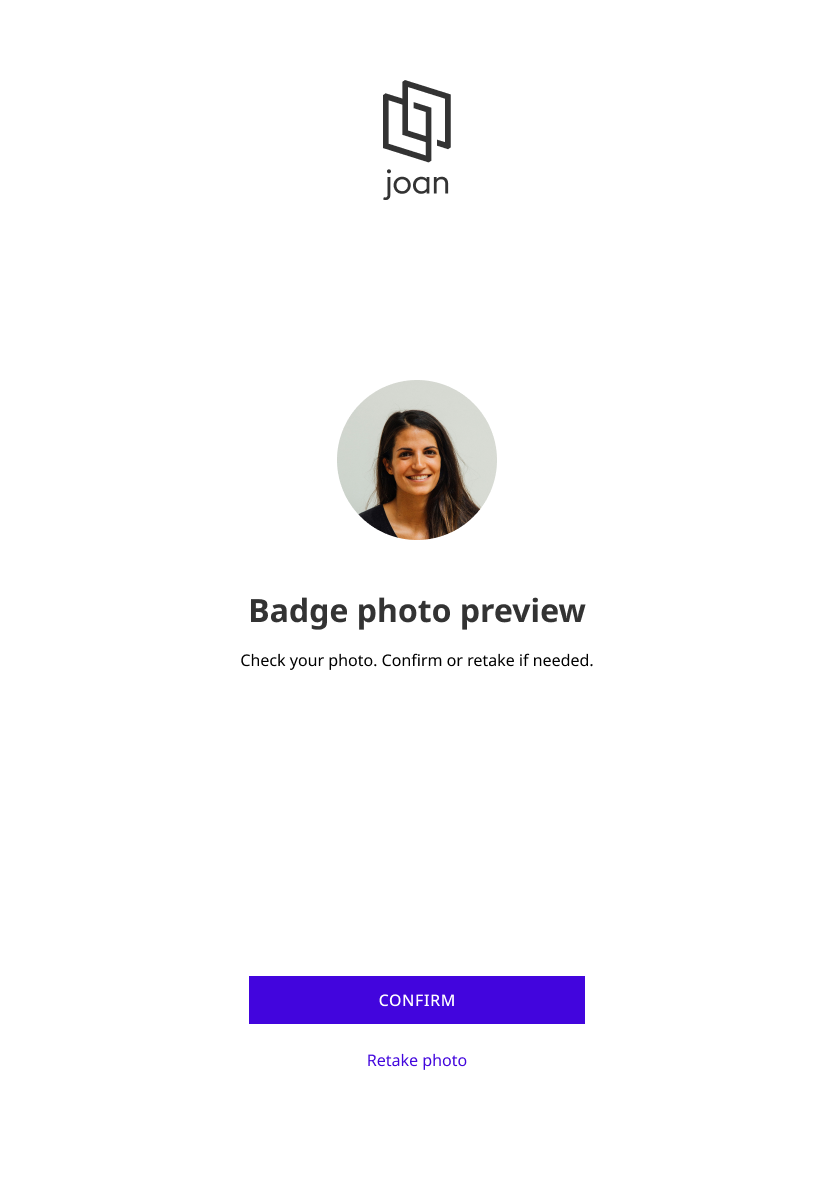
With the new functionality, visitors are prompted to take a photo of themselves. They can review the photo and either proceed or retake it if they are not satisfied.
After the photo is confirmed, the check in process continues and the badge is printed with the visitor photo included.
See picture example below:
Below is an example badge:

- The photo is only used for the current visit and is printed on the badge.
- Visitors are always prompted to confirm their photo before continuing.
- If the feature is disabled, the photo step is skipped entirely.
If you encounter any issues, feel free to reach us via support@getjoan.com or submit a ticket via our support ticket form.