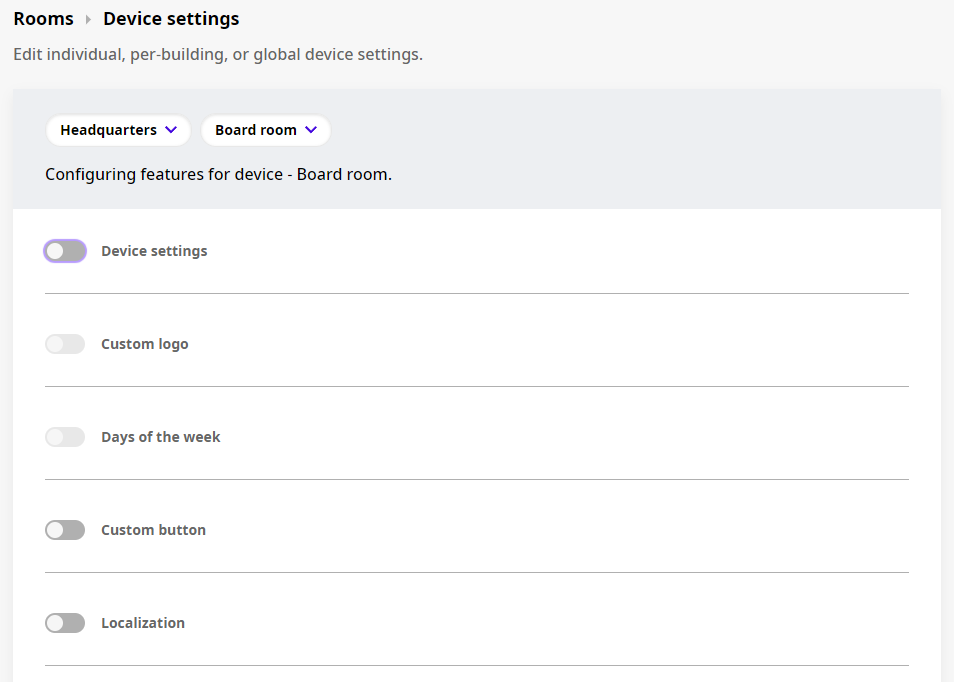
Keep in mind that device-specific settings will override any building and global settings you might have enabled.
To learn more about the different levels of settings in the MyJoan, see MyJoan settings - per device, per building, and global.
If you are unsure about how to add a device to MyJoan or edit its settings, see below:
If you are unsure how to add and pair a device with MyJoan account, don’t worry. We prepared a detailed guide just for that. You can find it in How to add a device to the MyJoan account.
Once you have a device paired up with your MyJoan account, please make sure to:
You can now adjust the settings of your device and enable/disable its features.
In order to edit your device’s settings, follow these steps:
- Log in to MyJoan with your account credentials
- Navigate to the “Settings” page via the top navigation menu
- Select "Rooms" -> “Devices” from the left-hand side menu
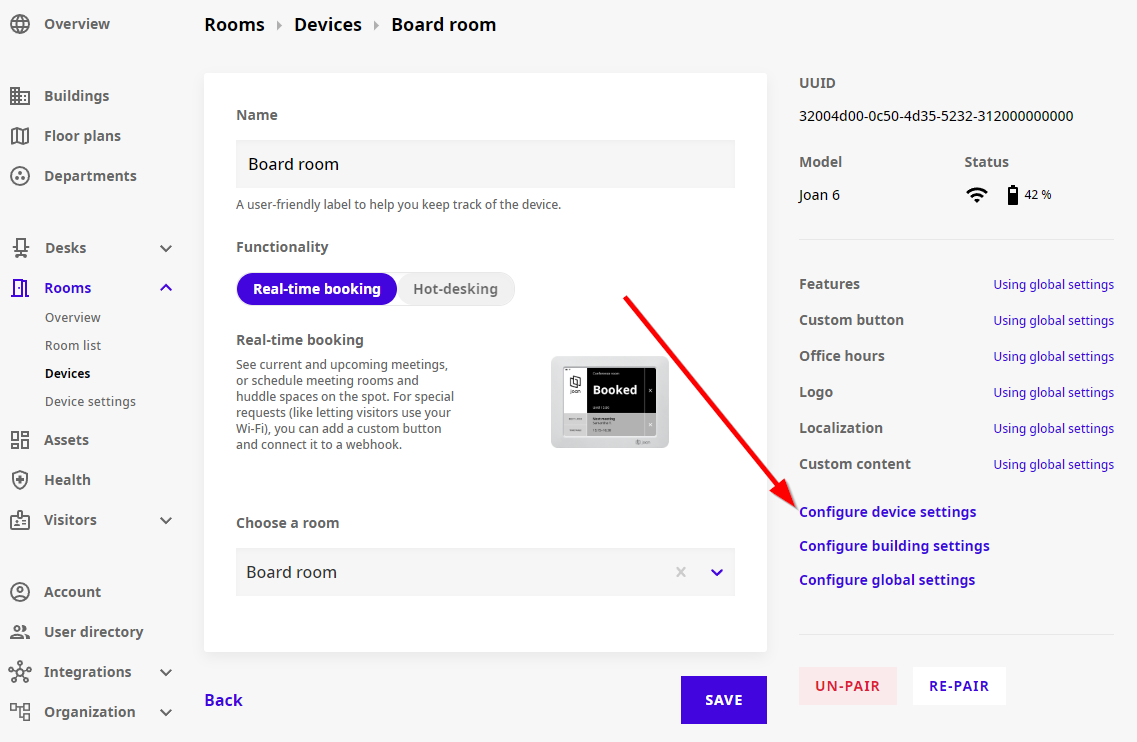
- Click on the device you wish to edit
- If you do not have any devices available, see How to add a device to the MyJoan account to learn how to add one
- The “Edit device” page will load for you. Click on the "Configure device settings"
- By default, all device-specific features are disabled, so you will need to enable the ones you wish to adjust
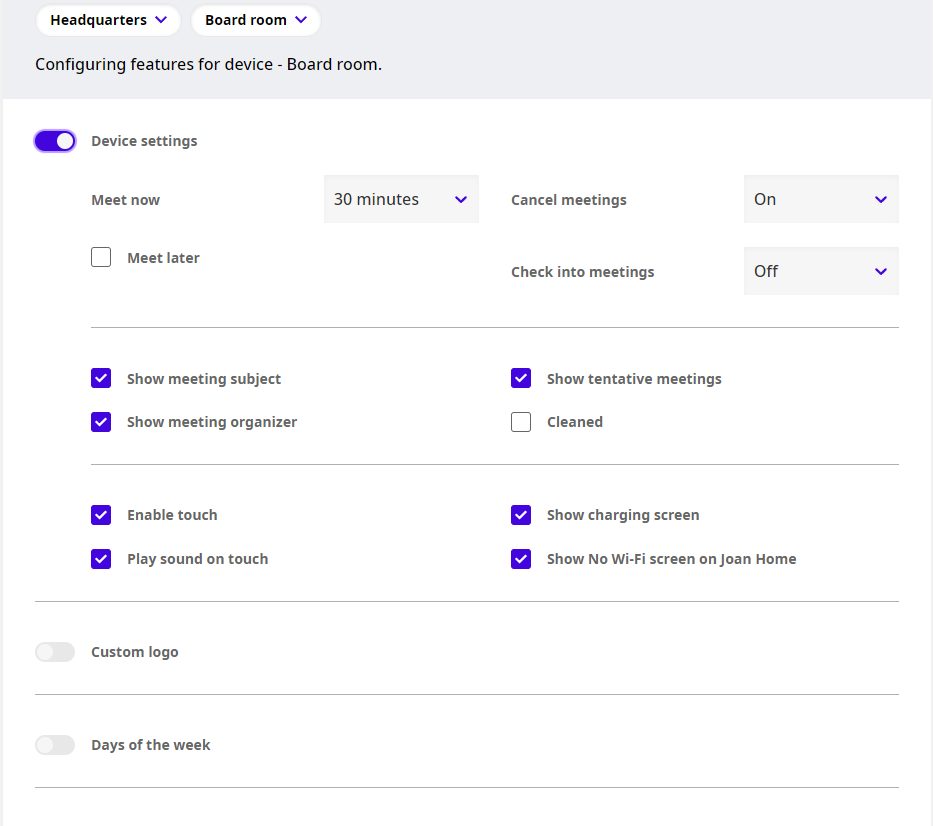
- Once you have enabled the features you desired and adjusted their parameters, click “Save” at the bottom of the page
And that’s it! You have successfully added and edited your device’s settings.
If you require any additional assistance, please reach out to support@getjoan.com.