These features can also be set as building or device-specific settings, allowing you to further customize your office experience. To learn more about these levels of settings, see MyJoan settings - per device, per building, and global.
In order to show/hide this information from your Joan devices, follow these steps:
- Log in to the MyJoan with your account credentials
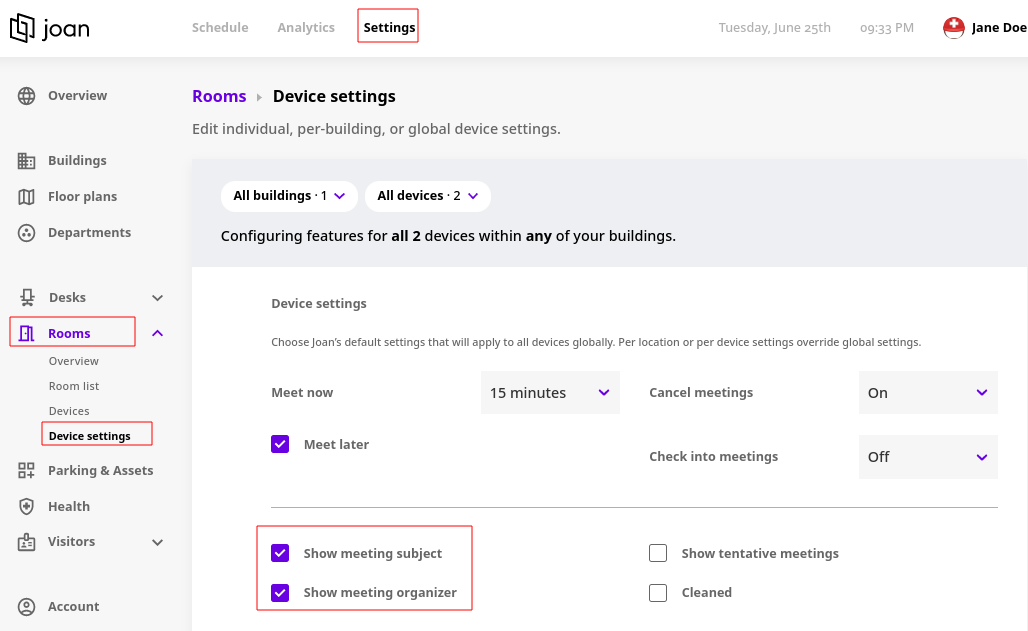
- Navigate to the “Settings” page via the top navigation menu
- Select "Rooms" and then “Device Settings” from the left-hand side menu
- In the “Device settings” section, locate the “Show meeting subject” and “Show meeting organizer” features
- Select the buildings and/or devices that you want to customize, if permitted by your subscription plan
- Enable or disable each of the features by checking or unchecking the checkbox next to the feature
Click “Save” at the bottom of the page
And that’s it! After a few moments, all your devices will update with your new settings.
*If you encounter any issues, please contact support@getjoan.com.