To install the test version of the Event Badges app, open the invitation email on your phone or tablet, install App Tester, then download the Event Badges app. Do this on the phone or tablet you’ll sync the badges with: the app installs on the device where you open the invitation.
Note
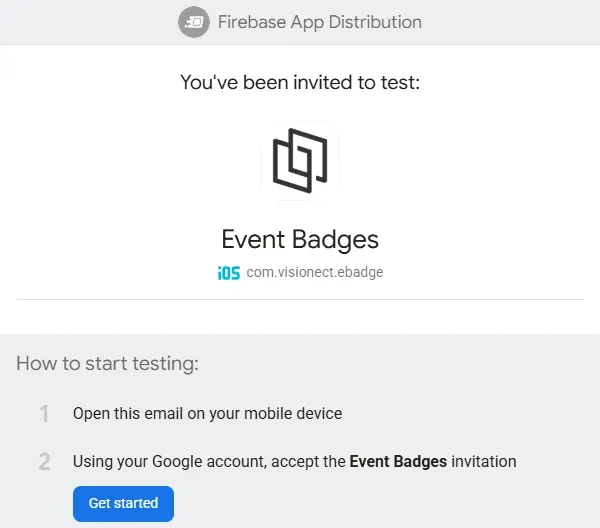
The Event Badges app is in testing. For now you install it through an invitation, not from an app store. How you find and install the app will change soon.First we give the email of your Joan admin account access to the test version. You then get an email: You’ve been invited to test Event Badges.
- Open the invitation email on your phone or tablet.
- Tap Get started.
- Accept the invitation with your Google account.
- Install App Tester: follow the banner at the bottom of the screen.
- Open the Releases section.
- Download the latest version of the Event Badges app.
When the download is done, the Event Badges app is on your phone or tablet, and you can log in with your Joan admin account.
Create your event on a computer. See Create an event and import your attendees.