With Joanbot on Microsoft Teams, you can easily book a room right within the same platform as your team conversations. All you have to do is agree on a date and time with your colleague and then send a message to Joan.
Joanbot has natural language processing, so you can communicate with it in the same way as you would with a colleague. For the best results, be as descriptive and direct as possible.
Below you are able to see how to do it:
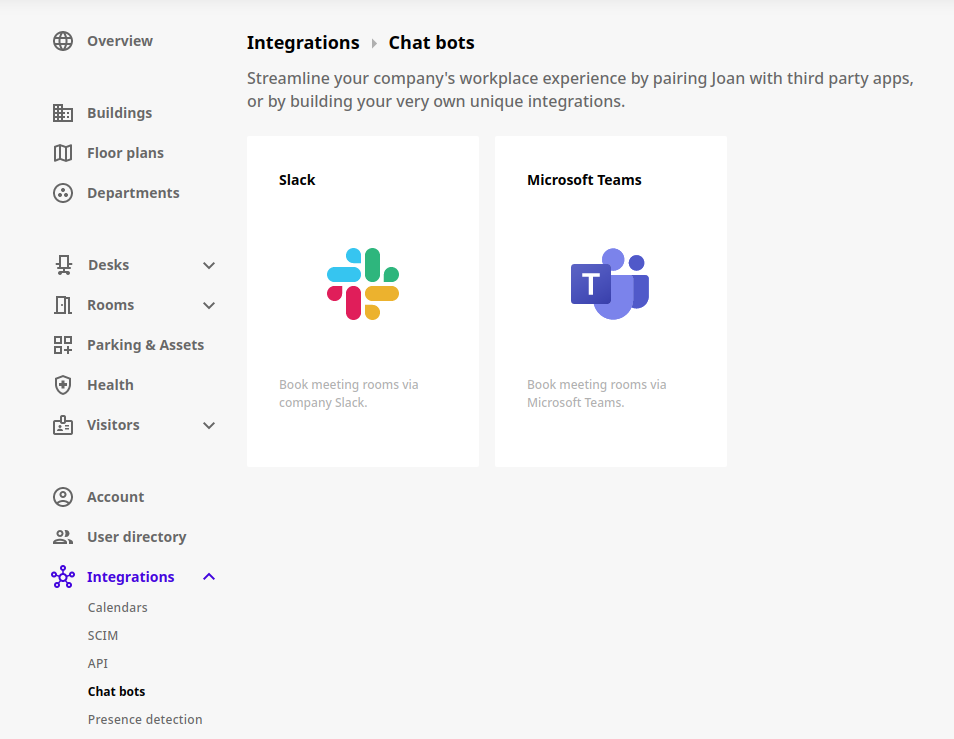
Watch the video- Log in to your MyJoan account and go to Integrations.
- Under Chat bots, click the Microsoft Teams button.
- You are redirected to your company's Microsoft page. Enter your credentials and authorize Joan.
- Back in MyJoan, check for the notification of successful integration and a green check mark next to the Microsoft Teams button.
- In Microsoft Teams, open the Teams app store and search for Joan app.
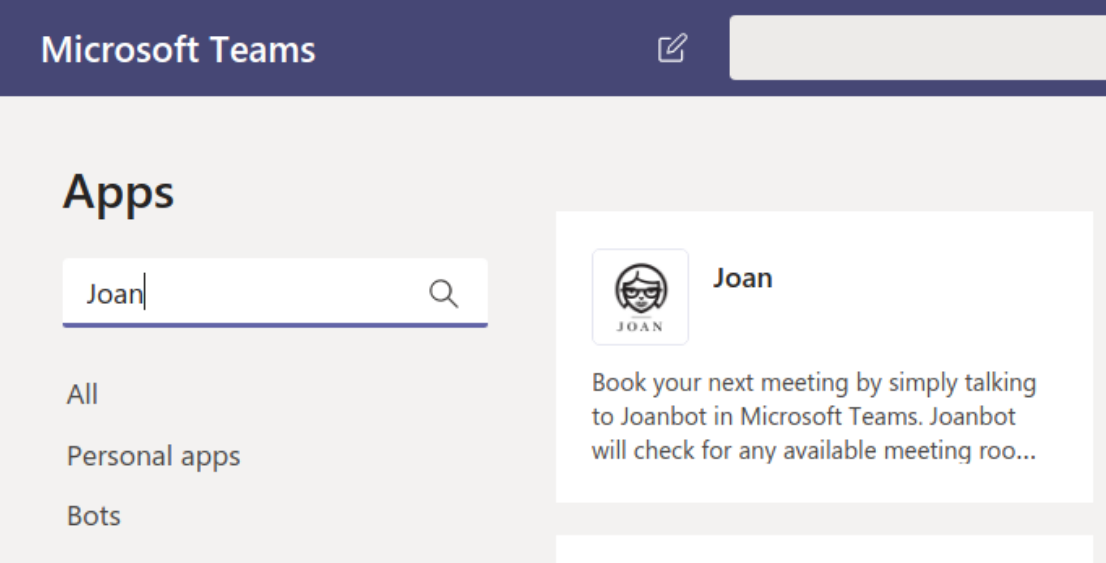
- Select the app and choose Add to a team or Add to a chat from the drop-down menu.
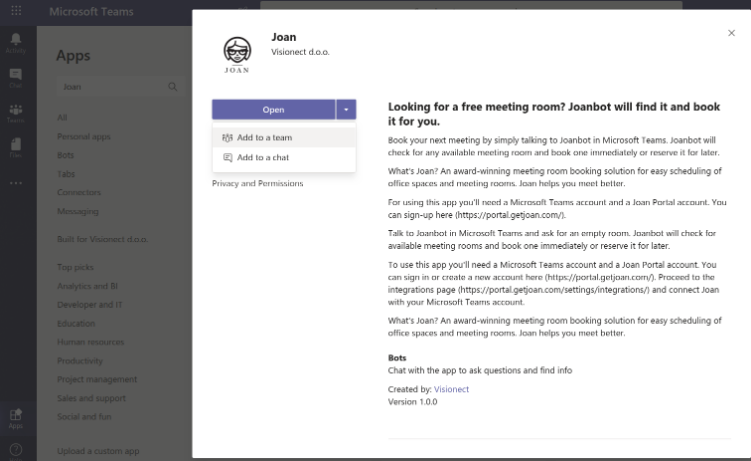
You're all set: send Joanbot a message in Teams to book your next meeting.
Note: Currently, the Joanbot only supports the room booking feature, support for booking other assets has not been added yet.
If you encounter any issues, feel free to reach us via support@getjoan.com or submit a ticket via our support ticket form.