To begin, log in to your MyJoan account at my.getjoan.com using your Admin or Office Manager credentials.
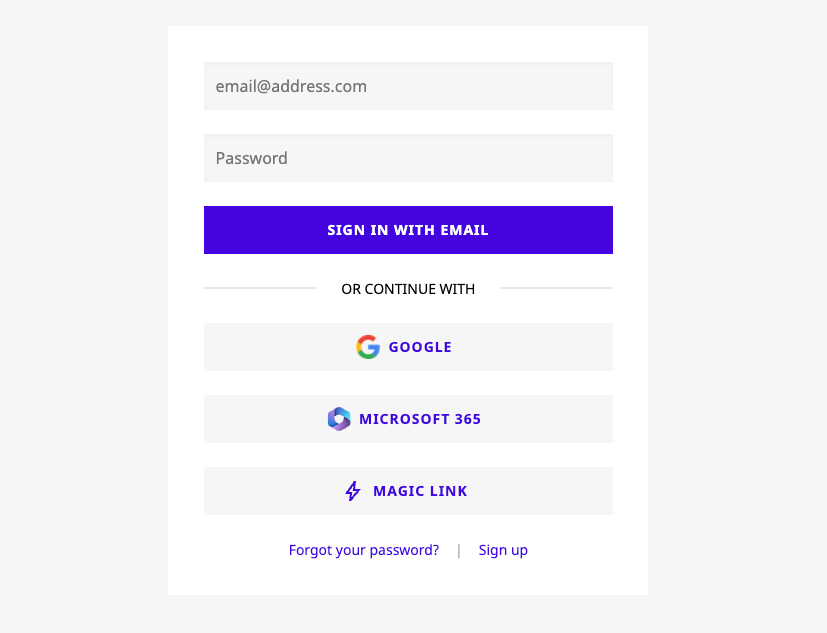
Once logged in:
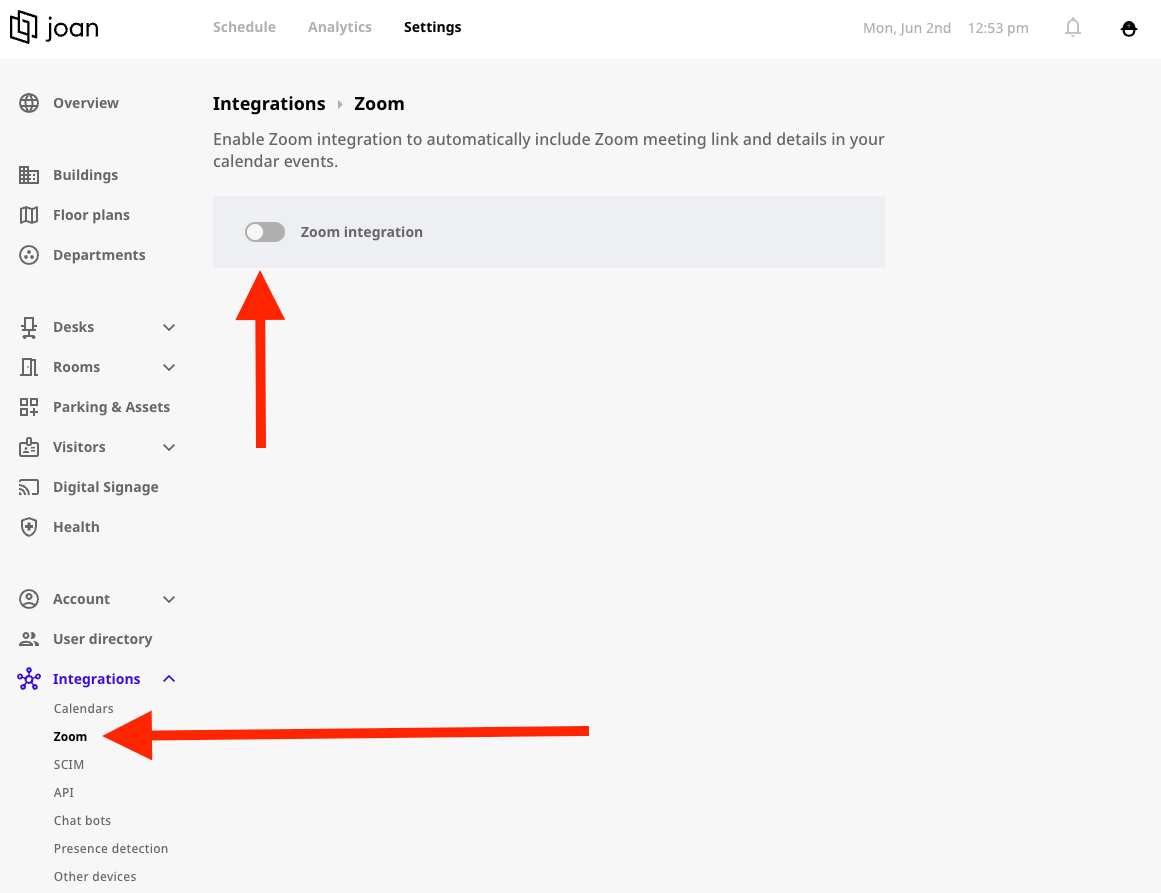
- Go to the Settings section in the left-hand menu.
- Click on Integrations.
- Select Zoom from the list.
- Toggle the Zoom Integration switch to ON.
- Go to the Zoom App Marketplace and log in with your Zoom administrator account.
- Click Develop (usually top-right) -> Build App.
- Find the Server-to-Server OAuth app type and click Create.
- Give the app a descriptive name (e.g., "Joan Meeting Integration") and click Create.
- Go to the Scopes tab.
- Click + Add Scopes.
- Search for and add the following two scopes:
- meeting:write:meeting:admin (allows creating meetings)
- user:read:user:admin (needed to assign meetings to the correct user)
- Click Done or ensure they are added.
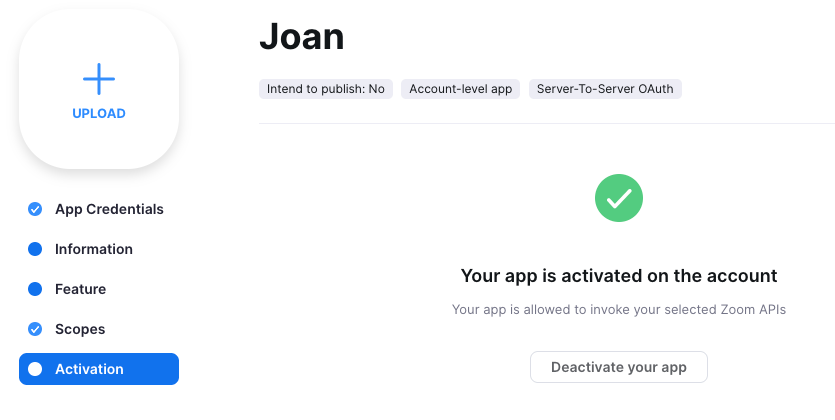
- Finally, ensure to activate the app.
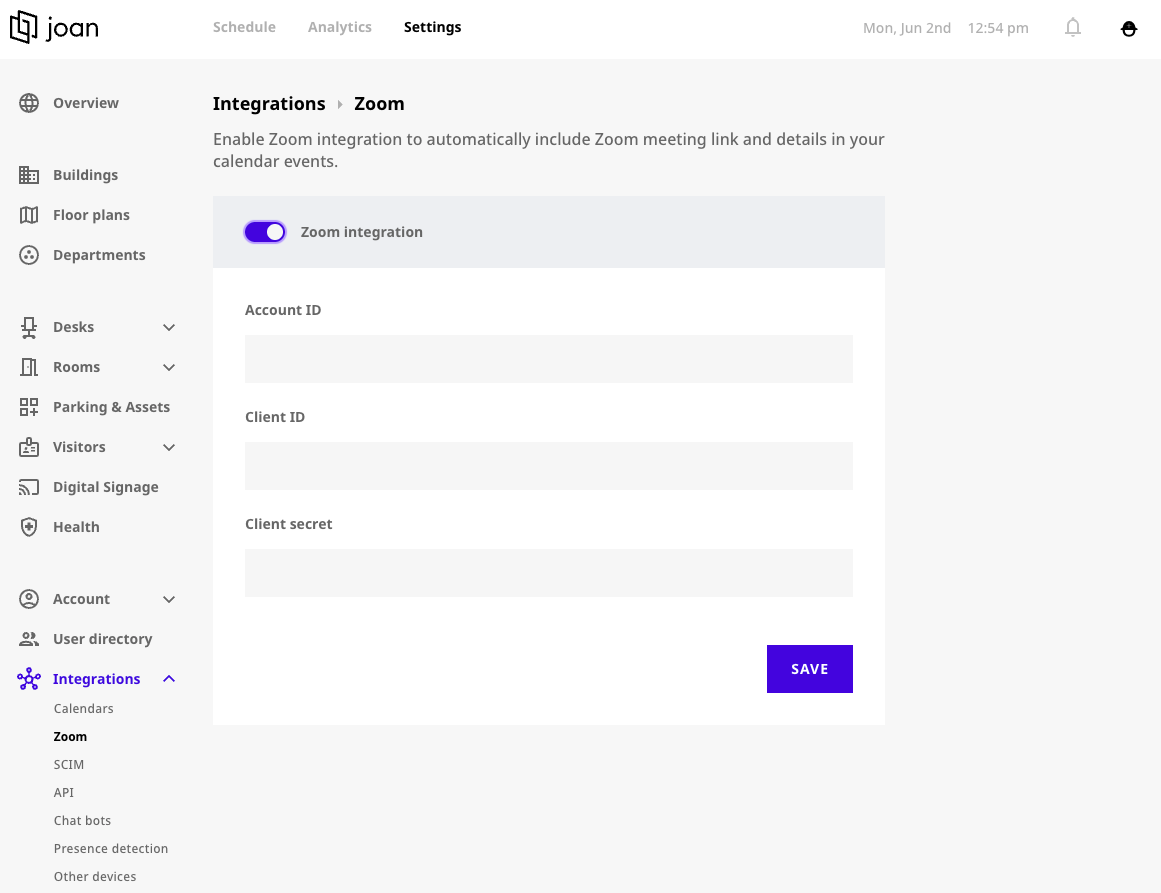
Once the toggle is enabled, you’ll be prompted to enter the following three fields, which you can find in your app credentials:
- Account ID
- Client ID
- Client Secret
- After entering the required information, click the Save button at the bottom of the page.
Once saved, the Zoom integration will be successfully activated for your Joan account.
- Add Zoom calls with the Zoom for Google Workspace add-on: for Google Workspace only. Google Calendar adds a Zoom call to every booking, without the MyJoan integration.
If you encounter any issues during setup, feel free to contact our support team — we’re here to help!