To avoid duplicating the room resource in both calendars, and to avoid overlapping bookings you can set up your room resource to be visible and bookable in other calendar solutions.
- Open your Microsoft 365 calendar (outlook.office.com/calendar).
- In the top-right corner, click Settings and go to View all Outlook settings.
- Go to Shared calendars and select the calendar you want to publish.
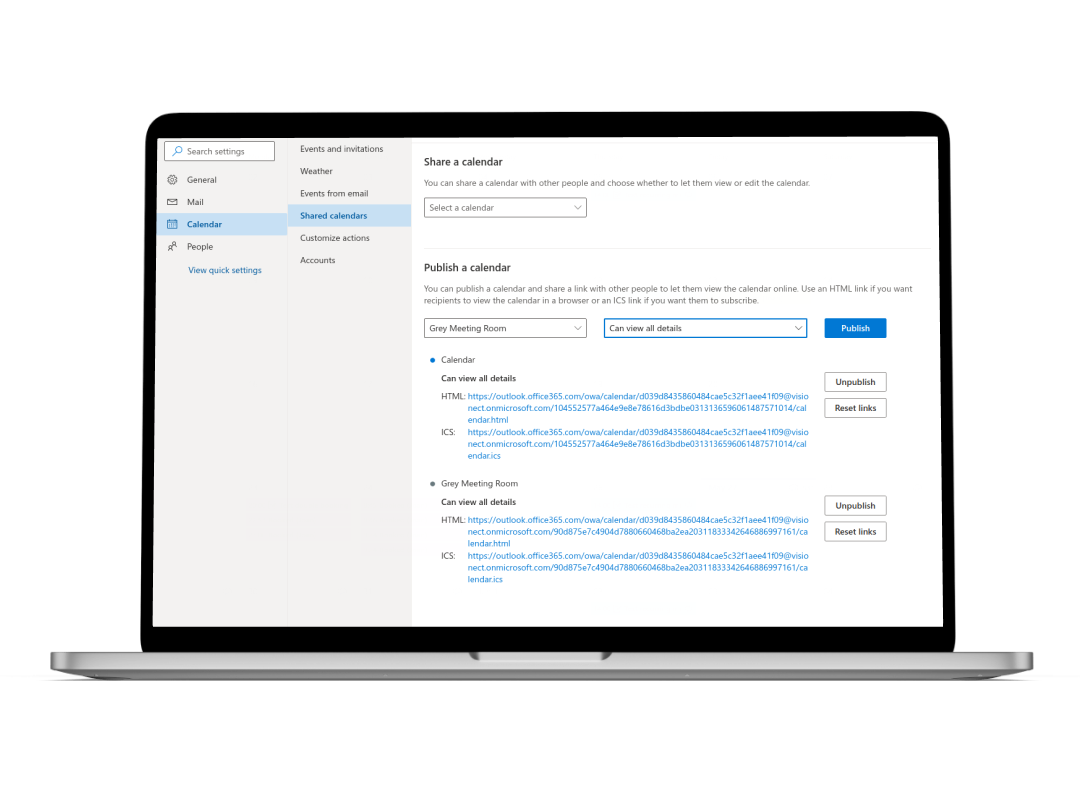
- Copy the ICS link.
- Open your Google Calendar (calendar.google.com).
- Click the + button next to Other calendars and select From URL.
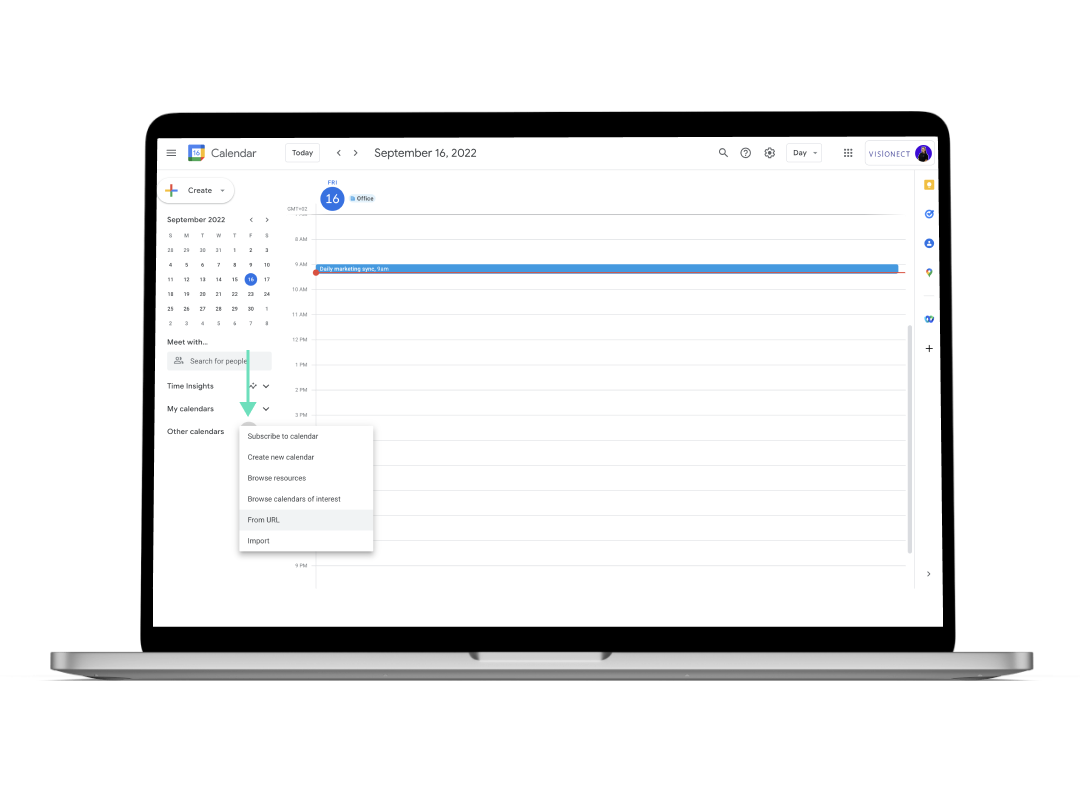
- Paste the ICS link in the URL of Calendar field and click Add calendar.
The room resource calendar now shows in Google Calendar with its meeting information.
- Log in to your Google Calendar (calendar.google.com).
- Go to your room resource and open Settings and sharing.
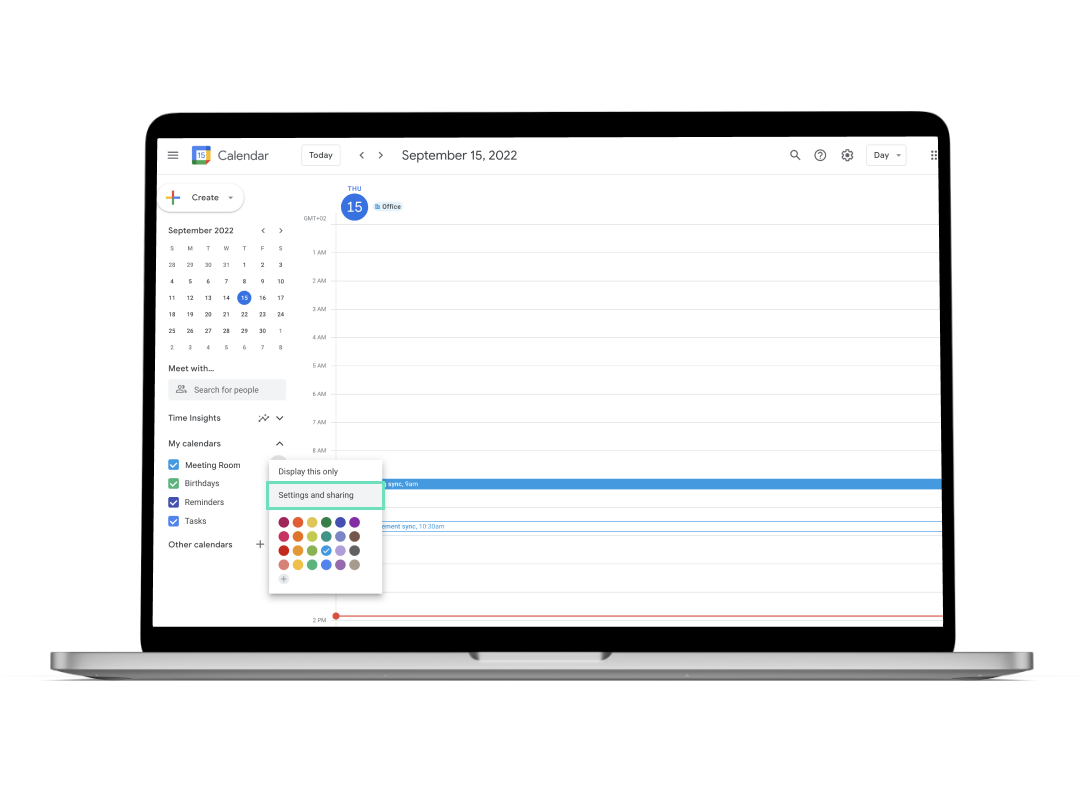
- Make the room resource calendar available to the public. This is needed for it to integrate with Microsoft 365.
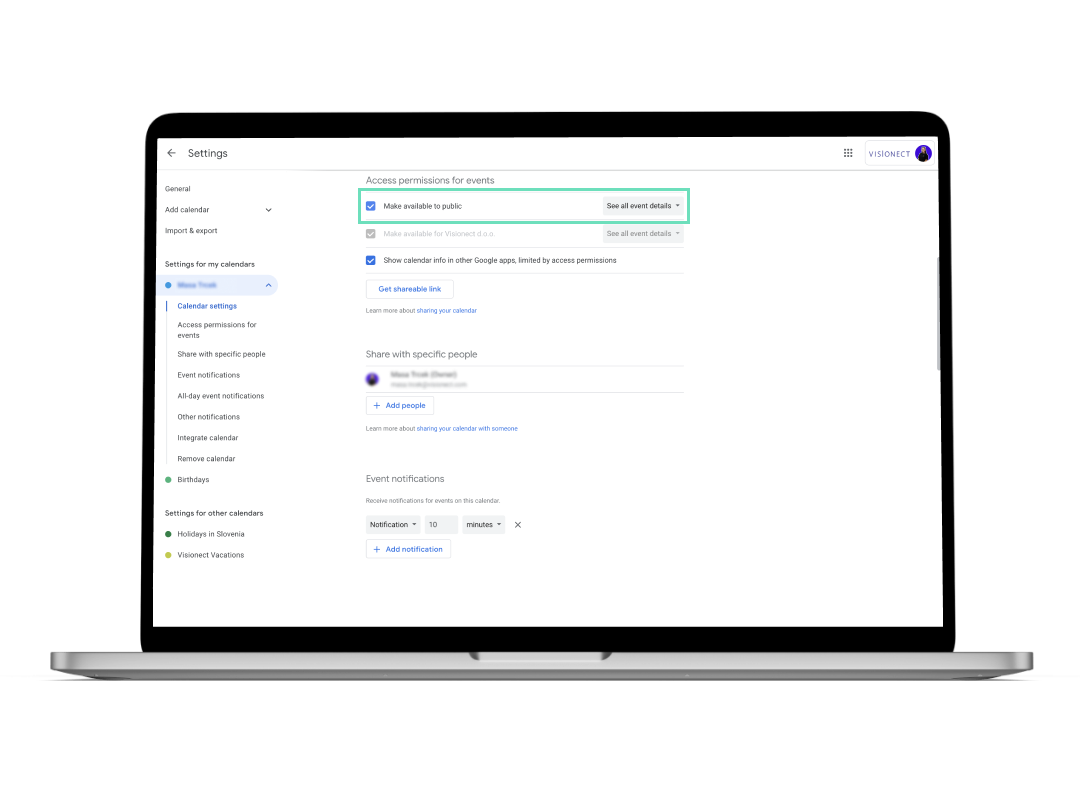
- Go to Integrate Calendar and copy the Public address in iCal format URL.
- Open your Microsoft 365 calendar (outlook.office.com/calendar).
- Click Add Calendar.
- Go to the Subscribe from web section and paste the URL you copied.
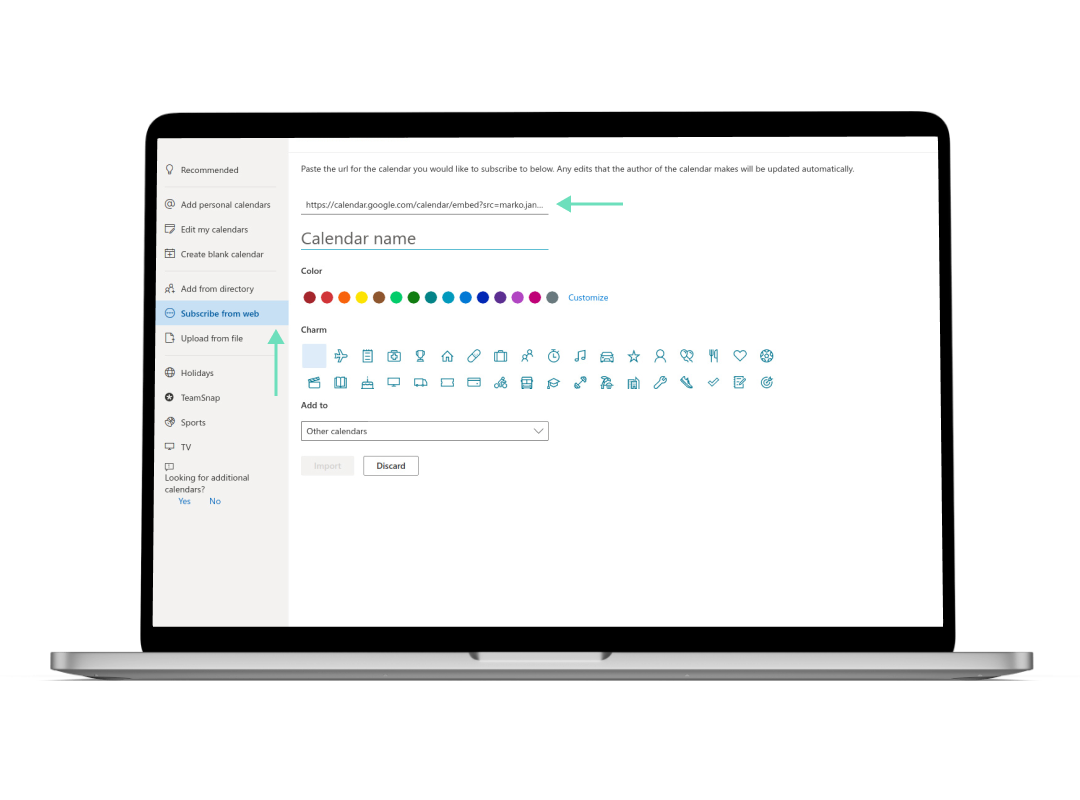
- Enter the calendar name (your room resource name) and select the Add to option.
- Click Import.
The room resource calendar now shows in Microsoft 365.
In case you need any additional assistance, please reach out to support@getjoan.com.