The Print QR Code feature lets you generate a printable PDF with QR codes for one or more rooms, directly from the room layout settings - the same way you already can for desks.
Instead of creating QR codes for your meeting rooms one by one, you can select any number of rooms in your floor plan and download a single PDF containing a ready-to-print QR code for each one.
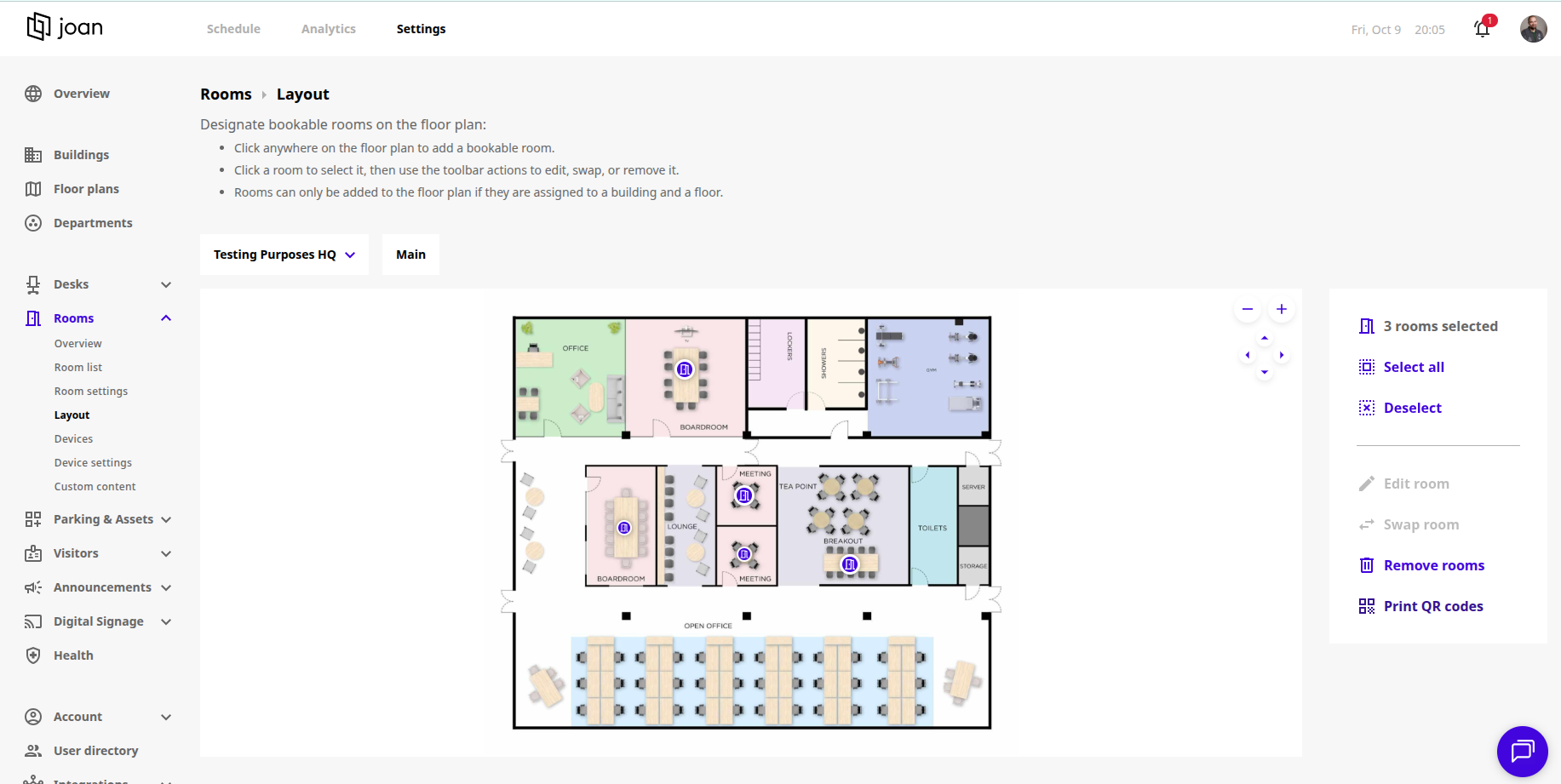
- Log in to my.getjoan.com with your MyJoan admin account
- Go to Settings → Rooms → Layout
- Select one or more rooms from the list
- Click Print QR code in the side menu (the button switches to Print QR codes when multiple rooms are selected)
- A PDF file containing a QR code for each selected room is automatically generated and downloaded
While the request is processing, a loading indicator appears next to the button - the same indicator used when printing QR codes for desks.
Each QR code in the PDF is labeled with:
- The room name
- The room type
After clicking Print QR code(s), you'll see a toast notification confirming the result:
- "QR code generated." - when a single room is selected
- "{#} QR codes generated." - when multiple rooms are selected
If the request fails, you'll see an error toast instead:
- "Failed to generate QR code." — when a single room is selected
- "Failed to generate QR codes." — when multiple rooms are selected
If you encounter any issues during setup, feel free to contact our support team — we’re here to help!