You can use a Crestron TSW-1070, TSS-1070, TSW-770 or TSS-770 touch panel as a Joan room display: open tablet.getjoan.com in the panel's browser, pair it with MyJoan, assign a room, and then book and manage that room from the panel.
Requirements for Integration:
- A Crestron TSW-1070, TSS-1070, TSW-770 or TSS-770 device
- A MyJoan account
Before you start, make sure your Crestron device is connected to the internet.
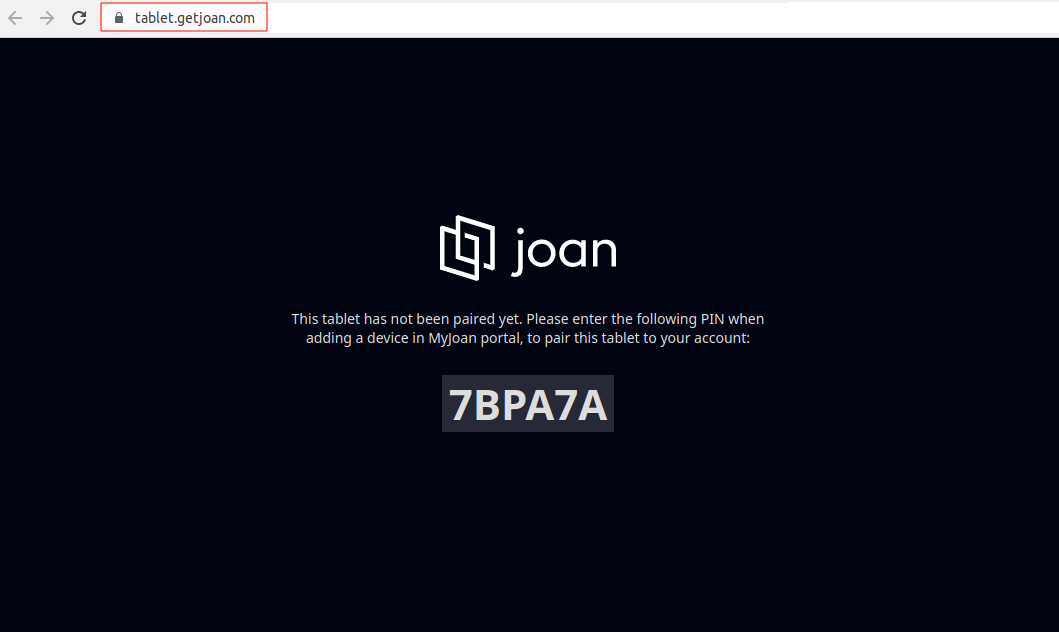
- On your Crestron device, open a browser and go to https://tablet.getjoan.com/. A pairing PIN code appears.
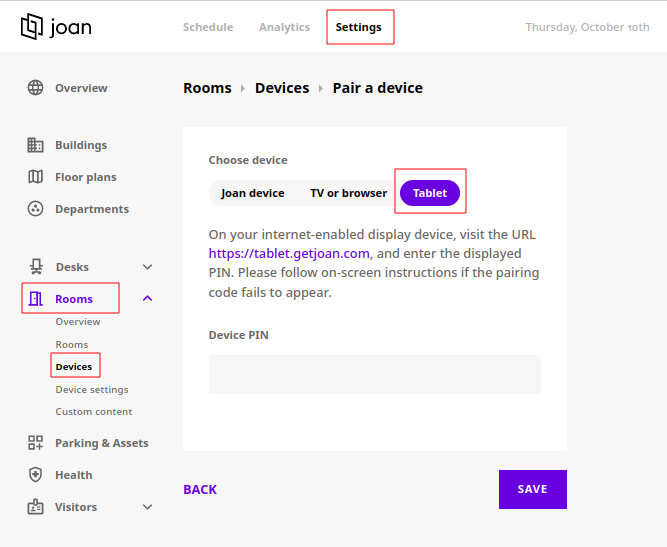
- On a laptop or PC (not on the Crestron device), log in to MyJoan and go to Settings > Rooms > Devices. Here is a direct link to that page.
- Click Pair a device.
- Select the Tablet tab.
- Enter the PIN shown on your Crestron display and click Save.
- In the Devices tab, click the newly added Crestron tablet.
- Enter a name for the device.
- From the drop-down menu, select the room or resource you want to manage with the device.
- Click Save.
Once the integration is complete, your Crestron device will be fully connected to Joan, using the Joan On Tablet functionality. The panel shows the room's schedule, and you can manage meeting room bookings from it.