Bulk Reservations for Joan lets Admins and Office Managers book desks and parking spaces for many people and many days in one go. You build a plan, check it, and then push it to Joan. Joan then creates the reservations.
Note
Bulk Reservations is an add-on app. It is not turned on for every company. To get access, contact Joan Support. We send you the link to the app.Only Joan users with the Admin or Office Manager role. You sign in with your Joan account. Other users see the message "This app is for Joan Admins and Office Managers".
The app uses the people, desks, assets, buildings and departments that are already in Joan. It does not create or change people, desks or assets. It only creates reservations.
- Build a plan. Choose people, days, and desks or parking spaces.
- Review. See every reservation in one table. Fix conflicts.
- Push to Joan. Joan creates the reservations. You see what was created, what was not, and why.
Nothing changes in Joan until you push.
- Open the link to Bulk Reservations.
- Select Sign in with Joan.
- Sign in with your Joan account.
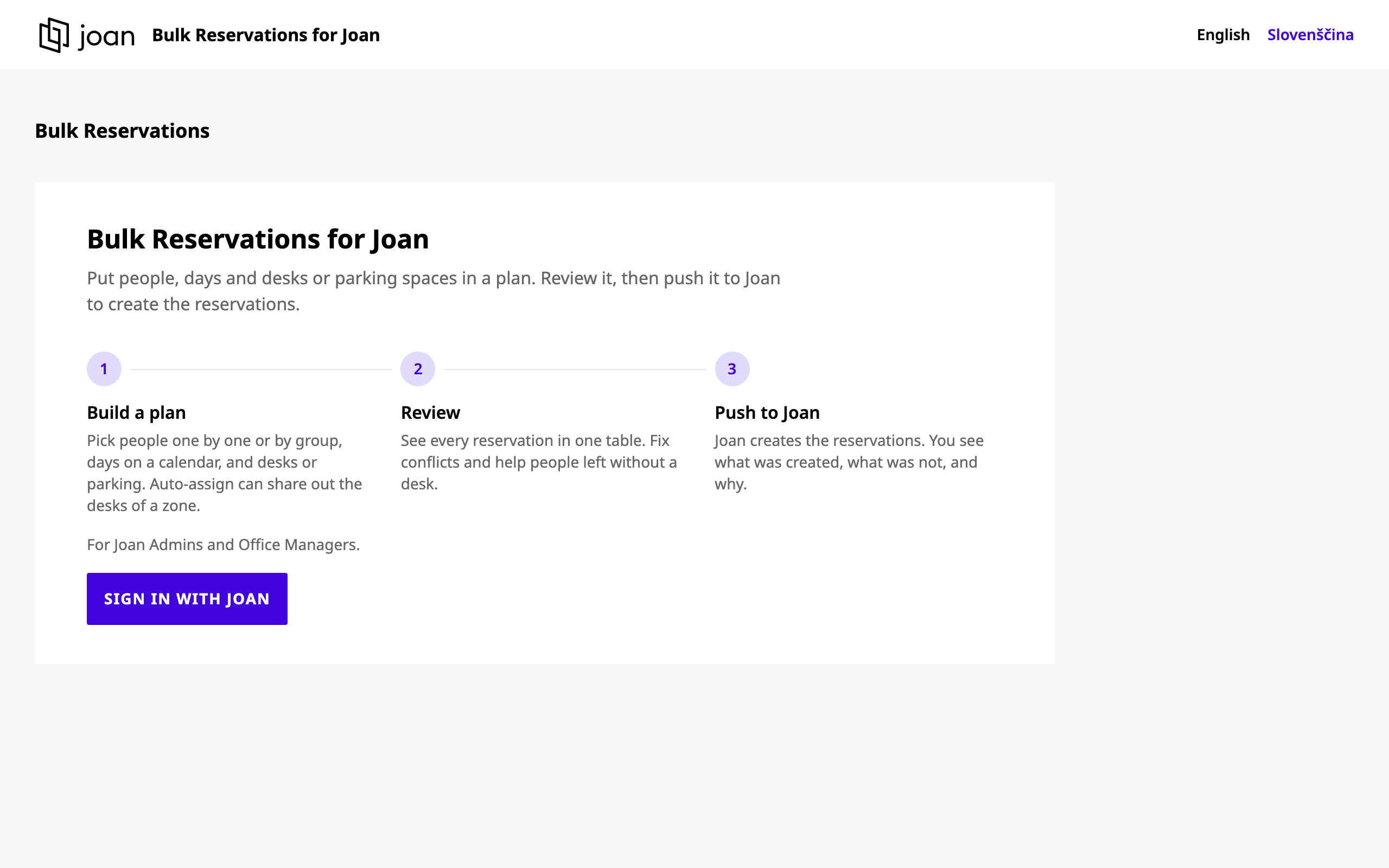
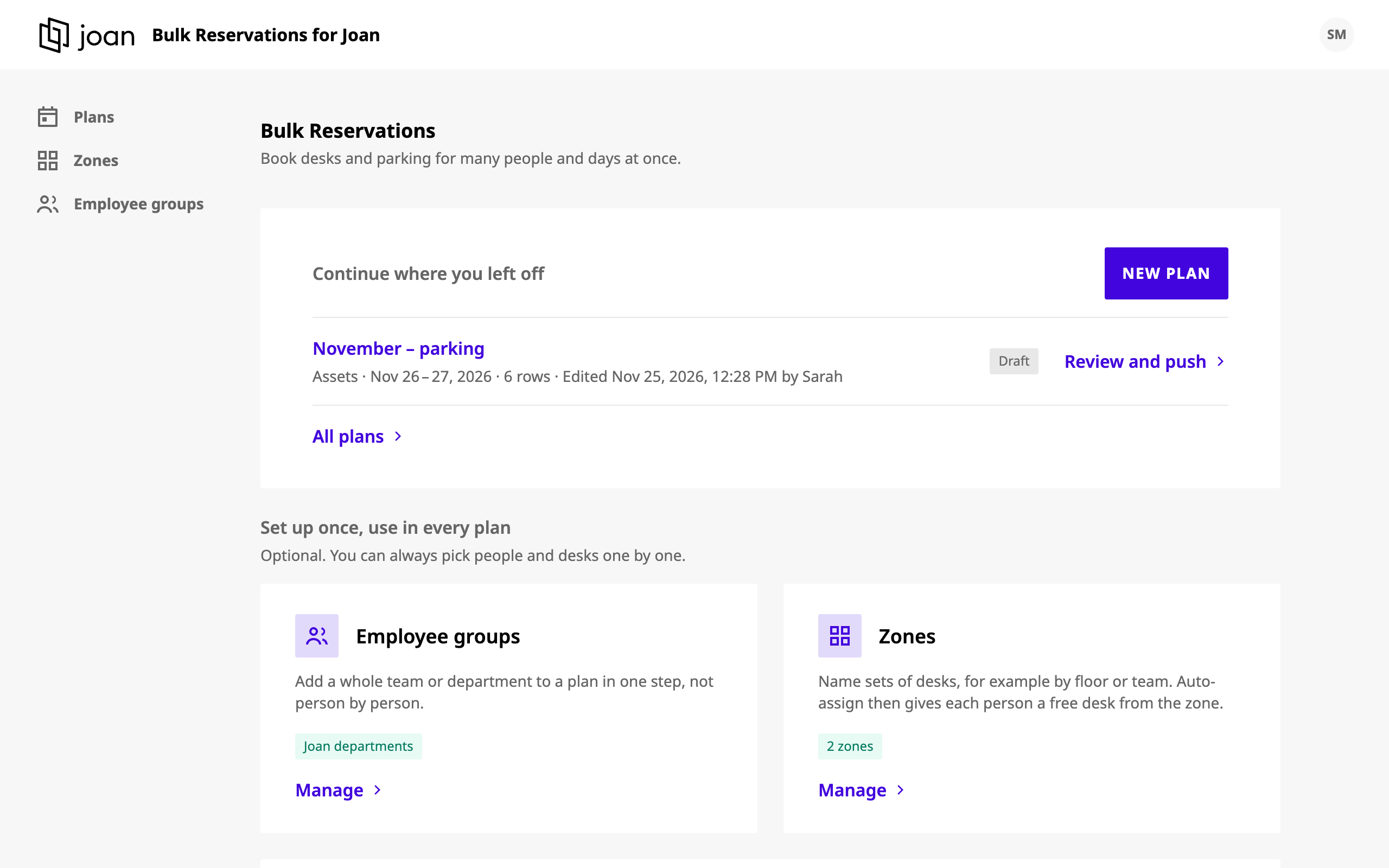
To change the language (English or Slovene), select your initials in the top-right corner.
You can do this once and use it in every plan. You can also skip it and choose people and desks one by one.
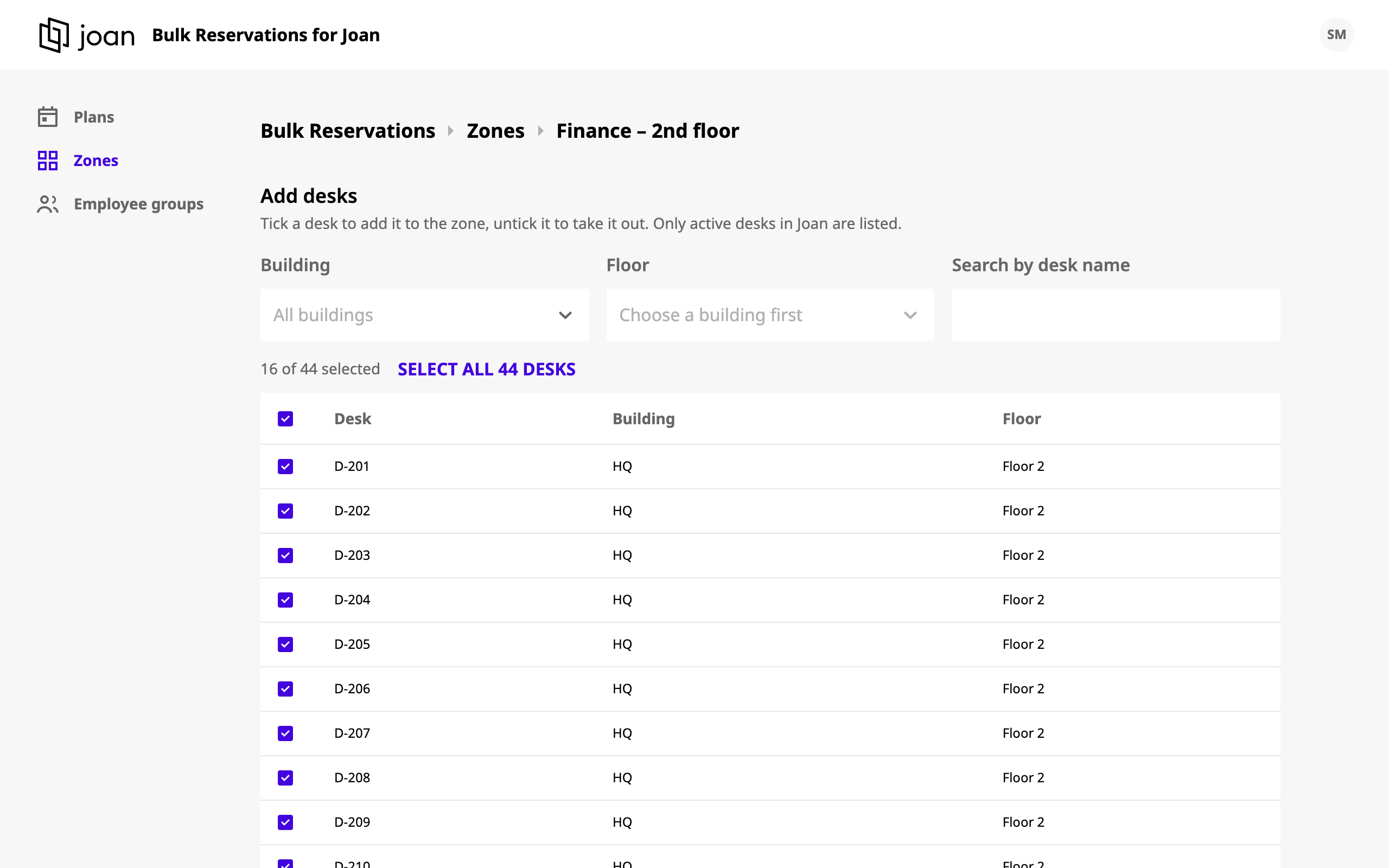
A zone is a named set of desks, for example the desks of one floor or one team. When you use a zone, the app can give each person a free desk from it.
- Select Zones > New zone.
- Enter a name and select Create zone.
- Filter by Building and Floor, then tick the desks you want in the zone. Only active desks are listed.
- Select Save changes.
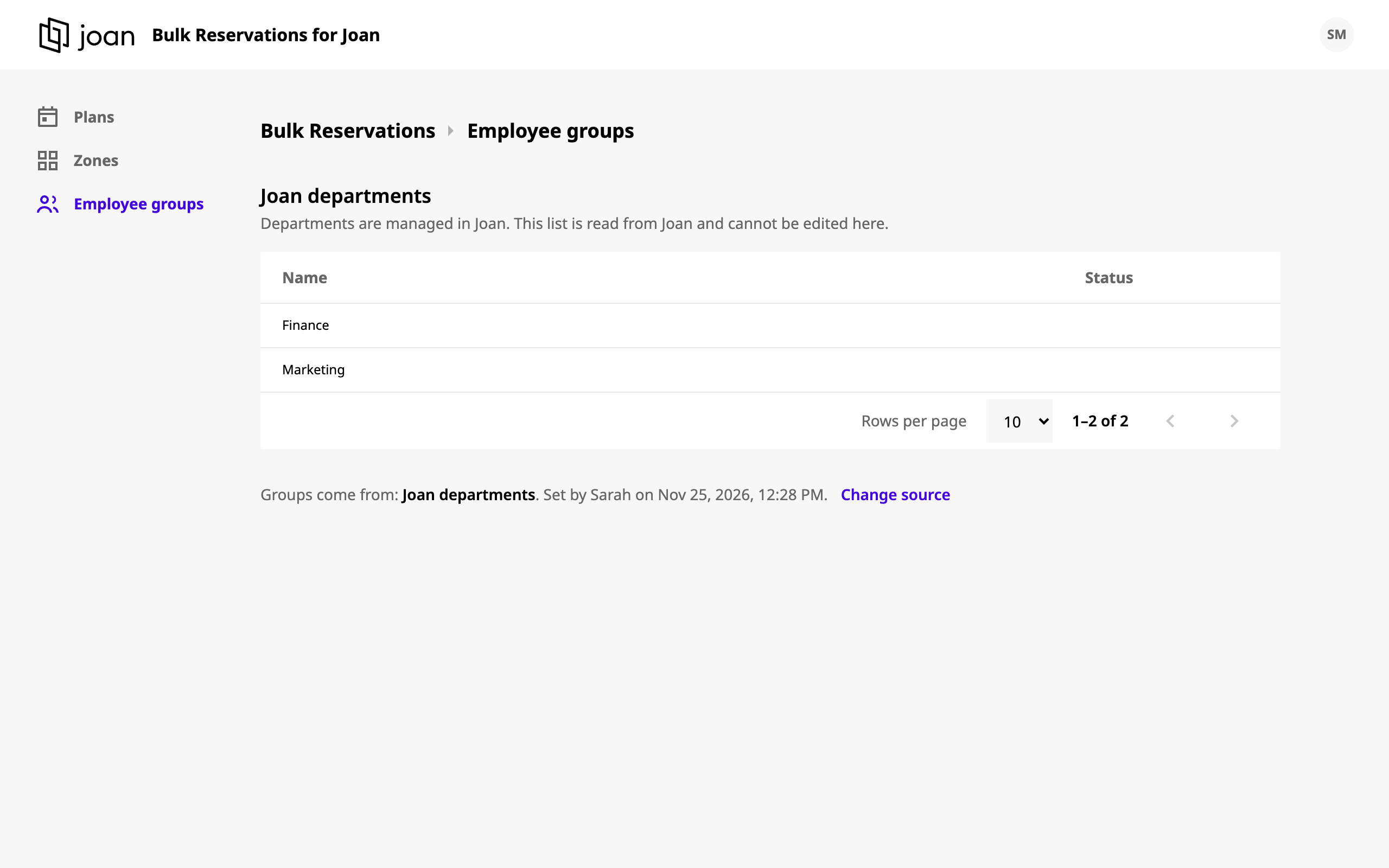
Employee groups let you add a whole team to a plan in one step. Choose one source for your company:
- Joan departments: the departments you already manage in Joan.
- Teams and business areas defined here: your own structure in the app. A business area holds teams, and each team holds people.
Select Employee groups, choose the source and select Use this source. You can change the source later. Plans you already made keep their people.
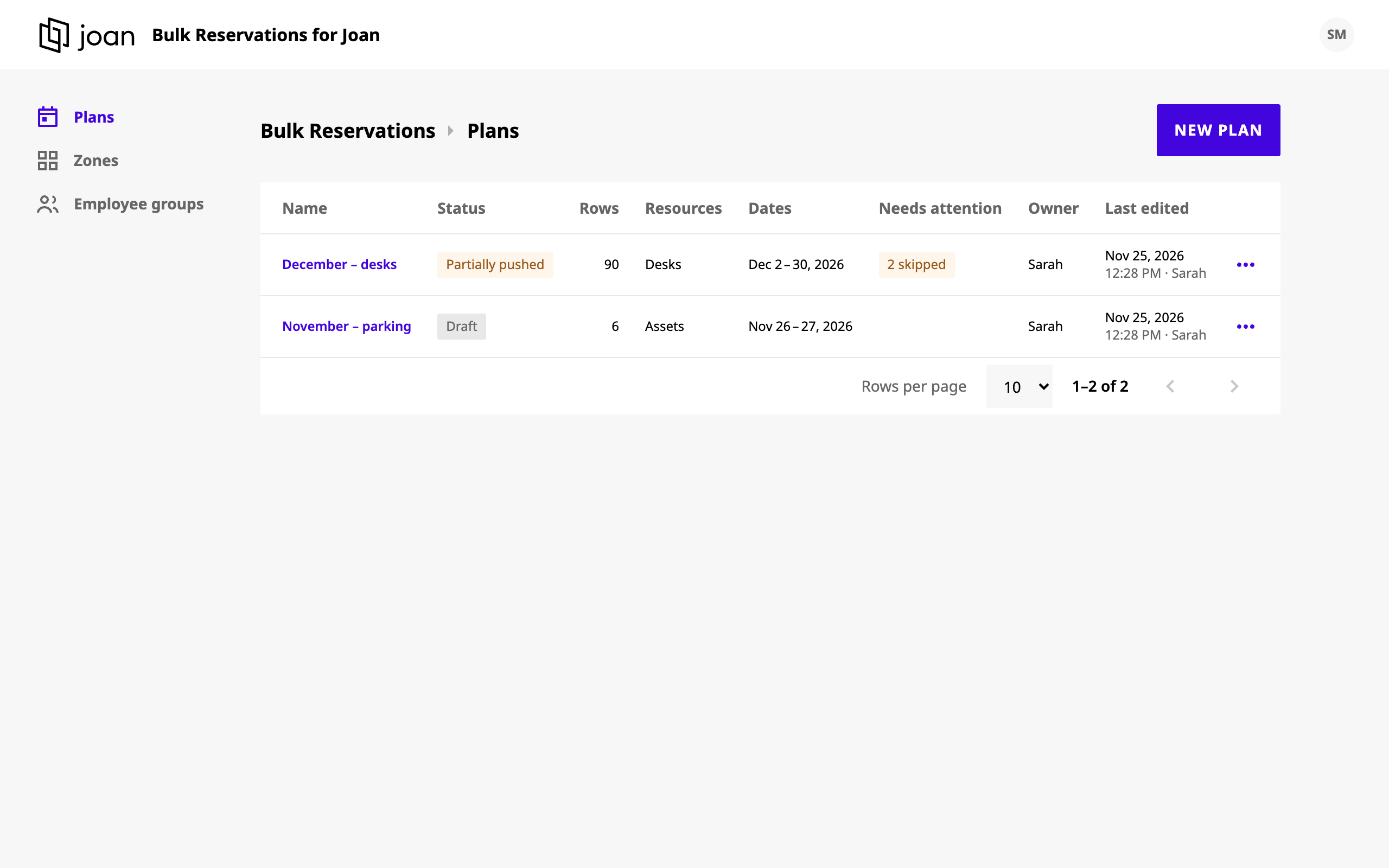
A plan holds the reservations for one resource type: desks or assets (for example parking). For both, make two plans.
- Select Plans > New plan.
- Enter a name, for example "December – desks".
- Under What is the plan for?, choose Desks or Assets (e.g. parking).
- Select Create.
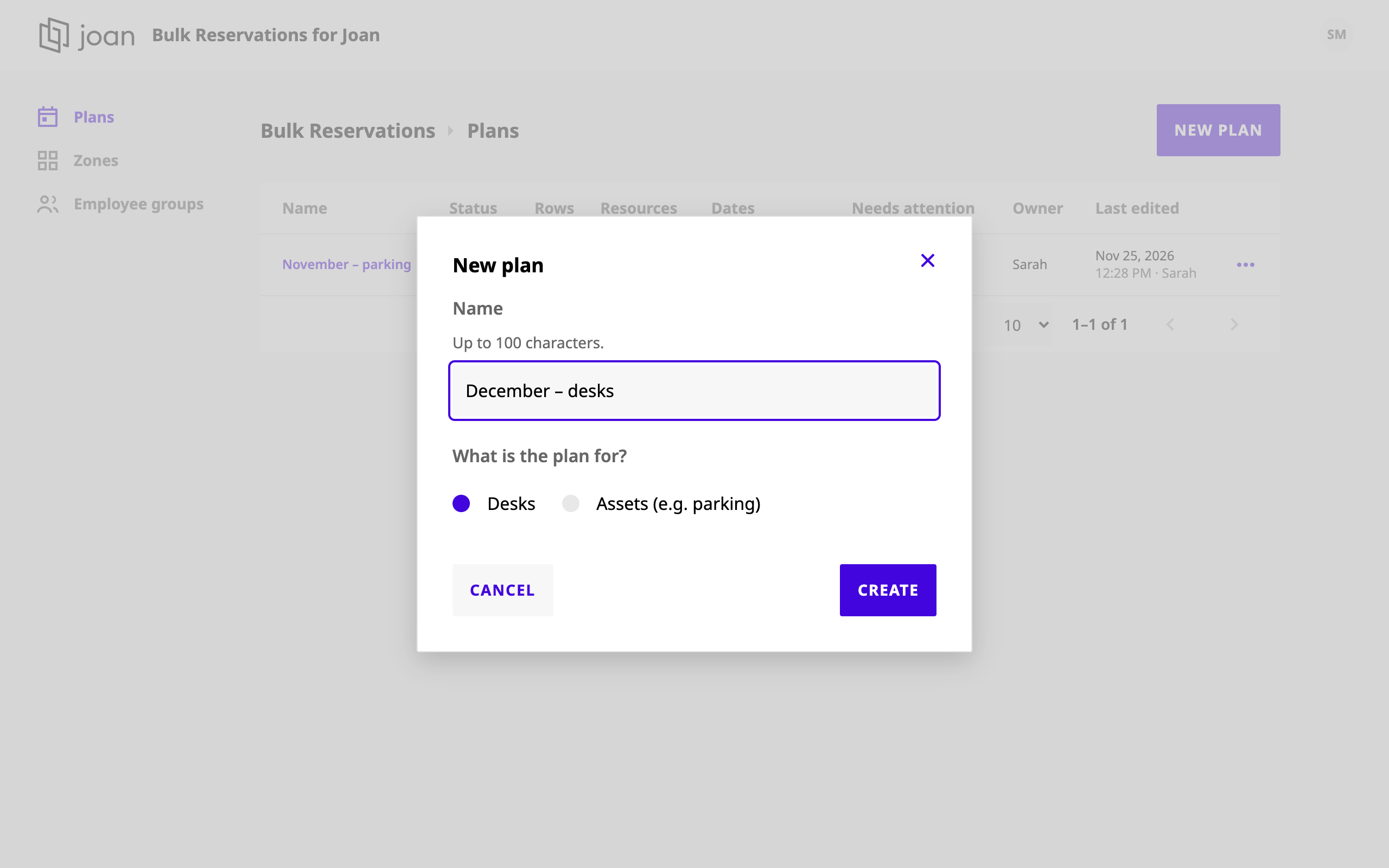
The plan saves automatically. All Admins and Office Managers in your company can see, edit and push it.
- In the plan, select Add reservations.
- People: add a group, single people, or both. You can remove single people from the list.
- Days: pick each day on the calendar. Days that have passed cannot be added.
- Assignment: choose one option.
- A desk for each person: choose a desk for each person. They keep the same desk on every chosen day.
- Auto-assign from a pool: choose a zone or a set of desks. Each person gets a free desk, the same one on every day where possible.
- Time: choose a timeslot from Joan, or Custom time and enter the start and end. If your company requires timeslots, you can only choose a timeslot.
- Select Add to plan.
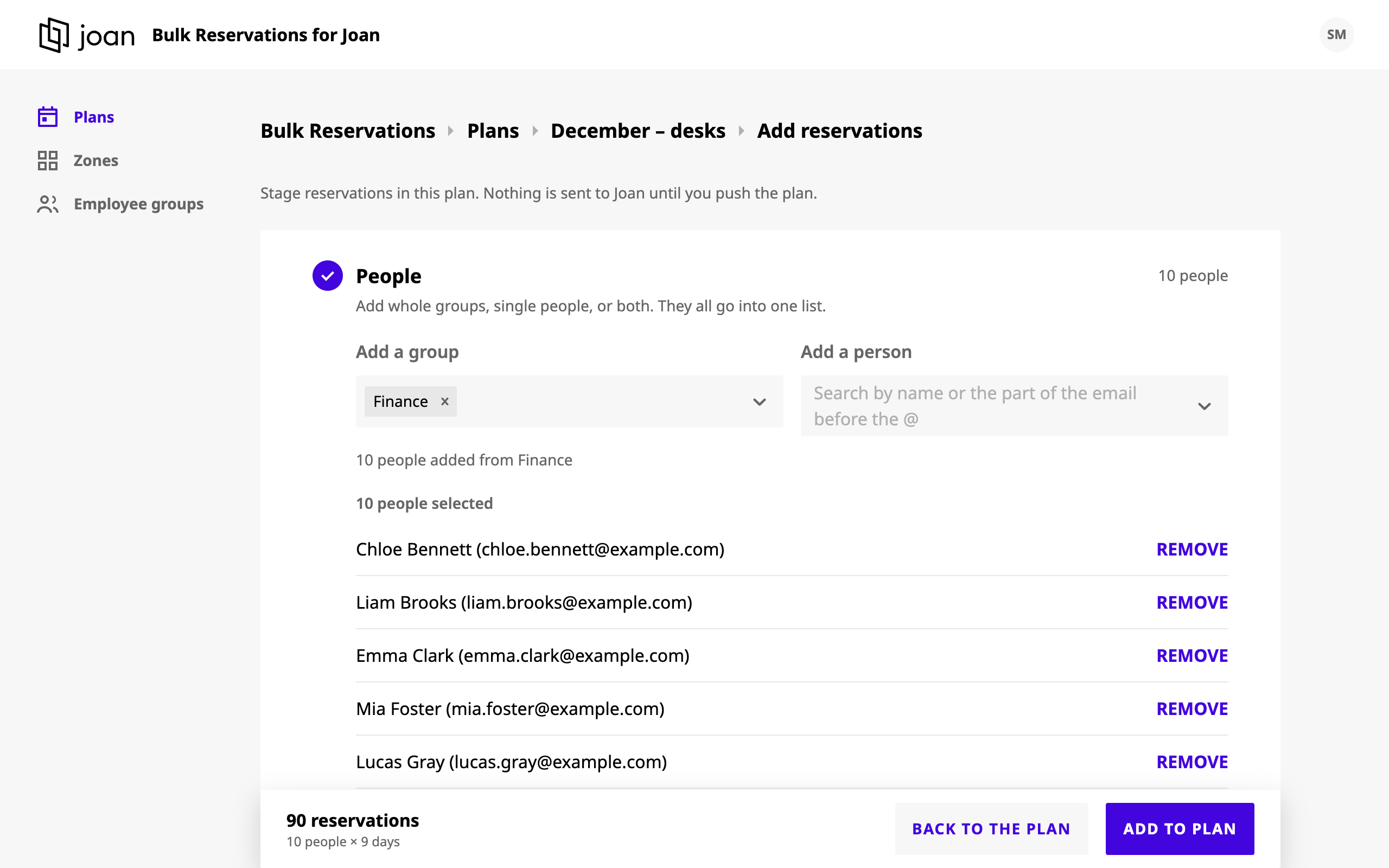
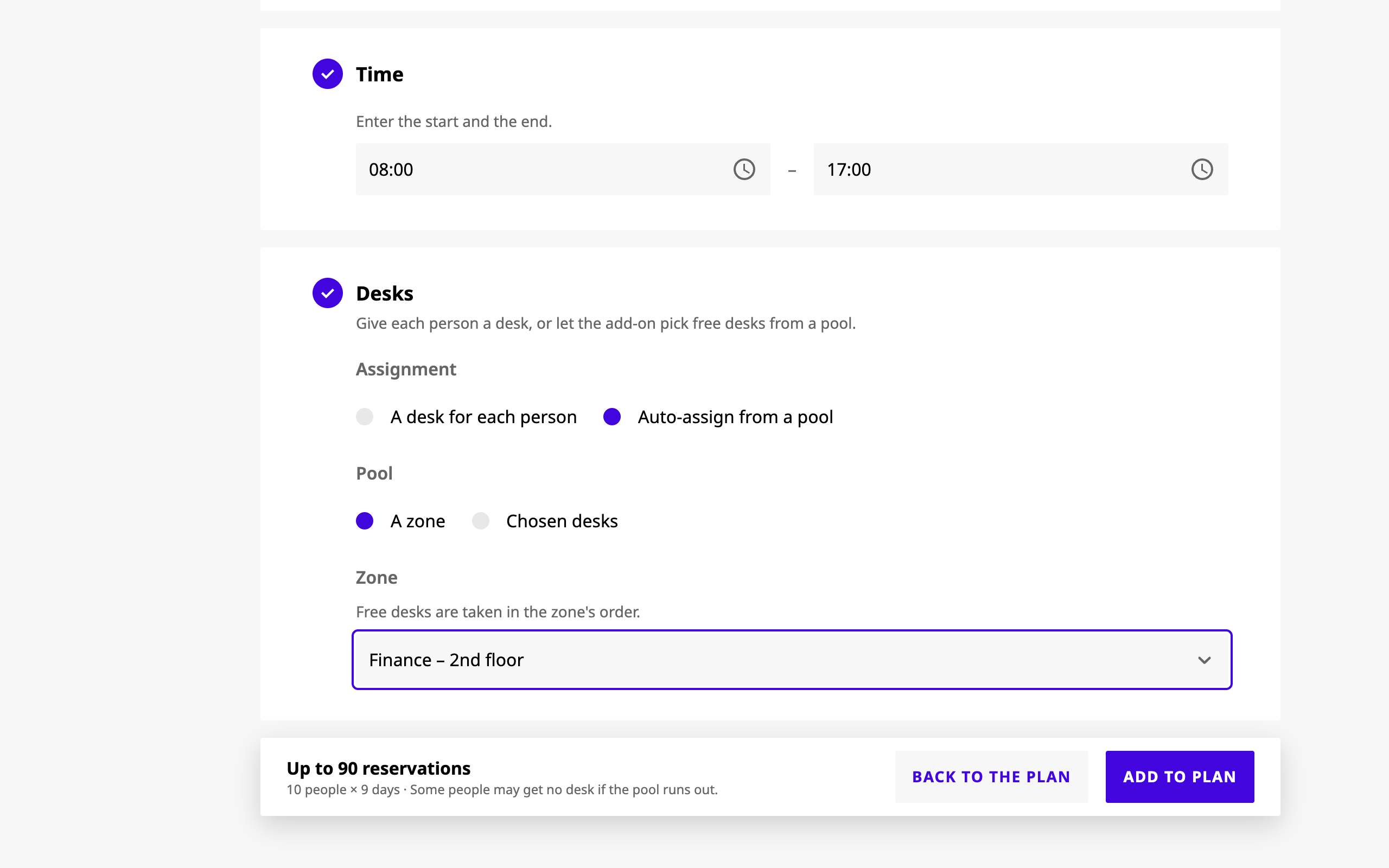
The app shows how many reservations it added. If the pool runs out of free desks, some people get no desk on some days. Select Show who to see them. They stay on the plan until you add them again or dismiss them.
People who already have a reservation of that type in Joan on that day do not get a second one.
To add more people, days or zones, select Add more. One plan can hold many teams, days and zones.
The plan shows every reservation as a row: person, day, desk or asset, and time.
- Filter rows by person, day or status.
- Select Edit on a row to change it, or select rows and delete them.
- Rows with a conflict are marked. For example, the same desk is used twice on one day, or one person has two reservations on the same day. You must fix all conflicts before you can push.
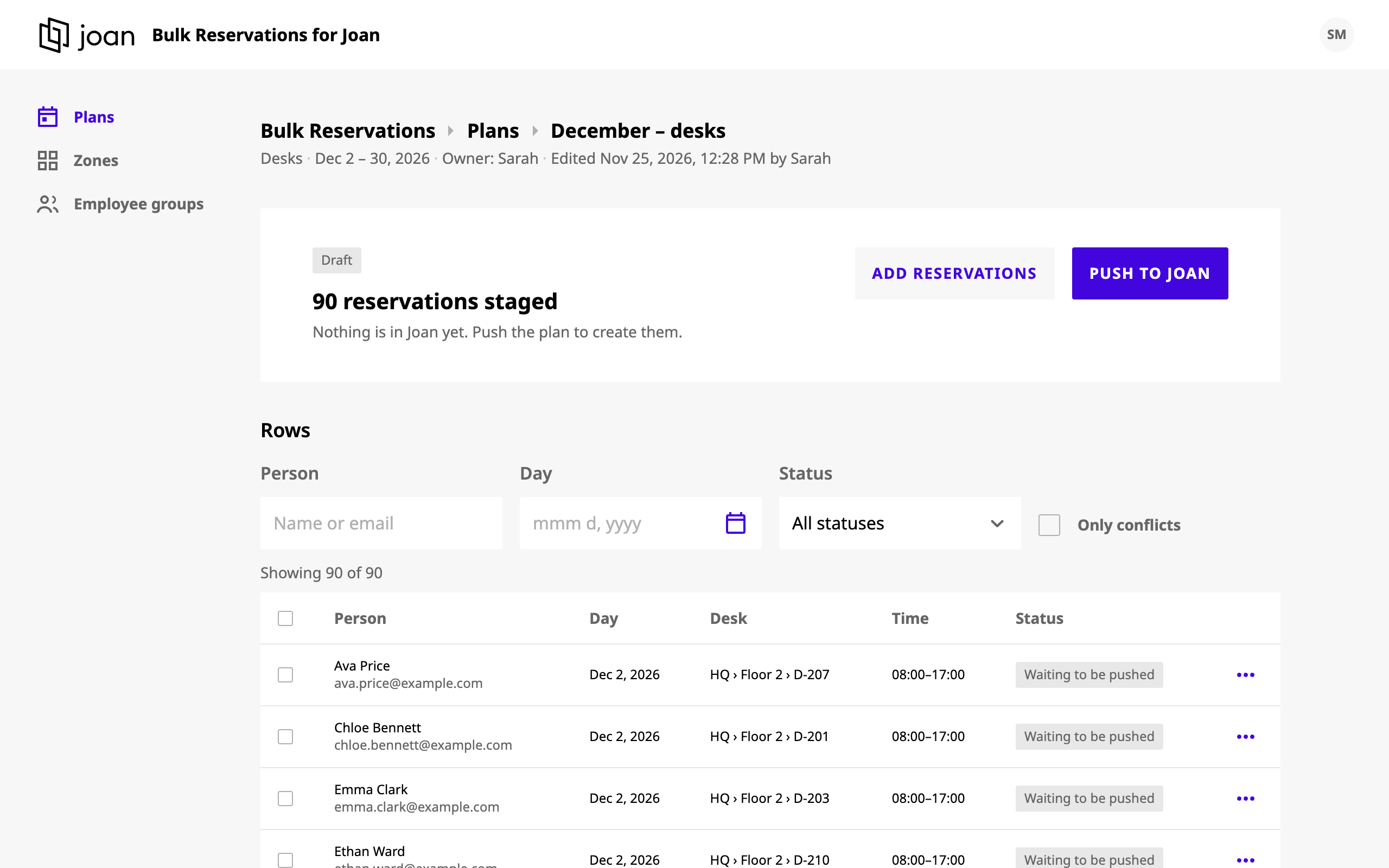
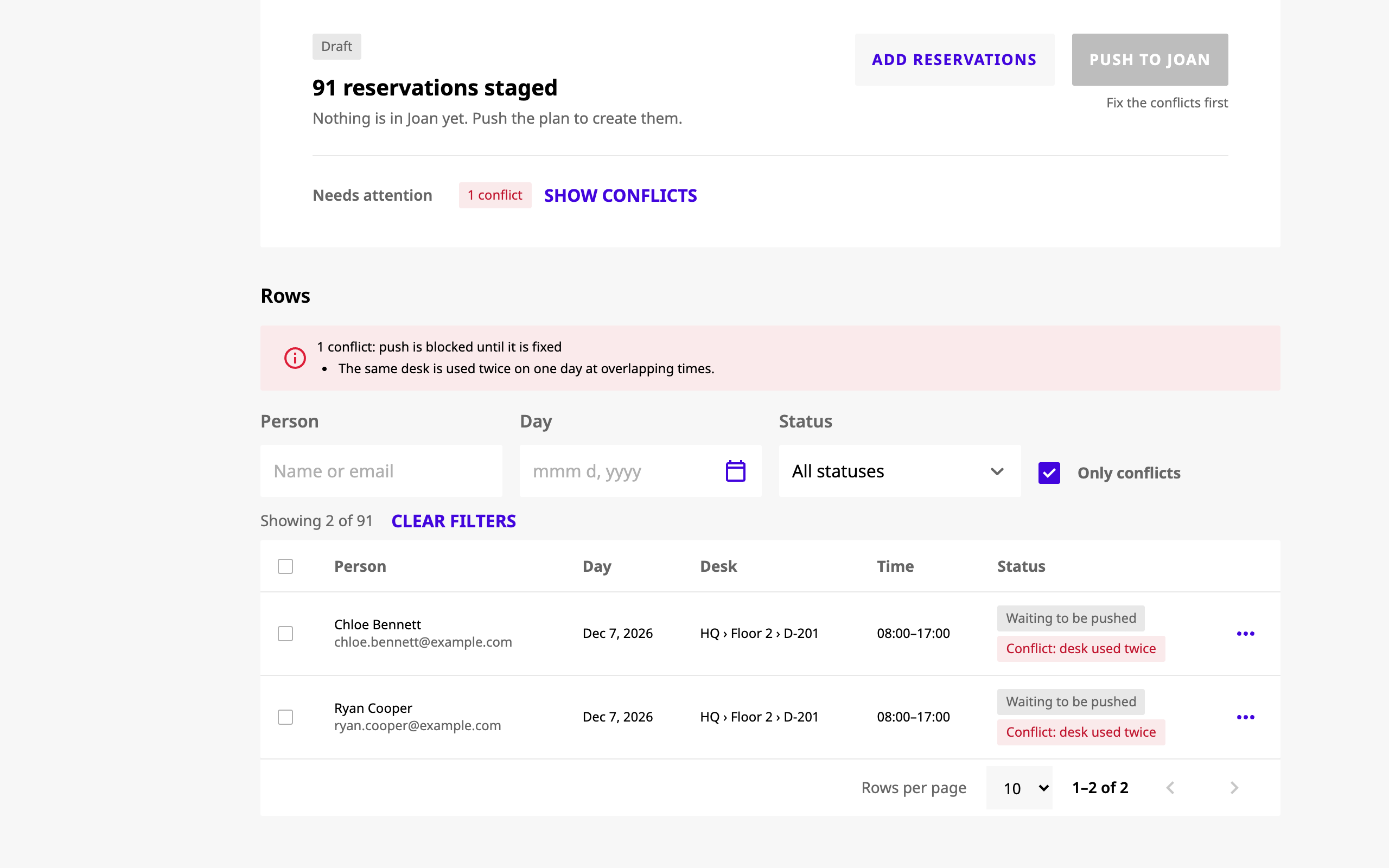
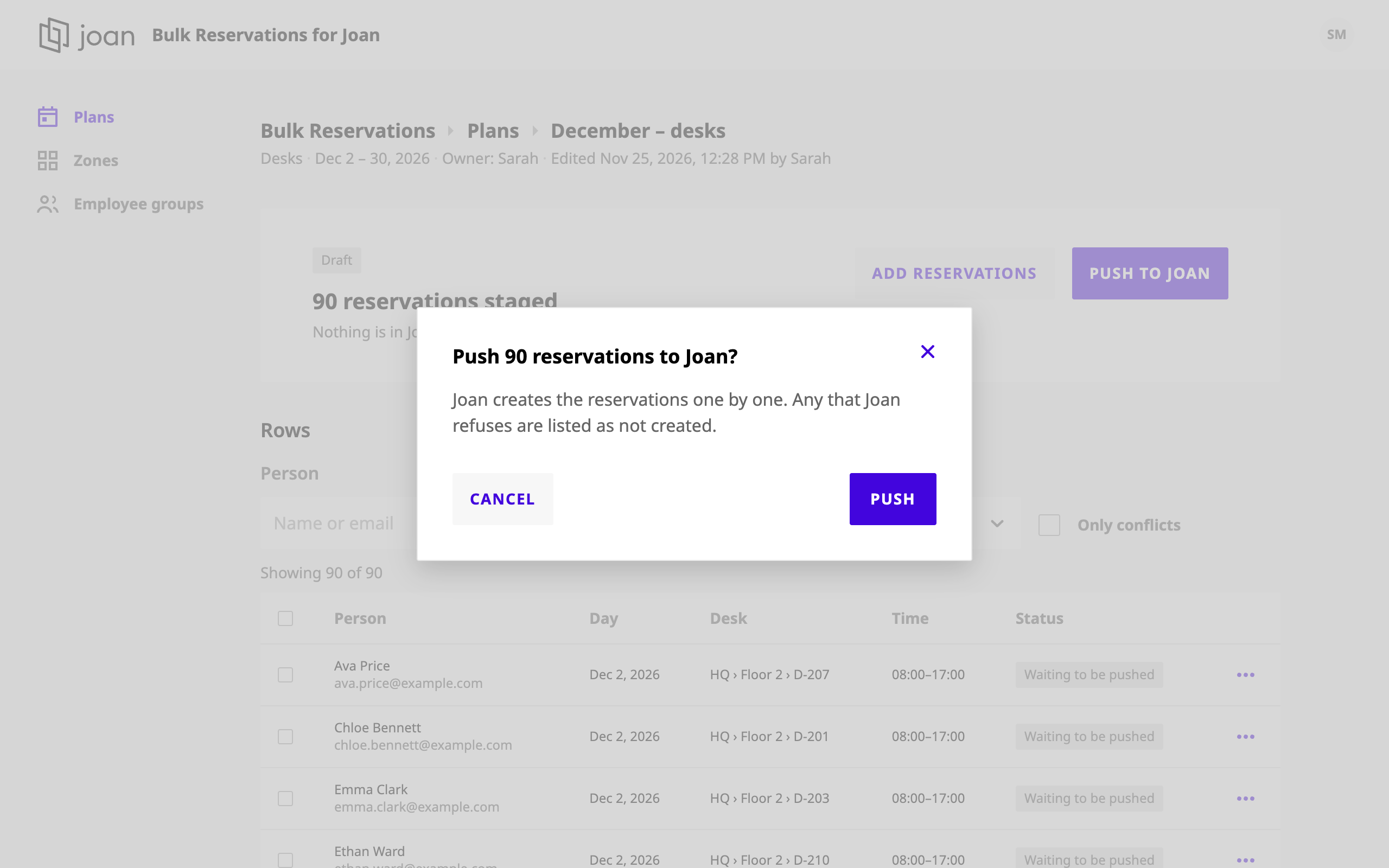
- Select Push to Joan.
- Check the number of reservations and select Push.
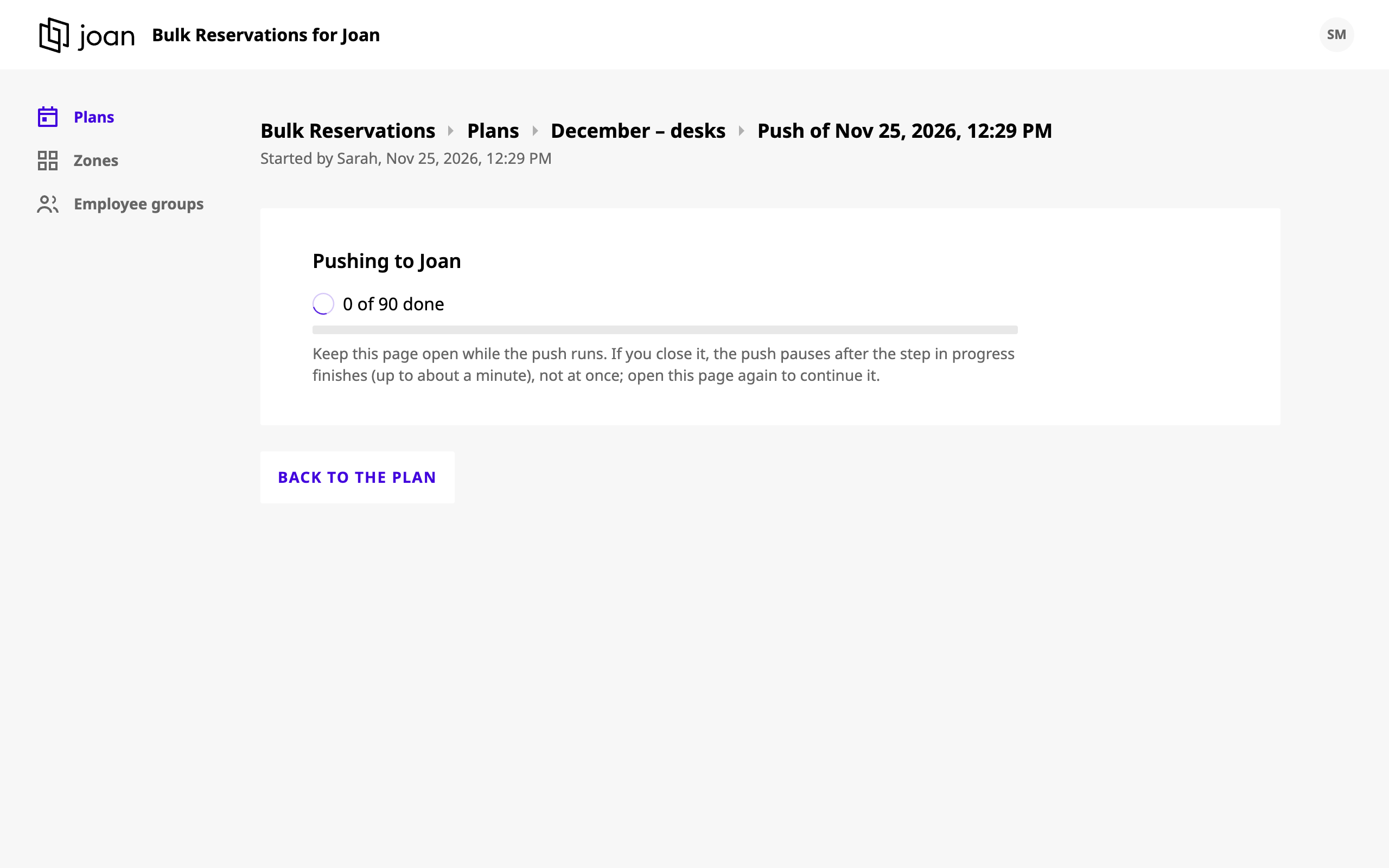
Joan creates the reservations one by one. A plan with hundreds of reservations takes several minutes.
Keep the push page open while the push runs. If you close it, the push pauses after the current step (up to about a minute). Open the page again to continue the push.
Joan sends its usual booking emails to each person. Bulk Reservations does not send its own messages.
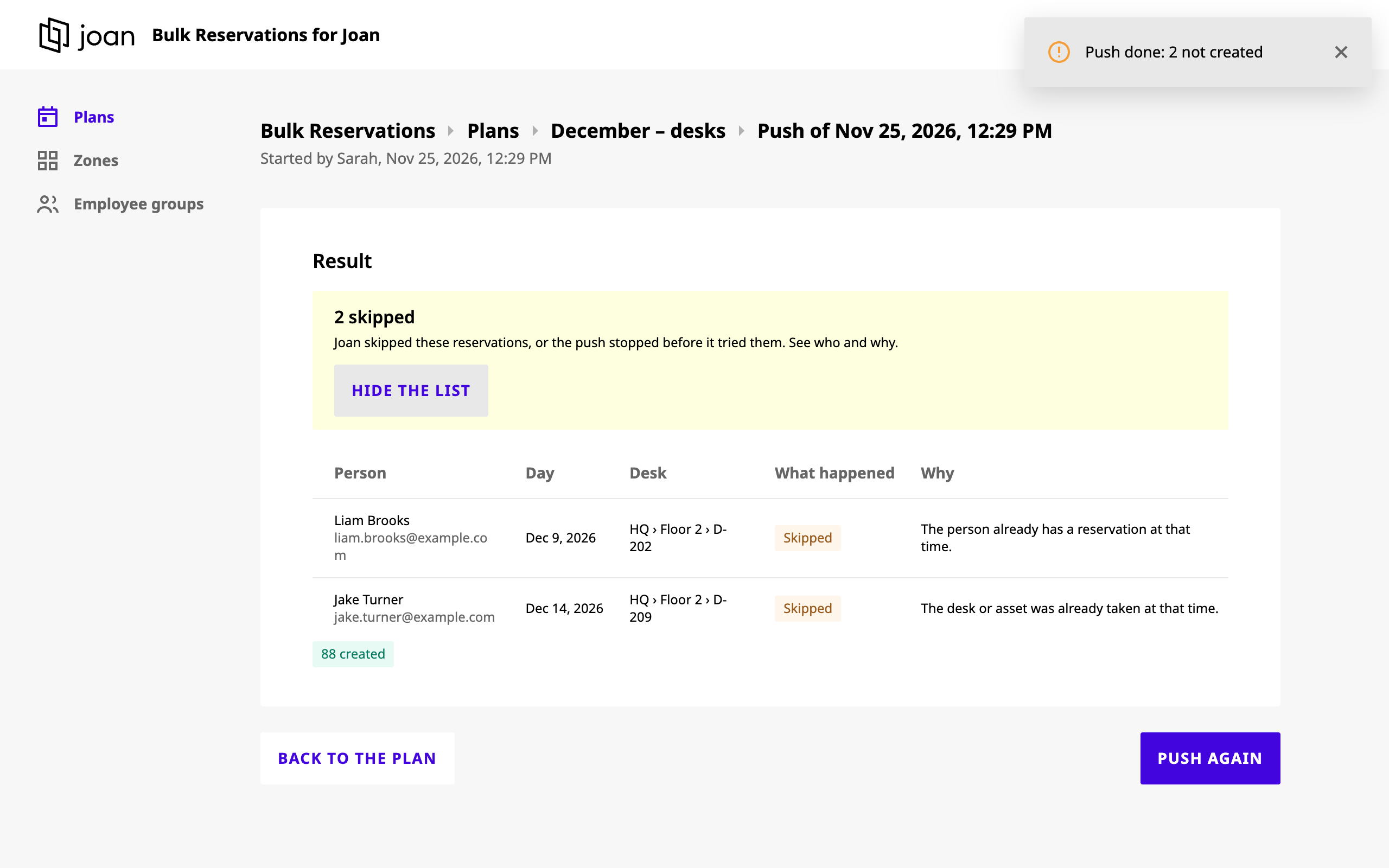
When the push ends, you see:
- how many reservations were created
- how many were not created, and why
Select Show who to see each reservation that was not created: the person, the day, the desk or asset, and the reason. Common reasons are:
- The desk or asset was already taken at that time.
- The person already has a reservation at that time.
- The day has already passed.
- A Joan rule does not allow this reservation.
Fix or delete these rows, then select Push again. Only the rows that are not created yet are pushed. Joan never gets the same reservation twice.
Status | Meaning |
|---|---|
Draft | Nothing is in Joan yet. You can edit everything. |
Pushing | A push is running. You cannot edit the plan. |
Pushed | All reservations were created in Joan. |
Partially pushed | Some reservations were not created. You can fix them and push again. |
Reservations that are created in Joan cannot be changed or deleted in Bulk Reservations. To change them, use MyJoan.
Does Bulk Reservations replace or delete existing reservations? No. If a person already has a reservation, the app skips that row and tells you.
Can I book meeting rooms? No. Bulk Reservations is for desks and assets, such as parking spaces.
Can I undo a push? No. To remove reservations after a push, cancel them in MyJoan.
Can I book beyond the normal booking window? Yes. Admins and Office Managers can plan up to 180 days ahead.
Who do I contact for help? Contact Joan Support.