Set up a digital door plate on a Joan device in one of two ways: with custom content in MyJoan, or by showing a page from the Joan CMS through a URL:
- Custom Content (via MyJoan): Best for static info or simple status updates.
- Joan CMS via URL: Best for dynamic, branded, or third-party content.
- Log in to MyJoan with your admin account
- Navigate to the “Settings” page via the top navigation menu
- Select "Rooms" - > “Custom content” from the left-hand side menu
- A list of all your custom content interfaces will appear. If you do not have added any so far, click the “add custom content” button
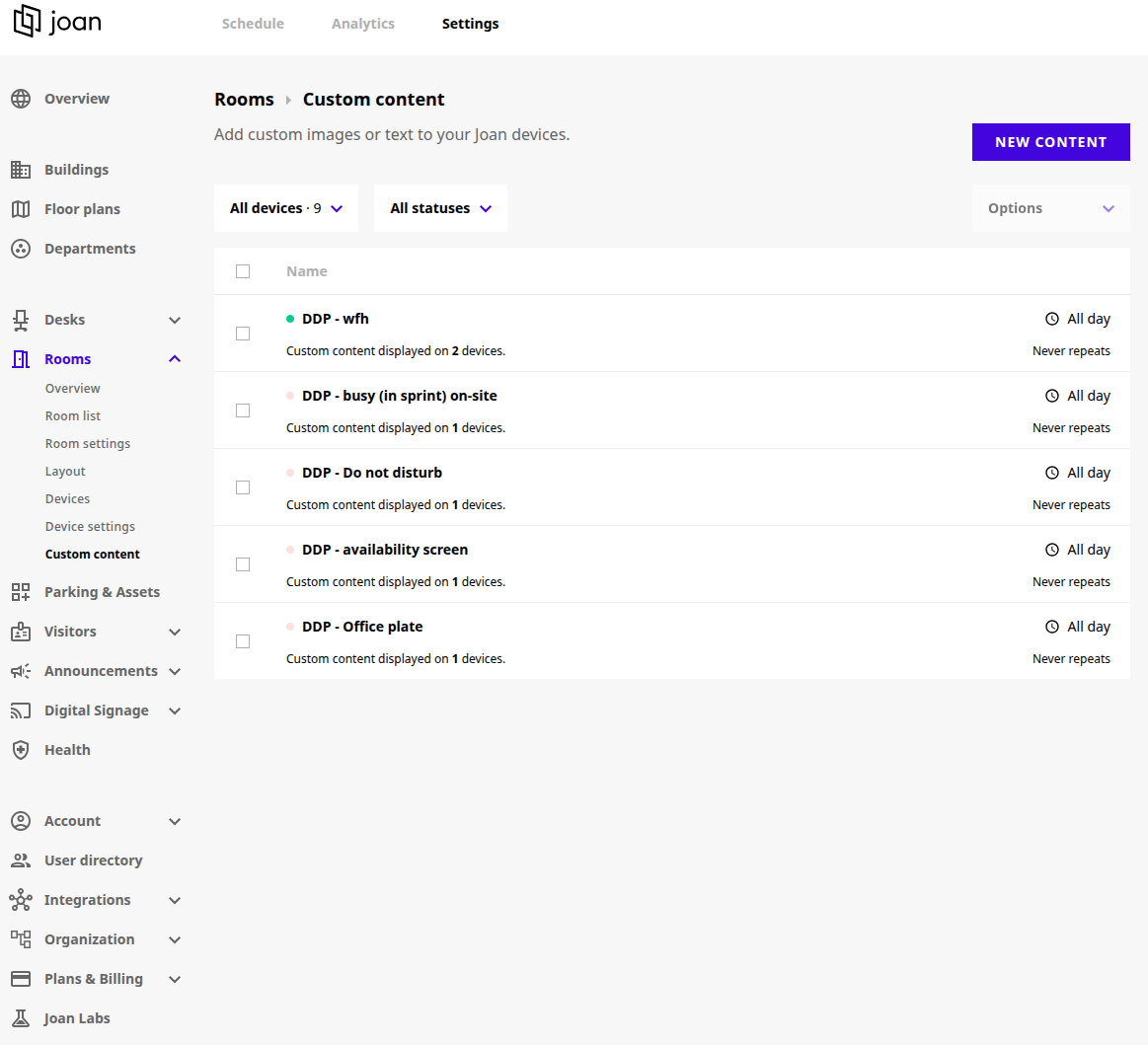
- Create a new custom content for Digital Door Signage
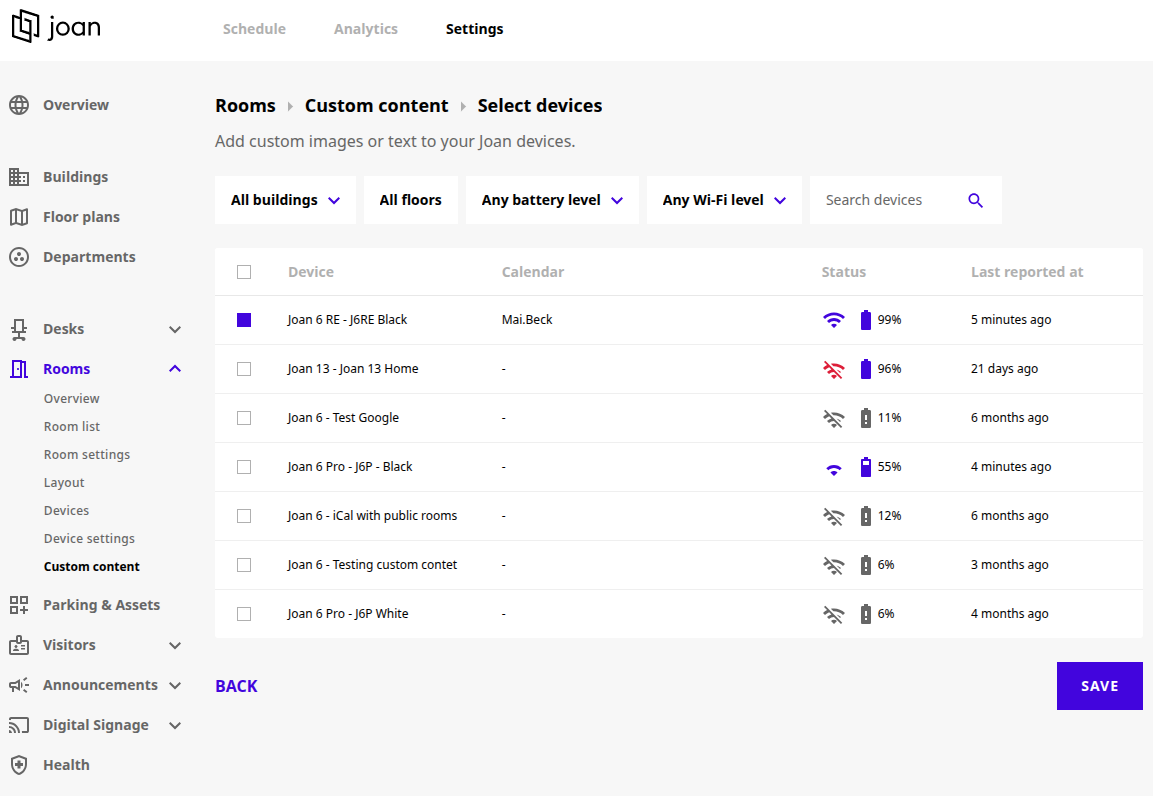
- Mark the devices, where you want this to be applied and then click on Save
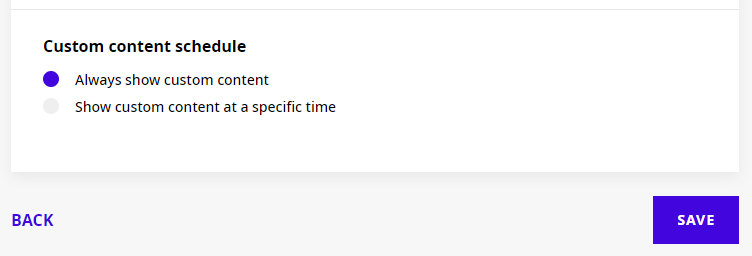
Next, navigate to the “Set custom content schedule” section and click “Change”
- Select either “Always show custom content” or set a specific time for when you wish to display this custom content
- Selecting “Show custom content at a specific time” will allow you to set the start and end date and time and if the content should repeat or be a one-time event
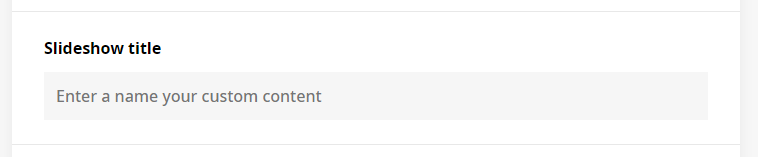
Next, name your custom content interface under “Slideshow title” section
- Enter the name of your new custom content interface
Finally, click “Save” to finish creating your custom content interface
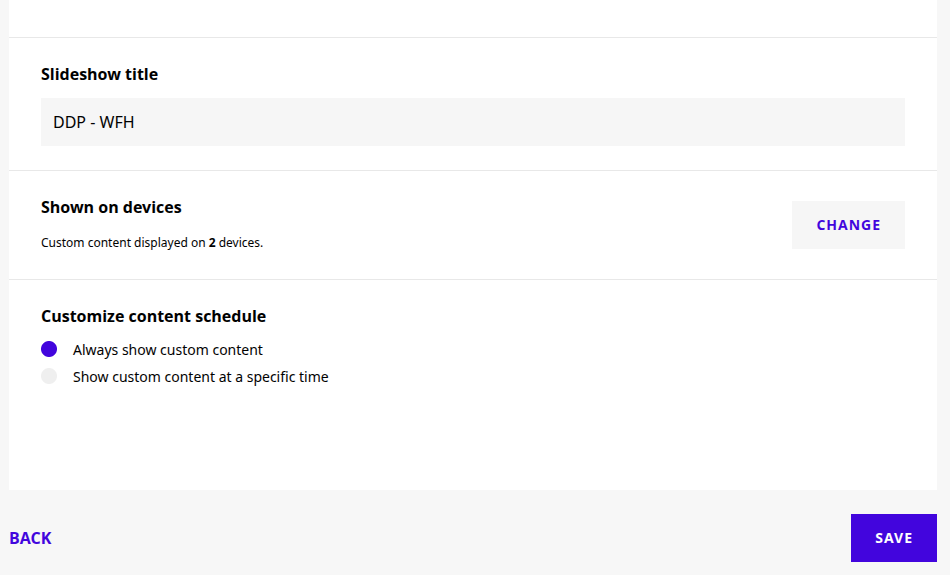
And that’s it! You have successfully created a digital door plate custom content interface.
To learn how to display this interface on your Joan devices, see How to display custom content on a Joan device.
If you wish to remove the custom content interface from your device, see How to remove a custom content interface from a device to find out how.
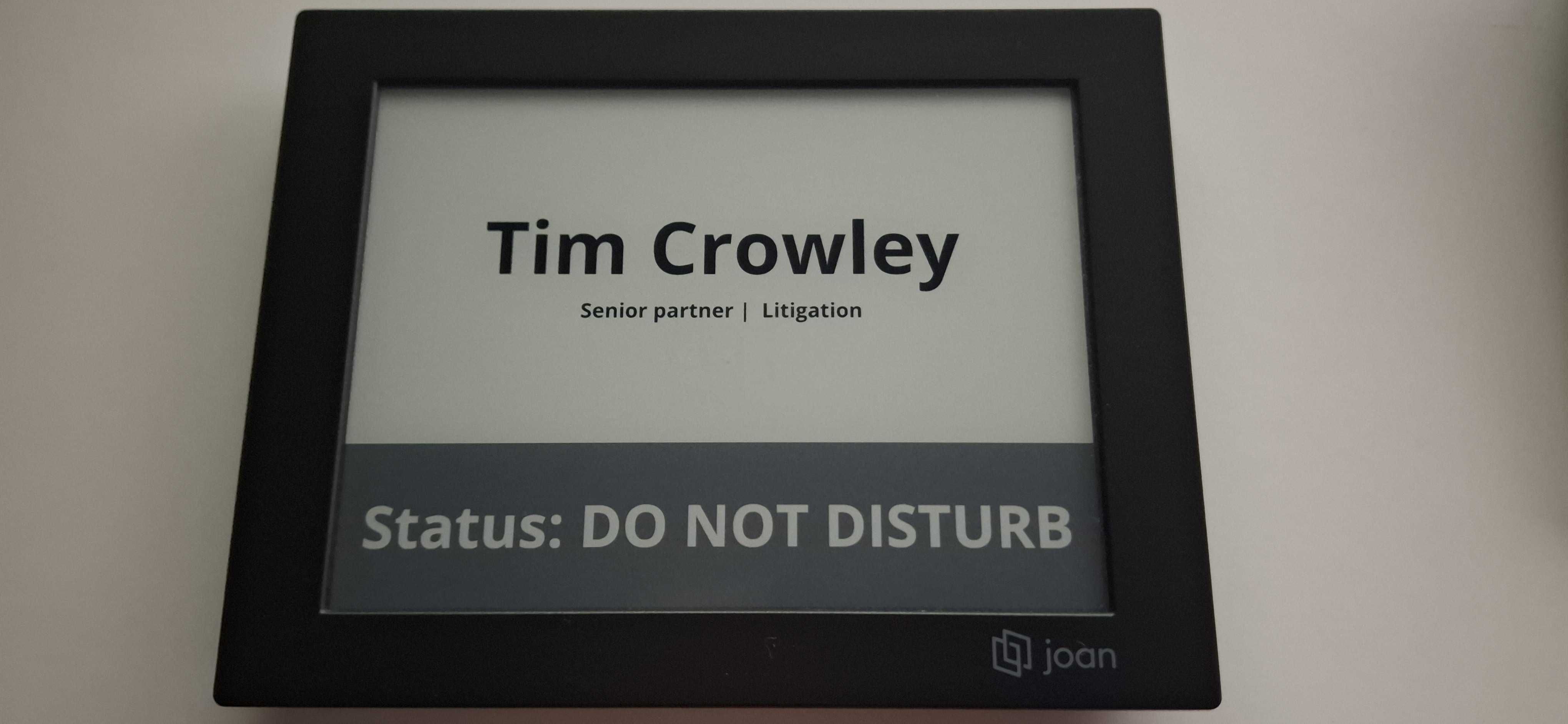
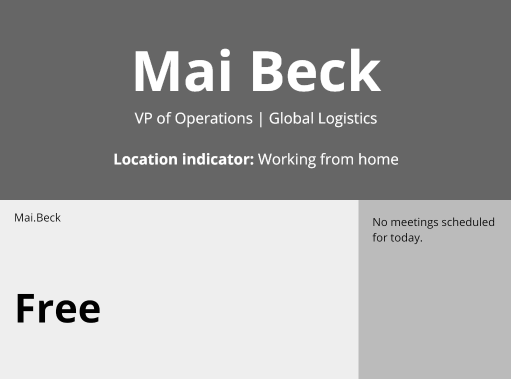
Examples of common usage scenarios:
- Login to your CMS
- Navigate to Content -> Playlists
- Find your Playlist or create a new one
- Once you've selected your playlist, click on Open playlist, to enter the Editor
- Create a new page and start customizing the content. In the CMS, text, images, shapes, lines, etc. are added via the Editor using widgets
- Once you're done with editing, click on Apply changes and then on the x mark in the top right corner.
- Now click on Publish in the bottom right corner, to publish the playlist
With that, you have successfully created and published a digital door plate custom playlist.
Example of creating a playlist within CMS
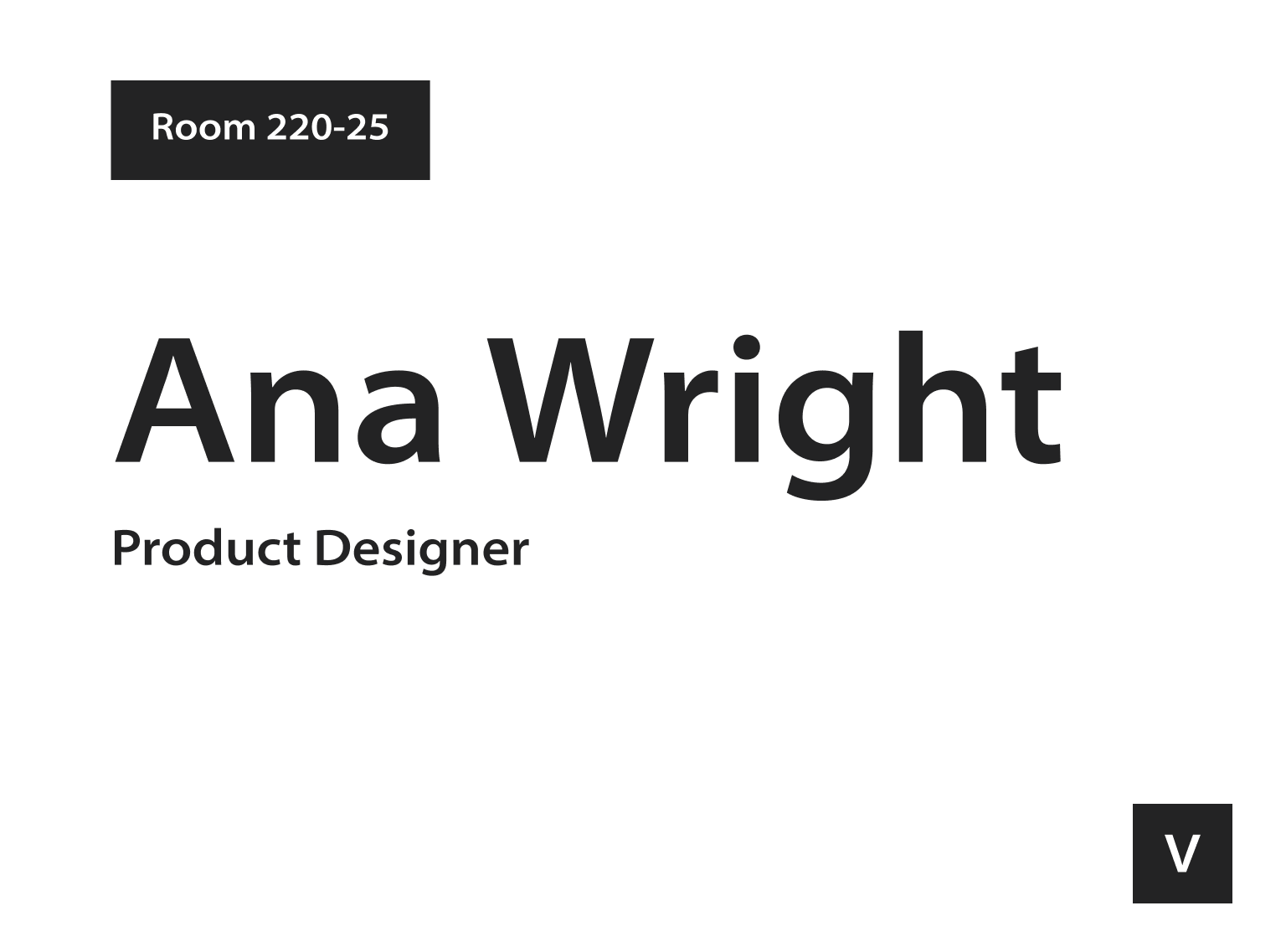
Watch the videoExamples of common usage scenarios:
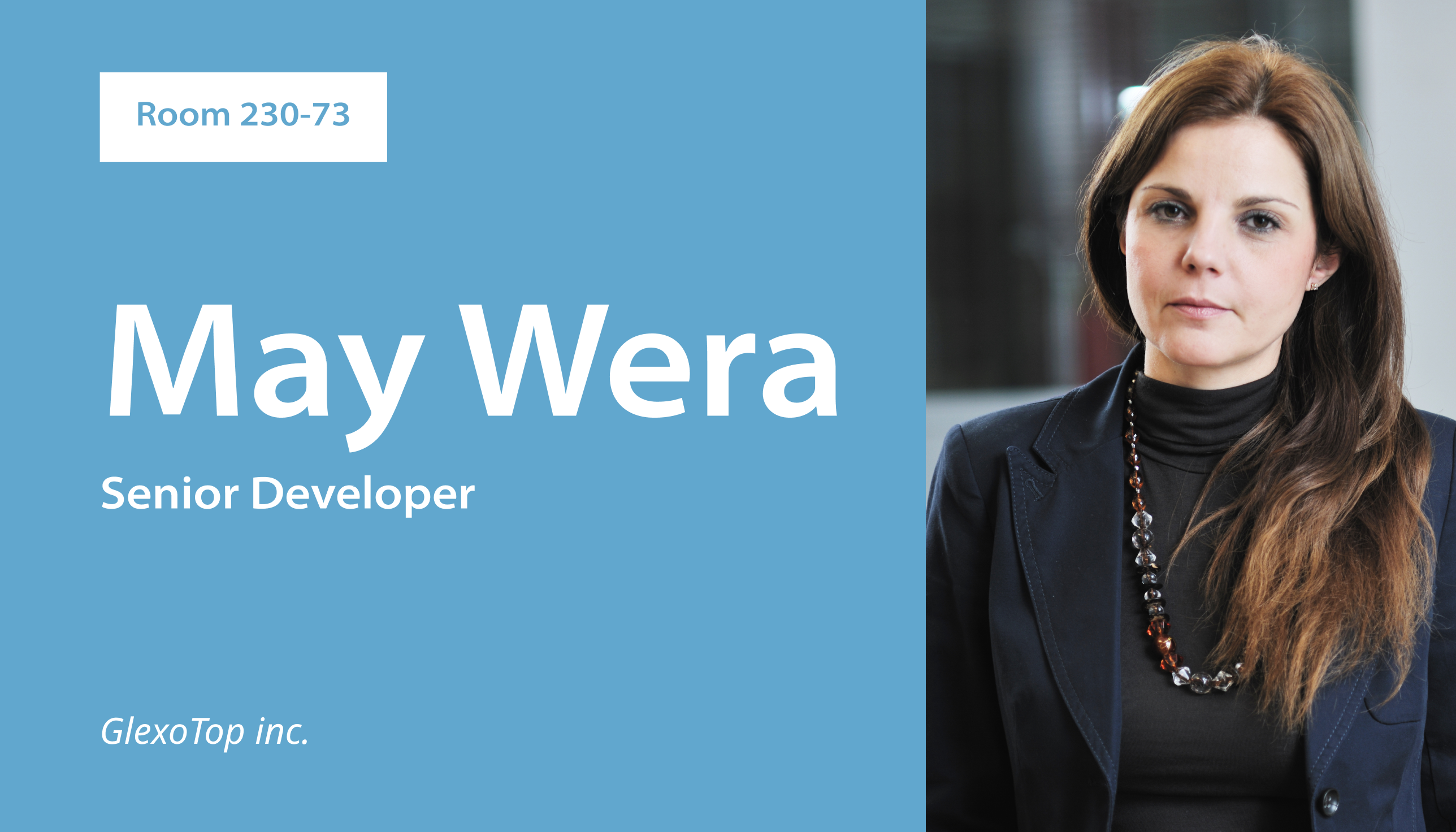
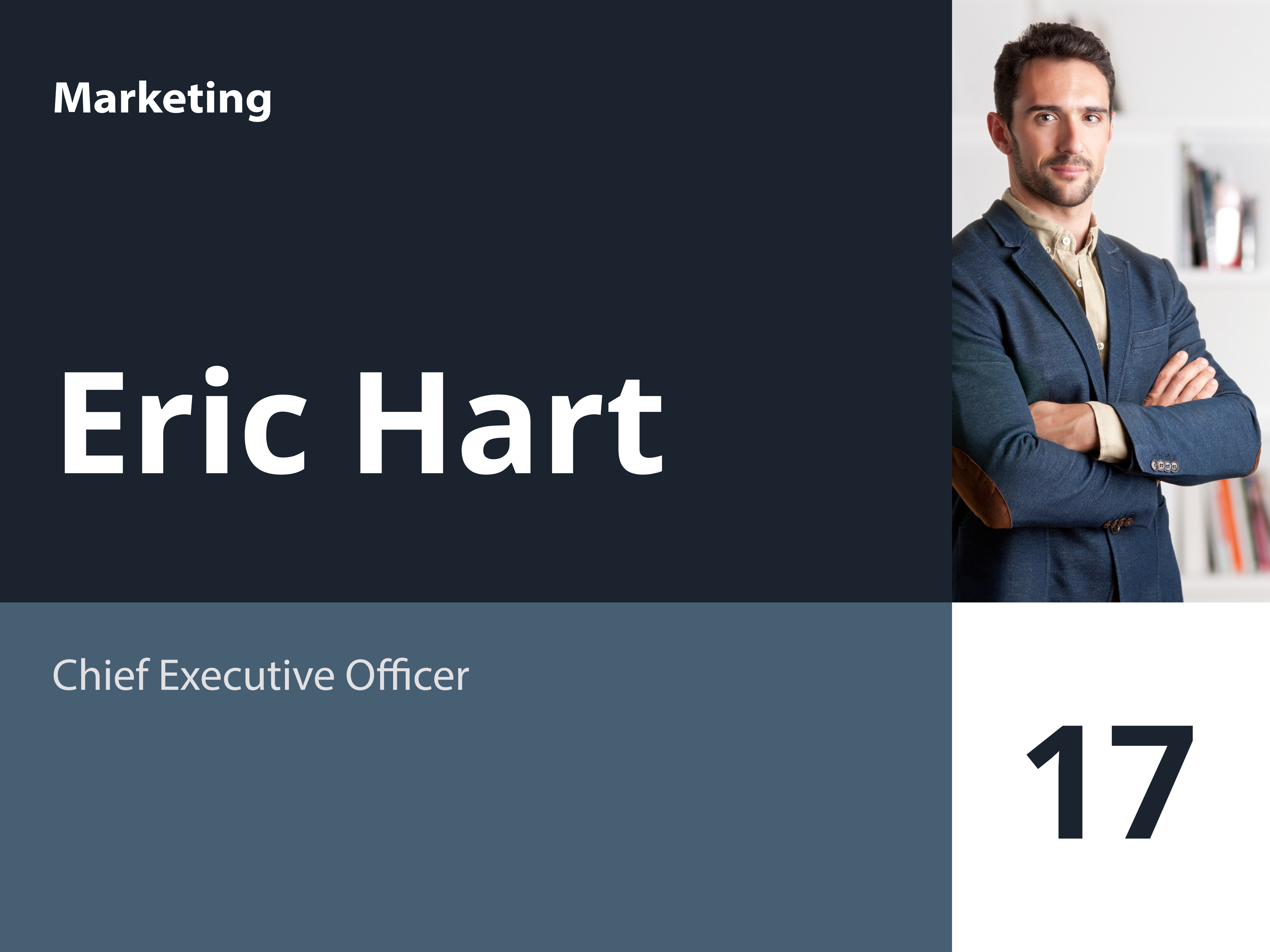
*If you encounter any issues, please contact support@getjoan.com.