Please note, e-ink demo player is aimed solely for testing and preparation work, and is not suitable for production use.
First, read through and follow the Getting started guide until display pairing section.
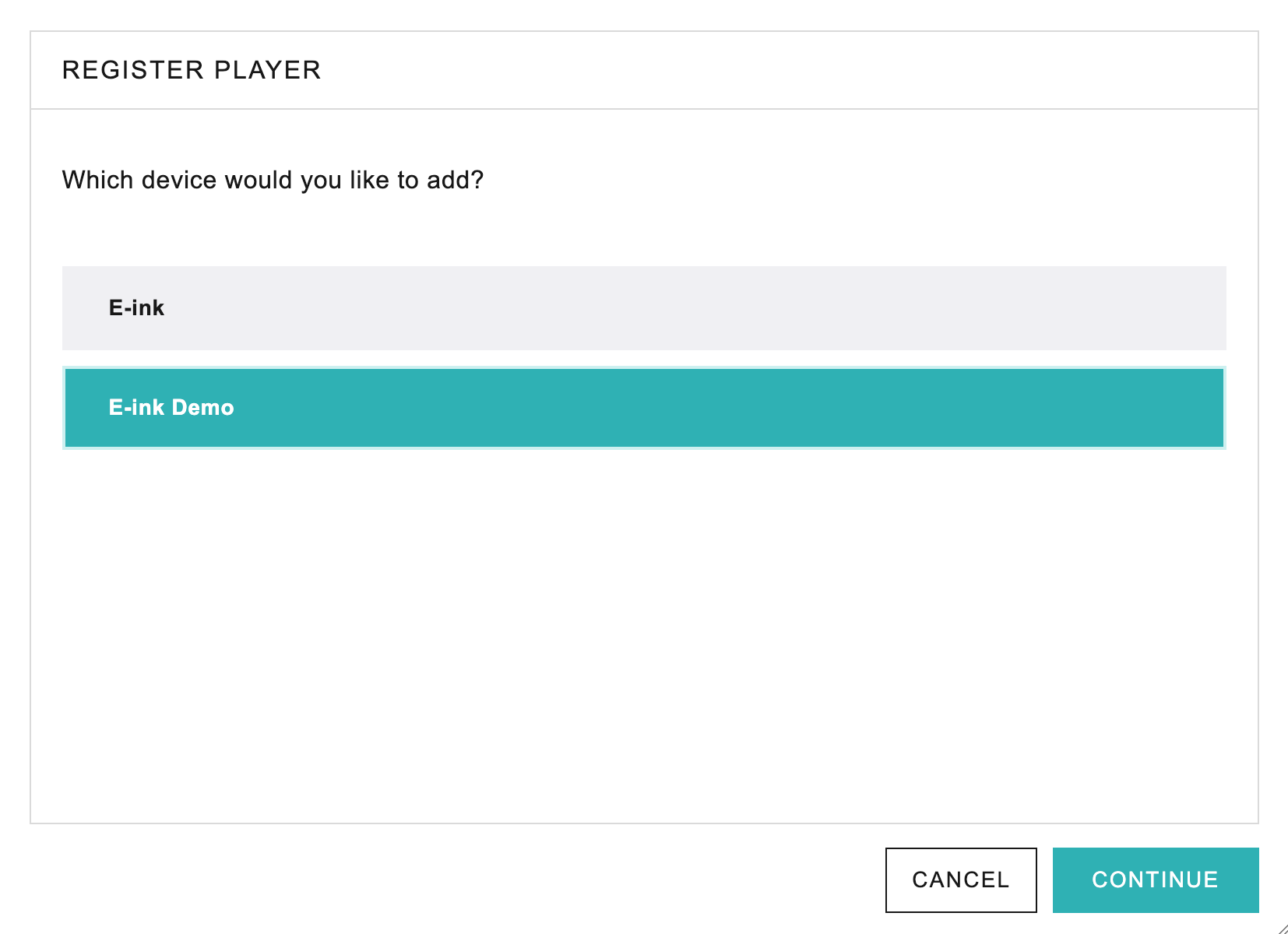
To add the e-ink demo display to your CMS account, go to Players and select Add Player. In the pop-up window, follow these steps:
- First, choose E-Ink Demo.
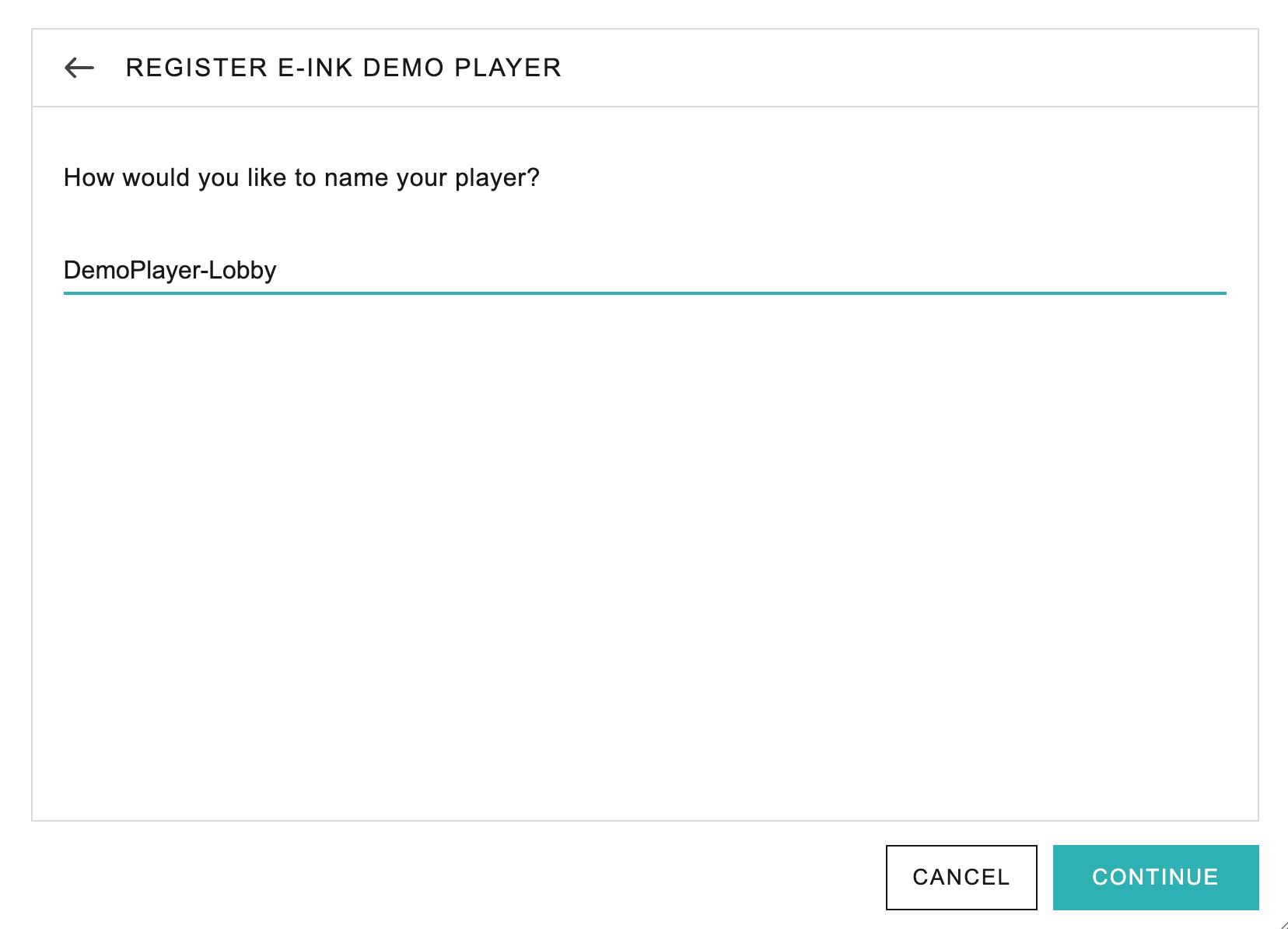
- Then, enter the name of the player. This device will be referred to by this name elsewhere in the CMS.
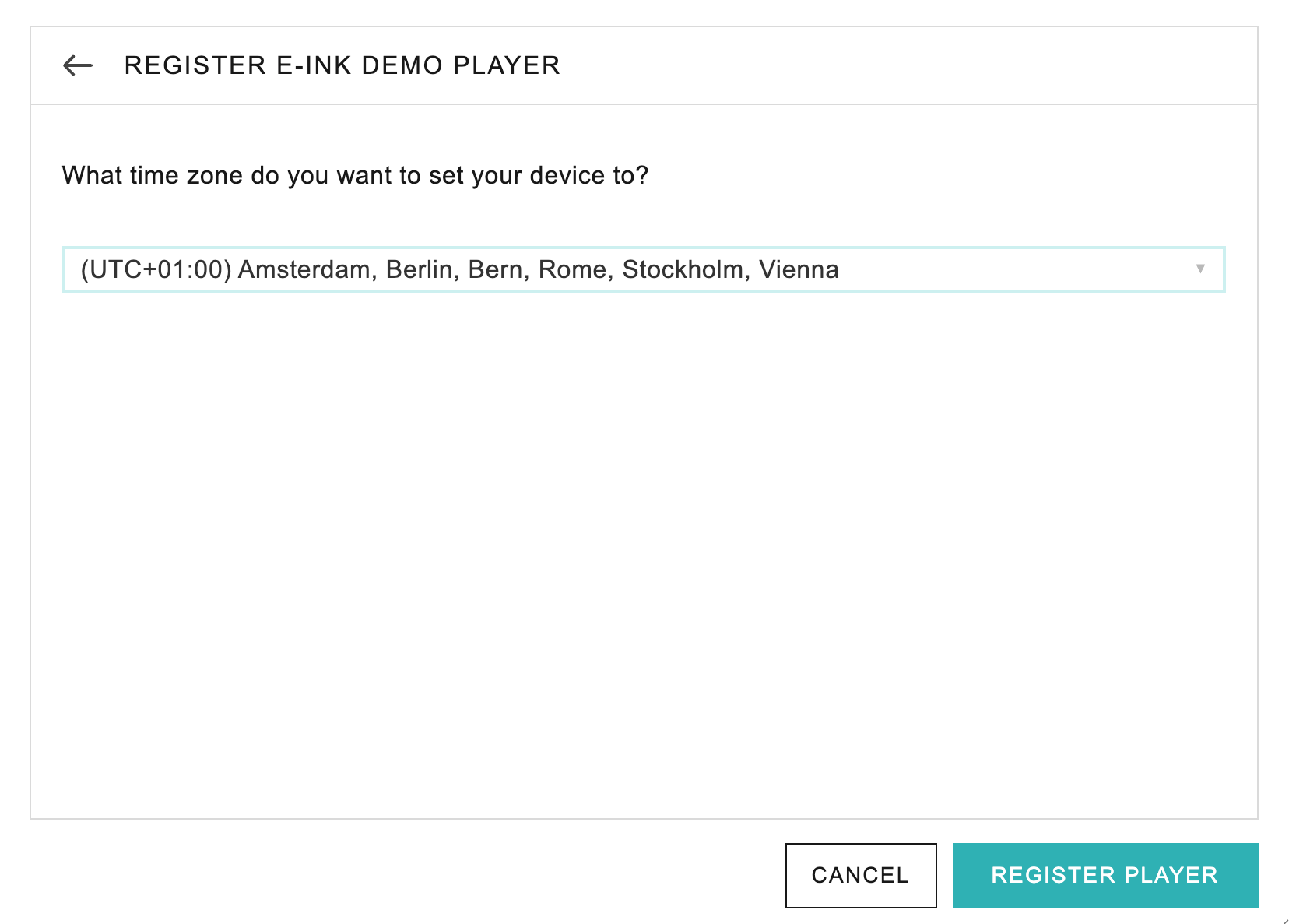
- Set the time zone for this particular player. It is important to set the correct time zone, as it is used to calculate the play times. The default time zone is GMT+1.
- Click on Register Player.
When a demo player is registered it is immediately ready to use. Please continue following the Getting Started Guide on how to assign the player to a group, prepare the playlist, and schedule content.
The Demo E-Ink player works as a regular E-Ink player with a few important differences.
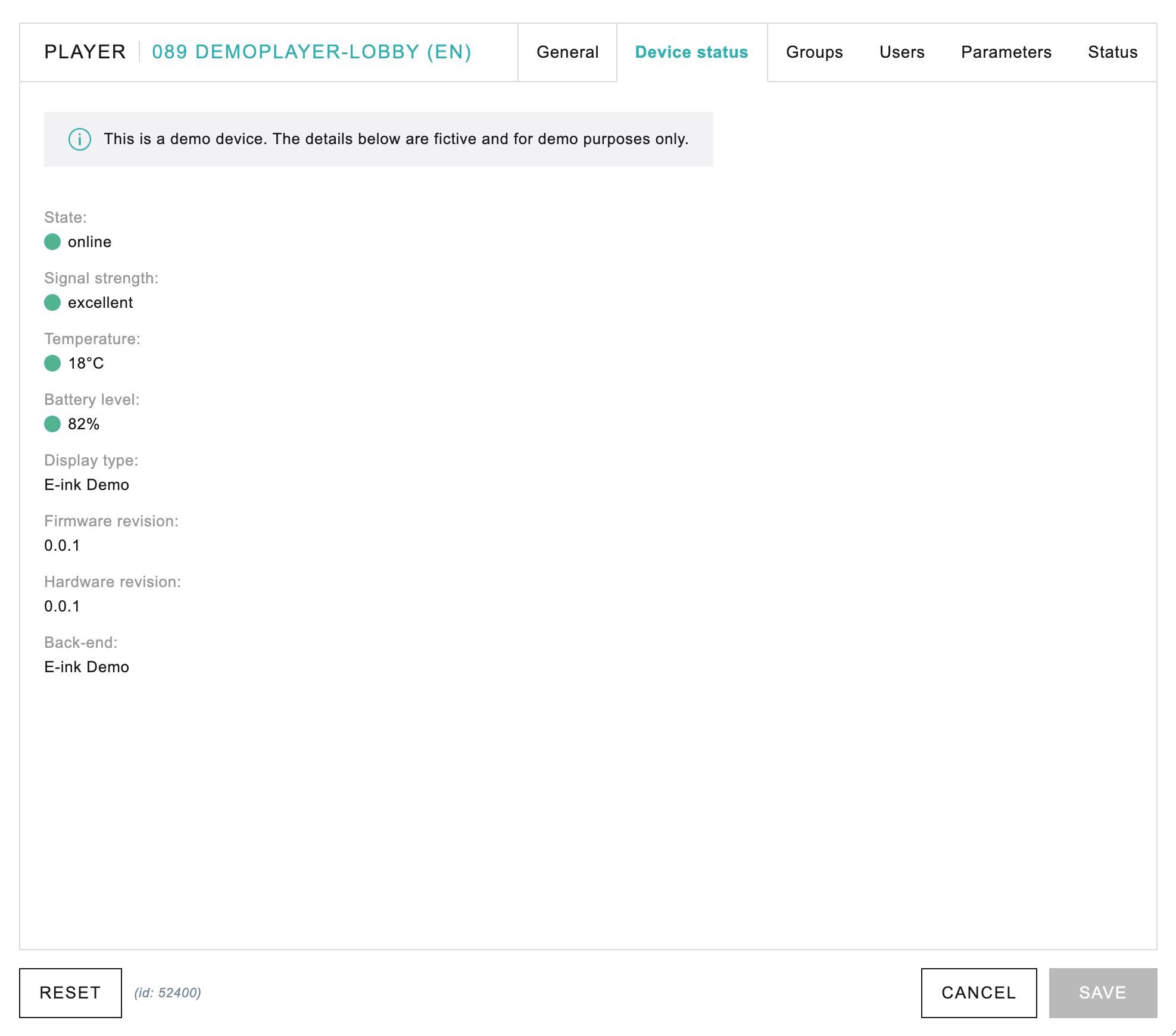
- Device status is simulated as there is no physical sensor data.
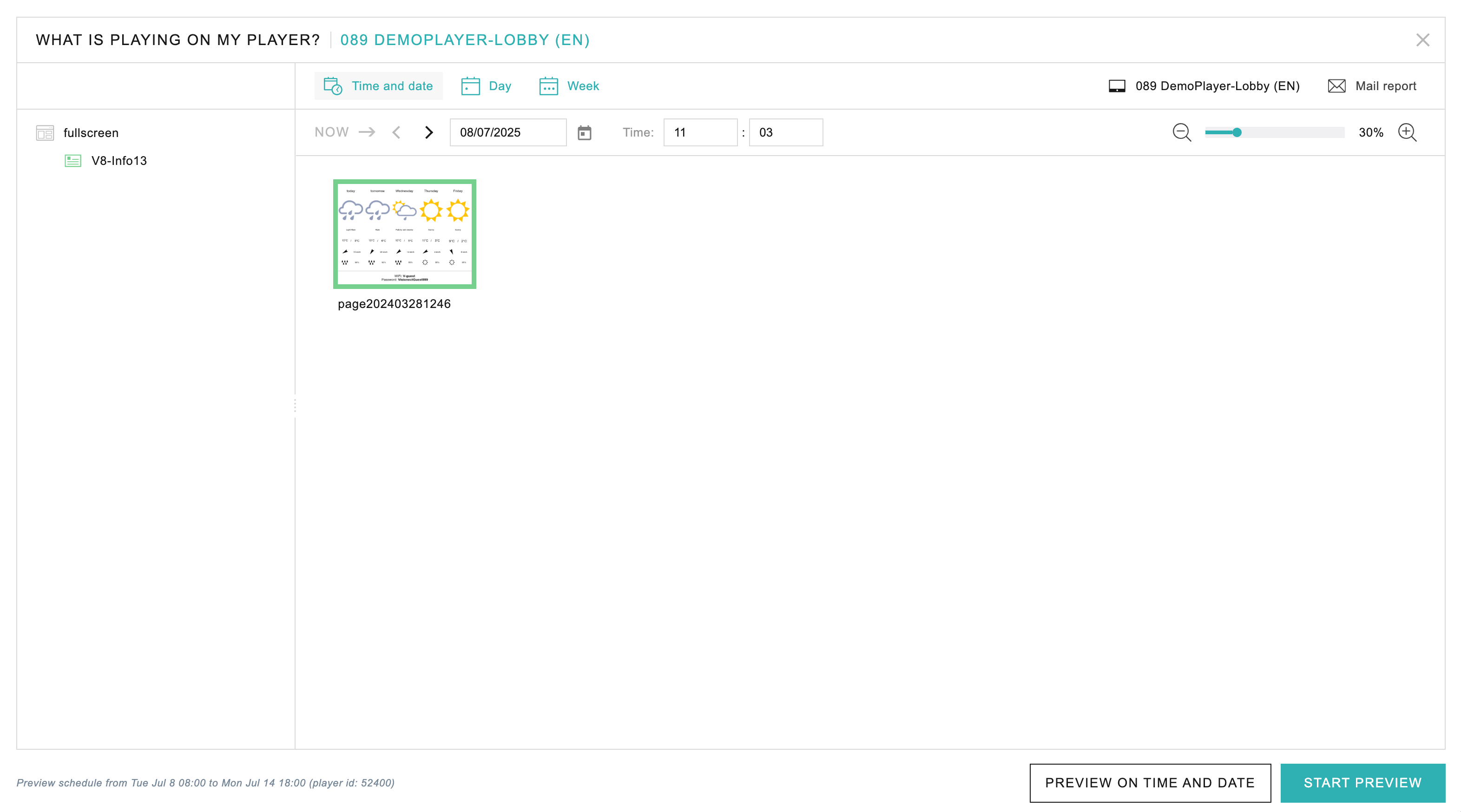
- The scheduled content can be viewed in Player Manager view by selecting What is playing on my player, and then clicking on Start Preview. The content will open in a browser window.
Take advantage of Demo E-Ink player feature in the following cases:
- Setup your environment before receiving your physical Joan devices.
- Test different approaches to player grouping and playlist scheduling.
- Test how different user roles access part of your setup and adjust them until satisfied.
For more information please see the built-in manual in the CMS or see the online CMS manual.
If you encounter any issues please reach out to us at support@getjoan.com.