Microsoft 365 users with multi-factor authentication (MFA) can connect their calendar to MyJoan: a Microsoft 365 administrator sets up MFA, and the calendar is connected in MyJoan under Settings > Integrations > Calendar.
This guide provides detailed information on setting up multi-factor authentication (MFA) for Microsoft 365 users to enhance account security. MFA adds an extra layer of protection by requiring users to verify their identity through multiple authentication methods, such as passwords and one-time codes.
Before enabling MFA, ensure that you have access to an Admin user account for Microsoft 365. Only administrators have the necessary permissions to configure MFA settings and enable this feature for other users.
To enable MFA for your Microsoft 365 users, follow the instructions provided in Microsoft’s official documentation.
How to enable the MFA on the Microsoft 365 Admin panel.
Multi-factor authentication
How to create an MFA password on Microsoft 365 personal account.
Create an app password for Microsoft 365
After enabling MFA in the Microsoft 365 Admin panel, user will be required to log in again to the MyJoan using their newly created MFA-enabled password.
\
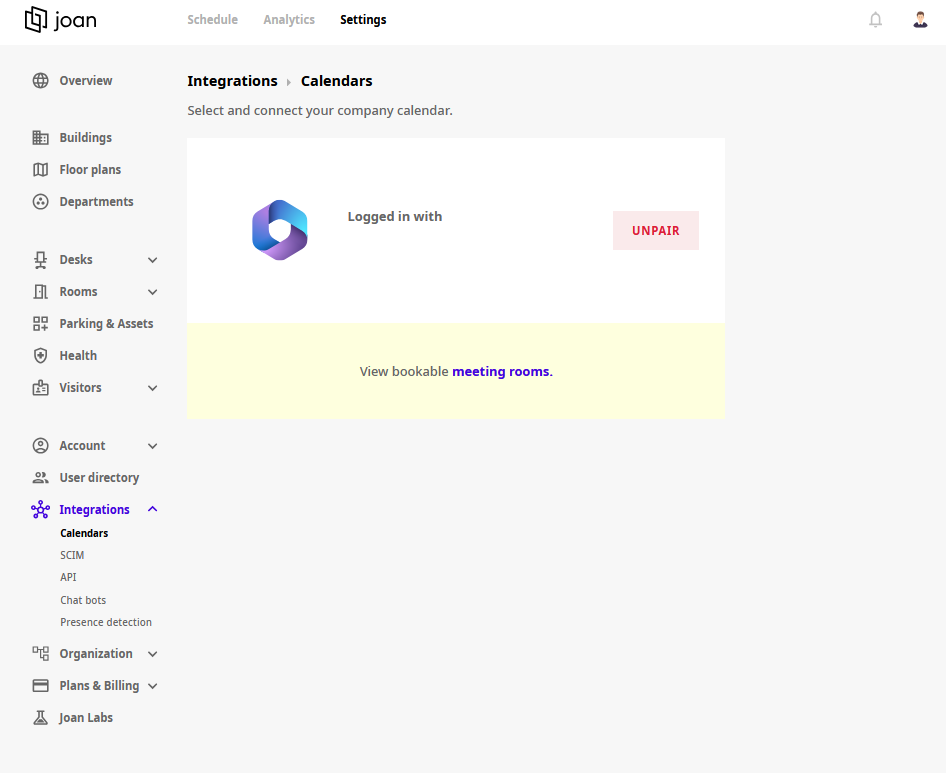
- Please log in to MyJoan and navigate to Settings > Integrations > Calendar
\
- Click on the Unpair button\
- Select the Microsoft 365 option again\
- Log in with the same user account
*If you encounter any issues, please contact support@getjoan.com.